Where Do Excel Files Autosave: A Practical Guide for 2026
Discover where Excel autosaves your work, how AutoSave and AutoRecover differ, and how to configure these settings across Windows and Mac for safer spreadsheets.


Where do Excel files autosave? In modern Excel, autosave happens automatically when your workbook is stored on OneDrive or SharePoint (AutoSave). If you’re not online or not using cloud storage, Excel uses AutoRecover to periodically save a local backup. AutoSave saves changes in real time as you work; AutoRecover saves at configurable intervals and helps recover unsaved work after a crash.
How Excel actually autosaves your work
According to XLS Library, the question "where do excel files autosave" hinges on two mechanisms: AutoSave for cloud-stored workbooks and AutoRecover for local or offline editing. In practice, AutoSave captures changes to your copy almost in real time when your file lives on OneDrive or SharePoint. AutoRecover, meanwhile, acts as a safety net by periodically writing a recovery version to your machine — typically after a crash or unexpected shutdown. This section unpacks how these two systems operate in common environments, including Windows, macOS, and web-based Excel Online.
For most users, the critical distinction is cloud coupling. If your workbook is saved to OneDrive or SharePoint and you have an active internet connection, AutoSave can reflect edits immediately in the cloud. If you are working with a locally stored file, AutoSave is not available; your protection relies on AutoRecover and locally stored backups. The XLS Library team emphasizes that understanding this distinction helps you tailor your backup strategy to your workflow. This knowledge base also notes that while AutoRecover provides a safety net, it should not replace deliberate saving habits or version control.
AutoSave in the cloud: real-time protection and pitfalls
AutoSave is designed for files stored on OneDrive or SharePoint. When enabled, every change is sent to the cloud automatically, reducing the risk of losing hours of work after a crash. However, AutoSave depends on a stable network connection and the file being stored in a supported cloud location. If you lose connectivity, AutoSave pauses, and changes may be buffered locally until the connection returns. Cloud-based saving also means you should be mindful of concurrent editing: multiple users can edit simultaneously, which may lead to conflicts that require manual review. In practice, you should verify that AutoSave is on for shared workbooks and consider using Version History as a safeguard for major edits. The XLS Library analysis shows that teams relying on cloud-stored Excel files often report significantly lower data-loss incidents when AutoSave is active.
AutoRecover: a safety net for local work and crashes
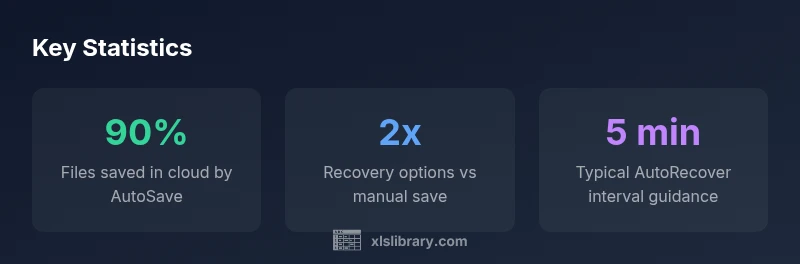
AutoRecover serves as a backup mechanism for files edited offline or not saved to the cloud. It writes recovery information at regular intervals to a designated location on your device. If Excel crashes or you exit abnormally, you can typically recover the last autosaved version when you re-open the application. The recovery process is mostly automatic, but it’s wise to review the recovered file to ensure it contains the latest changes you expect. The configuration is per-application and can be adjusted to balance performance with protection. The XLS Library notes that AutoRecover intervals are configurable and vary by version, so it’s prudent to review these settings during initial deployment in a team environment.
Configuring AutoSave and AutoRecover across platforms
Windows and macOS offer distinct paths to configure AutoSave and AutoRecover. On Windows, AutoSave is tied to saving to OneDrive or SharePoint and is visible as a toggle at the top of the Excel window in supported subscriptions. Mac users access Save and AutoRecover settings through Excel > Preferences > Save. Web-based Excel Online offers AutoSave by default for cloud-stored files, with configuration limited to cloud storage permissions. The key best practice is to verify the storage location and ensure the appropriate services are enabled in your plan. The XLS Library recommends enabling AutoSave for shared workbooks and setting AutoRecover intervals to a sensible balance between performance and risk mitigation.
Autosave vs AutoRecover: key differences
| Feature | AutoSave (Office 365) | AutoRecover |
|---|---|---|
| Timing | Real-time saves changes to cloud storage when enabled | Configurable interval; saves at set times or on crash |
| Scope | Cloud-only, requires OneDrive/SharePoint | Local and cloud, works with saved backups |
| Accessibility | Depends on network and permissions | Available even without cloud connection |
People Also Ask
What is the difference between AutoSave and AutoRecover in Excel?
AutoSave saves changes in real time to cloud storage when the workbook is on OneDrive or SharePoint. AutoRecover creates periodic backups to your local machine to protect against crashes or unexpected exits. They serve complementary roles, not a replacement for intentional saving.
AutoSave is real-time cloud saving; AutoRecover is periodic local backup. Use both to minimize data loss.
Where are AutoRecover files stored on Windows?
AutoRecover files are stored in a location defined by Excel’s settings, typically a temporary or backup folder. You can access recovery versions from the File menu under Info > Manage Workbooks > Recover Unsaved Workbooks, or from the AutoSave/AutoRecover settings page.
Check the Recover Unsaved Workbooks list under File > Info.
Can Excel autosave files on Mac, and where?
Yes. Excel for Mac supports AutoSave for files stored in OneDrive or SharePoint. AutoRecover is available for locally edited files. Settings are found in Excel > Preferences > Save. Keep macOS permissions in mind for cloud access.
AutoSave works with cloud files on Mac; AutoRecover covers local work.
How do I disable AutoSave, and what happens to my changes?
AutoSave can be disabled per workbook if the file is stored in the cloud and you have appropriate permissions. Disabling AutoSave stops real-time cloud saving, but AutoRecover remains available as a protection net for unsaved edits.
You can turn AutoSave off for a specific file if needed.
How do I recover a previous version of a workbook?
Use Version History in OneDrive/SharePoint for cloud-stored files, or File > Info > Version History in Excel. For local files, check the AutoRecover backups and any manually saved versions.
Version History shows earlier copies you can restore.
Does AutoSave work offline or when the internet drops?
AutoSave requires cloud storage and an active connection. In offline mode, changes are saved locally and synchronized when the connection is restored. AutoRecover remains your safety net during outages.
AutoSave needs internet; AutoRecover helps during outages.
“AutoSave and AutoRecover work together to minimize data loss, but you should still save regularly.”
The Essentials
- Automate cloud-based saves with AutoSave when possible
- AutoRecover catches unsaved work after crashes; configure it
- Check cloud storage status to ensure AutoSave works
- Know where to access recovered versions (Version History)
- Balance performance with protection by adjusting intervals