Where excel exe Is Located: A Practical Lookup Guide
Learn how to locate the Excel executable on Windows using where excel.exe, explore default install paths, 32/64-bit considerations, and scripting tips for reliable automation.


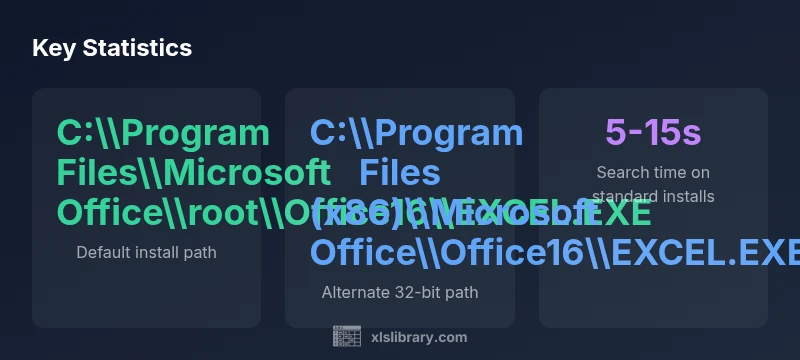
To locate the Excel executable, run 'where excel.exe' in a Command Prompt. On standard Office installations you’ll typically see paths like C:\Program Files\Microsoft Office\root\Office16\EXCEL.EXE or C:\Program Files (x86)\Microsoft Office\Office16\EXCEL.EXE. If not found, check the Office installer’s folder or use PowerShell equivalents to confirm the path, then reference the latest version for automation.
Understanding why you need to locate excel.exe
Locating the Excel executable is a foundational skill for IT admins, developers, and power users who automate tasks or troubleshoot Office deployments. The location determines how you reference Excel in scripts, how you configure environment variables, and how you validate that your automation actually launches the intended program. The keyword here is straightforward but powerful: where excel exe. Knowing the exact path helps avoid silent failures when a script tries to launch Excel but points to the wrong folder or a non-existent binary. In practice, you will encounter several patterns depending on Office versions and Windows architecture. For modern Office installations, Excel tends to reside in a directory under C:\Program Files\Microsoft Office, often within a subfolder named root\OfficeXX or OfficeXX. On 64-bit Windows with 32-bit Office, the 32-bit path under C:\Program Files (x86)\Microsoft Office\OfficeXX is common. In enterprise imaging or admin-visible images, Excel might be installed via different channels or centralized software catalogs, producing multiple active copies of Excel across machines. The goal is not to memorize every path, but to understand the typical patterns and how to verify them quickly. According to XLS Library, the precise path to excel.exe varies by Office version and Windows architecture, making a quick lookup essential for automation and diagnostics.
Step-by-step: using the where command and interpreting results
To locate Excel’s executable, open a Command Prompt (cmd) and type: where excel.exe and press Enter. If Excel is in your system PATH, you’ll see one or more full paths. In most cases, select the most recent installation to ensure you target the correct version for your scripts. If nothing is returned, Excel isn’t in PATH, or the path is non-standard. In that case, check the standard Office folders under C:\Program Files and C:\Program Files (x86), and compare with the Office version you expect (Office16 for many recent Office versions). For PowerShell users, Get-Command excel.exe can reveal the location, and Get-Command excel.exe | Select-Object Source will show the origin of the command. Integrate these checks into your startup scripts, CI pipelines, and IT runbooks to minimize manual searching during deployments and troubleshooting.
When results are ambiguous or missing: strategies that work in practice
If where excel.exe returns multiple paths, identify the most recent or most appropriate version by comparing the folder names (e.g., Office16 corresponds to a specific Office release). If no results appear, broaden your search using where /R C:\ excel.exe to recursively scan the drive, then filter by creation or modification date and by Office-related folder names. You can also search for EXCEL.EXE directly in the Program Files directories: C:\Program Files\Microsoft Office and C:\Program Files (x86)\Microsoft Office. In enterprise setups, Excel may live in a shared image or a deployment tool cache; consulting IT documentation or your software catalog can clarify which path should be used for automation and testing.
Advanced lookups: PowerShell, registry hints, and scripting patterns
PowerShell offers robust path discovery beyond the basic where command. For example, (Get-Command excel).Source returns the path to the executable if Excel is registered as a command, while Get-Command excel.exe | Select-Source can help you confirm the exact location. If Excel was installed with a custom location, you can search common imaging folders or query the registry for Office installation paths (note: access to registry requires appropriate permissions). Build a small utility script that returns the best candidate path based on version, architecture, and last modified timestamp. Such a script improves reliability for batch jobs, Power Automate flows, and Excel automation tasks, especially in environments with multiple Office versions.
Practical tips for IT and automation teams
Create a centralized, version-aware map of Excel executable paths and store it in your IT wiki or deployment toolkit. When building automation, avoid hardcoding a single path; instead, read the path from a configuration file or script that checks the discovered location at runtime. Establish naming conventions for Office versions (e.g., Office16 for Office 2016/365) and prefer root\OfficeXX layouts for consistency. If a script must launch Excel, verify the file exists at the path, test the path with a quick Start-Process call, and implement error handling that gracefully reports the discovered candidates. Finally, document known alternate paths for different Office channels (Click-to-Run vs. MSI) to reduce troubleshooting time during updates and migrations.
Common Excel executable paths on Windows
| Scenario | Path Pattern | Notes |
|---|---|---|
| Default Office install (Office 2019+/365) | C:\Program Files\Microsoft Office\root\Office16\EXCEL.EXE | Typical for modern Office installations |
| 64-bit Office on 64-bit Windows | C:\Program Files\Microsoft Office\Office16\EXCEL.EXE | Common on standard 64-bit setups |
| 32-bit Office on 64-bit Windows | C:\Program Files (x86)\Microsoft Office\Office16\EXCEL.EXE | Common on older or mixed environments |
| Alternate install location (volume or admin image) | C:\Program Files\Microsoft Office\Office16\EXCEL.EXE | Check IT deployment docs for custom paths |
People Also Ask
What should I do if 'where excel.exe' returns nothing?
If the command returns nothing, Excel isn’t in PATH. Check the Office installation folders or search the drive for EXCEL.EXE, then compare with the Office version you expect. Consider updating the PATH or using a configuration file to point scripts to the correct location.
If nothing shows up, search for EXCEL.EXE in the Office folders and verify the version. Update your PATH or configuration to point to the right path.
Can I rely on 'where excel.exe' for Office 365?
Office 365 installations commonly use Office16, located under either root\Office16 or Office16 within Program Files. If multiple copies exist, select the most recent version for automation and testing. Always cross-check with your IT deployment docs.
Office 365 typically uses Office16 paths; pick the newest version and verify it against your deployment records.
How do I add Excel's folder to PATH?
Open System Properties, go to Environment Variables, and edit the PATH to include the appropriate Office directory (for example, C:\Program Files\Microsoft Office\root or Office16). After saving, restart the Command Prompt to apply changes.
Add the Office folder to PATH in System Environment Variables and restart your command window.
Is there a Mac equivalent to locate Excel on Windows?
macOS uses a different application structure. There is no direct 'where excel.exe' command. You can locate the app using Spotlight or terminal commands like mdls on Excel.app, but this article focuses on Windows paths.
On Mac, use Spotlight or mdls to find Excel.app; this guide targets Windows paths.
What if multiple results appear and confuse scripts?
If multiple valid paths appear, prioritize the most recent Office version, validated by folder naming (Office16) and modification dates. Use a configuration map to pick the preferred path for your environment.
Prefer the newest Office path and verify by date and folder name; map to a consistent path in scripts.
Why might two different paths be valid?
Two valid paths usually reflect Office architecture differences (32-bit vs 64-bit) or multiple Office installations coexisting on the same machine. Each path corresponds to a distinct Office suite instance.
Different Office architectures can use different paths; both may be valid on systems with multiple installs.
“Locating the exact Excel executable is a foundational step for reliable automation and consistent troubleshooting.”
The Essentials
- Run 'where excel.exe' to confirm the exact path
- Check both 64-bit and 32-bit Office installations
- Verify PATH or add the Office folder if needed
- Maintain a reference map of typical paths for quick fixes