Where Is Excel: Find, Open, and Start Spreadsheets
Discover where Excel lives on Windows, Mac, and the web. This practical guide shows how to locate, launch, and start a new workbook with clear steps for beginners and power users.


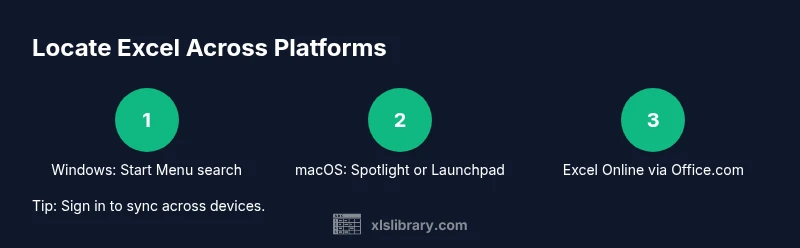
Where is Excel? Excel is Microsoft's spreadsheet program, available as part of Microsoft 365 or Office. On Windows, open the Start menu and type Excel; on macOS, use Spotlight or Launchpad. You can also access Excel via the Office.com web app if you have an online subscription. Once opened, you can create workbooks, enter data, run formulas, and build charts.
Understanding where Excel fits in your toolbox
According to XLS Library, the phrase "where is Excel" usually means locating the right version for your needs—desktop, web, or mobile—and understanding where your files are stored. Excel exists across Windows, macOS, and online environments, and each pathway has its own launch method. Recognizing these options helps you access Excel quickly for data analysis, budgeting, or chart creation. This section establishes the framework so you know where to begin when you need to work with spreadsheets.
As a practical rule, start by deciding whether you want a full-featured desktop experience or the convenience of a browser-based version. If collaboration and cross-device access are priorities, the online version (Office.com) often makes the most sense. In either case, you’ll be able to perform core tasks like entering data, applying formulas, and generating visuals.
Locating Excel on Windows (Desktop)
On Windows, Excel is usually installed as part of the Microsoft Office suite or Microsoft 365. Begin by pressing the Windows key or clicking the Start menu, then type “Excel” exactly as shown. If you see the app in the search results, click it to launch. For quick access in the future, right-click the Excel icon and choose Pin to taskbar or Pin to Start. If Excel isn’t visible, you may need to install Office or re-run the Office installer. In institutional or corporate environments, Excel may also be accessed via a software portal or a software center.
Tip: If you have Office installed but can’t find Excel, try searching for “Excel.exe” or check under the Office folder in your Start menu.
Locating Excel on macOS (Desktop)
Mac users typically find Excel through Spotlight, Launchpad, or the Applications folder. Press Command-Space to open Spotlight and type “Excel,” then press Return to launch. If Spotlight doesn’t show Excel, open the Applications folder and locate the Microsoft Excel app manually. You can also add Excel to the Dock for one-click access by dragging the icon there. Some Macs ship with Excel as part of Office 365; if it’s not installed, you’ll need to install the Office suite or subscribe online.
Tip: Use Launchpad (four-finger pinch) to browse for Excel like a phone app; it’s especially handy on newer Macs.
Accessing Excel Online (Office.com)
Excel Online is accessible through Office.com with a Microsoft account. Open your browser, navigate to Office.com, and sign in. From the app launcher, select Excel and start a new workbook or edit an existing one stored in OneDrive or SharePoint. This browser-based option emphasizes collaboration, autosave, and cross-device access, though some advanced features are only available on the desktop app.
Tip: If you’re sharing files, enable autosave and ensure the workbook is saved to OneDrive or SharePoint for seamless syncing.
Desktop vs Online: Pros and Cons
Desktop Excel (Windows/macOS) delivers the most feature-rich experience, especially for complex formulas, macros, and large datasets. The online version is ideal for quick edits, collaboration, and devices with limited storage. Key trade-offs include offline availability, performance on large files, and access to advanced data tools. If your workflow relies on Power Query or VBA macros, you’ll generally prefer the desktop experience; for light edits and real-time collaboration, the online version shines.
In practice, many teams adopt a hybrid approach: work offline on desktop when heavy analysis is needed, then switch to Excel Online for sharing and collaboration. For new users, starting with Excel Online can help you learn the interface before moving to the desktop app for advanced tasks.
Default storage paths and file handling
Where you save your Excel workbooks matters for accessibility and backup. By default, desktop Excel saves to your computer’s Documents folder, but you can choose any location. If you’re using Office 365 or OneDrive, autosave might push your work to OneDrive automatically, keeping versions and cloud access intact. Consider setting a consistent save location and configuring autosave so you don’t lose work during interruptions.
Tip: Create a dedicated Excel folder in OneDrive for templates and shared workbooks to streamline teamwork and version control.
Quick ways to launch Excel fast
Learning a few fast-launch techniques saves time. On Windows, use the Run dialog (Win + R) and type “excel” to open the app quickly. On macOS, use Spotlight (Cmd + Space) or Launchpad to locate Excel. If you prefer keyboard shortcuts, remember that Alt + F and then X opens the File menu in many programs, but the exact keys can vary by OS and version. Desktop shortcuts offer speed for frequent users, while Office.com provides convenience for occasional access across devices.
Tip: Create a desktop or dock shortcut to your preferred Excel version (Desktop or Online) to reduce search time and keep your workflow smooth.
Troubleshooting common access issues
If Excel won’t open, start with simple checks: confirm you have an active Office license, verify your device’s operating system compatibility, and ensure your network is stable if you’re using Office Online. If Excel is installed but not appearing in search, repair the Office installation from the Control Panel (Windows) or the Apps & Features panel (macOS). Occasionally, firewall or antivirus software can block the app from launching; temporarily disabling protection can help identify the cause.
When using Excel Online, ensure you’re signed into the correct account and that your browser supports the required features. If autosave isn’t functioning, check OneDrive storage limits and permissions for the file location.
Next steps: mastering where to find Excel in daily work
With the basics in place, you can weave Excel access into daily tasks: map out a habit of opening the app first thing for data entry, create templates for repeated analyses, and set up cloud storage for easy sharing. Over time, you’ll instinctively know whether a task belongs in the desktop app or Excel Online based on the need for features or collaboration. As you gain practice, experimenting with templates, charts, and formulas will become second nature, making Excel a faster and more reliable tool in your data toolkit.
Tools & Materials
- Computer or device (Windows, macOS, or web-enabled)(Ensure your OS is up to date for best compatibility with Excel.)
- Microsoft 365 subscription or Office license(Desktop Excel requires Office; Online is accessible with a free or paid Microsoft account.)
- Web browser (Chrome, Edge, Safari, Firefox)(For Excel Online; ensure it’s up to date.)
- Internet connection(Needed for online access and Office 365 sync.)
- Office.com account or Microsoft account(Required to access Excel Online and OneDrive storage.)
- OneDrive or SharePoint access (optional but recommended)(Helpful for automatic saving and collaboration.)
Steps
Estimated time: 15-25 minutes
- 1
Identify your platform
Determine whether you will use Windows, macOS, or the web app. This choice drives where you’ll locate Excel and which features you’ll access. If collaboration is a priority, plan to use Excel Online when appropriate.
Tip: Knowing your platform upfront speeds up every subsequent step. - 2
Open the Windows Start menu or macOS Spotlight
On Windows, press the Windows key and type Excel to locate the desktop app. On macOS, press Command-Space to open Spotlight and enter “Excel” to find the application. If multiple results appear, choose the correct Microsoft Excel entry.
Tip: If you don’t see Excel, install Office or update your software. - 3
Launch Excel from the chosen path
Click the Excel result to launch the desktop app or select Excel in Spotlight to open it. Ensure you’re signed in to your Microsoft account if prompted, so your templates and recent files load correctly.
Tip: Pin Excel to the taskbar or Dock for faster access next time. - 4
Sign in and start a new workbook
Sign in with your Microsoft account if prompted. From the home screen, choose New workbook or Blank workbook to begin data entry and analysis.
Tip: Use a template if you’re starting a common project to save time. - 5
Explore Excel Online as an alternative
Open a browser, go to Office.com, and sign in. Launch Excel from the app launcher and work on files saved in OneDrive or SharePoint.
Tip: Autosave is enabled by default in Excel Online. - 6
Save locations and autosave preferences
Decide where to save new workbooks (local drive vs. OneDrive). If using OneDrive, confirm autosave is on and consider version history for backups.
Tip: Organize files in a dedicated folder for easier retrieval. - 7
Practice a quick workflow
Create a small test workbook, enter data, apply a formula, and chart the result to confirm you’ve located the right Excel instance and are comfortable with saving.
Tip: Practice makes locating and using Excel second nature. - 8
Review platform-specific tips
Note differences in features like VBA, Power Query, or offline mode between Desktop and Online, and adjust your approach accordingly.
Tip: Keep learning by trying one new feature each week.
People Also Ask
Is Excel free to use?
Excel is not freely available as a stand-alone product, but a basic web version is accessible with a Microsoft account. Full features typically require a Microsoft 365 subscription or a one-time Office purchase.
There is a free web version with a Microsoft account, but most features require a paid Office plan.
Where is Excel installed on Windows 10/11?
Excel is usually installed as part of Office/Microsoft 365. Find it via the Start menu by typing Excel; if not present, you may need to install or repair Office.
Open the Start menu, type Excel, and select the app. If it’s missing, you may need to install Office.
Can I use Excel Online without installation?
Yes. You can access Excel Online through Office.com with a Microsoft account and work on cloud-stored workbooks from anywhere.
Yes, you can use Excel Online simply by signing into Office.com.
Where are Excel files saved by default?
Desktop Excel saves files to your local Documents folder by default, while Office 365 users may autosave to OneDrive or SharePoint depending on settings.
Files usually save to Documents on your computer, or to OneDrive if autosave is enabled.
How do I update Excel?
Update Excel through the Office app (Account/Update options) on desktop or through your device’s app store depending on your installation. Online doesn’t require manual updates.
Update through the Office app or your device’s store; Excel Online updates automatically in the browser.
What if Excel isn’t installed?
If Excel isn’t installed, use Excel Online via Office.com or install the Office suite. You can also explore free alternatives for basic tasks.
If Excel isn’t installed, use the online version or install Office to get the desktop app.
Watch Video
The Essentials
- Locate Excel quickly by platform (Windows, macOS, or web).
- Desktop offers full features; Online emphasizes collaboration and accessibility.
- Sign in to synchronize work and access templates.
- Choose a consistent save location to protect data and streamline access.