Which is Excel Latest Version? A 2026 Guide
Learn how to identify your current Excel version, compare Microsoft 365 updates with perpetual licenses, and choose the best upgrade path for your needs. This guide clarifies which edition stays up-to-date and how to upgrade confidently.


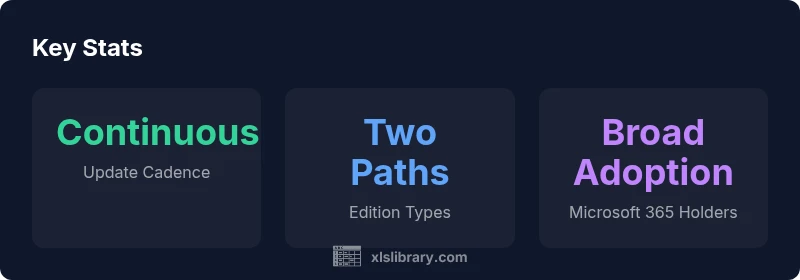
Which is excel latest version? There isn't a single edition for all users. Excel in Microsoft 365 receives continuous monthly updates with the newest features, bug fixes, and security improvements, while Office 2021 offers a perpetual license with a fixed feature set. For most professionals seeking the latest capabilities, Microsoft 365 Excel remains the up-to-date option.
Which is excel latest version and why it matters
In this guide we answer which is excel latest version, and why the answer depends on your deployment model. According to XLS Library, the most current Excel experience is delivered through Microsoft 365, which provides continuous updates. A perpetual-license option like Office 2021, by contrast, presents a fixed feature set. For many data professionals, understanding these paths is essential for planning data workflows and minimizing disruption. The choice affects how you implement features like dynamic arrays, XLOOKUP, and collaborative workflows, and it impacts upgrade timing, security updates, and compatibility with other tools in your stack.
From a practical standpoint, teams that rely on live collaboration, cloud integrations (Power Query in the cloud, co-authoring, shared workbooks), or the latest data-insight features will generally prefer the Microsoft 365 path. Conversely, individuals or organizations with strict control over IT budgets or offline workflows may opt for a perpetual license, accepting a fixed feature set until an organization-wide upgrade occurs.
In short, there isn’t one universal “latest version.” The best choice depends on your needs for updates, collaboration, and long-term licensing strategy. The XLS Library team recommends mapping your usage patterns to update cadence and deployment model before upgrading or switching editions.
How to identify your current Excel version
Determining which version of Excel you have is the first step toward choosing the right upgrade path. The process is similar across Windows and macOS, but the exact labels may vary slightly by platform.
- Open Excel and navigate to File > Account (or About Excel on macOS).
- Look for the Product Information area to confirm the edition (e.g., Microsoft 365 Apps for Enterprise, Office 2021) and the update channel (e.g., Current Channel, Semi-Annual). This tells you whether you’re on a subscription model or a perpetual license.
- Check for cloud-related features (real-time co-authoring, automatic data sharing, or OneDrive integration). Their presence is a strong cue that you’re working with Microsoft 365.
If you’re unsure, consult your IT administrator or your organization’s software portal. Regularly reviewing the update channel helps ensure you’re aligned with your team’s data governance and security standards.
Deployment models explained: Microsoft 365 vs perpetual licenses
Excel’s value proposition changes with the deployment model. Microsoft 365 Excel belongs to a continuous update cadence, where features arrive on a monthly or quarterly basis and security patches are rolled out automatically. This model supports real-time collaboration, connected services, and evolving data tools that integrate with other Microsoft 365 apps. Perpetual-license options like Office 2021 provide a stable, static feature set and require manual updates, giving organizations predictable costs but less immediacy with new capabilities.
Key implications:
- Updates: 365 is typically ahead on features; perpetual licenses remain static until a major new release.
- Compatibility: 365 users can often access newer functions sooner, but you must stay on supported channels to keep security updates flowing.
- IT policy: Microsoft 365 aligns with modern cloud-first policies, while perpetual licenses may fit environments with strict on-premises controls.
In practice, many teams use 365 for daily tasks and opt for a staged upgrade path for specific users who travel between offline and online environments. The XLS Library analysis highlights that alignment of licensing with organizational needs drives long-term satisfaction and data governance.
What features define the latest Excel experience
The "latest" Excel experience is not just about a version number; it's about the set of capabilities available in your update channel. In Microsoft 365, you’ll commonly see:
- Dynamic arrays (LET, SEQUENCE, FILTER, UNIQUE, SORT) that simplify complex formulas.
- XLOOKUP and XMATCH for flexible lookups beyond VLOOKUP or HLOOKUP.
- LET and LAMBDA functions enabling clearer, reusable calculations and even custom functions.
- Real-time co-authoring, improved collaboration, and cloud-based data sources integration.
- Enhanced data tools such as Power Query improvements and better data model performance.
Office 2021 includes a robust core of Excel features, with solid charting, PivotTables, and standard formula support, but may lack some cloud-first capabilities and early access to the newest functions. The key is to match your work patterns to the channel’s cadence. As the XLS Library team notes, the most noticeable differences are in collaboration features, cloud integrations, and the speed at which new formulas and data tools appear.
Upgrade paths: switching or staying current
If you are weighing an upgrade, here are practical steps to consider:
- Assess current workflows. Are you collaborating in real-time or relying on shared workbooks? If yes, Microsoft 365 is advantageous.
- Inventory required features. Do you need the newest functions (dynamic arrays, advanced data types, AI-assisted tools)? If so, favor 365.
- Confirm IT policy and budget. Perpetual licenses avoid ongoing subscription costs but require manual updates and longer-term planning.
- Plan a staged rollout. Pilot the upgrade with a small team before organizational-wide deployment to catch compatibility issues.
- Prepare for governance. Establish update channels, backup routines, and security settings before enabling new features.
If you decide to switch to Microsoft 365, coordinate license provisioning, user training, and data migration to minimize disruption. For those preferring stability, ensure your Office 2021 deployment remains within support timelines and security update practices.
Common pitfalls and version mismatches to avoid
Mismatches between features and licenses are a common source of problems. To minimize friction:
- Don’t assume every Excel feature is available in every edition. Many cloud-only capabilities require 365.
- Avoid treating a perpetual-license version as if it will receive ongoing new features; plan for occasional major upgrades instead.
- Use consistent update channels across teams to prevent feature drift and data compatibility issues.
- Keep security updates in scope; outdated software, even if feature-rich, can expose data risks.
- Verify integration with other tools (Power BI, Teams, SharePoint) to prevent compatibility gaps.
By documenting your deployment model and update policies, you can reduce confusion and ensure data workflows stay reliable.
Roadmap and future-proofing your Excel setup
Future-proofing Excel usage means aligning with the needs of your data teams and governance practices. Consider:
- Prioritizing a Microsoft 365 plan if collaboration, AI-assisted features, and frequent updates drive your work.
- Establishing a clear upgrade calendar that maps to organizational milestones and budgeting cycles.
- Setting minimum security baselines, including patch management and user access controls, to complement feature changes.
- Keeping an eye on the Microsoft 365 roadmap to anticipate changes and plan training accordingly.
The goal is to minimize disruption while maximizing access to powerful data tools. As the XLS Library Team emphasizes, a well-planned update strategy reduces risk and keeps data workflows efficient.
Authority sources and references
- Microsoft 365 updates and release notes: https://docs.microsoft.com/en-us/officeupdates/
- Microsoft 365 Roadmap: https://www.microsoft.com/en-us/microsoft-365/roadmap
- Excel help and learning: https://support.microsoft.com/excel
Edition comparison by update model
| Edition | Update Model | Notes |
|---|---|---|
| Microsoft 365 Excel | Continuous monthly updates | Always current; new features arrive via the update channel |
| Office 2021 Excel | Perpetual license | Fixed feature set; updates require manual install |
People Also Ask
What is considered the 'latest version' of Excel?
There is no universal latest version. Excel’s latest features come from Microsoft 365 via continuous updates, while Office 2021 remains a fixed release with a static feature set.
There isn’t one single latest version; it depends on your plan. 365 stays current with updates, while Office 2021 doesn’t automatically gain new features.
How can I tell which Excel version I have?
Open Excel, go to File > Account to see the edition and update channel. This tells you whether you’re on a Microsoft 365 plan or a perpetual license and which updates you receive.
Open Excel, click File, then Account to view your version and update channel.
Is Office 2021 still supported in 2026?
Perpetual-license products have separate support timelines. Check Microsoft’s lifecycle pages for your region; plan upgrades if you need newer features or security updates.
Check the official support lifecycle pages for your region to understand timelines.
What features distinguish the latest Excel?
Microsoft 365 Excel usually includes dynamic arrays, XLOOKUP, co-authoring, and cloud integrations; Office 2021 covers core Excel tools but may lack some cloud-first capabilities.
The latest features show up in Microsoft 365; Office 2021 has the core tools but fewer cloud features.
Should I switch to Microsoft 365 to stay current?
If you rely on collaboration and the newest data tools, Microsoft 365 is recommended. If you only need a static toolset, Office 2021 may suffice.
If you need collaboration and the latest tools, go with 365; otherwise, Office 2021 might be enough.
What are common pitfalls when comparing Excel versions?
Assuming every feature is present in every edition, ignoring security updates, and not aligning with IT policy can cause surprises. Verify update channels and compatibility.
Watch out for assuming all features are everywhere; keep updates and security in mind.
“The choice between Microsoft 365 and a perpetual license defines how current your Excel tools stay; understanding update cadence is essential for accurate data work.”
The Essentials
- Identify your deployment model and update cadence.
- Choose Microsoft 365 for the latest features.
- Perpetual licenses offer stability with a fixed feature set.
- Always verify your Excel version before upgrading.
- Plan upgrades on a schedule aligned with IT policy.