How to Do Excel: A Practical Step-by-Step Guide
Learn practical, task-based Excel basics with clear steps, real-world examples, and pro tips. Ideal for beginners and professionals seeking solid foundations.


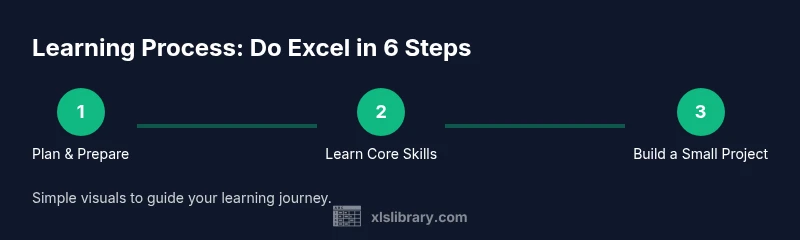
You will learn how to do Excel by starting with a concrete goal, choosing the right tools, and building a practical workbook using core formulas and visuals. This guided path emphasizes hands-on practice, reproducible steps, and a project-oriented mindset to turn data into actionable insights. Follow the steps below to start strong and stay consistent.
The Learning Path: who to do excel
According to XLS Library, many beginners start by asking who to do excel rather than how to do it properly. This section clarifies the practical path: define concrete goals, pick a starting toolkit, and commit to short, repeatable practice. By pairing tasks like data entry, simple computations, and basic charts with weekly review, you’ll build steady mastery.
Core skills you'll develop in Excel
To become proficient, focus on a core set of skills that compound over time. Start with clean data entry practices, learn basic formulas like SUM and AVERAGE, and understand relative versus absolute references. Move to formatting for readability, filters and sorting for data management, and basic charting to visualize results. Regularly test your understanding with small hands-on tasks and repeat them until they feel natural. As you progress, you’ll notice you spend less time correcting errors and more time deriving meaning from your data.
Practical workflow: from data to decisions
A practical workflow helps you translate raw data into insights. Begin with data collection and cleaning, then structure data in a table, use named ranges for clarity, and build simple formulas to summarize figures. Add a chart to illustrate trends, and finally draft a one-page summary that communicates findings to stakeholders. This approach keeps your workbook organized and makes it easier to audit and share results with teammates.
Choosing the right Excel version and environment
Excel comes in several flavors: Excel for Windows, Excel for Mac, and Excel Online. If you're starting, Excel Online is a zero-cost way to practice core concepts, while the desktop version unlocks advanced features like Power Query and macros. Consider your device ecosystem, collaboration needs, and security requirements when choosing. For most beginners, a mix of online practice and desktop experimentation yields the best balance of accessibility and capability.
Build your first practical workbook: a project blueprint
A practical project gives context to skills. Create a small sales tracker workbook with a header row, a data table, and a simple revenue calculation. Use a few basic formulas to compute totals, apply formatting for readability, and insert a chart to visualize monthly performance. This blueprint helps you see how steps connect from data entry to insights. Completing a cohesive, shareable workbook builds confidence and a tangible artifact of learning.
Common mistakes and how to avoid them
New Excel learners often overwrite formulas, skip data validation, or neglect backups. They also forget to format data consistently, which makes analysis harder. Build discipline early: use a table for structured data, adopt consistent number formats, and enable autosave or version history to protect work. By validating data at entry and documenting formulas, you’ll create robust workbooks that others can trust.
Shortcuts and tips to speed up work
Speed up routine tasks with practical shortcuts: Ctrl+C/Ctrl+V for copy-paste, Ctrl+Z to undo, Ctrl+Shift+L to toggle filters, and F2 to edit a cell. Learn a few formulas by heart, like SUM, AVERAGE, and IF, and try performing tasks with the keyboard before reaching for the mouse. Pair shortcuts with good data organization to reduce wasted time and errors.
Practice projects to reinforce learning
Apply what you learn with small, focused projects: Build a personal budget tracker and visualize spending trends; create an inventory log with low-stock alerts; design a simple project timeline with a Gantt-style chart. Each project reinforces data entry, formulas, charts, and basic data validation. Use templates from XLS Library as starting points and tailor them to your own scenarios.
Next steps and continuing learning
Ready to go deeper? Explore more advanced tutorials, templates, and datasets from XLS Library. Practice regularly, review your work, and gradually add Power Query or pivot tables as you grow. The goal is consistent, tangible progress that translates to real work tasks, so schedule regular practice sessions and track improvements over time.
Tools & Materials
- A computer or device with Microsoft Excel (or Excel for the web)(Any recent version (2016+) or access to Excel Online.)
- Sample dataset or starter workbook(CSV or XLSX file you can practice on.)
- Stable internet connection(Needed for Excel Online and cloud backups.)
- Notebook or notes app(For jotting formulas, shortcuts, and plan ideas.)
- Backup storage (local or cloud)(Useful for version history and disaster recovery.)
Steps
Estimated time: 45-60 minutes
- 1
Prepare your workspace
Clear your desk, open a new workbook in Excel, and set a clean screen layout. Disable distractions and define the task you want to accomplish in this session. Have a designated notebook for quick references and a plan for the steps you’ll follow.
Tip: Turn on Autosave if using Excel Online to protect your work automatically. - 2
Open a new workbook and set structure
Create a simple table with headers like Date, Item, Quantity, Price, and Total. Use bold formatting for headers and set a basic date format. This gives you a predictable scaffold to fill data into.
Tip: Convert the range to a table (Ctrl+T) to enable dynamic ranges and easier sorting. - 3
Enter data and apply formatting
Fill a small dataset that represents your scenario. Apply consistent number formats, adjust column widths, and use borders or shading to distinguish headers from data rows. Keep data types aligned (dates, text, numbers).
Tip: Use data validation for critical fields (e.g., a date column) to prevent invalid entries. - 4
Create basic formulas
Compute totals with SUM and a simple line for per-row totals. Practice relative vs. absolute references by dragging formulas across cells. Validate results by cross-checking a few sample calculations.
Tip: Use the Fill Handle (drag from bottom-right corner) to copy formulas quickly. - 5
Visualize with a chart
Insert a basic chart (column or line) to illustrate trends in your data. Label axes clearly and include a brief caption describing what the chart shows. Keep visuals simple to avoid clutter.
Tip: Select the data table before inserting a chart to ensure correct ranges. - 6
Save, share, and review
Save the workbook with a descriptive name. Share with teammates if needed and review the file for any obvious errors. Create a quick checklist to ensure formatting, formulas, and visuals are consistent.
Tip: Use version history to revert to a previous state if something goes wrong.
People Also Ask
What does it mean to do Excel effectively?
Doing Excel effectively means using data to inform decisions via well-structured spreadsheets, accurate formulas, and clear presentation.
Doing Excel effectively means turning data into decisions with clean sheets, correct formulas, and clear visuals.
Do I need to buy Excel or can I use free alternatives?
You can start with Excel Online for free and use trial periods; desktop Excel offers more features.
Start with Excel Online for free, but desktop Excel has more features.
How long will it take to learn the basics?
Depends on practice, but basics often take a few days to a couple of weeks with steady effort.
With steady practice, basics may take a few days to a couple of weeks.
What are common mistakes beginners make in Excel?
Overwriting formulas, skipping data validation, and neglecting backups.
Common mistakes include overwriting formulas and skipping validation.
How can I apply Excel to real work tasks?
Identify tasks like budgeting or tracking and build simple workbooks that mirror those tasks.
Apply Excel to budgeting, tracking, or reporting in real projects.
Where can I find more resources from XLS Library?
Visit XLS Library for practical guides, templates, and tutorials.
Check out XLS Library's practical guides and templates.
Watch Video
The Essentials
- Define a clear learning goal first.
- Master core data entry and formulas before advanced features.
- Practice with real tasks to build transfer to work.
- Add charts and pivot tables as you grow.