Why Can't Excel Open My File? A Practical Troubleshooting Guide
Struggling to open an Excel workbook? This urgent troubleshooting guide explains common causes and step-by-step fixes to recover your data, from corruption to compatibility.


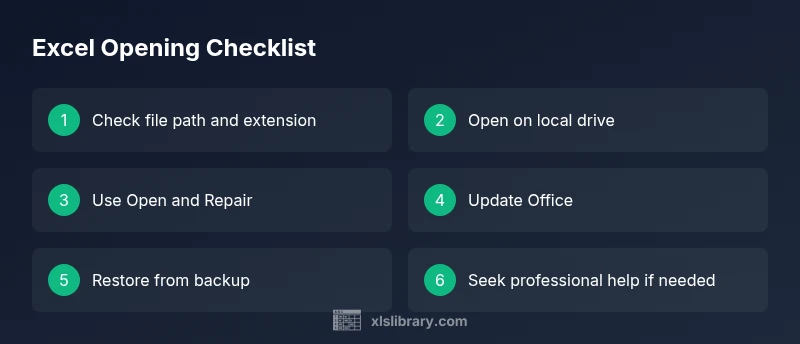
If Excel won't open your workbook, start with the three most common culprits: file corruption, incorrect file extension, or compatibility issues with your Excel version. According to XLS Library, begin by confirming the file type, trying Open and Repair, and opening a backup copy if available. If these steps fail, move to targeted fixes described below.
why can't excel open my file
When you encounter an opening error, the question you’re really asking is why can’t excel open my file. According to XLS Library, the most frequent triggers are file corruption, extension/format mismatches, or compatibility issues with your Excel version. Start by verifying the file name and extension, then attempt a clean Open and Repair, and finally try a backup copy if one exists. This block lays the groundwork for a systematic approach and sets expectations for the steps that follow.
Quick checks you can perform now
Before diving into repairs, perform a handful of safe, reversible checks. Confirm the file path is not too long and that the file isn’t on a shared network drive with restricted permissions. Try opening the workbook on a different computer or with a different Office installation to rule out a local issue. Ensure your Office software is up to date, and temporarily disable any nonessential add-ins. These simple steps can often reveal the root cause without risking your data.
How to use Open and Repair and other built‑in recovery tools
Excel offers Open and Repair as a first-line recovery method. In File > Open, browse to the file, click the dropdown arrow next to Open, and choose Open and Repair. If that fails, select Extract Data to salvage whatever you can. These options are designed to recover formulas, values, and formatting when the workbook is damaged. Remember to save recovered data to a new file to avoid overwriting the original.
File extension and compatibility issues
Mismatched extensions or older formats can prevent an opening. If a file labeled as .xlsx isn’t opening, try renaming it to a compatible extension or saving a copy in a newer format from a different machine. Conversely, if the file is in an older format (.xls or .xlsb), consider converting it to the current standard (.xlsx) using a trusted machine. Keeping a consistent format across devices reduces future risk.
Passwords, permissions, and protected files
If the workbook is password-protected or you lack sufficient permissions, Excel may block opening altogether. Obtain the correct password from the file owner, or request the needed access level. For corporate documents, verify that your account has the rights to view or edit the file. Attempting to bypass security is not advised and may violate policy or law.
Handling network drives, cloud storage, and local copies
Opening from a network location or cloud sync can fail due to sync conflicts, permissions, or latency. Copy the file locally to your hard drive and try again. If the file came from email or a download, ensure it’s not blocked by Windows; right-click the file, select Properties, and click Unblock if available. A local copy often behaves more reliably.
Advanced recovery options and when to seek help
If basic fixes fail, you may need advanced recovery approaches or professional assistance. Use Office’s Repair tool (Online Repair if Quick Repair fails) and consider exporting data with Power Query from a backup if possible. When a file contains critical data, engaging a qualified IT professional or data-recovery service can prevent permanent loss and reduce downtime.
Prevention: best practices to avoid future opening issues
Preventing future failures reduces downtime. Regularly back up workbooks with version history, keep Office up to date, and use consistent file formats across devices. Enable AutoSave for cloud-stored workbooks and avoid using unstable network locations for active work files. Establish a simple recovery plan so that you can bounce back quickly if something goes wrong.
Steps
Estimated time: 60-90 minutes
- 1
Open Excel in Safe Mode
Close all Office apps. Reopen Excel by holding Ctrl (or run excel /safe) to disable add-ins and test if the file opens. Safe Mode helps isolate issues caused by extensions or customization.
Tip: If the file opens in Safe Mode, add-ins or custom macros are likely culprits. - 2
Try Open and Repair
In File > Open, browse to the file, click the dropdown arrow next to Open, and choose Open and Repair. If Repair fails, attempt Extract Data to salvage values and formulas.
Tip: Always save recovered data to a new workbook to avoid overwriting the original file. - 3
Copy to Local Drive and Verify Extension
Copy the file to your computer's local disk. If the extension is incorrect, rename it to a compatible one (e.g., .xlsx) and try opening again.
Tip: Avoid renaming extensions for complex files; if unsure, use a copy instead of the original. - 4
Check Passwords and Permissions
If the file is password-protected, obtain the password from the owner. Verify you have the necessary permissions to access the file in your environment.
Tip: Do not attempt to bypass passwords or security controls. - 5
Update Office and Run Repair
Check for Office updates and perform a Quick Repair or Online Repair if issues persist. A stale or corrupted Office install can block file openings.
Tip: Restart after repairs to ensure changes take effect. - 6
Disable Add-ins and Test Again
Disable nonessential add-ins via File > Options > Add-ins. Restart Excel and attempt to open the file. Re-enable add-ins one by one to identify the culprit.
Tip: If you find a culprit, check for updates or alternatives for that add-in. - 7
Use a Backup or Previous Version
If you have a backup or version history (OneDrive/Windows), restore a previous copy and verify it opens.
Tip: Backups are your best defense against irreversible damage. - 8
Seek Professional Help if Needed
If the file is essential and all DIY steps fail, contact IT or a data-recovery professional for advanced techniques.
Tip: Document steps you’ve tried to streamline support.
Diagnosis: Excel can't open a workbook
Possible Causes
- highCorrupted file
- highWrong extension or format mismatch
- mediumOutdated or corrupted Office installation
- lowFile blocked by Trust Center / Protected View
- mediumNetwork or permissions issues on the source location
- lowPassword-protected or restricted access file
Fixes
- easyRun Open and Repair or Extract Data from the File menu
- easyOpen a backup or previously saved version of the file
- easyCopy the file to a local drive and ensure correct extension
- mediumRepair or reinstall Office (Quick Repair first, Online Repair if needed)
- easyDisable suspicious add-ins and start Excel in Safe Mode
- mediumRestore from backup or history (OneDrive/Windows File History)
People Also Ask
What is the first thing I should check when Excel won't open a file?
Begin with basic checks: confirm the file is on a readable path, verify the extension, and attempt a quick Open and Repair. These steps often reveal simple causes without risking data.
Check the path, extension, and try Open and Repair first; it often reveals the simplest cause.
How can I tell if a file is corrupted?
Corruption usually triggers error messages or behavior that differs from a normal open. Try opening the file on another device or with a different Office installation, then use Open and Repair to salvage data when possible.
If you see unusual errors or the file won’t open on another device, it might be corrupted.
Why does Open and Repair sometimes fail?
Repair may fail due to severe corruption or if the file is encrypted beyond standard recovery. In such cases, rely on backups or professional recovery services for advanced methods.
Sometimes corruption is too severe for built-in tools; backups or specialists may be needed.
Can I recover data from a damaged workbook?
Yes, parts of the data can often be recovered using Extract Data in Open and Repair, or by exporting data via Power Query from a backup. If all else fails, professional recovery may be required.
Partial data recovery is often possible with the right tools, but sometimes a professional is needed.
Is it risky to open files from the internet or email?
Opening files from the internet or email can expose you to malware. Always scan files and use trusted sources, especially before enabling macros or editing connections.
Be cautious with files from the internet; scan and verify before enabling content.
When should I contact support?
If you’ve exhausted safe recovery methods and the file is critical, contact IT or a data-recovery professional. Prepare a summary of the steps you tried to speed up the process.
If all DIY steps fail and the data is vital, seek professional help.
Watch Video
The Essentials
- Start with Safe Mode to isolate add-ins.
- Use Open and Repair as the primary recovery step.
- Keep backups and version history for quick restore.
- Verify extension and format compatibility before deep fixes.
- The XLS Library approach emphasizes cautious, stepwise recovery.