Why Does My Excel Have Lines Through the Numbers? Quick Troubleshooting Guide
Discover why numbers in Excel appear with lines through them and fix the issue fast with practical, step-by-step troubleshooting. Learn common causes, quick checks, and prevention tips from XLS Library.


The most likely cause is a font strike-through or an active conditional formatting rule. Start by checking the Font tab for Strikethrough, then review any conditional formatting that applies a Strike-Through effect. If nothing obvious shows, try Clear Formats or reset the cell style to Normal. In most cases, removing the strike-through restores clear numbers immediately.
Why lines appear in numbers in Excel
When you see lines crossing the digits in a cell, it’s typically a formatting issue rather than a data error. In Excel, a line through numbers is almost always caused by either the Strikethrough font effect or a conditional formatting rule that applies strike-through. According to XLS Library, lines through numbers are a common formatting quirk rather than data corruption. The two most frequent triggers are a direct Strikethrough font setting that’s been left on, or a conditional formatting rule that applies strike-through to numeric cells. A third possibility is that a cell style or an inherited theme includes strike-through from a template, which can be subtle and easy to overlook. In 2026, many users report this after copying data from websites, PDFs, or other spreadsheets, where the source formatting is carried over. The good news is that most cases are quick to diagnose with a handful of checks and fixes. This article gives you an urgent, practical path to restore clean numbers without risking your data.
Distinguish strike-through from other visuals (two quick tests)
The first step is to confirm you’re dealing with a strike-through, not a border, gridline, or shading. If you can see a line cutting through the digits themselves rather than around the cell, it’s likely strike-through. In many cases, the cause is your font formatting or a conditional rule, but you’ll want to rule out other visuals. The XLS Library analysis shows that most instances originate from font-based strike-through or a conditional formatting rule rather than an issue with numbers or calculations. Also examine if only certain rows or columns are affected; if the issue groups by a table or a particular sheet, the formatting context becomes clearer. If you’re using a theme or style pack, double-check that no style includes a Strikethrough setting, as that will propagate to new or copied cells. Finally, verify that you’re not accidentally viewing a protected worksheet with a formatting layer locked in place.
Quick checks you can perform in minutes
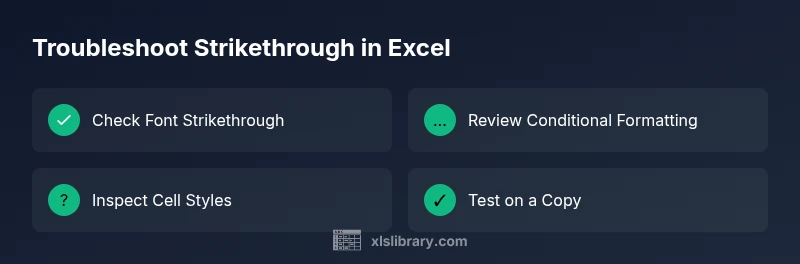
- Check the Font dialog (Home > Font) and toggle Strikethrough off for affected cells. If the Strikethrough checkbox is checked, uncheck it.
- Review Conditional Formatting: Home > Conditional Formatting > Manage Rules. Look for rules that apply strike-through to the selection or worksheet, and delete or modify them.
- Inspect cell styles: Home > Cell Styles. Ensure the cell style is Normal, not a style that enforces Strikethrough.
- Use Clear Formats: Home > Editing > Clear > Clear Formats to remove all formatting from a selection, leaving only raw numbers.
- If data was pasted from another program, use Paste Special > Values to strip source formatting.
Advanced checks: themes, add-ins, and data sources
Investigate workbook theme or style inheritance: Page Layout > Themes; disable or reset to default to remove any Strikethrough style attached to the theme. Check for add-ins or macros: Developer tab > Macros; disable those that might apply formatting to ranges. If the data came from an external source, try re-importing using Text to Columns (Data > Text to Columns) to re-interpret numeric values without prior formatting. Also test on a copy of the sheet to avoid risking original data. If you’re sharing the workbook, confirm other users haven’t introduced the strike-through by editing formatting in shared mode. In most cases, these steps resolve line-through issues without affecting formulas or data.
Practical fixes: step-by-step plan for immediate relief
If you’re rushing to fix numbers for a report, start with the simplest checks and progress to more involved methods. The quickest wins are removing the Strikethrough font and clearing or resetting formatting. If lines persist, target conditional formatting rules and then verify that a workbook theme or style isn’t propagating strike-through. Always test fixes on a duplicate worksheet to avoid altering the original data, and save your work frequently while you troubleshoot. If the issue appears only after pasting data, re-import as values to strip hidden formats. By following these steps, you’ll typically restore clean, readable numbers without disrupting your formulas.
Steps
Estimated time: 15-25 minutes
- 1
Check Font Strikethrough
Select affected cells and open Home > Font. Ensure the Strikethrough option is OFF. If it was ON, turn it OFF and observe changes.
Tip: Apply to the entire affected range to avoid missing cells. - 2
Inspect Conditional Formatting
Go to Home > Conditional Formatting > Manage Rules. Look for any Strike-Through rules applied to your range and remove or modify them.
Tip: Filter by 'This Worksheet' to catch all related rules. - 3
Reset Cell Styles
Select the range and choose Normal from the Cell Styles gallery to remove inherited formatting.
Tip: If Normal isn’t available, create a new Normal style and apply it. - 4
Clear Formats
Use Home > Editing > Clear > Clear Formats to remove all formatting while keeping values intact.
Tip: Always copy a backup before mass-clearing formats. - 5
Re-test with Simple Data
Enter a few test numbers in a new worksheet to verify whether the issue persists when formatting is removed.
Tip: If test data are clean, issue is workbook-specific. - 6
Save, Reopen, and Verify
Save your workbook, close Excel, reopen, and confirm the problem is resolved across sheets.
Tip: If unresolved, consider copying data to a new workbook as a last resort.
Diagnosis: Cells show lines crossing digits in numbers
Possible Causes
- highFont Strikethrough applied directly to the cell
- highConditional Formatting rule that applies Strikethrough
- mediumCell style inherits Strikethrough from a theme or template
- lowMacro or add-in applying Strikethrough to ranges
Fixes
- easyOpen Font dialog and disable Strikethrough for affected cells
- easyReview and delete any rules in Conditional Formatting that apply Strikethrough
- easyReset the cell style to Normal or clear the style inheritance
- easyUse Clear Formats to remove all formatting from the selection
- mediumIf data came from external sources, re-import as values to strip formatting
- mediumDisable or modify any macros/add-ins that affect formatting
People Also Ask
Why do some cells show a line through numbers while others don’t?
Lines through numbers typically occur due to font Strikethrough being enabled or a conditional formatting rule that applies Strike-Through. Differences between cells usually reflect formatting contexts rather than data errors. Check both font settings and any rules applied to the affected range.
Lines through numbers usually come from font strike-through or conditional formatting. Check font settings and formatting rules to fix it.
Can a macro cause strikethrough in Excel?
Yes. Macros or add-ins can apply formatting changes, including Strikethrough, to ranges of cells. If you recently enabled a macro or installed an add-in, review their actions and test on a copy of the workbook.
Macros can apply strikethrough to cells. Check any recently enabled macros or add-ins and test on a copy.
How do I remove strikethrough from an entire worksheet?
Select the worksheet, open the Font dialog, and uncheck Strikethrough. You can also use Clear Formats to wipe all formatting and then reapply only the needed styles.
Select the sheet, remove Strikethrough in Font, or Clear Formats to reset everything and reapply styles.
Will strikethrough affect printing or copying?
Strikethrough is a visual style. If the formatting is applied, it will appear in print and exports. Removing the formatting will restore normal print results.
Yes, if the formatting is applied it can print with strikethrough. Remove the formatting to print normally.
How can I prevent this from happening again?
Document the source of any formatting changes, avoid pasting with keep source formatting, and regularly review conditional formatting rules. Consider creating a default Normal style and sticking to it for new data.
Keep an eye on pasted data and conditional rules, and use a default style to prevent future formatting surprises.
What should I do if formatting changes aren’t visible in the UI but affect exports?
Check for hidden styles or workbook-level themes that may not show distinctly in the UI. Recreate the affected area in a fresh workbook to test exports and ensure formatting is consistent.
If exports show formatting issues, test in a new workbook to isolate and fix the problem.
Watch Video
The Essentials
- Check Font Strikethrough first and disable it.
- Review and remove conflicting Conditional Formatting rules.
- Reset styles or clear formats to restore normal numbers.
- Test changes on a copy to prevent data loss.
- Document changes to avoid repeat occurrences.