Why Is the Excel Toolbar Grayed Out? Practical Troubleshooting
Urgent, step-by-step guide to diagnose and fix a grayed-out Excel toolbar. Learn why the ribbon disappears, how to unprotect sheets, manage add-ins, and prevent future issues with practical, human-friendly steps.


Most often, the Excel toolbar is grayed out because the workbook is protected or in Protected View, or the ribbon is disabled by an add-in or user setting. Quick fixes: ensure the workbook is not protected, exit Protected View, and enable the ribbon. If needed, disable add-ins and reset ribbon customization.
Understanding the symptom: why is excel toolbar grayed out
When the Excel toolbar (the ribbon) is grayed out, it means the program cannot enter commands in its current state. This is a common issue across Windows and macOS versions, and it usually signals one of a few reversible causes rather than a deep software fault. The phrase "why is excel toolbar grayed out" pops up frequently in forums because it captures a practical, user-visible problem with clear, actionable fixes. To get back to work quickly, start with the simplest explanations first: is the workbook protected or read-only, are you in Protected View, or is the ribbon disabled by a startup add-in or a customization setting? Addressing these basics often restores normal functionality in minutes.
Common scenarios when the ribbon is unavailable
The ribbon can appear disabled in several typical situations. First, a workbook or worksheet may be protected, or you may be in a read-only mode, preventing changes that would enable the ribbon. Second, files opened from email or the internet can trigger Protected View, where most commands are deliberately disabled until you choose to "Enable Editing." Third, certain add-ins or COM components can steal focus or modify the UI, causing the ribbon to dim. Finally, user profiles that have corrupted UI settings or a misconfigured Office installation can leave Excel without an active ribbon. Each scenario has a straightforward test you can perform to isolate the cause.
Quick checks you can perform
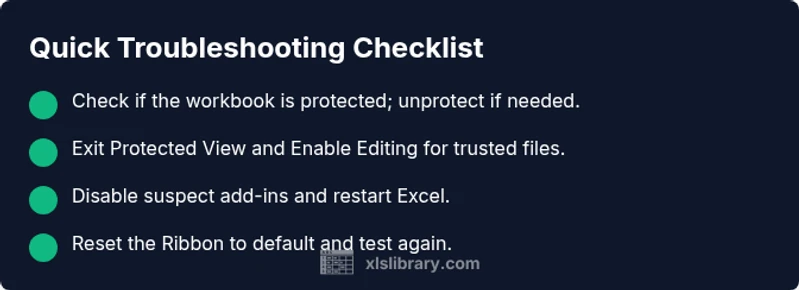
- Confirm the workbook is not protected: go to Review > Unprotect Sheet/Workbook and re-save.
- Check the status bar for Protect View: if you see Protected View, click Enable Editing.
- Disable suspicious add-ins: File > Options > Add-Ins, manage COM Add-ins and disable those you don’t recognize, then restart Excel.
- Verify that editing is allowed: ensure the file isn’t opened as Read-Only from the OS, and check file properties.
- Reset UI customization: right-click the ribbon, choose Customize the Ribbon, and drag commands back to the visible tabs if needed.
- Test in a blank workbook: if the issue disappears, the problem is linked to the original file or its protections.
Diagnostic flow: symptom → diagnosis → solutions
- Symptom: Ribbon is grayed out and unresponsive. 2) Quick diagnosis: check for protection or Protected View. 3) Solution paths: unprotect, exit Protected View, disable add-ins, reset UI. 4) If unresolved: repair Office or create a new profile. 5) Confirm by reopening Excel and testing basic commands.
Step-by-step: most common fixes you can implement now
- Check protection status and unprotect if needed.
- Description: Ensure neither the workbook nor worksheet is protected; unlock if you have the password.
- Tip: Always save a copy before unprotecting to preserve your data.
- Exit Protected View and enable editing.
- Description: If the file opened from an external source, click Enable Editing or adjust Protected View settings.
- Tip: Only enable editing for trusted sources to avoid editing risky content.
- Disable conflicting add-ins.
- Description: Go to File > Options > Add-Ins, disable active add-ins, and restart Excel to test.
- Tip: Re-enable add-ins one by one to identify the culprit.
- Reset the Ribbon/UI customization.
- Description: Right-click the ribbon, select Customize the Ribbon, and reset to default, then reopen Excel.
- Tip: Customizations can be re-applied after you verify normal operation.
- Check for an issue with the user profile.
- Description: Sign out and back in or switch Windows/Mac user profiles to rule out profile corruption.
- Tip: A fresh profile often resolves stubborn UI glitches.
- Repair Office or reinstall if necessary.
- Description: Use your OS’s repair feature for Microsoft Office, or reinstall if the problem persists after all steps.
- Tip: Back up important credentials and templates before repair.
estimatedTime":"30-60 minutes"} ,{
steps":[{
number":1,
title":"Check protection status","description":"Inspect workbook and worksheet protection, unprotect if needed, and save a new copy to test whether the ribbon returns.","tip":"Keep passwords in a secure place; document unprotect steps for future reference."},{
number":2,
title":"Exit Protected View and editing mode","description":"If Excel is in Protected View, click Enable Editing; for suspicious files, adjust Trust Center settings to trust documents from known sources.","tip":"Only enable editing for trusted files to avoid security risks."},{
number":3,
title":"Disable add-ins temporarily","description":"Disable active add-ins one by one to identify a conflicting one; restart Excel after each change.","tip":"Note which add-ins were active when the issue occurred."},{
number":4,
title":"Reset UI customization","description":"Reset the Ribbon to default and restore missing commands; re-apply any needed customizations afterward.","tip":"If you rely on custom tabs, re-create them after confirming baseline functionality."},{
number":5,
title":"Test with a clean profile","description":"Log in with a different user or create a new Windows/Mac user to check if the fault is profile-related.","tip":"This helps distinguish system-level from app-level problems."},{
number":6,
title":"Repair Office if needed","description":"Run a repair of Microsoft Office via Windows Control Panel or macOS Applications to fix corrupted components.","tip":"Back up important templates before repair."}],"feedbackTime":"30-60 minutes"} etc
Steps
Estimated time: 30-60 minutes
- 1
Check protection status
Open the workbook and review the Review tab for Protect Sheet/Protect Workbook status. If it’s protected, enter the password to unprotect, or ask the file owner for access. Then save a new copy to test whether the ribbon becomes active.
Tip: Document the password and access method for future troubleshooting. - 2
Exit Protected View and enable editing
If the file opened from the internet or email, you’ll see a warning bar. Click Enable Editing. If needed, adjust Protected View settings in File > Options > Trust Center > Trust Center Settings > Protected View.
Tip: Only enable editing for trusted sources. - 3
Disable add-ins
Go to File > Options > Add-Ins. Set Manage: COM Add-ins, click Go, and uncheck active add-ins one by one. Restart Excel to test.
Tip: Note which add-ins were active when the issue appeared. - 4
Reset the Ribbon
Right-click the ribbon, choose Customize the Ribbon, and click Reset > Reset all customizations. Close and reopen Excel to see if the ribbon returns.
Tip: If you rely on custom tabs, recreate them after confirming baseline behavior. - 5
Check user profile
Sign out of your account or switch to a different Windows/Mac user to determine if the problem is profile-related.
Tip: A clean profile often clears stubborn UI glitches. - 6
Repair Office
Run a repair of Microsoft Office from the Control Panel (Windows) or Office installer (Mac). Follow prompts to repair applications.
Tip: Back up templates and settings before repair.
Diagnosis: Excel toolbar is grayed out and unclickable
Possible Causes
- highWorkbook/worksheet protection or read-only state
- highProtected View or opening from an unsafe location
- mediumConflicting add-ins or UI-disablement by add-ins
- lowCorrupted Excel settings or user profile
Fixes
- easyUnprotect workbook/worksheet and save changes
- easyExit Protected View and enable editing
- easyDisable conflicting add-ins and restart Excel
- mediumReset ribbon/UI and try a fresh Office repair
People Also Ask
Why is the Excel toolbar grayed out even when I’m not protecting the file?
Even with no protection, add-ins or UI settings can gray the ribbon. Start by disabling add-ins and resetting the ribbon, then check for Protected View and file trust settings.
If the ribbon is still dimmed after checking protection, try disabling add-ins and resetting the ribbon, then verify Protected View settings.
How do I unprotect a worksheet or workbook?
Go to Review > Unprotect Sheet or Unprotect Workbook and enter the password if prompted. If you don’t have the password, contact the file owner.
Use the Unprotect options under Review, and enter the password if required.
Can add-ins cause the ribbon to disappear, and how do I test this?
Yes. Disable add-ins one by one (File > Options > Add-ins) and restart Excel after each change to identify the culprit.
Try turning off add-ins one at a time to see if the ribbon returns.
Is it safe to disable Protected View permanently?
No. Protected View helps prevent unsafe documents from making changes. Only enable editing for trusted files and sources.
Protected View is a safety feature; enable editing only for trusted files.
What should I do if none of the fixes work?
Run a repair of Office or test with a new user profile. If issues persist, seek IT support or contact Microsoft support.
If issues persist, try Office repair or contact support for deeper troubleshooting.
Watch Video
The Essentials
- Check protection first and unprotect as needed.
- Disable add-ins to identify culprit.
- Back up data before major fixes.
- Use a structured flow to resolve quickly.