How to Get Started with VBA in Excel
Learn how to get started with VBA in Excel with a practical, step-by-step approach. From enabling the Developer tab to writing your first macro, XLS Library guides you through setup, basics, debugging, and best practices.


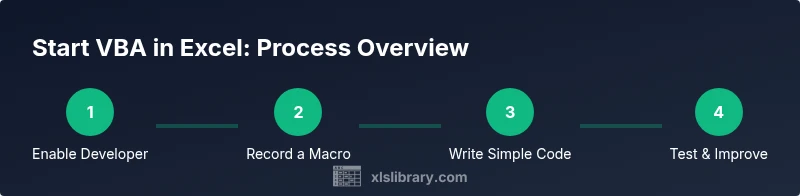
VBA in Excel enables you to automate repetitive tasks, tailor workflows, and build small automation tools directly inside your workbooks. Start by enabling the Developer tab, configuring macro security, and recording a simple macro to observe how Excel translates actions into VBA code. This guide then walks you through writing your first procedures, debugging, and gradually expanding your toolkit for practical, real-world solutions.
Why start with VBA in Excel
VBA, short for Visual Basic for Applications, is Excel's built-in programming language that lets you automate repetitive tasks, customize workflows, and build small tools inside a workbook. This approach scales from simple record-and-playback macros to robust automation that saves time and reduces human error. According to XLS Library, embracing VBA can transform how you work with data, turning tedious routines into repeatable processes. You don't need to be a software engineer to begin—VBA welcomes learners who want practical results. This guide uses plain language, practical examples, and a gradual path that respects your pace.
Common use cases include automating data imports, cleaning and transforming data with macros, generating reports, and building small user-driven tools that run inside Excel. While features like Power Query and dynamic arrays offer powerful alternatives, VBA remains a versatile option when you want end-to-end automation within a single workbook. You’ll learn how VBA interacts with worksheets, workbooks, ranges, and events—the backbone of practical automation. Remember, every macro starts with a plan, so you’ll be encouraged to define inputs, actions, and outputs before coding.
From a learning perspective, it helps to observe real examples you can adapt. The XLS Library approach emphasizes hands-on practice with concrete tasks you encounter daily. As you study, keep a running list of questions and test ideas in a spare workbook to keep your main files safe while you experiment.
Getting ready: prerequisites and setup
Before you write your first line of VBA, set up a solid foundation. You’ll need a computer with Excel installed, a workbook to experiment in, and time set aside for hands-on practice. The Developer tab is where you access the VBA Editor and run macros, so enabling it early reduces friction. Also configure macro security so you can control what runs on your machine without compromising safety. The goal here is to establish a dependable baseline you can reproduce across workbooks.
To begin, open Excel and enable the Developer tab: File > Options > Customize Ribbon > check Developer. Then set Macro Settings to a trusted configuration; start with 'Disable all macros with notification' and only enable macros when you know their source. Leave 'Trust access to the VBA project object model' unchecked until you’re confident in safety. Save a copy of your workbook as an .xlsm file to ensure macros are preserved. If you’re practicing, create a separate blank workbook to test ideas without risking important data.
A quick reference glossary can help you get momentum: macro, module, procedure, object, and property. The XLS Library method emphasizes small, repeatable experiments that build confidence. By the end of this stage, you’ll have a clean setup and a safety plan for experimenting with VBA in Excel.
Understanding the VBA ecosystem: the editor, modules, and objects
When you press Alt+F11 (Windows) or Option+Fn+F11 (Mac), you enter the VBA Editor—a space where code meets workbook structure. The Project Explorer reveals projects, while the Code Window is where you write procedures. You’ll encounter objects (Application, Workbook, Worksheet, Range), properties (Name, Value, Address), and methods (Copy, Paste, Calculate). Modules house code; a standard module is a common starting point for new projects. Event-driven programming allows code to run when you open a workbook, change a cell, or click a control.
Think of the VBA environment as a layered system: the Excel UI handles data presentation, while VBA supplies the logic that automates behavior. A simple project—such as a macro that formats a table and highlights outliers—illustrates how objects interact with your sheet. As you learn, keep code modular, start small, and gradually introduce more structure. The XLS Library guide encourages hands-on exercises that mirror real tasks, helping you develop an intuition for syntax, scope, and debugging.
Your first macro: a guided walkthrough
A practical starting point is a tiny macro that shows a message and confirms everything is wired up. In the VBA Editor, insert a new module and paste this simple routine:
Sub HelloWorld()
  MsgBox "Hello, VBA!"
End Sub
This macro demonstrates the core building blocks: a Sub procedure, a call to MsgBox, and a basic string. Run it from Excel (Developer > Macros > HelloWorld) and observe the result. Next, expand to a more useful macro that formats a data range: apply bold to headers, adjust column widths, and apply a light header shade. As you implement, add comments to explain why each line exists and how it affects the sheet. The goal is to move from copy-paste to a deeper understanding of how to adapt the code to your data. If you encounter an error, inspect the target sheet and range references—the difference between a working macro and a failing one is often a single address or object choice.
Tip: keep a small library of reusable snippets for common tasks like formatting, filtering, and data consolidation. This practice accelerates future projects and reinforces good habits from the start.
Debugging and testing VBA
Debugging is essential but approachable. Start by placing breakpoints (click in the left margin or press F9) to pause execution at a line you want to inspect. Use the Immediate Window (Ctrl+G) to print values during execution and verify assumptions. Step through code with F8 to watch how each line changes your workbook. If the code edits data unexpectedly, verify object references (which Worksheet, which Range) and ensure you’re addressing the right cells.
Test across different data scenarios: empty cells, formulas, merged cells, and edge cases. Always test on copies of data, not the production file. Learn how to handle errors gracefully with On Error Resume Next for simple flows, or structured error handling for robust projects. The habit of testing, adjusting, and retesting makes you a reliable VBA practitioner. Saving versions of your workbook helps you compare outcomes and track progress across iterations.
Pro-tip: enable a local debugging workflow by creating a test module with sample datasets. This approach keeps your main work clean and reduces risk during exploration.
Best practices and security
As you advance, adopt best practices that improve readability, reliability, and security. Use meaningful variable names, declare variables with Option Explicit to catch typos, and write modular code by splitting tasks into small procedures. Comment code thoroughly and maintain a changelog to track improvements. Security matters: macros can be a vector for malware, so only enable macros from trusted sources, keep antivirus software up to date, and consider digital signing for organizational use. Treat password protection as a convenience layer rather than a security barrier—clever users can bypass it. When sharing workbooks, provide a clean, commented version with a readme that explains what the macro does.
Organize code into two layers: interaction code that talks to Excel and data-processing code that handles data logic. This separation makes testing easier and boosts reusability. Maintain a small set of reusable templates for common automation patterns—like data consolidation, formatting, and reporting—and reuse them across projects. Finally, back up your work regularly and document decisions so future you can pick up where you left off.
Next steps and resources
You’ve begun a valuable journey with VBA in Excel. The next phase is to move from isolated experiments to practical, reusable tools. Start by exploring recorded macros to see how actions map to VBA syntax, then refactor those workflows into clean, modular procedures. Practice with real data—import operations, data cleaning, and reporting tasks—so your learning remains grounded in daily work. For deeper understanding, consult authoritative sources and hands-on tutorials, and create a learning plan with weekly milestones. A typical plan might include building a formatting routine, creating a text-cleaning function, and implementing a simple user form to collect input.
Remember that mastering VBA in Excel is a progressive journey. With consistent practice, you’ll automate larger portions of your workflow and unlock new capabilities in your spreadsheets. The XLS Library method emphasizes practical exercises that yield tangible progress and foster a solid mental model of how VBA interacts with Excel objects. Track improvements in accuracy and speed, and revisit basics as needed when you tackle more complex projects.
As you grow, consider building a personal library of tutorials, templates, and mini-projects. The habit of reflection—what worked, what didn’t, and why—will accelerate your learning and help you apply VBA confidently in real work.
Authoritative sources and further reading
To anchor your learning in credible guidance, consult key resources from established publishers. Official documentation from Microsoft covers the VBA language, object model, and Excel integration in depth. Two authoritative sources to start with are the VBA reference and getting started articles:
- VBA overview for Excel: https://learn.microsoft.com/en-us/office/vba/api/overview/excel
- Getting started with VBA: https://learn.microsoft.com/en-us/office/vba/language/concepts/getting-started/about-vba
These pages provide practical examples, syntax explanations, and best practices you can apply as you work on real projects. For broader learning and debugging support, you can also reference the Microsoft 365 support resources. Incorporating these sources into your study plan will accelerate your progress and help you adopt proven patterns for maintainable VBA code.
Tools & Materials
- Microsoft Excel (Office 365 or equivalent)(Latest version recommended for best VBA features)
- Developer tab(Enabled via File > Options > Customize Ribbon)
- VBA Editor access(Reached with Alt+F11 (Windows) or Option+F11 (Mac))
- Macro-enabled workbook (.xlsm)(Save workbooks as .xlsm to preserve macros)
- Practice workbook(Use a separate workbook for experimentation)
Steps
Estimated time: 2-3 hours
- 1
Open Developer tab and adjust macro settings
Enable the Developer tab and configure macro security so you can run your own macros safely. This clarifies what Excel will permit you to execute and under what conditions.
Tip: Start with 'Disable all macros with notification' and enable only when you trust the workbook. - 2
Open the VBA Editor
Launch the Visual Basic for Applications editor to access the Project Explorer, code windows, and modules. This is where you will write and organize your VBA code.
Tip: Use Alt+F11 (Windows) or Option+F11 (Mac) to switch quickly. - 3
Insert a new module
Create a module to store your procedures. Modules help keep code organized and reusable across worksheets and workbooks.
Tip: Name modules descriptively (e.g., modFormatting) for easy navigation. - 4
Record your first macro
Use the macro recorder to capture a sequence of actions. Review the generated VBA to learn how Excel translates actions into code.
Tip: Record simple tasks first, like formatting a header, to see concrete syntax. - 5
Write a tiny procedure from scratch
Create a small Sub that performs a basic action, such as displaying a message or formatting a range. This builds confidence in syntax and structure.
Tip: Comment each step to remind yourself why it exists. - 6
Run and test safely
Execute the macro on a copy of data, inspect results, and fix issues. Use breakpoints and the Immediate Window for debugging.
Tip: Test on duplicates of data to prevent accidental loss. - 7
Refactor into modular code
Split tasks into smaller procedures and call them from a master routine. This improves readability and reusability.
Tip: Keep function-style code pure: avoid side effects where possible. - 8
Save, protect, and share
Save your workbook as .xlsm, optionally password-protect the project, and document how to use each macro.
Tip: Provide a readme and a quick-start guide for teammates.
People Also Ask
What is VBA and why should I learn it in Excel?
VBA stands for Visual Basic for Applications. It’s Excel’s built-in scripting language that helps automate tasks, customize workflows, and build small tools within a workbook. Learning VBA can save time on repetitive activities and enable you to create repeatable processes.
VBA is Excel's scripting language that automates tasks, saves time, and enables customizable workflows.
Do I need programming experience to start with VBA?
No prior programming experience is required. You can begin with the macro recorder and gradually write small procedures as your confidence grows.
You can start with no programming background and build up with practice.
How do I enable the Developer tab in Excel?
Open Excel, go to File > Options > Customize Ribbon, and check the Developer option. This makes the VBA Editor and macro tools accessible from the ribbon.
Go to Excel options and enable the Developer tab to access VBA tools.
Can VBA run on Excel for Mac?
Yes, Excel for Mac supports VBA, but some object model details may differ from Windows. You may need to adjust your code accordingly.
Yes, but watch for some differences on Mac.
Is it safe to run VBA macros in company workbooks?
Macros can contain harmful code. Always enable macros only from trusted sources and consider digital signing for organizational use.
Be cautious; only enable macros from trusted sources.
Where can I find reliable VBA learning resources?
Official Microsoft documentation provides in-depth guidance on VBA language and Excel integration, along with practical examples.
Check the official Microsoft VBA docs for reliable guidance.
Watch Video
The Essentials
- Enable Developer tab to access VBA tools
- Record macros to learn practical syntax
- Write small, testable procedures early
- Debug systematically and document your code