Excel Template for Task Tracking: A Practical Guide
Learn how to create an effective excel template for task tracking to organize tasks, assign ownership, and monitor progress with practical steps, examples, and tips. A practical guide by XLS Library.


Create an excel template for task tracking that standardizes task data, assigns owners, tracks due dates, and visualizes progress. You’ll learn a practical data model, essential formulas, and a starter dashboard to scale from individuals to teams. This guide covers setup, validation, and customization using built-in Excel features.
Why an Excel Task Tracking Template Matters
In modern project environments, consistent task tracking is the backbone of on-time delivery. An excel template for task tracking provides a single source of truth where teammates can see who owns what, when it is due, and how close it is to completion. The template reduces task ambiguity, speeds up onboarding, and makes status updates feel effortless during stand-ups. According to XLS Library, teams that standardize task-tracking templates report clearer accountability and fewer missed deadlines because everyone works from the same data model. A well-designed template also scales from one-person projects to multi-team programs by letting you add fields, calculated metrics, and dashboards without requiring specialized software. In this guide you’ll learn how to design a practical template that fits your workflow, whether you’re managing software sprints, marketing campaigns, or fieldwork. You’ll gain a repeatable layout, sensible defaults, and guardrails that keep data clean as your project grows.
Building a solid template starts with a clear purpose, a concise data model, and predictable formatting. The goal is to reduce cognitive load for every user while preserving flexibility for different project types. As you read, you’ll see concrete examples you can adapt, plus ready-to-copy formulas and validation rules. If you’re new to Excel, this guide aims to be approachable while still teaching robust techniques that professionals rely on every day. Onward to practical steps you can implement this week.
Throughout this article, you’ll notice how the XLS Library team frames best practices in actionable terms, so you can transpose theory into a working template quickly. The result is a scalable, tidy task tracker that supports daily standups, weekly reviews, and long-term portfolio tracking.
Tools & Materials
- Excel (Microsoft 365 or Office 2021)(Any current version with tables and formulas will work)
- Sample data set (optional)(To test the template with real tasks and dates)
- Data validation lists (Owners, Status, Priority)(Create on a hidden sheet or named ranges for reusability)
- Starter dashboard templates(Can be copied from Excel templates or XLS Library resources)
- Optional: Power Query (Get & Transform)(For advanced data import and cleansing)
Steps
Estimated time: 60-90 minutes
- 1
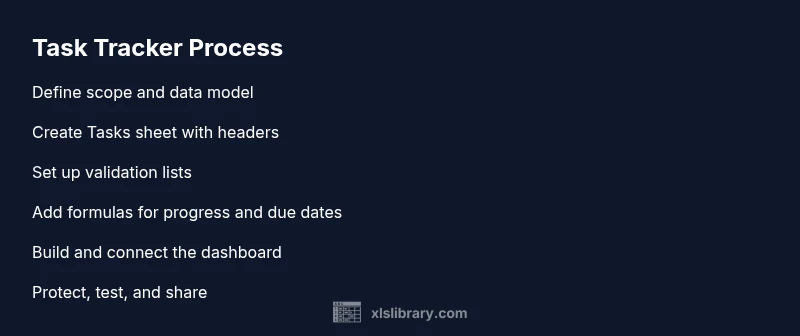
Define scope and data model
Identify what you will track (tasks, owners, dates, status) and outline the minimum fields needed. Create a simple data model sketch on paper or a whiteboard before you open Excel. This helps prevent scope creep and makes later steps faster.
Tip: Start with a one-page data model and expand only when you need new fields. - 2
Create the Tasks sheet and headers
Set up the main sheet with clear headers for each field (Task ID, Title, Owner, Start Date, Due Date, Status, Priority, Progress, Notes). Use a table (Insert > Table) to enable filters and dynamic ranges. Consistency here saves headaches in formula references later.
Tip: Use a consistent header naming convention and enable table formatting for automatic expansion. - 3
Set up data validation lists
Create drop-downs for Owner, Status, and Priority using data validation. This reduces typos and standardizes inputs. Link the drop-downs to named ranges so you can update options without editing every cell.
Tip: Keep lists on a separate sheet and reference them via named ranges for maintainability. - 4
Add calculated columns and basic formulas
Introduce a Progress column that computes completion based on subtask counts or a simple % from Status. Add a Days Remaining formula to highlight urgency. These calculations anchor the dashboard’s visuals.
Tip: Use ABS and IFERROR to prevent errors when data is missing. - 5
Build the dashboard
Create a second sheet for a dashboard with key visuals: a progress bar, a heatmap of overdue tasks, and a KPI card for on-time delivery. Use PivotTables, charts, and conditional formatting to make trends obvious at a glance.
Tip: Keep the dashboard lightweight; prioritize the most impactful metrics first. - 6
Protect, test, and share
Protect essential formulas, test with sample data, and ensure multiple users can edit without breaking formulas. Save a template version (.xltx) to share with your team and document all assumptions in a ReadMe sheet.
Tip: Enable sheet protection for critical areas and provide a simple user guide.
People Also Ask
What is included in an Excel template for task tracking?
A typical template includes a Tasks sheet with fields like Task ID, Title, Owner, Start Date, Due Date, Status, Priority, and Progress, plus a Dashboard sheet with visuals. It may also include a ReadMe sheet that explains data conventions and a data validation list for consistency.
A typical template includes a main data sheet, a dashboard, and a ReadMe with data conventions.
Do I need Power Query for this template?
Power Query is optional but helpful for importing or cleansing data from other sources. For most templates, built-in Excel features like data validation, formulas, and PivotTables are sufficient.
Power Query is optional; you can build the tracker with standard Excel features.
How do I customize the dashboard for my team?
Start by identifying the top metrics your team cares about (on-time delivery, workload by owner, overdue tasks). Add or remove visuals accordingly, and use slicers to let stakeholders filter by date ranges or team.
Customize by choosing the most important metrics and letting users filter to see what matters.
Can I share this template with others?
Yes. Save the workbook as a template (.xltx) or publish it on a shared drive. Include a short usage guide and ensure validators and protections are in place so others can use without breaking formulas.
Yes—save as a template and share with a simple usage guide.
How do I handle dependencies between tasks?
Add a Dependency field and use simple logic to flag dependent tasks. For more complex workflows, consider a Gantt-style view or a lightweight Kanban board alongside the template.
Add a Dependency field and flag when a task can’t start until another finishes.
Is this template suitable for agile project tracking?
You can adapt the template to track user stories, sprints, and burn-downs, but you may need to extend the data model with sprint boundaries and velocity metrics.
It can be adapted for Agile, but you may want extra fields for sprints and velocity.
Watch Video
The Essentials
- Define a focused data model before building.
- Use data validation to ensure clean input.
- Create a simple, scalable dashboard first.
- Protect core formulas and document assumptions.
- Share a ready-to-use template to standardize workflows.