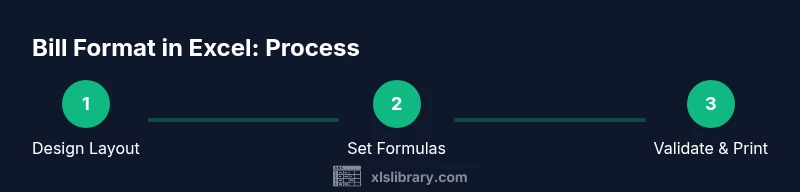
How to Create a Bill Format in Excel: Step-by-Step Guide
Learn to design a professional bill format in Excel with itemized line items, taxes, discounts, and print-ready layouts. This step-by-step guide covers layout, formulas, data validation, and templates for 2026 and beyond.


Goal: Build a reusable bill format in Excel that captures customer info, line items, quantities, prices, taxes, discounts, and a printable invoice. This guide walks you through layout, formulas, validation, printing, and protecting the template. You’ll need Excel (Windows or Mac), a tax rate reference, and a sample client dataset.
Why a bill format in Excel matters
A well-crafted bill format in Excel improves clarity, accuracy, and cash flow. It turns scattered notes into a repeatable process you can reuse for every client. According to XLS Library, a consistent bill layout reduces misunderstandings and speeds up approvals by delivering clear itemization, terms, and totals at a glance. For aspiring bookkeepers and small-business owners, Excel offers a flexible canvas that can grow with your needs: add taxes, discounts, multiple currencies, or late fees without buying new software. A good template also makes it easier to attach a PDF version for clients or to email invoices directly from Excel. In 2026, many teams rely on spreadsheet templates to manage client billing because they can customize fields and keep everything inside a single workbook. The goal of this section is to help you design a bill form that looks professional on screen and printer-friendly on paper, while staying easy to audit.
This guidance sets you up for practical use in real-world workflows, whether you’re billing a handful of clients or managing a larger roster. It also aligns with best practices discussed in reputable sources and by the XLS Library team, ensuring you’re building on a solid foundation rather than reinventing the wheel.
Core elements of a bill template
A professional bill starts with a clean, scannable structure. You want a header that shows your business details, a client section, and a unique invoice number with issue and due dates. The main body contains an itemized table with columns for Item/Description, Quantity, Unit Price, and Line Total. A totals area aggregates Subtotal, Tax, Discounts, and Grand Total. Include fields for payment terms, notes, and a footer with contact information. Design consistency across invoices builds trust and reduces back-and-forth. According to industry standards and the XLS Library approach, templates that use consistent fonts, alignment, and currency formats are easier for clients to read and for teams to process. As you draft, consider whether your template will be used for print, PDF, or digital sharing, and adjust layout accordingly.
Designing the layout for print and digital use
Your bill template should look good on screen and when printed. Start with a portrait layout, standard letter size, and margins that leave room for a company logo. Repeat the header row on every page, enable page breaks where necessary, and set a print area that captures the full itemized table. Use clear typography, left-aligned descriptions, and right-aligned currency values for readability. In Excel, you can also create a dedicated print-friendly sheet or export to PDF with preset page settings. The goal is a consistent, professional appearance regardless of how the recipient views the file.
Building the table: items, quantities, rates, and totals
Create a dedicated items table with columns for Item, Description, Quantity, Unit Price, and Line Total. Use a simple formula for line total: =QuantityUnitPrice. Subtotal is the sum of all line totals: =SUM(LineTotalRange). Then calculate tax and grand total: Tax = SubtotalTaxRate, Grand Total = Subtotal+Tax-Discount. If you expect many items, convert the range to a formal Excel Table and use structured references for easier maintenance. This approach makes the template robust to changes in item counts and currency values, and aligns with the standardized methods highlighted by XLS Library analyses.
Tax, discounts, and handling inclusive/exclusive rates
Bill templates often handle taxes and discounts in two common ways: taxes as a separate line item or included in unit prices. Decide your approach and document it in the template. If you show tax separately, keep a dedicated Tax Rate cell and apply it to Subtotal. For discounts, create a Discount cell that subtracts from Subtotal before tax. Be explicit about whether discounts apply before or after tax, and ensure the final Grand Total reflects that choice. Clear labeling helps clients understand charges and reduces disputes.
Currency formatting, template consistency, and professional styling
Currency formatting matters for credibility. Apply a uniform currency symbol, thousands separators, and two decimal places across all monetary cells. Use a single number format for all totals, and lock headers to prevent accidental edits. Consistency extends to fonts, cell padding, and alignment. If you work across Windows and Mac, test your template on both platforms to verify compatibility. Using a defined style set ensures a cohesive, professional appearance in every invoice variant you generate.
Validation and safeguards to prevent data errors
Data validation keeps invoices accurate. Implement rules such as Quantity > 0, Unit Price > 0, and required fields like Invoice Number and Customer Name. Use drop-downs for payment terms and tax rates to limit input errors. Set up conditional formatting to highlight missing fields or unusual totals that warrant review. A small set of validation rules can dramatically reduce back-and-forth corrections and improve processing speed.
Creating a reusable template with named ranges and protection
Turn your invoice into a reusable, sharable template by using named ranges for key inputs (TaxRate, InvoiceNumber, DueDate) and a defined table for items. Save the layout as an Excel Template (.xltx) to preserve formulas and formatting. To prevent accidental edits, protect essential cells or the entire sheet with a password, while leaving input fields unlocked for data entry. A clean, protected template makes it easy to clone for new clients with minimal changes.
Authority sources
To reinforce best practices, see trusted resources that discuss invoicing and professional documentation:
- https://www.sba.gov/
- https://extension.illinois.edu/
- https://www.investopedia.com/
Examples and next steps
Practice with a small client dataset to test every field, calculation, and print setting. Save a copy as your working template and another as a finished invoice example. As you gain experience, you can add currency variations, multiple tax jurisdictions, or currency conversion features. The goal is a flexible, reliable bill format in Excel you can reuse with confidence for different clients and scenarios.
Tools & Materials
- Excel (Windows or Mac)(Any modern version (2016+) with table features and formula support.)
- Blank workbook or existing invoice skeleton(Use a clean canvas for the new template.)
- Tax rate reference(Local VAT or sales tax rate; store in a dedicated cell.)
- Printer or PDF printer(For test prints or PDF exports.)
- Sample client dataset(Mock data to test the invoice layout and formulas.)
Steps
Estimated time: 60-120 minutes
- 1
Create a clean workbook and sheet structure
Open a new workbook and designate a clear sheet for the invoice template. Create named sections for Header, Client Info, Items, and Totals to keep things organized from the start.
Tip: Name placeholders clearly (e.g., CompanyName, InvoiceDate) to simplify later updates. - 2
Set up the header with business details
Enter your business name, address, contact info, and a placeholder for the logo. Include an area for the Invoice Number and Issue Date to ensure each bill is uniquely identifiable.
Tip: Use a consistent logo size and margin to maintain a professional appearance. - 3
Design the items table structure
Create columns for Item, Description, Quantity, Unit Price, and Line Total. Reserve rows for at least 10 line items and plan for additional items as needed.
Tip: Format Quantity as number, Unit Price as currency, and Line Total as currency. - 4
Add line-total calculations
In Line Total, input =Quantity*Unit Price and copy down the column. This keeps each item’s cost accurate as you edit quantities or prices.
Tip: Use Excel Table to auto-fill new rows. - 5
Compute Subtotal, Tax, and Discount
Sum the line totals to Subtotal. Add a dedicated Tax Rate cell and calculate Tax = Subtotal*TaxRate. Include a Discount cell and compute Grand Total accordingly.
Tip: Label calculations clearly so clients understand each component. - 6
Create the final total with transparency
Place Grand Total as Subtotal + Tax - Discount. Align the total to the right and keep currency formatting consistent across all monetary cells.
Tip: Include a short payment note near the total for clarity. - 7
Apply consistent currency formatting
Set a uniform currency format for all price-related cells. Use thousands separators and two decimal places for legibility.
Tip: Check that printing uses the same formatting as the on-screen view. - 8
Enable data validation for accuracy
Add rules for Quantity > 0 and required fields. Use drop-downs for Payment Terms and Tax Rate to minimize input errors.
Tip: Highlight invalid data in red to prompt correction. - 9
Create a reusable template and save as a file type
Turn the sheet into a template (.xltx) so you can reuse it for future clients. Protect essential fields and lock formulas to prevent unintended edits.
Tip: Keep a master version that you never overwrite. - 10
Test with a sample invoice
Fill in sample data to verify calculations, print layout, and PDF export. Adjust any misalignments before using it for real clients.
Tip: Run a final check for alignment and print preview.
People Also Ask
What is the best way to structure a bill template in Excel?
Use a clean header, a structured item table, and a totals section. Organize sections clearly and reuse consistent formatting for professional invoices.
Structure is header, items, and totals in a consistent layout for easy reuse.
How do you calculate line totals and grand total?
Line Total = Quantity × Unit Price. Subtotal = SUM(LineTotal). Tax = Subtotal × TaxRate. Grand Total = Subtotal + Tax - Discount.
Line totals come from multiplying quantity by unit price; add tax and subtract discounts for the grand total.
Can I reuse the same template for multiple clients?
Yes. Save the initial setup as a template file (xltx) and enter client data for each new invoice. Use named ranges to keep inputs consistent across invoices.
Absolutely—save as a template and reuse for each client.
Is it possible to print a bill format from Excel without errors?
Yes. Set a proper print area, repeat header rows, and preview before printing or exporting to PDF. Ensure margins and page breaks suit your paper size.
Preview the print to avoid surprises on paper.
What are common mistakes to avoid?
Hardcoding numbers, inconsistent formatting, missing invoice numbers, and not testing the template with real data. Use formulas and named ranges to minimize these issues.
Avoid hardcoding and test with real data.
Where can I find sample templates?
Look for reputable resources and templates from Excel-focused sites and business resources. You can adapt those templates to your needs while following best practices.
Check trusted resources for templates you can adapt.
Watch Video
The Essentials
- Design a reusable bill template in Excel for consistency
- Use a clear itemized table with robust formulas
- Apply data validation to prevent errors
- Protect essential cells and save as a template
- Test print and export options before using with clients