Cash Flow in Excel: Master Cash Flow Modeling
Learn practical cash flow modeling in Excel with step-by-step techniques, formulas, and templates to forecast cash positions, plan budgets, and support decision-making.


You can build a reliable cash flow forecast in Excel by linking income, expenses, and timing to a dynamic schedule, then using formulas to calculate net cash, create scenarios, and visualize results. Start with a monthly template, map inflows/outflows, and apply conditional formatting. This scalable approach suits individuals and teams.
Why cash flow modeling in Excel matters
According to XLS Library, robust cash flow models help businesses anticipate liquidity needs, align budgets with strategy, and strengthen stakeholder confidence. A well-structured cash flow forecast acts as a navigation tool, informing decisions on expenditures, debt management, and investment timing. The XLS Library team found that teams that maintain a rolling forecast tend to respond faster to cash crunches and market changes. By building a model in Excel, you gain full control, transparency, and the ability to tailor assumptions to your organization. The approach scales from personal budgeting to enterprise planning, and it rewards discipline: update inputs regularly, annotate changes, and review outcomes against actuals to improve accuracy over time.
Core principles for cash flow forecasting in Excel
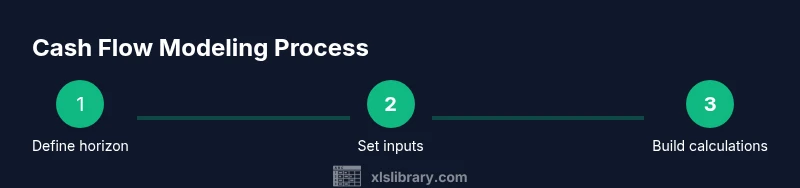
Effective cash flow forecasting hinges on clear scope, reliable inputs, and a repeatable calculation framework. Start with a defined horizon (e.g., 12 months) and decide whether you’ll forecast on a cash or accrual basis. Use a clean layout that separates inputs, calculations, and dashboards so you can audit each piece quickly. Link every line item to a source data sheet, avoid hard-coded values in formulas, and implement version control through named ranges. Keep time mapping consistent (months vs. quarters) to prevent misalignments. Finally, design your model to be transparent: add notes, document assumptions, and provide a straightforward way to adjust scenarios.
Collecting and structuring inputs: income, expenses, timing
Inputs are the backbone of any cash flow model. List all revenue streams (e.g., product sales, service income) and major expense categories (labor, materials, overhead). For timing, define when cash actually arrives or is paid, not when revenue is earned. Consider seasonality, one-time payments, and credit terms. Create a dedicated Inputs sheet with columns for Month, Inflows, Outflows, and Net Cash (inflows minus outflows). Use validation to prevent invalid entries and create a simple currency format to improve readability. Document the sources of each input so teammates can update confidently.
Building a monthly forecast skeleton: templates and layout
A solid skeleton keeps your model maintainable. Create three sheets: Inputs (assumptions and data), Calculations (monthly cash flow logic), and Dashboard (visuals and summaries). On the main sheet, lay out a 12- or 24-month grid with months across the top and categories down the side. Use named ranges to reference key inputs and a consistent currency format. Establish a summary row for Net Cash Flow and a cumulative total to show liquidity over time. This layout makes it easy to add new scenarios without reworking formulas.
Formulas and functions that power cash flow models
The core is simple: Net cash per month = Inflows - Outflows. For each month, set Net_Cash_D[m] = Inflows[m] - Outflows[m], then build a running total with Cumulative[m] = Cumulative[m-1] + Net_Cash_D[m]. Use XLOOKUP to pull seasonal adjustments or client-specific terms, e.g. =XLOOKUP(Month, SeasonMap!$A$2:$A$13, SeasonMap!$B$2:$B$13, 0). Present value can be evaluated with =NPV(rate, Net_Cash_D$2:Net_Cash_D$13). Lock inputs to prevent accidental edits, and format as currency. If you have a loan, calculate interest using IPMT/PPMT or a simple rate-based approach.
Scenarios, sensitivity, and risk analysis
What-if analysis helps you plan for best-case, base-case, and worst-case liquidity. Create separate scenario sheets or use Excel’s What-If Data Tables and Scenario Manager. Link scenarios to the same forecast structure so you can switch quickly. Sensitivity analysis—varying inflow timing, payment terms, or seasonality—reveals which inputs most affect cash flow. Keep a log of scenario assumptions so you can compare outcomes and explain decisions to stakeholders.
Visualizing cash flow: dashboards and charts
Dashboards translate numbers into actionable insights. Use a line chart for monthly net cash, a stacked bar or area chart for inflows/outflows, and a gauge or KPI card for liquidity status. Apply conditional formatting to flag months with negative cash or low liquidity, and include sparklines in the summary table for quick trend views. A concise dashboard helps executives grasp risk at a glance and supports timely decisions.
Best practices and common mistakes
Best practices include separating inputs from calculations, using named ranges, auditing formulas, and preserving a clear change log. Avoid hard-coded numbers, inconsistent date formats, and circular references. Validate totals against source data, test extreme scenarios, and keep multiple backup copies. Document assumptions in a dedicated sheet so future users can understand the rationale behind each input.
Start-to-finish example: 12-month cash flow in Excel
Set up 12 months on the Inputs sheet: Month, Inflows, Outflows, and a few key assumptions. On Calculations, compute Net Cash for each month with =B2 - C2, then copy down. Build a Cumulative Cash column with =D2 in the first row and =D2 + E1 for subsequent rows. Create a Dashboard with a line chart of Net Cash and a bar chart comparing Inflows vs Outflows. Validate by changing a month’s inflow and verifying the impact on cumulative cash; document changes in the version log.
Tools & Materials
- Microsoft Excel (Office 365 or newer)(Ensure access to dynamic arrays, XLOOKUP, and data validation.)
- Cash flow template or blank workbook(Create separate sheets: Inputs, Calculations, Dashboard.)
- Historical data(Last 12-36 months of inflows and outflows for baselines.)
- Monthly calendar or date table(Map months/years to forecast periods.)
- Sample data for testing scenarios(Optional dataset to validate formulas.)
- Notebook or notes sheet(Document assumptions and changes.)
Steps
Estimated time: 1-2 hours
- 1
Define scope and horizon
Clarify the forecast period (12 months is common) and the currency. Decide whether to forecast on a cash or accrual basis and document the scope before building formulas.
Tip: A well-defined horizon prevents scope creep and keeps the model focused. - 2
Create workbook structure
Set up three sheets: Inputs for assumptions, Calculations for formulas, and Dashboard for visuals. Establish named ranges for key cells to simplify formulas.
Tip: Use a consistent naming convention for sheets and ranges to aid readability. - 3
Enter inputs and data
Populate monthly inflows, outflows, and timing assumptions. Validate data with drop-downs and consistent formats to reduce entry errors.
Tip: Keep a changelog for data updates to track how inputs evolve. - 4
Build calculation logic
Compute Net Cash per month, then a running Cumulative Cash column. Add simple rate-based components if financing or discounting is involved.
Tip: Use relative references and copy formulas down to avoid manual edits. - 5
Add scenarios and sensitivity
Introduce What-If analyses or Scenario Manager to compare base, optimistic, and pessimistic cases. Vary key drivers like inflows timing and terms.
Tip: Document scenario assumptions and keep one-click switches to compare outcomes. - 6
Create dashboards and visuals
Build charts for Net Cash, Inflows vs Outflows, and Liquidity trend. Use conditional formatting to highlight negative months.
Tip: Keep the dashboard readable; avoid overcrowding with too many visuals. - 7
Validate, review, and iterate
Test with edge cases, verify totals align with data sources, and solicit peer review. Update notes and version history after each major change.
Tip: Automate checks where possible, like total inflows matching source data.
People Also Ask
What is cash flow modeling in Excel?
Cash flow modeling in Excel forecasts the timing and amount of cash inflows and outflows. It helps you anticipate liquidity gaps, plan financing, and support decision-making.
Cash flow modeling in Excel forecasts when money comes in and goes out, helping you plan liquidity and financing needs.
Which Excel formulas are essential for cash flow?
Key formulas include Net Cash = Inflows - Outflows, Cumulative Cash, XLOOKUP for mappings, and NPV for present value analysis. Use named ranges to simplify references.
Essential formulas include Net Cash, Cumulative Cash, XLOOKUP for lookups, and NPV for present value.
How do I handle seasonality in cash flow forecasts?
Model seasonality by applying month-specific multipliers or lookup tables that adjust inflows/outflows in affected months. Validate via scenario testing.
Handle seasonality with month-specific multipliers and test scenarios to verify results.
Can I automate cash flow forecasts without macros?
Yes. Use built-in What-If Analysis, Data Tables, and structured references to automate scenario comparisons without VBA. Keep the model lean for easier maintenance.
You can automate without macros using What-If Analysis and Data Tables to compare scenarios.
Is Excel sufficient for large corporate cash forecasting?
Excel works for many forecasting tasks, but very large or complex models may require data connections, Power Query, or specialized software to handle data volume and governance.
Excel works for many tasks, but very large models may need additional tools for data management.
How often should I update the cash flow model?
Update inputs on a rolling basis (e.g., monthly or weekly) and re-run scenarios. Regular reviews keep forecasts aligned with actual performance.
Update inputs monthly and review scenarios regularly to stay aligned with reality.
Watch Video
The Essentials
- Define horizon and inputs before building formulas.
- Separate inputs, calculations, and dashboards for clarity.
- Test scenarios to understand liquidity under stress.
- Use formulas and charts to communicate insights clearly.
- Document assumptions for easy future updates.