Budget with Excel: A Practical How-To Guide
Learn how to budget with Excel using a practical, step-by-step method. Build a flexible workbook, automate totals with formulas, and visualize cash flow to improve financial clarity and savings.


You will budget with Excel by building a structured workbook that tracks income, expenses, and savings. Start with a clear chart of accounts, a monthly budget sheet, and automatic summaries using basic formulas. This approach scales as needs grow and keeps your finances transparent.
Budgeting with Excel: The Basics\n\nBudgeting with Excel means using a structured workbook to plan, track, and review income and expenses over time. A well-designed budget with Excel gives you visibility into cash flow, helping you distinguish needs from wants and set saving goals. The approach is practical and scalable: start simple, then expand as your situation evolves. According to XLS Library, budgets built in Excel empower users to tailor their financial tracking to personal goals.
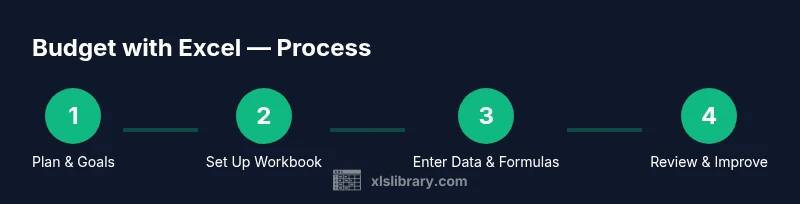
Planning Your Budget Structure in Excel\n\nSuccessful budgeting in Excel starts with planning. Before you touch a cell, define what you want to achieve and the time horizon you’ll use. Decide on the main goals (e.g., reduce discretionary spending, build an emergency fund, track debt repayment) and choose a budgeting cadence (monthly is common). With Excel, you can create a flexible framework that adapts to changes in income or expenses. This upfront planning reduces guesswork and sets you up for accurate tracking as life evolves.
Designing a Clear Chart of Accounts in Excel\n\nA Chart of Accounts is the backbone of any budget. In Excel, lay out a simple, stable list of income sources and expense categories that match your life. Use a single sheet or a dedicated Categories sheet, and give each item a short, descriptive name. Keep the list free from duplicates and typos by using Data Validation to enforce consistency. When you later pull totals or compare categories, a clean chart makes the numbers meaningful rather than confusing.
Building the Monthly Budget Template\n\nCreate a monthly budget sheet that mirrors real life: columns for planned amounts, actuals, and variances. Start with headers like Income, Fixed Expenses, Variable Expenses, and Savings. Add a row for each category from your Chart of Accounts. Use a separate column for the month and consider including a dedicated section for year-to-date totals. A well-designed monthly budget template in Excel makes it easy to see how money flows and where adjustments are needed.
Entering Incomes and Expenses Efficiently\n\nData entry is the lifeblood of a reliable budget. Enter incomes as they occur and tag each expense with its category. If you receive irregular income, capture the amount and date so you can forecast more accurately. For recurring items, copy or link the entries to future months to avoid repetitive work. With Excel, consistent data entry across months builds a strong historical record you can analyze later.
Core Formulas that Power Your Budget\n\nFormulas are what turn a spreadsheet into a budgeting tool. Use SUM to calculate totals for each category and SUMIF/SUMIFS to aggregate by category across months. Use AVERAGE for trends, and IF or IFERROR to handle undefined data. Named ranges help formulas stay readable, and relative references keep templates flexible. By combining these formulas, you can automatically generate monthly, quarterly, and annual insights without manual recalculation.
Automating Checks with Data Validation\n\nData validation reduces mistakes and keeps your budget spreadsheet clean. Create dropdowns for category selection, income type, and month, so you don’t end up with typos that fragment your reports. Set validation rules to limit entries to the approved list, and use error messages to guide user input. This makes the budget easier to audit and ensures consistency across months.
Visualizing Progress with Charts and Dashboards\n\nVisuals spark quick understanding. Build simple charts such as a stacked bar for income vs expenses and a line chart for cash flow over time. A basic dashboard can summarize key metrics: total income, total expenses, and net savings. Dashboards in Excel can be kept lightweight and refreshed automatically, giving you at-a-glance insight without overwhelming complexity.
Protecting Your Budget Workbook\n\nSecurity matters for personal data. Use password protection for sensitive sheets, and avoid sharing editable files over insecure channels. Consider creating a read-only version for family members while preserving a master file. Regular backups ensure you won’t lose your budget data after a crash.
Real-World Budget Scenarios You Can Model\n\nThink of several realistic scenarios and model them in Excel to practice budgeting with Excel. For example, simulate a tuition payment, a change in income, or a one-time expense. Adjust categories and trigger alerts to see how these events impact your cash flow. Practicing with concrete examples makes budgeting with Excel skills stick.
Common Pitfalls and How to Avoid Them\n\nBeware of overcomplicating the workbook or forgetting to update data. Use a stable structure and avoid duplicating categories. Don’t rely on manual copying for data entry; instead, link cells to the data sources. Finally, review formulas for accuracy after any template change to prevent misrepresentations.
Next Steps: Maintenance and Iteration\n\nOnce your budget with Excel is in place, establish a regular cadence for review and refinement. Schedule monthly checks, update goals, and adjust forecasts as life changes. Consider expanding to include additional sheets for debt payoff or investment tracking. With consistency and a lean template, your Excel budgeting efforts will become a reliable financial habit.
Tools & Materials
- A computer or tablet with Microsoft Excel installed(Office 365 / Excel 2019+ recommended)
- A starter list of budget categories (income, housing, utilities, etc.)(Customize to your situation)
- Bank statements or receipts for initial data entry(Helpful for accuracy)
- A drafted monthly budget template in Excel(Set up with formulas for totals and variances)
- Data validation rules and formatting guidelines(Optional but recommended to keep data clean)
Steps
Estimated time: 60-90 minutes
- 1
Define your budgeting goals
Identify what you want to achieve with this budget (e.g., reduce unnecessary spending, increase savings, or pay off debt) and set a monthly cadence. Clarify how you will measure success and what changes count as progress.
Tip: Set 3 clear priorities and a realistic monthly target. - 2
Create workbook structure and naming
Open a new Excel file and create clear, purpose-driven sheets (e.g., Categories, Budget, Actuals, Dashboard). Use a consistent naming convention and protect core sheets from accidental edits.
Tip: Use a consistent sheet order and a simple color scheme for quick navigation. - 3
Set up the Chart of Accounts
List income sources and expense categories in a dedicated Categories sheet. Keep items short and descriptive, and consolidate duplicates to prevent drift later.
Tip: Enable Data Validation to enforce the category list and avoid typos. - 4
Build the Monthly Budget template
Create a Budget sheet with columns for Planned, Actual, and Variance. Include rows for each category and a final row for totals. Consider adding a Year-to-Date section for context.
Tip: Link the totals to the Categories sheet to maintain consistency. - 5
Enter income and expenses
Record incomes as they occur and tag every expense with its category. For recurring items, copy entries across months to save time and keep forecasts aligned.
Tip: Enter data weekly to keep the budget current. - 6
Add core formulas
Use SUM for category totals, SUMIF/SUMIFS to aggregate by category or month, and IF/IFERROR to handle missing data. Create named ranges for readability.
Tip: Test formulas with a small data sample before expanding. - 7
Implement data validation and dashboards
Add dropdowns for category and month, and build a lightweight dashboard that shows key metrics. Dashboards should auto-refresh as you update data.
Tip: Keep visuals simple to avoid information overload. - 8
Review and iterate
At month end, compare Planned vs Actual, adjust forecasts, and refine categories as needed. Use insights to improve next month’s budget.
Tip: Treat the budget as a living document that evolves with you.
People Also Ask
What is the best way to start budgeting with Excel?
Begin with a simple monthly budget structure, define goals, and enter data consistently. Build from a core set of categories and gradually add formulas and visuals as you gain confidence.
Start with a simple monthly budget, define goals, and enter data consistently.
Can I use Excel's templates for budgeting?
Yes. Excel offers templates you can customize to fit your categories and cadence. They provide a solid starting point for a budget with Excel and can be adapted over time.
Yes, you can start with Excel templates and tailor them to your needs.
Should I use a separate sheet for income and expenses?
Separating income and expenses improves clarity and makes it easier to summarize cash flow. You can also combine them on a single budget sheet with clear labeling.
Yes, separate income and expenses for clarity, or keep them clearly labeled on a single budget.
How do I track actual vs planned spending in Excel?
Include columns for Planned and Actual amounts and compute Variance. Use SUMIF/SUMIFS to aggregate by category and month for a clear comparison.
Use Planned, Actual, and Variance columns with category-based sums.
What Excel features are most helpful for budgeting?
Key features include SUM, SUMIF/SUMIFS, data validation, conditional formatting, named ranges, and basic charts. These keep the budget reliable and easy to interpret.
SUM, SUMIF/SUMIFS, data validation, and charts are especially useful.
Is Excel enough for personal budgeting, or should I use a specialized tool?
Excel is often sufficient for personal budgeting and small households. As needs grow, you can upgrade to specialized budget software or add advanced dashboards, but Excel remains a strong foundation.
Excel is usually enough for personal budgeting, with room to upgrade if needed.
Watch Video
The Essentials
- Define budgeting goals before building the workbook.
- Structure Excel with a clear chart of accounts and monthly template.
- Automate totals and categories with core formulas.
- Use data validation and visuals to maintain data quality.
- Review monthly and iterate the budget model.