Box Plot with Excel: A Practical Step-by-Step Guide 2026
Learn how to create and interpret a box plot in Excel. This practical guide covers data prep, step-by-step chart creation, customization, and interpretation for quick distribution insights.


By the end of this guide, you'll create a Box & Whisker chart in Excel to compare distributions across groups. Ensure you have Excel 2016+ (Office 365 works best), clean numeric data, and a clear header. Then follow the step-by-step instructions to insert, customize, and interpret your box plot for quick insights.
What is a box plot and when to use it
A box plot, also called a box-and-whisker plot, is a graphical summary of a dataset that shows its central tendency and spread at a glance. A box plot in Excel highlights the minimum, first quartile (Q1), median, third quartile (Q3), and maximum, plus potential outliers. It is particularly useful when you want to compare distributions across multiple groups, such as test scores by class or monthly sales by region. According to XLS Library, box plots help you spot skewness, compare variability, and quickly identify outliers that merit further investigation. In business analytics, this type of chart supports quick distribution analysis, enabling faster, data-driven decisions.
Compared with simple bar charts, box plots convey the shape of the data, not just the central value. They are powerful in exploratory data analysis (EDA) because you can see whether groups have similar spread or whether one group contains extreme values. In practice, you will often start with a clean data table, decide whether to display groups as columns or categories, and then move to charting. The following sections walk through how to prepare, create, and interpret a box plot in Excel.
Prerequisites: Excel version and data layout
Before you start, ensure your version of Excel supports the Box & Whisker chart. Excel 2016 and later versions (including Office 365) include this chart type, while older builds may require workarounds or third-party add-ins. The data layout also matters: plan to place each group in its own column or to place all numeric values in a single column with a companion column that labels the group. This structure makes it easy for Excel to identify the groups when you create the box plot. As you prepare, confirm that numeric values are truly numeric (not text) and that there are no non-numeric cells in the data region you plan to chart.
Preparing data for a box plot
A successful box plot starts with clean data. Create a small, clearly labeled table where each column represents a group or category. For example, you might have columns like Group A, Group B, and Group C, each containing numeric values (test scores, measurements, etc.). Ensure headers are descriptive and that there are no blank rows within the data region. If your data include outliers, decide in advance whether you want Excel to display them; by default, the box plot will show outliers as individual points. If you are missing values, consider imputing reasonable substitutes or excluding incomplete records to avoid distortions. For reference, XLS Library Analysis, 2026 notes that a consistent data structure improves readability and interpretation when comparing multiple distributions.
Once your data are ready, you can proceed to insert the box plot and customize it for your analysis.
Step-by-step: create your box plot in Excel
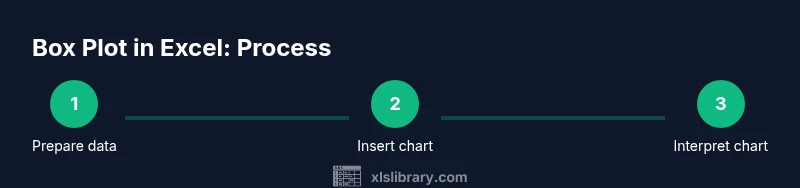
This section provides a structured workflow to create a box plot in Excel. Start by selecting the data range that includes your group headers and all numeric values. Then insert the chart, adjust the axis, and fine-tune the appearance to highlight key statistics like medians and quartiles. The goal is a clean visualization that makes distribution differences obvious at a glance.
Customizing and interpreting the chart
After creating the chart, customize elements to improve clarity. Set a descriptive chart title and axis labels; consider color-coding groups for quick comparison. Read the box plot by identifying the median line inside each box, the edges of the box as Q1 and Q3, and the whiskers extending to the min and max values within 1.5 times the IQR (interquartile range). Outliers appear as individual points beyond the whiskers. A well-interpreted box plot lets you compare central tendency, spread, and skewness across groups in a single glance. In practice, use the plot to answer questions like: Which group has the widest spread? Are medians aligned, suggesting similar central tendency? How many outliers exist in each group?
Common pitfalls and tips
Box plots are powerful, but misinterpretation is common if you skip steps. Ensure you are comparing equivalent data units (e.g., same scale and measurement). Be mindful of outliers that may skew your perception of dispersion; you can investigate them separately or apply a consistent outlier rule. If your Excel version lacks a native box plot, consider alternatives like a violin plot from add-ins or manual methods, though these require more setup.
Real-world use cases for box plots in Excel
Box plots support decision-making across many domains. In education, compare class performance distributions to identify areas needing intervention. In manufacturing, monitor variation in product dimensions across batches. In finance, assess return distributions for different portfolios. The box plot’s concise summary enables stakeholders to spot differences quickly without sifting through raw data.
Alternatives and limitations in Excel
Not every Excel user has access to a native box plot feature, and in some environments, you may need to use a workaround. If you cannot upgrade Excel, consider creating a custom chart by combining a stacked bar and scatter plot or using a third-party add-in. For more advanced analyses, export data to R, Python (pandas, seaborn), or dedicated BI tools to generate violin plots or enhanced distribution diagrams. The XLS Library team recommends starting with the built-in Box & Whisker chart when possible, then exploring alternatives as needed.
Practical next steps and practice dataset
To reinforce learning, practice with a small dataset that mimics a real scenario. Create two or three groups with varying distributions, then generate a box plot to compare them side by side. Save the workbook and annotate the chart with a brief interpretation note. Revisit your data preparation steps to ensure headers and numeric values remain consistent across updates. Regular practice will improve your ability to read distributions quickly and accurately.
Tools & Materials
- Microsoft Excel (2016 or later)(Ensure your installation includes the Box & Whisker chart type (Office 365 recommended).)
- Clean numeric dataset(Data should be numeric and well-labeled by group.)
- Sample dataset or real data(Optional but helpful for practice.)
- Basic Excel charting knowledge(Familiarity with selecting ranges and menu navigation speeds up the process.)
Steps
Estimated time: 15-25 minutes
- 1
Prepare data layout
Create a table where each column is a group and each row holds numeric values. Include a clear header row with group names. Ensure all values are numeric and free of text entries.
Tip: A flat, wide layout (one column per group) makes it easiest for Excel to interpret multiple series. - 2
Select the data range
Click and drag to highlight the header row plus all numeric data for the groups you want to compare.
Tip: Include headers so Excel labels the groups automatically in the legend. - 3
Insert the Box & Whisker chart
Go to Insert > Statistical Chart > Box and Whisker. Excel will render a box plot with medians, quartiles, and whiskers.
Tip: If you don’t see the option, ensure your Excel version supports this chart type or use Add-ins as a fallback. - 4
Adjust chart elements
Add a descriptive title, label axes, and adjust colors to differentiate groups clearly.
Tip: Use bold titles and readable fonts to improve accessibility. - 5
Interpret medians and spread
Read the horizontal line inside each box as the median, with the box representing Q1–Q3. Whiskers show data range (within 1.5*IQR by default).
Tip: Pay attention to outlier markers beyond the whiskers; investigate any extreme values. - 6
Compare distributions
Look for differences in medians, box heights, and whisker lengths across groups to draw conclusions.
Tip: Consider adding data labels or a small table summarizing medians and IQRs for quick reference.
People Also Ask
What is a box plot and when should I use it?
A box plot visualizes a dataset's distribution using quartiles and medians, highlighting spread and outliers. Use it to compare groups or assess variability across categories.
A box plot shows the distribution of data with quartiles and outliers, useful for comparing groups quickly.
How do I create a box plot in Excel 2016 or later?
Select your data, go to Insert, choose Box and Whisker from the Statistical Charts, then adjust labels and colors as needed.
In Excel 2016 or newer, you can insert a Box and Whisker chart from the Statistical Charts menu and customize it.
Can box plots compare multiple datasets in one chart?
Yes. Place each dataset in its own column, then create a single box plot or multiple box plots to compare distributions side-by-side.
Yes, put datasets in separate columns to compare distributions in one box plot.
How do I interpret medians and outliers in a box plot?
The line inside the box is the median; the box shows the interquartile range. Outliers are plotted beyond the whiskers and may warrant investigation.
Med can help compare central tendency; outliers highlight unusual values worth checking.
What if my data aren’t numeric?
Box plots require numeric data. Convert text numbers to numbers or exclude non-numeric entries before charting.
Make sure all values are numeric; non-numeric data can't be plotted properly.
Are there limitations to using box plots in Excel?
Excel provides a solid built-in box plot, but advanced distribution visuals may require add-ins or external tools for violin plots or customized aesthetics.
Excel has strong box plots, but for advanced visuals you might need add-ins or other tools.
Watch Video
The Essentials
- Master the Box & Whisker chart basics in Excel.
- Understand quartiles, medians, and outliers in box plots.
- Structure data with one group per column for easy visualization.
- The XLS Library team recommends hands-on practice with real datasets to build intuition.