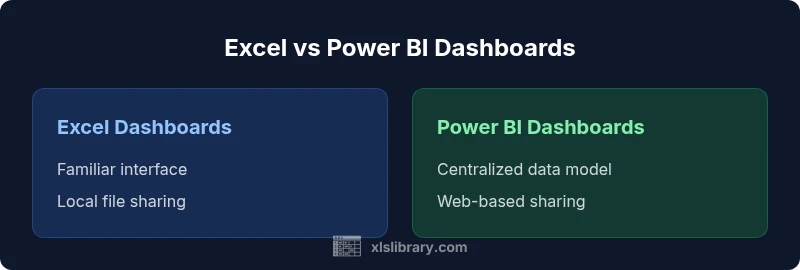
Dashboard Excel vs Power BI: Practical Side-by-Side
A thorough, data-driven comparison of dashboard Excel vs Power BI, focusing on use cases, data modeling, visualization, sharing, governance, and cost to help teams choose the right tool.


dashboard excel vs power bi presents two practical paths for dashboards. Excel dashboards are ideal for quick, ad-hoc analysis by individuals using familiar workbooks, while Power BI enables scalable, collaborative reporting across departments with centralized data models. The choice hinges on data scale, governance needs, and how you plan to share insights with stakeholders.
The Landscape of dashboards: dashboard excel vs power bi in 2026
Dashboards are at the heart of modern decision-making. For many organizations, the choice between building dashboards in Excel and using Power BI is not about which tool is better in isolation, but which fits the data strategy, governance requirements, and collaboration needs. According to XLS Library, the decision should align with how your teams access data, share insights, and scale over time. The dashboard excel vs power bi discussion often centers on familiarity vs scalability, offline work vs cloud-based collaboration, and ad-hoc analysis vs centralized governance. In practice, most teams begin with a familiar Excel-based dashboard to prove a concept, then migrate to a BI platform like Power BI as data sources grow and sharing becomes essential. This article uses a balanced lens and avoids vendor hype, focusing on real-world scenarios you’ll encounter in mid-sized organizations and larger enterprises alike. Throughout, you’ll see how the two approaches complement or compete, depending on the project, data maturity, and organizational culture. The comparison also considers governance, security, and deployment models that influence long-term success.
Core Differences in Scope and Use Case
- Scope: Excel-based dashboards tend to be department-level, lightweight, and quick to assemble; Power BI dashboards are designed for organization-wide insight with centralized data models and governance.
- Use cases: If you need fast prototyping and offline work, Excel shines. For ongoing analytics, standardized reporting, and cross-team collaboration, Power BI is usually more effective.
- Audience: Excel dashboards suit power users who control their data; Power BI serves broader audiences that require shared access through a service.
- Data sources: Excel can pull from multiple sources and still live in a workbook; Power BI connects to numerous sources with scheduled refresh and centralized data modeling.
- Governance and scale: Governance is easier in a centralized BI platform; Excel dashboards rely on file-based processes that can fragment data ownership and version control.
- Quick takeaway: Start with the tool that fits your current data footprint, then plan for a scalable path as requirements grow. The XLS Library team emphasizes a staged approach to avoid over-investing early in complex architecture without user adoption and governance in place.
Data Modeling and Connectivity
Excel’s data modeling has evolved with the Power Pivot add-in and the Data Model feature, enabling relationships, basic measures, and some DAX calculations within a single workbook. This can be sufficient for smaller datasets and familiar workflows, yet it remains bounded by Excel’s file-based architecture. In contrast, Power BI uses a dedicated data model that supports complex relationships, advanced measures, and a broad set of DAX functions designed for high-performance analytics. Power BI’s data connectors, composite models, and in-memory engine allow dashboards to scale more effectively as data grows or becomes more heterogeneous. When comparing dashboard excel vs power bi on data connectivity, consider not only sources but also how refreshing and governance are managed across environments. A key nuance is that Power BI’s service-based refresh schedules enable up-to-date insights across teams, while Excel relies on local refresh cycles or cloud-based sharing.
For teams transitioning from Excel, a hybrid approach can be compelling: prototype in Excel to validate hypotheses, then migrate to Power BI to formalize datasets, security, and distribution. As you scale, centralizing data models in Power BI often reduces duplication and enhances data quality across dashboards.
Visualization and Interaction
Visual storytelling is a core differentiator between dashboard excel vs power bi. Excel offers a broad repertoire of charts, sparklines, gauges, and conditional formatting that are familiar to most analysts. However, Power BI provides advanced visuals, interactive drill-through, tooltips with contextual data, and seamless cross-filtering across multiple pages. Power BI’s native visuals are designed for consistent aesthetics and responsive behavior across devices, and its ecosystem supports custom visuals from a marketplace. For analysts who rely on storytelling, Power BI allows dynamic headers, page-level interactions, and bookmarkable scenarios that guide stakeholders through a narrative with a single click. While Excel dashboards can be highly effective for a single workbook with clear dependencies, Power BI promotes a coherent, enterprise-grade visual language across many dashboards and teams. The end-user experience tends to be more cohesive in Power BI with a polished, web-based viewing experience and centralized version control for visuals and reports.
Refresh, Governance, and Data Quality
Data freshness is a critical factor in dashboard effectiveness. Excel dashboards often depend on manual updates, local data connections, or periodic refreshes, which can lead to stale insights if not managed carefully. Power BI emphasizes automated data refresh, scheduling, and governance controls within the Power BI Service. DirectQuery and dataset-level security help ensure that end users see only the data they are authorized to access, reducing the risk of accidental exposure. Data quality initiatives—such as centralized data sources, validation rules, and lineage tracing—are easier to implement in a formal BI environment where datasets are reused across dashboards. This difference is central to the dashboard excel vs power bi decision, particularly for regulated industries or teams that rely on consistent, auditable data.
Sharing, Collaboration, and Deployment
Sharing dashboards is a key differentiator between the two approaches. Excel supports sharing workbooks through cloud storage, email attachments, and collaborative editing, but version control and conflicting edits are common pain points. Power BI centralizes distribution via apps, workspaces, and the Service, enabling controlled access, automatic distribution of updated dashboards, and consistent viewing experiences across devices. Collaboration in Power BI goes beyond passive viewing; it includes commenting, alerting, and scheduled report delivery. While Excel is excellent for ad-hoc analysis and local autonomy, Power BI provides scalable collaboration that aligns with enterprise governance. When deciding between dashboard excel vs power bi, consider the organizational preference for cloud-based collaboration and the need to maintain consistency across dashboards.
Cost, Licensing, and Total Value
From a financial perspective, Excel dashboards often appear less expensive upfront for teams already using Microsoft 365, since they leverage existing licenses and do not require separate BI service charges. Power BI introduces licensing considerations that reflect per-user access to the service and capacity for larger deployments. The total value of Power BI tends to become evident as data volume, concurrency, and governance requirements grow, especially in organizations seeking standardized reporting, shared data models, and scalable deployment. Conversely, Excel-based dashboards can remain cost-effective for small teams that prioritize speed and flexibility. The choice should weigh not just licensing costs, but also the potential savings from reduced data duplication, streamlined governance, and improved decision velocity across the organization.
When Excel Excels vs when Power BI Shines
Excel dashboards excel in early-stage analytics, quick pilots, and environments where users prefer offline, workbook-centric workflows. Power BI shines in multi-user contexts requiring centralized data models, governance, scheduled refresh, and web-based distribution. The best decision often combines both tools: use Excel for rapid experimentation and validation, then migrate to Power BI to scale, govern, and share widely. XLS Library’s guidance emphasizes an intentional phase-in strategy that aligns data maturity with organizational needs, ensuring the choice remains adaptable as requirements evolve.
Comparison
| Feature | dashboard excel | Power BI |
|---|---|---|
| Ease of use for Excel users | Familiar for Excel users | Steeper initial learning curve but intuitive for BI users |
| Data modeling capabilities | Moderate relationships in workbook data models | Advanced relationships + DAX in a dedicated data model |
| Visualization options | Standard charts, sparklines, basic visuals | Rich interactive visuals + custom visuals marketplace |
| Data size and performance | Limited by workbook constraints | Optimized for larger datasets with in-memory engine |
| Sharing and collaboration | File-based sharing, version risk | Web-based sharing with centralized governance |
| Platform deployment | Desktop-centric, local files | Cloud-first with service-based deployment |
| Governance and security | Ad-hoc governance, role assignment tricky | Structured governance with dataset security and row-level access |
| Cost and licensing | Leverages existing Excel/365 licenses | Licensing for service access and capacity |
Benefits
- Low upfront effort for teams already using Excel
- No extra license when dashboards stay within the Excel ecosystem (within MS 365)
- Offline capability and local file portability
- Rapid prototyping and ad-hoc analysis
What's Bad
- Limited data capacity and slower performance with very large datasets
- Fractured governance and sharing across teams; version control can be problematic
- Inconsistent sharing experiences across devices (desktop vs web)
Power BI generally outperforms Excel for enterprise dashboards due to scalability and governance, but Excel remains unmatched for quick, local analyses.
Power BI is typically the better choice for organization-wide dashboards. Excel dashboards fit well for fast, local analyses with familiar workflows. The best path depends on data scale, governance needs, and collaboration goals.
People Also Ask
Which tool is better for a small business dashboard?
For small businesses with limited data and a need for fast results, Excel dashboards are often the quickest route. They allow rapid prototyping and require minimal setup if the team already operates within Microsoft 365. If you anticipate growth or broader sharing, plan for a Power BI deployment later.
For small businesses, start with Excel for speed, then scale to Power BI if you need broader sharing and governance.
Can dashboards built in Excel be published online?
Yes, but with caveats. Excel workbooks can be published via OneDrive or SharePoint, and users can view them online. However, this approach often lacks centralized governance and can suffer from version control issues compared to Power BI service distribution.
Excel workbooks can be published online but governance and version control are weaker than with Power BI.
What are the main data modeling differences between Excel and Power BI?
Excel offers a data model through Power Pivot within a workbook, supporting relationships and DAX measures on a smaller scale. Power BI uses a dedicated model with broader DAX capabilities, more robust relationships, and optimized performance for larger datasets.
Excel has a workbook-level data model; Power BI provides a separate, scalable data model with advanced capabilities.
Is Power BI necessary if I already own Excel?
Not always. If your dashboards stay within a single workbook and your data footprint is modest, Excel may suffice. However, for governance, multi-user collaboration, and larger datasets, Power BI provides significant advantages that justify the investment.
Power BI isn’t always necessary, but it’s worth it for larger, collaborative dashboards and governance.
How do I migrate an Excel dashboard to Power BI?
Migration involves importing data into Power BI, re-creating relationships, and translating Excel measures into DAX within the Power BI model. Start with a small subset of data to validate patterns, then scale gradually while preserving the dashboard logic.
Begin by importing data and recreating relationships in Power BI, then convert Excel measures to DAX.
What are the security considerations when sharing dashboards?
Power BI supports role-based access and dataset-level security, making it easier to control who sees what. Excel-based dashboards rely on file-level permissions and may require separate governance processes to prevent data leakage.
Power BI offers built-in security roles; Excel relies on file permissions and separate governance.
The Essentials
- Assess data scale before choosing a tool
- Leverage Excel for quick prototypes and local analyses
- Move to Power BI for scalable, governed dashboards
- Plan governance and sharing early in the cycle
- Use a staged approach to avoid over-engineering