Do Excel Charts Update Automatically: A Practical Guide
Learn how and when Excel charts refresh automatically, how to configure data sources for auto-updates, and practical tips for reliable dynamic dashboards.


You will learn whether do excel charts update automatically, how updates are triggered, and how to configure data sources for auto-refresh in Excel. The guide covers tables, PivotTables, and external connections for dynamic dashboards. By the end, you'll be able to identify when updates occur automatically and how to ensure charts stay in sync with your data across workbooks.
What automatic updating means for Excel charts
Automatic updating refers to charts that redraw when the underlying data changes, without requiring manual edits to the chart. According to XLS Library, do excel charts update automatically when data is stored in a structured format like an Excel table, PivotTable, or a connected data source? In practice, yes—if your chart is bound to a dynamic data source, Excel will refresh the visual as values change. This behavior is the cornerstone of modern dashboards and KPI trackers, where the goal is to present current information with minimal manual steps. By understanding what triggers an update and how Excel determines what to redraw, you can build charts that stay in sync with your data across a workbook and across sessions. In the rest of this guide, we’ll explore the mechanics, best practices for design, and common pitfalls to avoid.
Charts can update when you add rows to a table, refresh a Power Query connection, or recalculate formulas that feed the chart. This combination—tables, pivots, and data connections—gives Excel charts the ability to stay current as data evolves. The following sections unpack the how and why behind automatic updates, and provide practical steps to shape reliable, responsive dashboards.
Core mechanisms that drive automatic updates
Excel can redraw charts through three primary pathways: (1) charts bound to Excel Tables or named ranges that expand as data grows; (2) charts fed by PivotTables that update when base data or slicers change; and (3) charts connected to external data sources via data connections that you refresh. When calculation mode is automatic (default), every change triggers a recalc across the workbook, propagating to dependent charts. If you use manual calculation mode, you must press F9 to recalculate, which means charts won't auto-update until you trigger the refresh. In practice, most dashboards benefit from automatic calculation so that edits to data immediately reflect in visuals. Skilled builders also leverage dynamic ranges, structured references, and Power Query queries to keep updates smooth and predictable.
Designing data sources for auto-refresh
To enable auto-refresh, design your sources to be dynamic. Use Excel Tables (Ctrl+T) as data containers—the table automatically expands when you add new rows and preserves headers. Bind charts or PivotTables to those tables instead of fixed cell ranges. For external data, set up a data connection (Data > Get Data) and configure the refresh options: refresh on opening the workbook, refresh every X minutes, and enable background refresh if available. If you rely on formulas, ensure the inputs feed the chart through a table or named range rather than hard-coded ranges. Power Query is a powerful tool to import and reshape data while keeping a clean, refreshable connection. With the right data architecture, your charts will update automatically as your sources evolve.
Refresh triggers you should expect in practice
Automatic updates typically occur when the underlying data changes, you open the workbook, or Excel recalculates. Automatic updates are most reliable when charts are bound to dynamic sources like Tables or PivotTables. If a workbook uses external connections, updates may depend on connection settings and background refresh availability. Understanding these triggers helps you design dashboards that feel responsive and trustworthy, especially when multiple data streams feed a single chart. Testing with representative data samples is essential to confirm that updates behave as expected across different scenarios.
Pitfalls and troubleshooting
If a chart isn’t updating as expected, start by checking whether the data source is truly dynamic. Convert fixed ranges into Tables, verify that the chart is bound to the table or PivotTable, and ensure the PivotTable cache is up to date. For external data, confirm the connection is configured to refresh on opening or at regular intervals, and that background refresh is enabled if you rely on network data. Ensure workbook calculation mode is Automatic and that no custom VBA or event macros are locking recalculation. Mac and Windows users may encounter minor interface differences, so verify options in your specific Excel version. Regular testing with small data changes helps catch issues early.
Real-world use cases: dashboards and reports
Dynamic charts power dashboards that track sales trends, project KPIs, and inventory over time. By anchoring charts to Tables and PivotTables, teams can refresh visuals with a single data change or on workbook open, keeping stakeholders aligned with the latest numbers. In practice, successful implementations combine clear data structure with thoughtful chart design: consistent color schemes, scalable chart types, and straightforward data sources. These practices minimize manual editing and reduce the risk of stale visuals in dashboards used for decision making.
Authority sources
For further reading from trusted sources, see:
- https://learn.microsoft.com/en-us/office/troubleshoot/excel/
- https://support.office.com
- https://www.nature.com
Tools & Materials
- Microsoft Excel (Windows or macOS)(Office 365 / Microsoft 365 recommended for latest features; ensure automatic calculation is available.)
- Sample dataset(Structured data in a table format (CSV or Excel) to test auto-updating charts.)
- External data source (optional)(A data connection you plan to refresh automatically (e.g., SQL, web data).)
- Power Query (optional)(Useful for shaping and loading external data with refreshable queries.)
Steps
Estimated time: 30-45 minutes
- 1
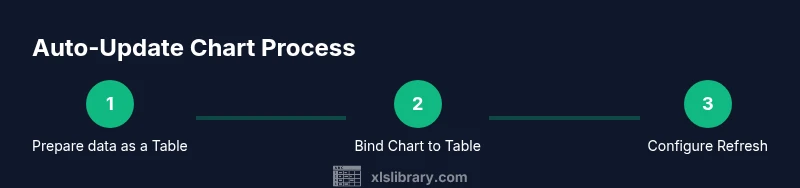
Prepare your data as a structured table
Select your data range and convert it to a table (Ctrl+T). This makes the range dynamic so it grows as you add rows, which is essential for auto-updating charts.
Tip: Always include headers in the table to maintain reliable structured references. - 2
Create a chart bound to the table
Insert the chart from the Table or use a PivotTable as the data source. Binding to a dynamic table ensures the chart expands with new data automatically.
Tip: Use a simple chart type first (e.g., line or column) to verify updates before adding complexity. - 3
Configure data connections for external data
If you’re pulling data from external sources, establish a connection (Data > Get Data) and set refresh options such as refresh on open and refresh interval.
Tip: Enable background refresh to avoid blocking work while data updates occur. - 4
Check calculation mode
Ensure workbook calculation mode is set to Automatic so formulas and data changes propagate to charts without manual recalculation.
Tip: If you must use manual mode for performance, plan periodic recalculation windows. - 5
Test updates with a live data change
Edit the source data (add a row or change a value) and observe the chart. Confirm the update occurs without manual edits to the chart.
Tip: Keep a small test dataset handy to quickly verify the end-to-end update flow. - 6
Add a dashboard-level refresh plan
For dashboards, consider a scheduled refresh and a clear data-saving workflow so viewers always see current visuals.
Tip: Document refresh timings and sources to avoid confusion among collaborators. - 7
Validate on open and across devices
Open the workbook on different machines to verify that auto-updates occur consistently, especially if external sources are involved.
Tip: If discrepancies arise, inspect regional settings and data connection paths.
People Also Ask
Do Excel charts update automatically when data in a table changes?
Yes. If a chart is bound to an Excel Table or a PivotTable that updates from the table, the chart will refresh as the data changes. External connections can also refresh automatically if configured.
Yes. Bind your chart to a dynamic data source like a table or pivot table, and enable automatic refresh so the chart updates when you modify the data.
What triggers automatic updates in Excel charts?
Updates occur when the source data changes, when the workbook is opened (if configured), or when Excel recalculates (Automatic calculation mode). External data connections may refresh based on their settings.
Chart updates trigger when the source data changes or when the workbook opens and recalculates, especially if you’ve enabled automatic refresh.
Can charts update automatically from external data sources?
Yes, charts can update automatically when connected to external data sources, provided the connection is configured to refresh and the data is wired to a dynamic source like a table or query.
Yes, as long as the data connection is set to refresh and the chart uses a dynamic source.
How do I force a manual refresh if needed?
You can force a refresh by refreshing the data connection, recalculating the workbook (F9), or reloading the data query. This is useful when automatic refresh is disabled.
Use the Refresh button or press F9 to recalculate if automatic updates aren’t happening.
Why isn’t my chart updating after changes?
Check that the source is dynamic (not a fixed range), ensure automatic calculation is on, verify data connections are configured to refresh, and confirm there are no macros preventing recalculation.
If updates don’t appear, verify dynamic sources, automatic calculation, and connection refresh settings.
How can I disable automatic updates?
Disable automatic updates by turning off automatic calculation and by disabling background refresh for external data connections. You would then trigger updates manually as needed.
Turn off automatic calculation to disable auto-updates and refresh manually when you choose.
Watch Video
The Essentials
- Bind charts to Excel Tables for auto-expansion.
- Use PivotTables for slicer-driven updates.
- Configure data connections with open/minute refresh settings.
- Test updates regularly and keep calculation on Automatic.