Excel Chart 2 Axis: Master Dual-Axis Charts in Excel
Learn how to create a dual-axis chart in Excel to compare datasets with different scales. This practical 2026 guide covers setup, axis formatting, readability, and best practices.


By following this guide, you will create an Excel chart with two axes to compare datasets that have different scales. You’ll need Microsoft Excel and a data table with two series. The process covers data preparation, inserting a combo chart, assigning a secondary axis, and fine-tuning formatting for clear, accurate visuals.
What is a two-axis chart and when to use it A two-axis chart, commonly called a dual-axis chart, is a way to display two data series on the same chart while giving each series its own Y-axis. This separation allows you to compare trends when the data ranges are very different. For example, you might plot monthly revenue in dollars alongside the number of units sold, where revenue spans thousands while units stay in the hundreds. In Excel, a dual-axis chart is typically implemented as a combo chart that uses a primary axis for one series and a secondary axis for the other. According to XLS Library, the key to success is clarity: limit the number of series, choose contrasting colors, and use precise axis labels. In 2026, Excel’s chart engine supports intuitive controls for adding a secondary axis, adjusting scales, and keeping data labels legible on both axes. This makes it possible to reveal relationships that a single-axis chart would obscure, without sacrificing accuracy.
Choosing the right data layout for a two-axis chart Choosing the right data layout is essential to avoid misinterpretation. Place the common category labels in the first column and put each numeric series in adjacent columns. The category axis will map across the chart, so ensure the categories are evenly spaced and sorted (for example by month or quarter). Use consistent units and avoid mixing percent with raw counts in the same area. A dual-axis chart shines when two metrics share a relationship but differ in magnitude, allowing readers to observe correlation rather than just numbers. Keep the dataset compact—two to three metrics plus the time category is typically enough to tell the story. If a third series is necessary, consider splitting into two charts or using small multiples to preserve clarity. Align data to the same time frame and avoid gaps that could confuse viewers. This approach aligns with best practices from XLS Library in 2026.
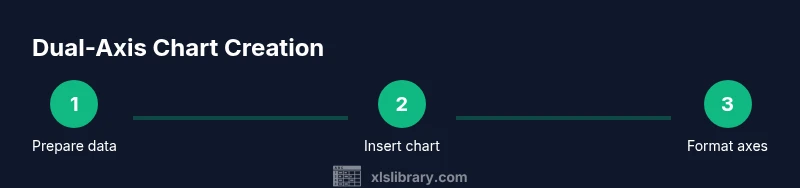
Step-by-step overview of creating a dual-axis chart Here is the straightforward workflow you’ll follow: prepare data; create a basic chart; add a secondary axis to the chosen series; change the second series chart type if needed; adjust scales and alignment; add axis titles and informative labels; refine colors and legend; review readability and adjust as necessary. Understanding this sequence helps you anticipate each action and its purpose before you dive into the detailed steps.
Customizing axes, data series, and labels Once the dual-axis setup exists, tailoring the visuals is crucial. Adjust minimum and maximum values for both axes to ensure meaningful comparisons, and use contrasting colors for each series. Add descriptive axis titles with units and ensure the legend clearly maps to each line or bar. For accessibility, keep font sizes legible and avoid crowded data labels; consider data labels only for critical points to maintain clarity. Remember to document the relationship in a concise caption that hints at the insight the chart provides.
Common mistakes and how to avoid them A frequent error is using improper scales that exaggerate or downplay trends, which misleads readers. Always annotate axes with units and provide a caption explaining the relationship. Avoid more than two data series in a single dual-axis chart, which increases clutter and confusion. Double-check that the secondary axis is necessary for the dataset and that the color palette is distinguishable for color-filtered or color-impaired viewers.
Accessibility and readability considerations Design with accessibility in mind: choose colorblind-friendly palettes, maintain high contrast, and provide keyboard-navigable labels. Ensure axis titles are descriptive and that screen readers can interpret the legend. If the chart will be printed, verify legibility in grayscale and avoid tiny font sizes. When presenting remotely, test on different devices to confirm readability across screen sizes.
When to avoid dual-axis charts If both datasets share similar scales, a single-axis chart is usually clearer. Dual-axis charts can confuse readers if overused or poorly labeled, so reserve them for cases where the relationship between the series benefits from direct visual comparison. In some situations, separate charts or small multiples may tell the same story with less cognitive load.
Tools & Materials
- Microsoft Excel(Any recent Windows or Mac version (2019+).)
- Data table with two series(Two related metrics over the same category axis.)
- Practice dataset(Optional dataset to experiment with different layouts.)
Steps
Estimated time: 15-25 minutes
- 1
Prepare your data
Ensure your data table includes a common category axis and two numeric series. Align rows so each category matches across both series.
Tip: Check for missing values; fill or exclude incomplete rows. - 2
Insert a basic chart
Select the data and insert a simple column or line chart as a starting point for the dual-axis setup.
Tip: Choose a chart type that clearly shows both series. - 3
Add a secondary axis
Right-click the series to plot on the secondary axis, then choose Format Data Series > Secondary Axis.
Tip: Only assign secondary axis to the series that needs it. - 4
Change the chart type for the second series
With the second series selected, switch its chart type if needed (e.g., line for one series, column for the other).
Tip: Different types improve readability when scales differ. - 5
Adjust axes scales
Set appropriate minimum/maximum values for both axes to make comparisons meaningful.
Tip: Use consistent tick intervals and avoid extreme ranges. - 6
Add axis titles and data labels
Label both axes with units and add labels to key data points if helpful for interpretation.
Tip: Data labels should be concise to avoid clutter. - 7
Refine the legend and colors
Choose high-contrast colors and ensure the legend clearly maps to each data series.
Tip: Test color alternatives to accommodate color vision differences. - 8
Review readability
Review the final chart at the intended display size and revise as needed for clarity.
Tip: Solicit quick feedback from a colleague.
People Also Ask
What is a dual-axis chart?
A chart that uses two Y-axes to display two different data series with different scales on the same chart.
A chart with two Y-axes to compare two data series.
Can I use more than two axes?
Excel supports two axes for dual-axis charts; more than two axes can be created but often leads to confusion and is not recommended.
Yes, but two axes are usually enough and clearer.
Why use a dual-axis chart?
It highlights relationships when data ranges differ greatly, allowing side-by-side trend comparisons in a single visual.
It helps compare trends when scales differ.
What are signs of misuse?
Misleading scales, missing axis labels, or overly crowded legends indicate misuse.
Watch for confusing scales or clutter.
Which Excel versions support this?
Most modern Excel versions support dual-axis charts, including Office 2019 and Microsoft 365.
Yes, on recent Excel versions.
Watch Video
The Essentials
- Use dual-axis only when scales differ meaningfully
- Label axes and choose distinct colors
- Limit series to two for clarity
- Check accessibility and legibility
- Explain the relationship in a caption