Google Sheets vs Excel: A Practical Comparison
A data-driven comparison of Google Sheets (Google Docs ecosystem) and Microsoft Excel, focusing on features, collaboration, automation, and use-case guidance. Learn when to choose Sheets or Excel based on data complexity, teamwork, and access needs for 2026.


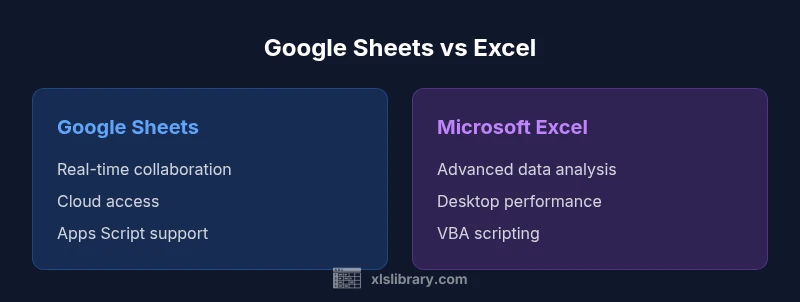
For those evaluating google docs excel options, Excel generally offers deeper data modeling, advanced formulas, and offline robustness, while Google Sheets shines in real-time collaboration and cloud access. This comparison outlines the core differences, highlighting when to use Sheets for teamwork and when to lean on Excel for heavy data tasks. The quick takeaway: Sheets for collaboration; Excel for depth, with both tools capable of coexisting in hybrid workflows.
What are Google Sheets and Microsoft Excel?
In the context of google docs excel, two tools dominate everyday spreadsheet work: Google Sheets, part of the Google Docs ecosystem, and Microsoft Excel, the flagship program of the Office suite. Sheets is designed for cloud-first collaboration and rapid sharing, while Excel emphasizes depth, performance on large datasets, and a mature set of data-analysis features. This section clarifies where each tool shines, how they are built, and what this means for teams that must move data between environments. According to XLS Library, many teams start with Sheets for lightweight budgets or planning because of real-time co-authoring and effortless access from any device. The XLS Library team also notes that Excel remains the go-to option when you need advanced formulas, powerful data modeling, or sophisticated automation in a desktop or enterprise setting. The key takeaway is that google docs excel questions often reflect how organizations balance collaboration and control: Sheets for sharing, Excel for heavy-lifting. The rest of this article digs into concrete differences, practical implications, and migration tips so you can make informed decisions without guessing.
Core capabilities: Formulas, data modeling, and automation
Both Sheets and Excel offer a comprehensive set of formulas, functions, and basic data tools, but their libraries diverge in depth and emphasis. Google Sheets provides a strong core function set, including FILTER, QUERY, and ARRAYFORMULA, which enable flexible data extraction and dynamic reports without scripting. Excel, meanwhile, presents a broader function catalog with modern dynamic arrays, XLOOKUP, XMATCH, BINOM.DIST, and an extensive statistical suite that supports complex modeling. Automation also differs: Sheets relies on Apps Script for custom automation and a rich marketplace of add-ons, while Excel leans on VBA, Office Scripts, Power Query, and Power Automate to stitch together data pipelines. For teams used to the alphabet of Excel formulas, the transition to Sheets often requires rethinking some workflows, though many formulas translate with adaptation. The XLS Library analysis shows that both platforms can be extended to match specialized needs, but the path you choose impacts maintainability and future scalability. When you search for google docs excel, consider whether your tasks favor scripting, advanced math, or rapid prototyping.
Collaboration vs. control: real-time editing and offline access
Collaboration is the anchor where Sheets shines. Real-time editing, comment threads, and shareable links make it effortless for teams to co-author simultaneously, track changes, and restore prior versions with ease. Excel has caught up in cloud environments (Excel Online) and supports co-authoring, but the experience can feel more module-driven, especially for large workbooks. Offline access is a differentiator: Sheets is accessible via web or mobile with an internet connection, whereas traditional Excel workloads thrive in desktop environments with full offline capabilities. This dynamic shapes governance: in Sheets, you lean into version history and granular sharing permissions; in Excel, you often rely on local files or controlled cloud copies with centralized version control. If your workflow hinges on rapid, multi-user collaboration, google docs excel tends to favor Sheets; for strict change control and offline reliability, Excel maintains an edge.
Data capacity, performance, and scale
Data capacity varies significantly between the two. Excel supports up to 1,048,576 rows per worksheet and handles extremely large datasets with robust performance on the desktop and in the cloud through Office 365. Sheets supports a vast number of cells per spreadsheet, commonly cited as up to around 10 million cells, though performance depends on formula complexity and add-ons. In practice, Excel remains the standard for heavy analytics, pivot tables, and complex modeling, while Sheets excels in lightweight datasets deployed across teams and devices. When google docs excel is used in production, plan for potential performance bottlenecks in Sheets as data grows, and reserve Excel for the primary data engine that requires intense computation and offline resilience.
Advanced features: scripting, add-ons, and integration
Automation is where the platforms diverge most. Sheets uses Apps Script for custom functions, automation, and integration with Google Workspace services, complemented by add-ons from the Workspace Marketplace. Excel offers VBA for legacy automation, Office Scripts for modern automation in the cloud, Power Query for data shaping, and deep integration with Power BI and other Microsoft tools. This combination makes Excel a powerhouse for enterprise-grade analytics and data integration, while Sheets provides a rapid, accessible path to automation without heavy software installation. In the google docs excel landscape, consider the ecosystem your team already uses: Google Workspace favors lightweight automation and cross-App workflows; Microsoft workflows shine with enterprise-grade data operations and BI tooling.
Accessibility and platform coverage
Accessibility matters for distributed teams. Sheets is platform-agnostic, accessible via any modern browser and mobile app, with strong share-and-collaborate capabilities across devices. Excel offers comprehensive desktop coverage for Windows and macOS, plus online options and mobile clients, ensuring continuity across environments. The choice often hinges on how teams access data: global, device-agnostic collaboration points to Sheets; enterprise-grade data tasks and offline, heavy-duty operations align with Excel. The google docs excel question frequently centers on whether a team should standardize on a single platform or maintain a hybrid approach that leverages the strengths of both tools.
Pricing, licensing, and total cost of ownership
Pricing and licensing considerations shape decision-making. Google Sheets is freely accessible with a Google account and integrated into the broader Google Workspace model, while Excel’s pricing can be tied to Office 365 subscriptions or standalone licenses. For many organizations, Sheets offers an attractive total cost of ownership for lightweight, collaborative tasks, whereas Excel’s licensing reflects its feature depth and enterprise integrations. When evaluating google docs excel, map licensing costs to the expected volume of users, required automation, and the level of data governance your business requires.
Decision heuristics: when to choose Sheets vs Excel
A simple heuristic helps teams decide: choose Sheets when real-time collaboration, rapid sharing, and browser-based access dominate; choose Excel when you need extensive data modeling, advanced analytics, offline work, and mature automation. For hybrid teams, a pragmatic strategy is to use Sheets for planning and collaboration and Excel for final analysis and heavy lifting, exchanging data through verified, version-controlled exports. Consider pilot testing both tools with representative workflows and capturing metrics on speed, accuracy, and ease of use.
Practical migration tips and pitfalls
Migration between Google Sheets and Excel is common but requires careful planning. Start with a data inventory and map key functions to equivalent capabilities in the target platform. Validate formulas and macros in a test workbook, and establish a governance process for version control and change management. Pitfalls to watch include formatting drift, loss of advanced formulas during export, and differences in data types. Leverage both tools where they excel: Sheets for collaborative budgeting and lightweight dashboards, Excel for final exports, raw data models, and complex pivot-table workflows.
Security and data governance considerations
Security profiles differ between Google Workspace and Microsoft 365. Align access controls to organizational policy, implement data loss prevention where available, and maintain clear ownership for shared workbooks. Audit trails, version history, and permission settings should be part of every rollout plan for either tool. When google docs excel is in play, ensure cross-platform data transfers are secured through approved channels and that data governance policies cover both environments to minimize risk.
Comparison
| Feature | Google Sheets | Microsoft Excel |
|---|---|---|
| Primary environment | Cloud-based within Google Docs ecosystem | Desktop-first with strong cloud options via Excel Online |
| Real-time collaboration | Outstanding real-time co-editing and commenting | Co-editing available but often more workflow-driven in cloud/Office Online |
| Formulas & functions | Broad core set; strong dynamic capabilities via FILTER, QUERY | Large formula library; advanced dynamic arrays and specialized functions |
| Automation & scripting | Apps Script; extensive add-ons | VBA legacy; Office Scripts; Power Query + Power Automate |
| Data validation & governance | Good validation; simple data modeling | Advanced data modeling; pivot tables and modeling tools |
| Data capacity | High performance with growing datasets; cloud-limited by complexity | Up to 1,048,576 rows per sheet; strong performance with large datasets |
| Add-ons & integrations | Workspace Marketplace integrations | Rich Microsoft ecosystem integrations |
| Offline access | Online-first; offline support on limited devices | Strong offline desktop experience; cloud-sync for online work |
| Pricing/licensing | Free with Google account; workspace options | Licensing or subscription dependent on plan |
Benefits
- Excellent real-time collaboration across teams
- Auto-save and cloud access reduce data loss
- Cross-device accessibility and sharing controls
- Low friction setup and maintenance for browser-first teams
What's Bad
- Excel offers deeper data analysis and automation capabilities
- Sheets can struggle with very large or complex datasets
- Sheets may require add-ons for advanced data workflows
- Hybrid environments require data synchronization and governance
Excel is the stronger choice for advanced analytics; Sheets wins for collaboration and cloud access.
Choose Excel when your work demands deep data modeling, complex formulas, and robust automation. Choose Sheets when teamwork, quick sharing, and browser-based access are paramount. For many teams, a hybrid approach that uses Sheets for planning and Excel for in-depth analysis delivers the best balance.
People Also Ask
Which tool is better for complex data analysis?
Excel generally offers more advanced analytics capabilities and a larger function library, making it the preferred choice for heavy data tasks. Sheets excels at collaborative analysis and rapid prototyping but may require workarounds for very large datasets.
Excel is typically better for complex data tasks; Sheets is great for collaborative analysis and quick, shared work.
Can I move data from Sheets to Excel easily?
Yes, you can export Sheets data to Excel-compatible formats such as .xlsx. The transfer usually preserves formulas and formatting but some Sheets-specific features may require adjustment after import.
Yes, export to Excel format and adjust any Sheets-specific features after import.
Do Google Sheets and Excel support macros?
Excel uses VBA and Office Scripts for automation. Google Sheets supports Apps Script for automation and custom functions. Both platforms support automation, but scripting environments differ in syntax and capabilities.
Both support automation, but with different scripting platforms.
Is Sheets suitable for enterprise use?
Sheets can scale for many teams with proper governance and admin controls, but Excel often remains preferred for enterprise-grade data modeling, governance, and BI workflows. A hybrid approach can work well in larger organizations.
Sheets works for many teams with governance; Excel is often preferred for enterprise-grade analytics.
Can I work offline with both tools?
Excel’s desktop app provides robust offline usage. Google Sheets offers offline access via Chrome with limited features and requires initial setup. For teams with intermittent connectivity, offline-first workflows still favor Excel.
Excel is strong offline; Sheets offline is good but sometimes limited.
How do pricing and licensing compare?
Sheets is free with Google accounts and basic Workspace plans. Excel licensing varies by plan and platform, with subscriptions and standalone options. Consider total cost of ownership based on users, features, and BI needs.
Sheets is generally free for basic use; Excel licensing depends on your plan.
The Essentials
- Prioritize collaboration when choosing Sheets; opt for Excel when depth of analysis matters
- Leverage the cloud-first nature of Sheets for distributed teams
- Use both tools in tandem to maximize strengths across tasks
- Plan governance and data transfer carefully in hybrid environments
- Test critical workflows in both tools before committing to a single platform