Excel vs Google Sheets: A Practical, Data-Driven Difference
A practical comparison of Excel and Google Sheets, highlighting collaboration, data capacity, formulas, offline access, and pricing to help you choose.


Excel vs Google Sheets: a deliberate choice between desktop power and cloud collaboration. The quick answer: choose Excel when you need deep data modeling, offline access, and complex analytics; opt for Google Sheets when real-time collaboration, easy sharing, and always-on cloud access matter most. The decision hinges on data scale, workflow, and licensing considerations.
Core Philosophies: Why the two tools exist
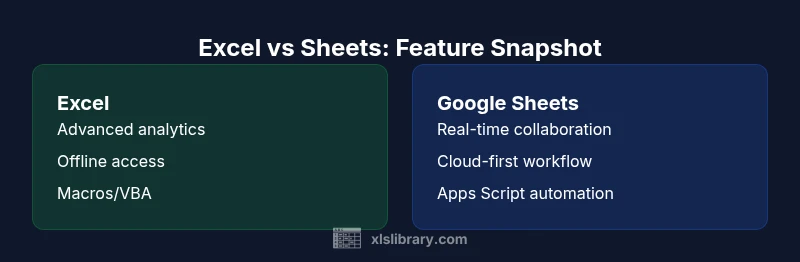
The difference between excel and google sheets reflects underlying design goals as much as feature parity. Excel was designed to deliver desktop-grade data modeling, large workbook performance, and deep analytics capabilities. Google Sheets, by contrast, prioritizes accessibility, collaboration, and always-on cloud collaboration across devices. According to XLS Library, this divergence shapes how teams structure data, plan workflows, and assign governance. In practice, Excel supports vast ranges, advanced pivot tables, and robust scripting ecosystems; Sheets emphasizes real-time co-authoring, comment threads, and simple sharing without friction. Both tools serve common business tasks—budget tracking, ad hoc analysis, dashboards—but the path you choose often tracks data complexity, collaboration needs, and licensing choices. For users evaluating the difference between excel and google sheets, understanding these philosophies is the first step toward choosing the right tool.
Key Differences in Core Capabilities
When you compare these two platforms, several capabilities stand out as deciding factors. Data modeling and advanced analytics are stronger in Excel: your workbook can hold larger data sets, rarer functions, and sophisticated array formulas. Google Sheets excels in accessibility: a plain browser-based interface, easy sharing links, and built-in commenting. The two tools diverge in automation: Excel uses VBA and Office Scripts for cloud automation, while Sheets relies on Google Apps Script. Importantly, the user experience around functions and add-ons differs: Excel offers a vast function library and powerful pivot capabilities, whereas Sheets emphasizes compatibility with Google Workspace apps and web add-ons. For many teams, the best option depends on whether you value raw power and offline work (Excel) or lightweight collaboration and immediate cloud access (Sheets). Remember that both platforms can import and export common formats like .xlsx and .csv, helping you migrate if needed. As you assess the difference between excel and google sheets, quantify your data size, collaboration needs, and future growth to guide your choice.
Collaboration and Accessibility: Cloud vs Desktop
Collaboration is central to the Sheets value proposition; Google Sheets was born for multi-user editing with real-time updates, threaded comments, and instant sharing. Excel has caught up with co-authoring in Excel Online and cloud-based workbooks, but the experience can feel different, especially for teams that have long-established desktop workflows. Accessibility matters: Sheets works across browsers and mobile apps without installing software, whereas Excel remains strongest on Windows and macOS with local installations. Data access, permissions, and version history are integral; Sheets stores changes in Google Drive with fine-grained sharing controls, while Excel leverages OneDrive/SharePoint for governance. In many organizations, the choice hinges on whether the team relies on cloud-first workflows or needs robust offline capabilities. XLS Library analysis shows that teams prioritizing cloud collaboration tend to favor Sheets for everyday tasks, while data-heavy teams rely on Excel for structural keep.
Data Handling and Performance: Scale and Speed
When you run large data work, Excel's data engine tends to outperform Sheets on raw throughput. Desktop Excel has the advantage of local RAM and processor speed, which can translate into faster workbook operations, heavy pivot tables, and advanced data modeling. Google Sheets, implemented in the cloud, benefits from centralized processing and instant autosave, but performance can degrade with very large datasets or complex cross-sheet formulas. The practical takeaway is this: if you are doing data cleansing on multi-million-row datasets, Excel is typically the safer bet; if your workload centers on collaborative analysis with frequent sharing, Sheets can offer smoother workflows. Always run a quick pilot with representative data to ensure you pick the tool that scales to your needs in 2026.
Formulas, Functions, and Intelligence: Power Features
Excel's formula ecosystem is extensive: dynamic arrays, XLOOKUP, LET, LAMBDA, and a broad library of functions support complex analytics. Sheets covers essential functions, plus unique Google-specific features like array formulas and built-in functions that integrate with other Google Workspace apps. Apps Script adds programmable automation in Sheets; Excel's VBA and Office Scripts complement the desktop and web experiences. The key decision criterion is whether you rely on advanced analytics, extensive pivoting, and custom workbooks, or prefer a lighter set of formulas with easy automation through cloud scripts. The difference between excel and google sheets becomes most visible when you scale your formulas to enterprise-grade dashboards or integrate with external data sources.
Compatibility and Interoperability: Import/Export
Interoperability matters in teams migrating from one platform to another. Excel files (.xlsx, .xls) retain complex formatting, macros, and data models; Sheets can import and export to Excel formats while preserving many structures, but some advanced features may not translate perfectly. If your organization exchanges workbooks with partners who rely on Excel features, you will likely prefer Excel as your primary tool, with Sheets as a collaborative preview or interim sharing channel. For ongoing collaboration, Google's workflow integrates smoothly with Drive-based storage and permissions, reducing the friction of file distribution. The bottom line: plan for conversion, validation, and potential feature gaps when bridging the two ecosystems.
Pricing, Licensing, and Getting Started
Excel requires a license, typically via Microsoft 365 or standalone Office, depending on the version and deployment model. Google Sheets is free to use with a Google account, with paid Workspace tiers offering more storage and admin controls. In practice, teams should consider total cost of ownership, including training, IT administration, and potential data migration costs. If your organization already uses Microsoft 365, Excel may unlock synergy with Power BI and other tools; if your team lives in Google Workspace, Sheets may minimize licensing overhead and streamline onboarding. A staged rollout, pilot with a small group, and governance plan help you avoid surprises in 2026.
Real-World Scenarios: When to Choose Each
Scenario 1: A finance team building a large model with advanced analytics and need for offline work tends to favor Excel. Scenario 2: A marketing team that collaborates across geographies and uses Google Docs and Slides will likely prefer Sheets. Scenario 3: A data analyst who needs to deliver dashboards quickly to stakeholders may use Excel for the data crunching and Sheets for sharing. The difference between excel and google sheets is most evident when you map workload patterns to tool strengths: machine-like data processing versus human-centric collaboration and rapid iteration.
Practical Tips for Transitioning Between Tools
Tip 1: Start with a mapping exercise—list tasks and features critical to your workflows, then map them to Excel or Sheets equivalents. Tip 2: Run a small pilot project with a live dataset to uncover feature gaps in formulas and automation. Tip 3: Establish a simple governance framework—who can edit, share, or export files, and how version history is managed. Tip 4: Train team members on keyboard shortcuts, tips, and best practices to reduce friction during migration. Tip 5: Leverage import/export templates to minimize data loss when moving between platforms.
Data Visualization and Dashboards: Charting in Excel vs Sheets
Excel remains a powerhouse for dashboards with robust charting options, pivot charts, and conditional formatting. Sheets provides quick, shareable visuals and easy chart creation within a cloud-based workbook. For complex dashboards, teams often combine both tools—use Excel for heavy data preparation and Sheets for distribution. If your dashboards rely on external data connections or Power BI, Excel's integration becomes a central hub. In 2026, understand the strengths of each platform and design dashboards that leverage those strengths.
Auditability and Governance: Version History, Permissions
Version history and access controls are central to risk management. Excel's governance flows through OneDrive/SharePoint, with granular permissions and policy enforcement; Sheets uses Google Drive sharing settings and workspace admin controls. The ability to revert changes, compare versions, and audit activity is essential in regulated industries. The difference between excel and google sheets is amplified by your IT environment—Microsoft's ecosystem emphasizes enterprise-grade governance; Google's approach emphasizes simplicity and cross-organization collaboration. Align these controls with your compliance requirements to minimize risk.
Final Take: How to choose in 2026
Choosing between Excel and Google Sheets is not a binary decision; it's about aligning tool strengths with your team's workflows, data needs, and licensing realities. If your priority is offline data modeling, heavy analytics, or enterprise-grade governance, Excel is typically the better long-term option. If your priorities are real-time collaboration, cloud accessibility, and lightweight data tasks, Google Sheets often delivers faster value and easier onboarding. The difference between excel and google sheets becomes a matter of balancing power and accessibility. The XLS Library team recommends assessing data scale, collaboration needs, IT policy, and total cost of ownership, then selecting the platform that best supports your 2026 goals.
Authority Sources
- https://support.google.com/docs/answer/7061933
- https://support.microsoft.com/en-us/office/excel-functions-by-category-5f2d21f0-2c5b-4f2e-8d1d-02e2a9f0d8c2
- https://developers.google.com/apps-script/guides/sheets
Comparison
| Feature | Excel | Google Sheets |
|---|---|---|
| Collaboration in real-time | Good real-time co-authoring in Excel Online/Office 365 | Best-in-class real-time collaboration in Google Sheets |
| Offline access | Desktop Excel with full offline capability | Offline mode available in Sheets with setup and limits |
| Data capacity & performance | Strong performance with large datasets on desktop | Cloud-based performance; scales well for small–medium datasets |
| Formulas & functions | Extensive function library; advanced analytics (dynamic arrays, LET, XLOOKUP) | Broad function set; tight integration with Google Workspace |
| Automation & scripting | VBA and Office Scripts support | Apps Script for automation in Sheets |
| Interoperability | Excellent Excel import/export; macros preserved | Imports/exports Excel formats; native Google formats |
| Pricing & licensing | Microsoft 365 or Office license required | Free basic tier; Workspace adds admin controls |
| Platform access | Desktop on Windows/macOS; web access | Web-first, with mobile apps |
| Governance & security | Enterprise governance via OneDrive/SharePoint | Drive-based sharing with admin controls |
| Best for | Power users, offline data work, complex models | Real-time collaboration and cloud-first teams |
Benefits
- Clear decision based on collaboration vs data modeling needs
- Excel offers deep analytics and offline power
- Sheets enables rapid, cloud-based collaboration across devices
- Cross-platform access reduces training friction
What's Bad
- Feature parity gaps can frustrate migrations
- Large datasets may challenge performance in Sheets
- Excel licensing adds cost and admin overhead
- Sheets can hit limits with very large or complex workbooks
Excel for heavy data work; Google Sheets for collaboration and cloud-first workflows
If your priority is offline data modeling and advanced analytics, Excel is typically the better choice. For teams where collaboration and rapid sharing dominate, Sheets often provides faster value and easier onboarding. In 2026, many organizations will benefit from a hybrid approach, using each tool where its strengths shine.
People Also Ask
What is the main cost difference between Excel and Google Sheets?
Excel typically requires a Microsoft 365 license or Office purchase, which adds ongoing or upfront cost. Google Sheets is free with a Google account, with paid Workspace for admins and storage. Total cost depends on licensing, features, and IT policies.
Excel costs depend on licenses; Sheets is free for basic use. Consider your team's licensing needs and IT strategy.
Can formulas from Excel be used in Google Sheets?
Most core functions overlap, so many formulas work with minor tweaks. Some Excel-only functions don’t exist in Sheets, and array behavior differs. Always test critical formulas during migration.
Most formulas work, but check for Excel-only functions and array differences.
Are there limits on rows and columns in Sheets?
Sheets supports common data needs but has practical row/column limits for very large datasets. Excel handles larger datasets more reliably on desktop. Plan tests with real data to confirm suitability.
Sheets handles typical data well; for very large datasets, Excel performs better.
Which is better for dashboards?
Excel offers richer charting and advanced dashboard capabilities; Sheets provides quick, shareable visuals and easy integration with Google Workspace. For complex dashboards, many teams use Excel for data crunching and Sheets for distribution.
Excel for advanced dashboards; Sheets for lightweight visuals.
Can I automate tasks in both apps?
Yes. Excel supports VBA and Office Scripts; Sheets supports Apps Script. Each platform has learning curves and ecosystem-specific limitations. Choose based on your team’s skills and integrations.
Both support automation, but with platform-specific scripting.
Is offline access available in Google Sheets?
Offline access is possible but requires enabling offline mode and syncing. Real-time collaboration features are limited offline. Plan for network reliability when deciding.
Offline mode is possible but some features require online access.
The Essentials
- Assess data scale before choosing
- Excel excels at data modeling and offline work
- Sheets shines in real-time collaboration and cloud access
- Plan governance and migration early
- Test with representative data before committing