How to Make an Organizational Chart in Excel
Learn to build a clear, dynamic organizational chart in Excel using SmartArt, shapes, and data-driven updates. This step-by-step guide from XLS Library helps map roles, departments, and reporting lines with readability and ease.


In this guide, you’ll learn how to make organizational chart in excel by building a top-down chart using built-in Excel tools, simple data tables, and clear connectors. According to XLS Library, the most effective charts start with clean data, a defined hierarchy, and a plan for who reports to whom. You’ll map names, titles, departments, and managers, then finalize with readable formatting and easy updates so the chart stays current as teams evolve.
Why an Organizational Chart in Excel Matters
If you’re exploring how to make organizational chart in excel, you’ll quickly see why a clean, visual map of roles, reporting lines, and departments matters for teams of all sizes. According to XLS Library, a well-designed org chart in Excel improves clarity, aids onboarding, and supports succession planning by making structure instant and obvious. Keeping the data source in one workbook makes updates auditable and ensures consistency across teams. In practice, an Excel-based org chart remains a practical choice for small to mid-size organizations that want visibility without migrating to dedicated diagram software. A top-down chart helps you see who reports to whom at a glance, while a side-by-side department view can reveal cross-functional connections. This article focuses on practical, workbook-centered workflows that rely on native Excel features like SmartArt, shapes, and simple data tables, so you can build, maintain, and share a high-quality org chart within your existing workbook environment. With the right setup, you can update the chart by editing a single table and refresh the visual without redoing the layout.
Planning Your Chart: Data and Layout
Begin by defining the data you need to represent the organization: Name, Title, Manager (ReportsTo), Department, Location, and Level. Create a flat table that serves as the source of truth, keeping each employee on a single row with consistent column headers. This approach makes it easy to export, filter, or print a snapshot for leadership meetings. XLS Library analysis shows that teams benefit from a clean, normalized data structure and a simple top-down outline. Decide early whether you want a strict vertical hierarchy or a more flexible layout that groups by department. Keeping data separate from presentation will help you reuse the underlying data for other charts or dashboards in the future. Finally, sketch a rough layout on paper or in a quick worksheet to guide spacing and connector logic before you start drawing.
Choosing the Right Tool in Excel: SmartArt, Shapes, or Tables
Excel offers several routes to visualize an org chart. SmartArt provides ready-made layouts that work well for small teams or simple hierarchies, but can feel limiting when you need precise connectors or department grouping. Shapes give you maximum control: you can place boxes anywhere, draw custom connectors, and align elements to fit your space. Tables and named ranges help keep the underlying data tidy and support dynamic updates if you choose to link the chart to a data source. For larger organizations, a hybrid approach often works best: start with SmartArt for the overall structure, then layer in shapes for groups or departments. Remember, the data stays in cells, while the visualization is the presentation layer. This separation makes maintenance easier and reduces the chance of misalignment between data and display.
Step-by-Step Approach to Build a Top-Down Chart
A practical top-down org chart starts with a single executive box and expands to direct reports. You will create a simple data source, lay out top nodes, and connect subordinate boxes. This section outlines the core workflow without getting bogged down in overly complex diagrams. Start by planning a top-down layout, then translate that plan into Excel using a mix of SmartArt and shapes. As you work, keep the design clean: consistent shapes for similar roles, aligned connectors, and minimal color variation to avoid clutter. After you establish the skeleton, fill in names and titles, verify consistency across rows, and test the flow from the top down to the lowest level.
Making It Dynamic: Linking Data and Auto-Updates
To keep the chart current, link the visualization to a structured data table. Use named ranges or tables as the data source, so editing a single record updates the chart automatically. Data validation can enforce consistent role titles, department names, and manager references, reducing errors. If you want auto-updating titles or reports-to relationships, consider using simple formulas to pull data from the table into the chart labels or to drive conditional formatting. This approach helps teams scale without re-creating the diagram from scratch every time a new hire or reporting change occurs. Rather than manually adjusting every box, you update the data source and refresh the layout, saving time and avoiding mistakes.
Design and Accessibility: Readability and Color
A readable org chart uses a clear typeface, appropriate font sizes, and a restrained color palette. Use one primary color for boxes, a secondary hue for departmental grouping, and neutral lines for connectors. Keep the font consistent, ideally sans-serif for on-screen readability, and avoid small font sizes that hinder legibility in meetings or projector displays. Add alt text or descriptive labels for accessibility, especially if you’ll share the chart in PDFs or as part of a presentation. Also consider print layout: test the chart on the intended paper size and ensure it fits within a single page or a logical multi-page spread. A well-designed chart communicates hierarchy at a glance, without requiring a legend to interpret the visuals.
Real-World Scenarios: Small Teams vs. Large Organizations
For small teams, a compact vertical org chart with a single column or two can be highly effective. You can place the CEO at the top, two to four direct reports beneath, and then layer additional rows as needed. In mid-size organizations, departmental sections help reduce visual clutter and make it easier to navigate. Large enterprises may require multiple linked charts or a hierarchical layout with collapsible sections, perhaps using an external tool for deeper analysis, then importing a clean snapshot into Excel for distribution. The goal is to create a living diagram that reflects actual reporting structures and can evolve with the company.
Next Steps: Templates, Sharing, and Maintenance
Once you’ve built a reliable org chart, convert it into a reusable template so teams in your organization can adapt it quickly. Save the chart with a descriptive name, and keep the data table in a linked workbook if you need to share across teams. Regular maintenance is essential: schedule quarterly reviews to update personnel changes, new departments, or reorganizations. Export to PDF or share via a collaborative platform so stakeholders have a single source of truth. With routine updates, your Excel-based org chart remains a practical, scalable solution that supports decision-making and transparency across the organization.
Tools & Materials
- Microsoft Excel (365 or Excel 2016+)(Ensure you have SmartArt and shapes features available)
- Organization data (Name, Title, Manager, Department, Location, Level)(Prepare in a flat table with consistent headers)
- Optional: SmartArt templates, Shapes, and connectors(Use for more control over layout)
- Data validation and named ranges(Helpful for maintaining data integrity)
- Printer or PDF export(For physical handouts or sharing)
Steps
Estimated time: 45-75 minutes
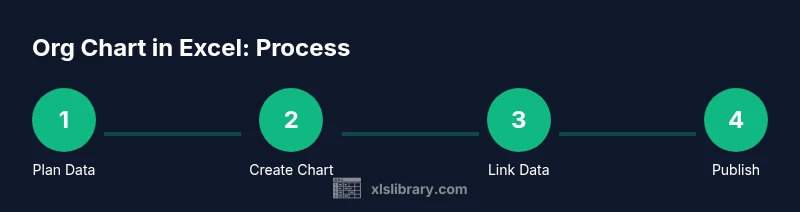
- 1
Gather data and plan layout
Collect names, titles, departments, and manager relationships in a single table. Sketch a rough layout (top-down with departments) to guide box placement and connectors.
Tip: Define the top-level node (CEO/Head) first to anchor the chart - 2
Create the top node
Insert a box using SmartArt or a shape to represent the top leader. Add name and title prominently.
Tip: Use a larger font size for the top role to emphasize hierarchy - 3
Add direct reports
Position additional boxes for direct reports beneath the top node. Ensure consistent box sizes for visual balance.
Tip: Align boxes in neat columns to maintain readability - 4
Draw connectors
Connect each direct report to their manager with straight or elbow connectors. Keep lines clean and avoid crossing where possible.
Tip: Use connector lines that automatically adjust when you move boxes - 5
Group by department
If needed, add department headers and group related roles to reduce clutter. Consider color-coding by department.
Tip: Color does not replace labels; include clear titles - 6
Style for readability
Apply a consistent font, color palette, and border style. Add bold titles and legible labels.
Tip: Test visibility from a distance and on a projector - 7
Link data for dynamics
If you want the chart to update automatically, connect labels to a data table using dynamic ranges or formulas.
Tip: Keep the data source in a named table for reliability - 8
Save and share
Save as a template or export to PDF. Share with teammates and update the source data as changes occur.
Tip: Create a versioned template to track updates
People Also Ask
What is the best way to start a chart in Excel?
Begin with a clean data table that lists each person, title, and reporting line. Decide on a top-down layout and sketch the layout before drawing to minimize rework.
Start with a clean data table and plan your top-down layout before drawing.
Can a chart stay dynamic as people change roles?
Yes. Link labels and manager fields to a named data table and use simple formulas or data validation to keep the diagram current without rebuilding it.
Yes. Link to a data table so updates propagate automatically.
Is SmartArt suitable for large organizations?
SmartArt is convenient for small teams, but for large hierarchies you’ll want to use shapes with careful layout or a hybrid approach that adds grouping by department.
SmartArt works for small teams; large orgs need more control with shapes or hybrid layouts.
How can I share or export the chart?
Export the chart as PDF for distribution or paste it into presentations. Saving as a template helps reuse the setup for new orgs.
Export as PDF or reuse the template for new charts.
What should I avoid when designing an org chart?
Avoid over-optimizing color or layout at the expense of clarity. Don’t over-nest; large teams require simplified sections to be legible.
Avoid clutter and excessive nesting; keep it readable.
Watch Video
The Essentials
- Plan data and layout before drawing to reduce backtracking.
- Choose the right Excel tool (SmartArt vs. shapes) for your chart size.
- Keep data as the source of truth and presentation as the display.
- Design for readability with consistent typography and color.