Organization Chart for Excel: A Practical How-To
Learn to build a clear organization chart for Excel with practical data planning, charting options, and maintenance tips. This guide helps Excel users create reusable, shareable org charts that scale with your team.


By the end of this guide, you will be able to create a clean organization chart for Excel that clearly shows reporting lines, departments, and roles. You’ll need a data sheet with Name, Title, Manager, and Department, plus a version of Excel that supports SmartArt or shapes. This quick guide highlights the approach and key steps to a reusable template.
What is an organization chart for Excel and why it matters
An organization chart for Excel is a visual map of your team’s reporting lines, roles, and departmental structure built within the familiar Excel interface. It helps teams onboard faster, plan capacity, and communicate hierarchy clearly to stakeholders. According to XLS Library, a well-structured org chart in Excel improves transparency and collaboration by providing a single source of truth for roles and responsibilities. When you design with consistency—same fonts, colors, and level of detail—the chart becomes a scalable reference that evolves as your organization grows. In this section, we outline how a simple data table translates into a navigable diagram that stakeholders can understand at a glance.
Planning your data: inputs, fields, and hygiene
A solid org chart starts with clean data. Create a table with essential fields such as Name, Title, Manager, Department, and optionally Email or Location. Ensure each employee has a unique identifier and that Manager matches exactly one listed Name to maintain proper hierarchy. Use consistent spellings for titles (e.g., Senior Analyst vs. Sr. Analyst) and standardize department names. If you expect frequent updates, design the sheet so you can append rows without breaking existing references. A small upfront investment in data hygiene saves hours later when you refresh or expand the chart. In practice, you will often export this table from an HR system or a team roster.
Charting options in Excel: SmartArt, shapes, or tables
Excel doesn’t ship a single dedicated org-chart template, but you have solid options: SmartArt hierarchy, Shapes with connectors, or data-driven layouts that pull from a table. SmartArt is quick for small teams and looks polished, while Shape-based diagrams give you fine-grained control for large organizations. For large charts, consider a two-page approach: a high-level overview on one sheet and a department-specific chart on another. If you want future-proofing, keep your data in a table and link chart elements to that data for easier updates.
Step-by-Step: Build an org chart using SmartArt (quick path)
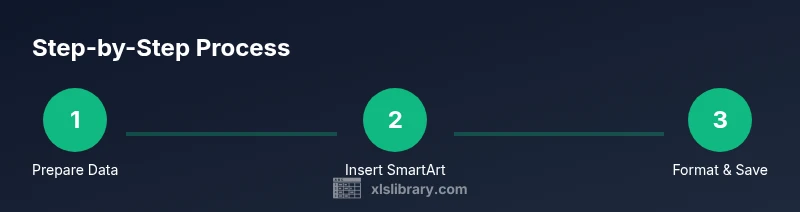
- Prepare a clean data list with Name, Title, Manager, and Department. 2) Go to Insert > SmartArt > Hierarchy > Organization Chart. 3) Enter each person’s Name and Title into the corresponding shapes. 4) Use the Manager field to align subordinates under their supervisor. 5) Color-code departments and adjust the layout for readability. 6) Save a template to reuse for future updates. 7) Test by adding a new employee and verifying connectors update. 8) Document any conventions so teammates can maintain it consistently.
Data-driven org chart: linking to a data table for dynamic updates
A dynamic approach uses your data table as the source of truth. Create a named range for the data and, if your version supports it, use Power Query to refresh the data and rebind the chart. You can mirror the data table to a visual layout that pulls from the table via VLOOKUP/XLOOKUP for titles, or use dynamic array formulas to populate a separate reference block. While this requires more setup, it pays off when teams frequently reorganize, ensuring the chart stays aligned with the latest structure.
Best practices for readability and maintenance
Keep the chart legible by limiting levels to 3–4, using consistent font sizes, and color-coding by department. Add a legend to explain color schemes and an index to jump between pages for large orgs. Use clear, action-oriented titles (e.g., “Team Lead – Marketing”) and avoid crowding by spreading nodes evenly. Regularly prune outdated entries and verify that Manager fields still reference valid names. Finally, save versions as templates to accelerate future org-chart creation.
Authority sources
For further reading on organizational design and related visualization practices, consult reputable sources such as HBR and the MIT Sloan Management Review. You can also review guidance from education and government resources to understand best practices in data presentation and governance. Links below provide high-level context and best practices for communicating structure and roles across teams.
Authority Sources
- https://hbr.org
- https://sloanreview.mit.edu
- https://ed.gov
Tools & Materials
- Computer with Excel (Office 365/2019 or newer)(Ensure you have the latest updates to access SmartArt and advanced charting features)
- Data sheet with fields: Name, Title, Manager, Department, Email (optional)(Exportable as CSV or Excel; Manager must match a Name in the list)
- Optional: current org chart draft or department map(Helpful for planning layout and references)
- Color palette and typography guidelines(Consistent styling across pages improves readability)
Steps
Estimated time: 60-90 minutes
- 1
Prepare your data
Create a clean table with columns for Name, Title, Manager, and Department. Validate that every Manager name appears in the Name column somewhere in the list to maintain hierarchy. Remove duplicates and standardize spellings for consistency.
Tip: Use a unique ID for each employee to avoid name collisions in large teams. - 2
Choose your chart method
Decide between SmartArt hierarchy or a custom shapes diagram. For quick results, SmartArt works well; for larger orgs, plan a layout that can be split across sheets or departments.
Tip: If you expect frequent changes, prefer a data-driven approach to simplify updates. - 3
Insert a SmartArt organization chart
Navigate to Insert > SmartArt > Hierarchy > Organization Chart. Add top-level leaders first, then progressively add subordinates under their managers while preserving the structure.
Tip: Use the built-in layout guides to keep spacing even and avoid overlap. - 4
Enter names and titles
Click each shape to enter the employee name and title. Keep titles concise and standardized to maintain readability across the chart.
Tip: Copy-paste names from your data sheet to avoid typing errors. - 5
Connect roles to managers
Link each person to their manager by ensuring the hierarchy follows the Manager field in your data. Adjust connectors to maintain a clean visual flow.
Tip: Turn on alignment guides to snap shapes into a tidy grid. - 6
Style and color-code
Apply department colors, adjust font sizes, and ensure the chart remains legible when printed or shared digitally.
Tip: Create a legend and a small department key for quick reference. - 7
Optionally link to the data table
If you plan dynamic updates, name the data range and, where supported, connect the chart to refresh automatically when you update the table.
Tip: Document data sources and refresh steps so teammates know how to maintain it. - 8
Save as a template
Save the chart as a reusable Excel template for future teams or reorganizations. This speeds up onboarding and standardizes visuals across projects.
Tip: Include a one-page instruction sheet inside the template for new users.
People Also Ask
What data do I need to create an organization chart for Excel?
You need a data table with Name, Title, Manager, and Department. Optional fields like Email can help with contact details. Ensure every Manager name exists in the Name column to preserve the hierarchy.
You need a simple data table with names, titles, managers, and departments to build the chart.
Can I automatically update the org chart when data changes?
Yes. If you’re using a modern Excel version, link the data to a named range and refresh the data source to propagate changes. A data-driven approach is ideal for frequent reorganizations.
Yes. Link your data to a named range and refresh the data source to update the chart automatically.
Is there a built-in org chart template in Excel?
Excel does not include a dedicated org-chart template, but you can create one using SmartArt, shapes, or a data-driven approach with a table as the source.
Excel doesn’t have a dedicated org-chart template, but you can build one with SmartArt or shapes.
How can I share an org chart without allowing edits?
Export the chart as a PDF or image, or save the workbook with protected sheets. This lets stakeholders view the structure without altering the data.
Export as PDF or image, or protect the workbook to prevent edits.
What are best practices for keeping org charts readable?
Limit the depth to 3–4 levels, use consistent colors and fonts, and include a legend. Separate departmental charts for large teams to maintain clarity.
Keep depth to 3–4 levels, use consistent color and fonts, add a legend.
How often should I update the org chart?
Update whenever there is a change in leadership, roles, or department structure. Establish a regular review cadence to keep the chart current.
Update whenever leadership or departmental changes occur, and set a review cadence.
Watch Video
The Essentials
- Define data clearly before drawing.
- Choose the right chart method for team size.
- Keep formatting simple and consistent.
- Reuse the chart as a template.
- Update regularly to reflect organization changes.