Count Duplicates in Excel: Practical Data Cleanup Guide
Learn to identify, count, and manage duplicates in Excel using COUNTIF, COUNTIFS, PivotTables, and Power Query. A practical, step-by-step guide from XLS Library to improve data quality and Excel workflows.


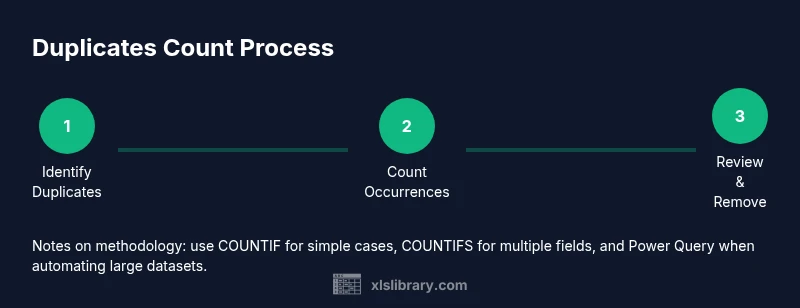
Count duplicates in Excel by identifying how often each value appears and flagging repeats for review. Use formulas like COUNTIF and, for larger datasets, COUNTIFS or Power Query options. According to XLS Library, mastering these methods boosts data cleaning and data quality in practical Excel workflows. Tip: start with a simple column before expanding to multi-column checks.
What qualifies as a duplicate in Excel?
In Excel, a duplicate is any value or row that appears more than once within a defined range. Duplicates can occur in a single column, across multiple columns, or even across entire rows depending on how you define the key. Normalizing data is essential to avoid false positives: trim spaces, unify case, and remove non-breaking characters. According to XLS Library, duplicates often sneak in due to inconsistent formatting or data imports, so a pre-clean step is worth the effort. When you identify duplicates, you gain leverage to clean, de-duplicate, and maintain data integrity across your sheets. This section sets the foundation for accurate counting and reliable cleanup.
Counting duplicates with COUNTIF (single column)
COUNTIF is the workhorse for counting occurrences of a value in a single column. The generic form is =COUNTIF(range, criteria). For example, in column A, you can place =COUNTIF(A:A, A2) in a helper column to see how many times the value in A2 appears in the entire column. Drag the formula down to cover all rows. A simple >1 condition flags duplicates. You can then use a second column with =IF(COUNTIF(A:A, A2)>1, "Duplicate","Unique") to label rows. This approach is easy to implement and scales well for moderate datasets. For large datasets, consider limiting the range (e.g., A2:A10000) to speed up calculations and reduce memory usage.
COUNTIFS for multi-criteria duplicates
When duplicates depend on more than one field, COUNTIFS steps in. For example, to count duplicates based on both FirstName in B and LastName in C, use =COUNTIFS(B:B, B2, C:C, C2). This returns the number of times the exact pair appears. You can then flag duplicates with a similar IF pattern: =IF(COUNTIFS(B:B, B2, C:C, C2)>1, "Duplicate","Unique"). COUNTIFS scales to many criteria, but performance can dip with very large datasets; in those cases, Power Query may be preferable.
Using PivotTable to count duplicates
PivotTables provide a compact, visual method to count duplicates. Build a PivotTable with the target column (or a concatenated key of multiple columns) in Rows and the same field in Values set to Count. The resulting table shows how many times each value occurs. To simplify, convert the data range to a formal Excel Table (Ctrl+T) before creating the PivotTable. This approach is especially helpful for summarized dashboards and quick QA checks.
Using Power Query to count duplicates
Power Query (Get & Transform) enables robust duplicate counting, especially for large datasets. Load your data, select the key column(s), and use Group By to count occurrences. You can add a new column that shows the count for each row or extract a summary table listing each unique value with its count. Power Query is excellent for repeatable workflows because you can refresh counts with a single click. If Power Query isn’t available, stick to COUNTIF/COUNTIFS or PivotTables.
Normalizing data to avoid false duplicates
Before counting, standardize your data to reduce false positives. Use TRIM to remove leading/trailing spaces, CLEAN for non-printable characters, and UPPER/LOWER to enforce consistent case. For multi-column keys, create a helper column that concatenates normalized fields (e.g., =UPPER(TRIM(B2)) & "|" & UPPER(TRIM(C2))). Then apply COUNTIF/COUNTIFS to the resulting key. This normalization step often yields the most accurate counts and makes subsequent analysis simpler.
Performance considerations for large datasets
When datasets grow large, plain worksheet formulas can become slow. Limit the ranges to real data (avoid entire-column references when possible), prefer Excel tables with structured references, and consider using Power Query for heavy counting tasks. For repeated tasks, build a small macro that automates the counting and flagging steps. Keeping workbooks lean via selective loading improves responsiveness during counting operations.
Practical example: sales records with duplicates
Imagine a sales dataset with columns for OrderID, CustomerID, and Item. To count duplicates by CustomerID and Item, you can use COUNTIFS(CustomerID, CurrentCustomer, Item, CurrentItem) to determine how many times a given pair occurs. A PivotTable can then summarize duplicates per customer or per item. This concrete scenario demonstrates how counting duplicates informs QA checks, de-duplication decisions, and data cleansing priorities.
Removing duplicates vs counting duplicates
Counting duplicates is about diagnosis, while removing duplicates is a data-cleaning action. Use the IF(COUNTIF(...)) approach to flag duplicates first, then decide whether to remove duplicates with Remove Duplicates (Data tab) or require user review for special cases. Always back up original data before removal, and consider saving a de-duplicated copy for downstream analyses. A staged approach minimizes data loss and preserves audit trails.
Tools & Materials
- Microsoft Excel (Office 365 / Excel 2019+)(Ensure you have access to COUNTIF, COUNTIFS, PivotTable, and Power Query features.)
- Sample dataset (CSV or XLSX) with duplicates(Use a dataset that includes simple duplicates and multi-column duplicates for practice.)
- Blank worksheet or table ready for formulas(Prepare space for helper columns and results without overwriting source data.)
- Power Query (optional, built-in or add-on)(Useful for large datasets and repeatable counting workflows.)
- Text editor or notes app(Document formulas, steps, and decisions for audit trails.)
Steps
Estimated time: 45-60 minutes
- 1
Identify the analysis key
Select the column (or columns) that define duplicates for counting. If counting by multiple fields, consider creating a consolidated key (e.g., concatenate normalized fields). This step sets the scope for accurate counts.
Tip: Label the key column clearly (e.g., Key_Local) to avoid confusion later. - 2
Create a COUNTIF helper
In a new column, enter =COUNTIF(range, criteria) to count how many times each value appears. Copy the formula down to all rows to establish counts for every row.
Tip: Use structured references if your data is in a Excel Table for easier maintenance. - 3
Flag duplicates with a simple test
Add a flag column with =IF(COUNTIF(range, criteria)>1, "Duplicate","Unique") to distinguish repeated values. This provides a quick visual and programmatic hook for filtering.
Tip: Filter by Duplicate to review all repeated records at once. - 4
Count using multiple criteria
If duplicates depend on more than one field, replace COUNTIF with COUNTIFS, e.g., =COUNTIFS(B:B, B2, C:C, C2). This returns the number of identical rows across the selected fields.
Tip: Be mindful of data types; align text and numbers to avoid mismatches. - 5
Summarize with PivotTable
Insert a PivotTable with the analysis key in Rows and Count of the key in Values. This instantly shows each unique value and its frequency, ideal for dashboards.
Tip: Convert data to a Table before building a PivotTable for improved refresh behavior. - 6
Count with Power Query (optional)
Load data into Power Query, Group By the key, and add a Count column. This yields a clean, refreshable summary table suitable for large datasets.
Tip: Use Power Query when you expect data to update regularly. - 7
Normalize data before counting
Apply TRIM, CLEAN, and UPPER/LOWER to ensure consistent comparisons. Create a normalized key (e.g., UPPER(TRIM(A2))) for reliable duplicate detection.
Tip: Normalization eliminates many false positives caused by spacing and case differences. - 8
Validate results on a sample
Test formulas and counts on a subset before applying to the full dataset to catch edge cases early. This reduces surprises after applying to the entire data.
Tip: Keep a backup of the original sample for reference. - 9
Decide on de-duplication strategy
If duplicates must be removed, choose between Remove Duplicates and a manual, auditable approach. Always preserve an untouched copy for audit purposes.
Tip: Document the rules you used to determine which rows to keep.
People Also Ask
What is considered a duplicate in Excel?
A duplicate is a value or row that appears more than once within a defined data range or key. Cleaning duplicates helps improve data quality and accuracy.
A duplicate is simply a value or row that appears more than once within your data range.
What is the easiest way to count duplicates in a column?
The COUNTIF function counts occurrences of a value in a single column. For a value in A2, use =COUNTIF(A:A, A2).
Use COUNTIF to count how many times a value appears in a column.
How can I count duplicates across two columns?
Use COUNTIFS to count duplicates based on multiple criteria, e.g., =COUNTIFS(B:B, B2, C:C, C2). This returns the number of identical row patterns.
Use COUNTIFS when duplicates depend on multiple fields.
Can Power Query help with counting duplicates?
Yes. Power Query can group by the key and add a Count column, producing a refreshable summary for large datasets.
Power Query provides a robust, refreshable way to count duplicates.
What should I do after counting duplicates?
Decide whether to remove duplicates or keep them for auditing. Always save a backup copy of the original data.
Decide on de-duplication strategy and keep a backup.
Watch Video
The Essentials
- Identify duplicates early to improve data quality
- Choose the right method (COUNTIF, COUNTIFS, PivotTable, Power Query) based on data structure
- Normalize data to avoid false duplicates (trim spaces, unify case)
- Test on a sample before applying to full dataset
- Back up data before removing duplicates