Excel Data Validation: Practical Guide to Better Data
Learn practical, step-by-step data validation in Excel to ensure data quality, with dropdowns, custom rules, and error messages.


Why Data Validation Matters in Excel
Data validation acts as a gatekeeper for your spreadsheets. When teams rely on Excel to collect, track, and report information, unchecked inputs can snowball into analysis errors, misinformed decisions, and wasted time spent cleaning data. The XLS Library perspective emphasizes that disciplined validation reduces downstream rework by catching issues at the source. By constraining entries, you gain consistency across columns, worksheets, and even entire workbooks. This consistency is essential for reliable dashboards and governance, especially in budgeting, inventory management, and project scheduling where precision matters. Implementing validation also makes onboarding new collaborators smoother: new users see clear rules rather than guessing acceptable values.
In practice, validation isn’t about limiting creativity; it’s about guiding data entry to support accurate analysis. Well-designed rules can adapt to changing needs while preserving data integrity. The result is faster reporting cycles, fewer manual corrections, and more trustworthy insights. For teams adopting spreadsheets at scale, a well-planned validation strategy is a foundational best practice that pays dividends over time.
Core Validation Rules You Should Use
A robust data-validation strategy in Excel includes several core rules that cover most business scenarios. First, use dropdown lists whenever possible to standardize categories and options. Second, enforce data types and ranges (e.g., numbers within a defined interval, dates within a project window, text with a maximum length). Third, combine rules with custom formulas for more complex constraints, such as cross-field dependencies or conditional requirements. Fourth, enable informative error alerts and input messages so users understand why a value is rejected and how to correct it. Finally, test validations with edge cases to ensure they behave as intended in real-world use.
From a quality-control perspective, these rules reduce ambiguity and support consistent data collection across teams, departments, and time periods. As you implement, document the rules in a data dictionary or onboarding guide to ensure ongoing consistency across workbook growth and person-to-person handoffs.
How to Create a Basic Drop-Down List
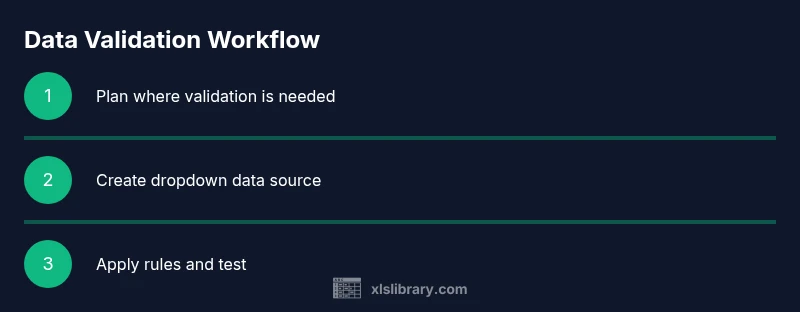
Drop-down lists are one of the most effective ways to standardize inputs. The core steps are: select the target cells, go to the Data tab, choose Data Validation, set Allow to List, and specify the Source as a named range or a comma-separated list of values. Using a named range (e.g., Options) makes maintenance easier: update the list in one place and all dependent cells reflect the change. For multi-user workbooks, consider placing the list on a hidden sheet or in a separate data validation table to keep your main data sheet clean. This approach keeps data entry fast and error-free while preserving flexibility for future updates.
Enforcing Data Types: Numbers, Dates, Text
Excel data validation should align with the expected data type for each column. For numbers, restrict to a range with minimum and maximum values, and optionally set decimal precision. For dates, define a start and end date to reflect project timelines or fiscal periods. For text, set a maximum length to prevent overly long entries that can break downstream processes. If a column should only contain empty cells or numbers, combine IsText and IsNumber checks within a custom formula to enforce complex logic. Consistent typing improves sorting, filtering, and accurate analytics across your workbook.
Using Custom Formulas for Advanced Validation
Advanced validation often requires a custom formula. For example, to ensure a value in A2 is a positive number, use =A2>0. To enforce a date within a project window (start in B2, end in C2), use =AND(B2<=C2, ISDATE(B2), ISDATE(C2)). You can also implement cross-field validation, such as requiring a dependent field (C2) to be non-blank when another field (B2) equals a specific category, using =IF(B2="Urgent", C2<>
TRUE
},{
tip of the step is to test formulas with a variety of inputs to ensure they behave as expected across different data scenarios.