Excel 8A and 8B Simulation Exam: Practical Prep Guide
A comprehensive, step-by-step guide to mastering the Excel 8A and 8B simulation exam with realistic practice, timing drills, and trusted resources.


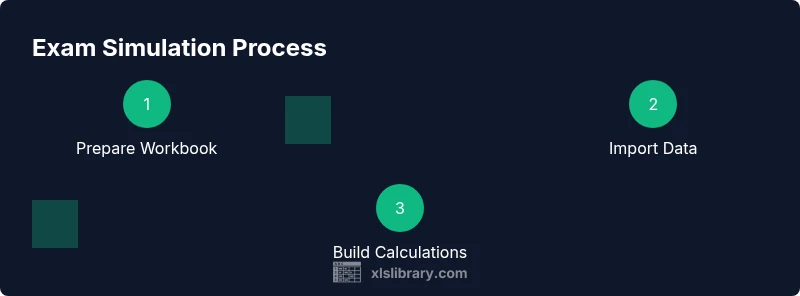
You will simulate the Excel 8A/8B exam by building a timed practice workbook that mirrors the official layout, using sample datasets, commonly tested functions, and a clear scoring rubric. Essential requirements include Excel, representative data, a timer, and a basic answer-key for self-checks. This rapid setup lets you gauge speed, accuracy, and familiarity with tasks like formulas, charts, data validation, and pivoting.
Understanding the Exam Landscape for the Excel 8A and 8B Simulation Exam
The Excel 8A and 8B simulation exam is designed to mirror a real-world, time-bound testing scenario. It assesses your ability to manage data, apply core functions, build clear visualizations, and validate results under pressure. According to XLS Library, consistent practice with authentic datasets and task types markedly improves performance on these simulations. Expect tasks that blend formula logic, data organization, and outcome presentation, all within a structured workbook. This guide helps you map a practical path from rough familiarity to confident execution, using a realistic practice workbook as your primary tool.
Key takeaway: Treat the simulation as a precinct of real work, not a trivia quiz. The goal is reproducible, correct output within the exam’s time constraints.
What the 8A and 8B Simulations Assess: Core Skills and Task Types
The simulations test several overlapping skill sets. You will typically encounter:
- Formulas and functions ( SUM, AVERAGE, IF, VLOOKUP or XLOOKUP, COUNTIF ) applied across datasets.
- Data management (sorting, filtering, and deduplication) to prepare clean inputs.
- Data validation to enforce entry rules and reduce errors.
- Conditional formatting to highlight key trends and anomalies.
- Charting and PivotTables to summarize results and reveal insights.
- Basic error handling and audit trails to verify reproducibility.
In practice, you’ll move from raw data to a validated result set with a concise visual representation. For Excel 8A/8B simulations, the emphasis is not only correct formulas but also clear presentation of findings and an auditable workflow. This section draws on the approach described in XLS Library’s analysis of exam-style tasks and their recommended practice patterns.
How to Set Up a Realistic Practice Workbook (Template Design)
A solid practice workbook mirrors a typical corporate task file: data entry, calculations, and final reporting in separate, logically connected sheets. Start with a clean template and replicate structure you’d use in a real project. Good templates include sheets named Data, Calculations, Analysis, and Output. Use representative datasets that resemble what you’d encounter in work scenarios—sales records, inventory lists, or survey results. The goal is to recreate the clean separation of data, processing logic, and presentation. As you build, annotate formulas and steps so you can audit your own work later—this habit is crucial for the 8A/8B simulation environment.
Pro tip: Keep a parallel “Answer Key” sheet with your expected outcomes for self-checking after each module.
Step-by-Step Mini-Task: A Realistic Practice Task (Sample)
This section demonstrates a typical mini-task you’ll encounter in the simulations: clean data, compute a KPI, and present the result visually. You’ll perform each action in isolation, then connect steps for a seamless finish. The task emphasizes a repeatable workflow that you can reuse across different datasets. The final outputs should align with your answer key and be easy to audit.
- Start by filtering a dataset to a specific region and date range.
- Compute a KPI (e.g., total sales per product) using a stable formula.
- Create a bar chart to visualize performance by product.
- Apply conditional formatting to highlight top performers.
- Validate inputs using data validation rules to prevent out-of-range values.
Exact steps matter in the exam: ensure your workbook is organized, labeled, and reproducible.
Common Pitfalls and How to Dodge Them
Even seasoned Excel users stumble with exam-like tasks. Common pitfalls include: copying formulas without relative references, referencing the wrong data range after filters, neglecting to lock cells in copied formulas, skipping the data validation step, and failing to document the workflow for auditability. By building a habit of explicit sheet naming, structured formulas, and an answer-key cross-check, you reduce risk and improve reliability under time pressure. If something goes wrong, retrace steps using a clean template rather than salvaging from a broken workbook.
Designing a Study Plan: From Short Sessions to Full-Length Drills
A practical plan blends short daily sessions with longer weekly drills. Start with 20–30 minute sessions focusing on one skill set (formulas, data cleaning, charts). Progress to 45–60 minute practice runs that simulate time pressure and task variety. Schedule weekly reviews to compare results against your answer key and adjust the difficulty by swapping datasets to maintain progress. The XLS Library approach emphasizes consistency and incremental challenge to build confidence for the actual 8A/8B exam.
Authoritative Sources and Further Learning
- Official Excel resources from Microsoft to deepen understanding of formulas, data tools, and reporting: https://learn.microsoft.com/en-us/office/troubleshoot/excel and https://www.microsoft.com/en-us/microsoft-365/excel
- General Excel help and function references from the official support site: https://support.microsoft.com/en-us/excel
- Additional practice-oriented materials and tutorials from reputable publishers and training platforms can complement your study plan.
Note: Always cross-check your results with an answer key and log your practice sessions to monitor progress over time.
Tools & Materials
- Excel software (最新版)(Microsoft Excel 2019 or Microsoft 365 (Windows or Mac) with access to core features.)
- Practice dataset (CSV/Excel)(Representative data mirroring real tasks (sales, inventory, survey data).)
- Timer (digital or app)(Simulate exam length and track pacing.)
- Practice workbook template(A clean, labeled workbook with sheets: Data, Calculations, Analysis, Output.)
- Answer key/solution sheet(Provide expected results for cross-checking.)
- Notebook for annotations(Document formulas, decisions, and deviations.)
Steps
Estimated time: 60-90 minutes
- 1
Create a clean practice workbook template
Open a new workbook and set up four sheets: Data, Calculations, Analysis, Output. Name the sheets clearly and save a master template. This structure mirrors real projects and keeps tasks auditable.
Tip: Lock headers and add a brief description of each sheet at the top. - 2
Import or paste a representative dataset
Bring in a dataset that resembles real-world data. Ensure column headers are clear and consistent. Remove any extraneous rows and set data types (numbers, dates, text) to reduce conversion errors.
Tip: Use data validation to prevent inconsistent entries during input. - 3
Set up core formulas on Calculations sheet
Create stable formulas for calculated fields (e.g., total sales, averages). Use absolute references where needed and verify results against test cases. Document each formula with a short note.
Tip: Double-check with an alias column for cross-checking values. - 4
Build charts and a PivotTable on Analysis
Create a bar chart or column chart to visualize key metrics. Add a PivotTable to summarize data by category and period. Ensure titles and axes are labeled clearly for readability.
Tip: Format data labels consistently to aid quick comprehension. - 5
Apply data validation and conditional formatting
Set validation rules to limit input ranges and use conditional formatting to highlight anomalies or top performers. This makes mistakes obvious during the timed drill.
Tip: Use color wisely—avoid over-coloring, which can distract from results. - 6
Run a timed drill and review results
Simulate exam timing by running a complete task set within a fixed window (e.g., 60 minutes). After completion, compare outputs to the answer key and note any gaps.
Tip: Keep a running log of errors and fixes for future practice. - 7
Review, refine, and repeat
Study the discrepancies, adjust formulas, and re-run a mini-task. Repetition builds speed and accuracy essential for the exam.
Tip: Iterate with different datasets to prevent overfitting to a single file.
People Also Ask
What is the purpose of the Excel 8A and 8B simulation exam?
The simulation provides a realistic, time-bound practice environment to build proficiency in core Excel tasks, mirroring common certification and job tasks. It helps you measure speed, accuracy, and workflow discipline.
The simulation gives you a realistic practice environment to build Excel skills under time pressure.
Which topics are most commonly tested in these simulations?
Expect emphasis on formulas and functions (SUM, IF, VLOOKUP or XLOOKUP), data manipulation (sorting, filtering, deduplication), data validation, conditional formatting, charts, and PivotTables. Practice integrates these into a coherent workflow.
Common topics include formulas, data management, charts, and PivotTables.
How should I time my practice sessions?
Start with shorter sessions to reinforce concepts, then gradually extend to full-length drills that mimic exam timing. Track pace and accuracy, then review mistakes against your answer key.
Begin with short sessions, then scale up to full-length drills while reviewing mistakes.
Where can I find official practice data or resources?
Use official Microsoft Excel resources for functions and features, and supplement with structured practice datasets that resemble real-world tasks. Always cross-check outputs with an answer key.
Check Microsoft’s Excel resources and practice datasets, plus an answer key for verification.
How long does preparation typically take?
Preparation time varies by background. A consistent plan of 4–6 weeks with regular practice sessions provides solid readiness for the simulation and certification paths.
Most learners benefit from a 4–6 week practice plan with steady sessions.
Watch Video
The Essentials
- Practice with realistic datasets
- Time management is essential
- Maintain an auditable workflow
- Use data validation to reduce errors
- Review outputs against an answer key