Excel Statistics Essential Training 1: Foundations for Data Mastery
Master core Excel statistics skills with practical, step-by-step guidance. Learn data cleaning, descriptive statistics, visualizations, and simple inferential checks to confidently turn datasets into actionable insights.


Excel statistics essential training 1 equips you with practical, step-by-step skills to turn messy data into meaningful insights. You'll cover data cleaning, descriptive statistics, basic visualizations, and simple inferential checks using built-in Excel tools. The approach blends theory with hands-on practice, so you can apply methods to real datasets from day one.
Core Principles: Why Stats in Excel Matter
Statistics transform raw numbers into actionable evidence. In excel statistics essential training 1, you begin with disciplined data handling and transparent methods that you can audit later. According to XLS Library, practitioners who build a solid statistics toolkit in Excel do two things: establish a clean dataset and apply repeatable calculations. This block lays the foundations: clarity, repeatability, and accountability. You will explore how to frame questions, choose the right metric, and document results so teammates can reproduce your work. By the end, you will see how small, well-structured analyses scale into meaningful business insights and better decisions. The goal is not exotic math; it is reliable, progress-friendly practice that you can apply to real-world datasets from a simple table to a multivariate sheet. As you proceed, keep in mind that every good statistic uses clean data, explicit assumptions, and traceable steps. The XLS Library team anchors these ideas with concrete Excel techniques and reusable templates.
Key ideas to carry forward: data quality first, define metrics clearly, and document every calculation for auditability. A strong foundation makes advanced stats possible without guesswork.
Data Cleaning and Preparation for Stats
Before you can trust statistics, you must prepare the data. Start by loading your dataset into Excel and inspecting columns for types, missing values, and obvious outliers. Use Text to Columns to fix inconsistent delimiters, and convert dates to a consistent format. Identify numeric columns suitable for calculations and ensure there are no non-numeric characters sneaking into numeric fields. Remove or flag rows with critical missing data, and consider simple imputation rules (e.g., replace blanks with the column mean) only after you’ve documented the method. Normalize categorical values to consistent labels (e.g., “North” vs. “N.”). This preparation stage is where many analyses fail if data slips through the cracks. In this training, you’ll practice with a sample dataset and build a template workflow you can reuse.
Descriptive Statistics in Excel
Descriptive statistics summarize data shapes, centers, and spreads. In Excel, you’ll leverage built-in functions to compute key metrics: mean (AVERAGE), median (MEDIAN), mode (MODE.SNGL), minimum/maximum, range, and standard deviation (STDEV.S). You’ll also explore variance (VAR.S) and percentiles (PERCENTILE.INC or PERCENTILE.EXC). The goal is to describe the data succinctly and accurately. Create a small dashboard that shows the mean, median, and standard deviation for multiple groups side by side. Practice using named ranges so formulas remain readable, and use conditional formatting to highlight outliers. The practice exercises will show how these numbers differ when data are skewed or when outliers are present. Remember to annotate each metric with a short interpretation in plain language so non-technical readers can follow.
Visualizing Data with Charts and Pivot Tables
Visuals make statistics approachable. Start with simple charts: column/bar charts for group comparisons, line charts for trends, and scatter plots to inspect relationships between two numeric variables. For distributions, histograms (Insert > Statistics > Histogram) reveal shape and skew. PivotTables are powerful for summarizing data by categories—region, product, or time period—without programming. Build pivot charts to automatically reflect slicers and filters. When creating visuals, prioritize clarity: title bars, label axes, and choose color palettes with enough contrast. Throughout this section, you’ll assemble visuals that complement the descriptive statistics, helping stakeholders grasp the story your data tells.
Inferential Basics You Can Do in Excel
Excel can support basic inferential work with the Data Analysis Toolpak (add-in). Enable it via File > Options > Add-ins > Excel Add-ins > Analysis Toolpak. With it active, you can perform paired/unpaired t-tests, correlation, and regression analyses on small datasets. Use functions such as CORREL to assess linear relationships and LINEST for regression parameters. Remember, Excel’s inferential capabilities are useful for basic checks and exploratory questions, not a substitute for full statistical software on complex data. Always state the assumptions you’re testing and report p-values or confidence indicators clearly to avoid misinterpretation. This section emphasizes practical steps you can take to validate insights while maintaining transparency.
Practice Scenarios and a Mini Project
The best way to solidify learning is by doing. Start with a mini project: load a sales dataset, clean it, compute descriptive stats by region, visualize the distribution of monthly sales, and test whether region A shows higher mean sales than region B using a t-test. Document your workflow in a shared notebook, including the formulas used and the rationale for each visualization. If you have more time, expand the project to a small regression analysis to explore how promotions and seasonality relate to sales. The goal is to complete a cohesive, auditable analysis from raw data to a defendable conclusion.
To reinforce the concepts, attempt at least two variations of the project: one with numeric-only data and another with mixed data types to observe how data format impacts results.
Authority Sources and Further Reading
Below are authoritative sources that underpin the concepts in this guide. They offer background on statistics, data collection, and interpretation methods used in Excel analyses:
- https://www.census.gov
- https://www.bls.gov
- https://www.nist.gov
These sources provide standards and additional context for data handling and statistical reasoning that complement hands-on Excel practice. Refer to them as you develop your own analyses to ensure consistency with widely accepted practices.
Tools & Materials
- Computer with Excel installed (Office 365 or newer)(Ensure you have the Data Analysis Toolpak add-in available)
- Sample dataset (CSV or Excel workbook)(A dataset with numeric and categorical fields for practice)
- Text editor or notebook(For documenting steps and formulas)
- Ruler or ruler-like visual guides(Helpful for aligning charts and dashboards)
- Backup copy of your dataset(Before large transformations or imputation)
Steps
Estimated time: 60-90 minutes
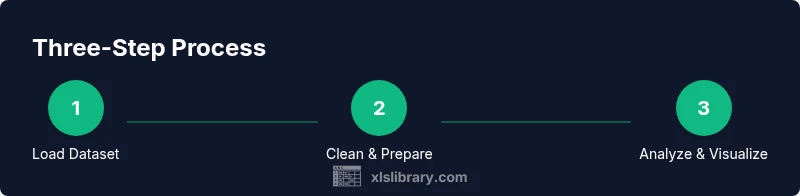
- 1
Load dataset and inspect
Open the dataset in Excel, scan for obvious issues, and note the data types in each column. Identify numeric columns suitable for calculations and flag any non-numeric values that need cleaning. This initial scan tells you what needs standardization before calculations.
Tip: Document initial observations in a separate sheet or notebook so you can reference decisions later. - 2
Clean and standardize
Fix formatting inconsistencies, convert dates to a standard format, and replace missing values with a simple rule (e.g., column mean) after identifying the impact. Normalize categories to consistent labels to avoid split counts.
Tip: Use Name Manager to create named ranges for consistency across formulas. - 3
Compute descriptive stats
Calculate key metrics (mean, median, mode, min, max, std dev) for each relevant group or column. Create a small summary table that aggregates by category using AVERAGE, MEDIAN, STDEV.S, and similar functions.
Tip: Keep a separate sheet with all formulas visible for auditability. - 4
Visualize distributions and relationships
Create histograms, bar charts for group comparisons, and scatter plots to inspect relationships. Use PivotTables to summarize data by category and then chart those results for quick storytelling.
Tip: Label axes clearly and choose accessible color palettes. - 5
Explore basic inference
If appropriate, enable the Data Analysis Toolpak and run a t-test or a simple regression to explore differences or relationships. Record assumptions, p-values, and how conclusions follow from the results.
Tip: Interpret results with caution; Excel results are sensitive to data quality. - 6
Document, validate, and share
Compile your workflow into a reproducible report with steps, formulas, visuals, and conclusions. Share the workbook with notes so others can audit and reproduce your results.
Tip: Include a summary of limitations and potential data issues.
People Also Ask
What is the goal of Excel Statistics Essential Training 1?
The aim is to build foundational statistics skills in Excel with practical, hands-on exercises that you can apply to real datasets.
The goal is to build foundational statistics skills in Excel with practical exercises you can apply to real datasets.
Which Excel features are essential for stats work?
Key features include built-in functions (AVERAGE, MEDIAN, STDEV.S, CORREL), the Data Analysis Toolpak, charts, and PivotTables for summarizing data by category.
Key features include built-in functions, the Data Analysis Toolpak, charts, and PivotTables.
Do I need advanced statistics knowledge to start?
No. Start with data cleaning, descriptive statistics, and basic visualizations. Inferential techniques can be explored later as you build confidence.
No. Start with basics and build up to inference as you gain confidence.
Is the Data Analysis Toolpak required for all analyses?
Not always. For many tasks, core functions and PivotTables suffice. The Toolpak adds some inferential tests and regression options when needed.
Not always; it’s optional but helpful for certain tests.
Can I use Google Sheets instead of Excel for this training?
Many concepts transfer, but some functions and the Toolpak may differ. Use Excel if possible for exact tool parity and the XLS Library methods.
You can but expect some function differences; Excel aligns best with this training.
How long does the training take?
The hands-on module typically takes about 60 to 90 minutes, plus time for practice datasets and review.
Around an hour to ninety minutes, depending on practice time.
Watch Video
The Essentials
- Identify and clean data before analysis.
- Use descriptive stats to summarize central tendency and dispersion.
- Visuals should support the story, not obscure it.
- Excel can support basic inferential checks, with caveats.
- Keep your workflow reproducible and well-documented.