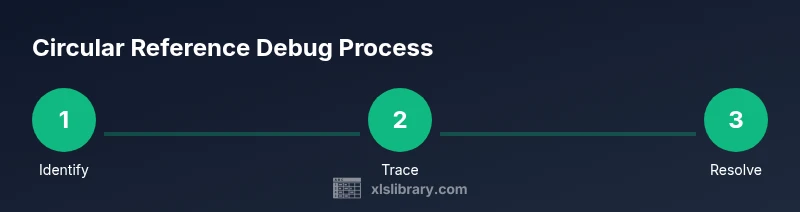
Excel Circular Reference Find: A Practical How-To Guide
Learn how to excel circular reference find with built-in Excel tools. This step-by-step guide covers auditing, iterative calculation, and best practices to fix loops in formulas.


By the end of this guide you’ll be able to locate and fix circular references in Excel using built-in auditing tools, not external add-ins. You’ll learn to identify problem cells, map dependencies with Trace Precedents and Dependents, and verify your workbook after enabling or disabling iterative calculation. A quick backup is recommended, and you’ll need a modern Excel version with access to Formulas tools.
Understanding excel circular reference find
Circular references occur when a formula refers back to its own cell directly or indirectly, creating a loop that Excel cannot resolve in a single calculation pass. In practice, these loops often show up as a #REF! or #VALUE! error, or they silently recalculate yielding unexpected results. The goal of an excel circular reference find is to identify these loops so you can redesign the formula chain. Common culprits include self-referencing formulas, iterating references across sheets, and complex nested functions that inadvertently create dependency cycles. Start by recognizing symptoms, such as sudden changes in results when you edit a cell, unusual recalculation times, or the status bar warning that a circular reference exists. As you begin your excel circular reference find, remember that a well-structured workbook avoids cycles by design, using helper cells, stable data sources, and clear precedence orders.
Detecting when Excel warns about circular references
Excel provides immediate feedback when it detects a loop. If a workbook contains a circular reference, you’ll often see a circular reference warning in the status bar or an error message when you re-enter a formula. The presence of a warning signals that a direct or indirect loop exists somewhere in your calculation chain. It’s important to note that some circular references are intentional in iterative models, but most day-to-day workbooks require detection and elimination to ensure predictable results. Knowing how to identify the warning is the first crucial step in the excel circular reference find process.
Practical hint: start by noting which worksheet or region the warning points to, then progressively audit formulas in nearby cells to map the scope of the loop.
How to visualize dependencies with Excel’s formula auditing
Formula auditing is the centerpiece of any effective excel circular reference find. Use Trace Precedents to see which cells influence a selected cell, and Trace Dependents to see which cells rely on it. These tools draw arrows that help you map the dependency chain and pinpoint where the loop begins. When you spot a cycle, you’ll often see a circular path that returns to the starting cell. Use the front-end tools to disable or rearrange references, which simplifies debugging and reduces future risk of accidental cycles in related worksheets.
Enabling and using iterative calculation to reveal hidden loops
Iterative calculation lets Excel resolve formulas that would otherwise loop indefinitely. By enabling this feature, you can inspect how many iterations Excel performs and inspect the resulting values to infer where a loop might be. Start by turning on iterative calculation in the Excel Options, then carefully monitor the iteration status in the Status Bar as you modify key inputs. Remember, iterative calculation can change how your workbook computes results, so enable it only for debugging and disable it afterward in normal workbooks.
A practical, step-by-step method to locate circular references (audit-focused)
- Open the workbook and save a backup to protect your data. 2) Select a suspect cell and use Trace Precedents to see which cells feed into it. 3) Move to the referenced cells and repeat the process, mapping the full chain. 4) Use Go To Special > Formulas to highlight all formula cells and visually scan for self-references. 5) If a loop remains, enable iterative calculation to reveal whether a hidden cycle exists. 6) Restart auditing with a new starting point if needed, until you identify the exact cell(s) causing the loop. 7) Break the cycle by restructuring formulas or introducing helper cells. 8) Recalculate and verify the workbook with a final pass to ensure the loop is removed.
Practical tips for avoiding circular references in the future
Proactively build formulas that refer to stable data sources and limits cross-sheet dependencies. Use helper columns to isolate complex calculations, and avoid chaining multiple INDIRECT or OFFSET functions that can create unexpected loops. Establish a standard auditing routine for large workbooks, so future changes don’t reintroduce cycles. Regularly save versions and test critical formulas in a copy of the workbook before applying edits to production files.
Tools & Materials
- A computer with Excel (2020 or later)(Ensure you can access the workbook containing circular references for testing)
- The workbook to audit(Keep a duplicate for testing; do not audit the live production file)
- Notebook or digital note app(For recording findings and dependency maps during auditing)
Steps
Estimated time: 60-90 minutes
- 1
Backup workbook and prepare
Save a copy of the workbook to avoid accidental data loss. Close other workbooks to minimize distractions and ensure you’re auditing the correct file.
Tip: Create a named version like 'Workbook_Audit_YYYYMMDD'. - 2
Identify suspected cells
Scan for cells with sudden result changes after edits or cells with alert flags. These are common starting points for a circular reference find.
Tip: Start in worksheets with high formula density or recent edits. - 3
Use Trace Precedents
Select a suspect cell and click Trace Precedents to visualize which cells feed into it. Follow the arrows to map the dependency chain.
Tip: If arrows lead back to the start cell, you likely have a loop. - 4
Use Trace Dependents
Switch to Trace Dependents to see which cells rely on the selected cell. This helps reveal how a loop propagates.
Tip: Document the path to understand the cycle completely. - 5
Go To Special: Formulas
Open Go To Special and select Formulas to highlight all formula cells. Scan for self-references or indirect links that form cycles.
Tip: Sort the highlighted formulas by references to quickly spot candidates. - 6
Enable iterative calculation (for debugging)
Turn on iterative calculation to observe how formulas resolve when a loop exists, aiding identification of hidden cycles.
Tip: Use this only for debugging; revert to default when finished. - 7
Break the cycle and verify
Rewrite the offending formulas or introduce a helper cell to decouple the references. Recalculate to confirm the circular reference is gone.
Tip: After changes, review dependent cells to ensure no new loops were introduced. - 8
Document and standardize
Record the detection steps, fixes applied, and the reasoning. Establish a standard auditing workflow for future workbooks.
Tip: Share a checklist with teammates to prevent recurrence.
People Also Ask
What is a circular reference in Excel?
A circular reference occurs when a formula directly or indirectly refers to its own cell, creating a loop that Excel cannot resolve in a single calculation. It can lead to incorrect results or errors.
A circular reference happens when a formula ends up referencing itself, causing a loop in calculations. It can produce errors or unexpected results.
How can I tell if my workbook has circular references?
Excel typically shows a warning in the status bar or during calculation. You can also use Formula Auditing tools like Trace Precedents and Trace Dependents to identify cycles.
Look for a warning in Excel's status bar, then use formula auditing to map and confirm any cycles.
Is iterative calculation safe to use for debugging?
Iterative calculation can help reveal loops, but it should be used temporarily for debugging. It changes how formulas calculate results, so disable it after you finish.
Yes, but only for debugging. Remember to turn it off when you’re done to keep results stable.
What are common causes of circular references?
Self-referencing formulas, indirect links across sheets, and complex nested functions are frequent culprits. Reworking the logic or adding helper cells usually resolves them.
They often come from self-referencing formulas or tricky cross-sheet references; simplifying with helper cells helps.
Can I prevent circular references in large workbooks?
Yes. Plan dependencies, avoid deep function chaining, and use helper columns or tables to decouple calculations. Regular auditing during workbook development helps prevent cycles.
Yes—plan dependencies, use helpers, and audit as you build to prevent cycles.
Watch Video
The Essentials
- Identify and map all formula dependencies to locate loops
- Use Trace Precedents/Dependents to visualize cycles
- Break cycles with helpers or restructuring formulas
- Validate workbook after fixes to ensure no new circular references
- Establish a repeatable auditing process for future workbooks