Excel Distance Between Two Points: A Practical Step-by-Step Guide
Learn how to calculate the distance between two points in Excel using Euclidean distance and haversine for lat/long. Includes formulas, examples, pitfalls, and quick tips for dashboards.


Compute the straight-line distance between two points in Excel using the Euclidean distance formula: distance = sqrt((x2-x1)^2 + (y2-y1)^2). In Excel, implement with SQRT and POWER: =SQRT(POWER(B2-B1,2) + POWER(C2-C1,2)). If coordinates are latitude/longitude, use the haversine formula. This provides the core distance concept and a ready-to-paste example for 2D data.
What the distance between two points means in Excel
In Excel, the distance between two points is a measure of how far apart two coordinate pairs are in a Cartesian plane. When you work with x/y coordinates, the distance is typically the Euclidean distance. The phrase excel distance between two points describes this calculation in a spreadsheet environment. According to XLS Library, mastering these basics unlocks faster data exploration and more accurate spatial reasoning within Excel. Whether you’re plotting locations on a chart, validating data entry, or performing quick spatial analytics, having a reliable distance calculation is a foundational skill that reduces errors and speeds up decision-making. The two common scenarios are simple 2D coordinates and geographic coordinates (latitude/longitude).
The Euclidean distance formula in 2D: step-by-step
The Euclidean distance between two points (x1, y1) and (x2, y2) is defined as d = sqrt((x2 - x1)^2 + (y2 - y1)^2). In Excel, you translate this formula into a cell formula. The essential functions are SQRT, POWER (or the caret operator ^), and simple subtraction. If your data is organized with x-values in column B and y-values in column C, you can compute distance in column D with a single formula and copy it down. The logic remains the same regardless of where your coordinates live, but consistency in references is crucial for accurate results.
A ready-to-use Excel formula with cell references
To compute the distance for a pair of points in rows 2 and 1, use: =SQRT(POWER(B2-B1,2) + POWER(C2-C1,2)). If you prefer, you can write it with the exponent operator: =SQRT((B2-B1)^2 + (C2-C1)^2). You can also apply this to an entire column by filling down. For dynamic ranges, consider using structured references with a table.
Using named ranges and dynamic ranges
Named ranges simplify formulas and reduce errors. Define X1, Y1 from the first point and X2, Y2 from the second point, then use: =SQRT(POWER(X2-X1,2) + POWER(Y2-Y1,2)). If your dataset grows, convert the data to an Excel table to automatically extend the formula down new rows. This approach keeps your worksheet readable and reduces maintenance.
3D distance in Excel: when z-coordinates exist
If your data includes a z-coordinate (z1, z2), the Euclidean distance generalizes to d = sqrt((x2 - x1)^2 + (y2 - y1)^2 + (z2 - z1)^2). In Excel, extend the formula accordingly: =SQRT(POWER(B2-B1,2) + POWER(C2-C1,2) + POWER(D2-D1,2)). This is handy for 3D spatial models, computer-aided design data, or 3D plotting contexts within Excel.
Latitude and longitude: haversine in Excel
Latitude and longitude require a spherical distance approach. The haversine formula estimates great-circle distance between two points on a sphere. In Excel, implement with radians conversion and trigonometric functions: =2RASIN(SQRT( SIN((LAT2-LAT1)/2)^2 + COS(LAT1)*COS(LAT2)*SIN((LON2-LON1)/2)^2 )). Remember to convert degrees to radians with the RADIANS function. This method yields more realistic distances for mapping and geographic analyses.
Practical examples: concrete datasets
Consider a dataset where A2:B2 contain the first point (x1, y1) and A3:B3 contain the second point (x2, y2). If you place the formula =SQRT(POWER(B2-B1,2) + POWER(C2-C1,2)) in D2, Excel returns the distance for that pair. Copy the formula down for additional pairs. When working with lat/long, replace the raw values with the haversine-based formula and ensure values are in radians. This can be easily validated by checking a known distance between city coordinates.
Common mistakes and how to avoid them
Common mistakes include mixing up x/y columns, referencing the wrong rows when copying formulas, or forgetting to convert latitude/longitude values to radians in haversine calculations. To avoid these, pin down a consistent data layout, use absolute references for anchor points when appropriate, and test with a known distance (such as between two points with identical coordinates, which should yield zero).
Extending distance calculations to dashboards and checks
Distance calculations are ideal for dashboards that show proximity metrics, clustering checks, or distance-based filters. You can wrap the distance calculation in a user-defined function or keep it as a pure Excel formula for portability. Adding conditional formatting to highlight large distances can make dashboards more actionable.
Authority and further reading
For deeper guidance on Excel formulas, refer to authoritative sources: Microsoft Learn on SQRT and POWER, and Excel formula syntax references. This article builds on standard math concepts and Excel capabilities to give you practical, actionable steps. Additional resources: https://learn.microsoft.com/en-us/office/excel, https://support.microsoft.com/excel
Tools & Materials
- Microsoft Excel (latest or compatible version)(Any Windows or Mac version with standard worksheet functions)
- Coordinate data laid out in two columns for x and y (or lat/long)(Organize as X in column B, Y in column C; adjust references accordingly)
- Optional: Named ranges or Excel Table(Makes formulas easier to manage and extend)
- Radians helper (if using haversine)(Use the built-in RADIANS() function)
Steps
Estimated time: 25-40 minutes
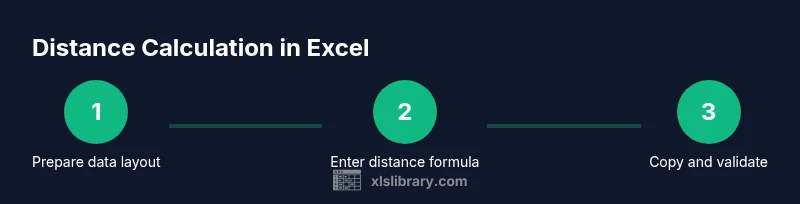
- 1
Prepare data layout
Organize your data so x-values are in one column and y-values in another. Ensure the first point is in row 1 and the second in row 2 (or adjust references accordingly). This clarity prevents misreferences when you copy formulas.
Tip: Use a table to automatically fill formulas as you add new rows. - 2
Enter the 2D distance formula
In a new column, type the Euclidean distance formula using B and C as the coordinates: =SQRT(POWER(B2-B1,2) + POWER(C2-C1,2)). This computes the distance between the two points.
Tip: Double-check that you reference the correct anchor rows (B1/C1) for the first point. - 3
Copy the formula down
Drag the fill handle down to apply the distance calculation for additional pairs in subsequent rows. Excel will adjust the references automatically if you used relative references.
Tip: If you have many rows, convert to a table to auto-fill new rows. - 4
Experiment with 3D data (optional)
If your dataset includes z-values, extend to 3D: =SQRT(POWER(B2-B1,2) + POWER(C2-C1,2) + POWER(D2-D1,2)). This yields the 3D distance.
Tip: Keep z-values in a consistent column (e.g., D) to avoid mix-ups. - 5
Work with lat/long (haversine)
For geographic coordinates, convert degrees to radians and apply the haversine formula. Use RADIANS() around degrees and adjust for Earth's radius if needed.
Tip: Use a constant for Earth's radius (e.g., 6371 km) only if your unit is kilometers; use miles if needed. - 6
Validate results
Cross-check results with a manual calculation for a few pairs or use a known distance reference. This ensures your references and formulas are correct.
Tip: Test with identical coordinates to confirm a zero distance. - 7
Wrap for dashboards
If you’re feeding distances into a chart, ensure the distance column is numeric and clean of errors. Consider conditional formatting to highlight distances beyond a threshold.
Tip: Use data validation to prevent non-numeric entries in coordinate columns. - 8
Document your approach
Add a brief note in the sheet about which coordinates are used and whether the haversine method is applied for lat/long. This improves maintainability for future users.
Tip: Include a short comment or a legend for your distance column.
People Also Ask
How do I handle missing coordinates in the distance calculation?
Use IFERROR to catch missing values and return a blank or a special flag. For example, =IFERROR(yourFormula, "missing"). This keeps your dataset clean and avoids misleading results.
If coordinates are missing, wrap the distance formula with IFERROR to show a clear indicator instead of an error.
Can I compute distance for lat/long without haversine?
Spherical distance estimates are less accurate with simple Pythagorean distance on degrees. Use haversine or a specialized geographic distance function for better accuracy.
For lat/long, prefer haversine over the straight math distance in degrees.
How do I calculate distance between points on different worksheets?
Reference cells from the other sheets explicitly, e.g., =SQRT((Sheet2!B2-Sheet1!B1)^2 + (Sheet2!C2-Sheet1!C1)^2). Ensure both sheets have the same layout.
Reference the cells from the other worksheets directly in your formula.
Is there a way to automatically extend the distance column as I add rows?
Convert the data to an Excel table or use dynamic named ranges; formulas in a table automatically fill when new rows are added.
Turn your data into a table so Excel fills new rows automatically.
What is the difference between 2D and 3D distance in Excel?
2D distance uses only x and y coordinates; 3D adds the z coordinate. The formulas extend from sqrt((dx)^2+(dy)^2) to include (dz)^2.
2D uses x and y; 3D adds z for a fuller distance calculation.
Where can I learn more about Excel formulas and functions?
Refer to official documentation and reputable tutorials; Microsoft Learn provides authoritative guidance on functions like SQRT and POWER.
Check Microsoft Learn for official guidance on Excel functions.
Watch Video
The Essentials
- Master the 2D Euclidean distance in Excel with a simple formula
- Extend to 3D by adding a z-dimension term
- For geographic data, apply haversine with radians conversion
- Use named ranges or tables to simplify maintenance
- Validate results and document the calculation method