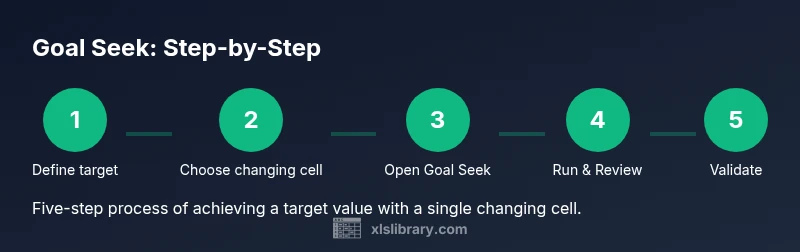
Master Goal Seek in Excel: A Practical Guide
Master goal seek in Excel with a practical, step-by-step approach. Learn to set a target, choose the changing cell, run What-If Analysis, and validate results for reliable forecasting.


Learn how to use Goal Seek in Excel to find the input value needed to reach a desired formula result. You’ll identify the target cell, define the changing cell, and run Excel’s What-If Analysis tool to solve for the unknown. This guide provides practical examples, checks, and best practices. Follow the steps to apply quickly in real-world scenarios.
What Goal Seek Is and When to Use It
According to XLS Library, Goal Seek is a built-in Excel feature that reverses a formula to solve for an unknown input. It’s ideal when you know the target outcome but not the exact input needed to achieve it. This makes it particularly useful for basic financial modeling, pricing scenarios, budgeting, and forecasting. If you’re building a quick sensitivity analysis or testing how a small input change affects profitability, Goal Seek offers a fast, repeatable approach without writing a complete solver. Remember that goals should be realistic and the data should be clean to produce trustworthy results.
Key points:
- It targets a single changing cell; complex models with multiple changing cells require Solver.
- It assumes the worksheet calculations are stable and free of circular references.
- It is best used for linear or near-linear relationships where the changing input directly impacts the result.
How Goal Seek Determines the Changing Cell
Goal Seek works by iteratively adjusting one cell (the changing cell) until the formula in the target cell (the set cell) matches the To value you specify. Excel automatically tests potential values, converging on a solution within the limits of double-precision arithmetic. For best results, ensure the changing cell is directly used in the formula in the set cell and avoid indirect references that could introduce volatility. If your model includes circular references, you must enable iterative calculation or use Solver for more complex relationships.
A Worked Example: Break-even Range in a Simple Model
Imagine a simple model where Profit = Revenue − Costs, and Revenue = Price × Units. If you want Profit to reach a target range (e.g., 50,000 to 60,000) and you know the price per unit but not the units, you can set the Set Cell to the Profit formula and the To value to a target (e.g., 55,000). The Changing Cell would be Units. By running Goal Seek, Excel suggests the Units needed to hit the target. Use a range rather than a single fixed number to reflect uncertainty and test multiple scenarios.
This example shows how even a modest change in units can dramatically alter profitability, highlighting the importance of validating the result with a manual check and sensitivity analysis.
Common Pitfalls and How to Avoid Them
Common pitfalls include forgetting to save a backup before running Goal Seek, using a changing cell that isn’t actually used by the formula, and overlooking data errors in inputs. Another frequent issue is attempting to reach an unattainable target with the current constraints. If Goal Seek can’t converge, it will indicate failure; in that case, re-check formulas and data integrity, or switch to Solver for more complex constraints. Always review whether the solution respects business rules and external constraints.
Practical Tips for Clean Data and Reproducibility
To ensure repeatable, trustworthy results, organize your workbook with clearly named cells and consistent references. Use absolute references in formulas where appropriate, and document assumptions in a separate tab or comments. Create a small test sheet with known results to verify that Goal Seek still produces the expected output after edits. Finally, protect your formulas and keep a changelog so you can reproduce the exact scenario later.
Alternatives and Next Steps
For simple single-variable challenges, Goal Seek is fast and effective. When you encounter multi-variable problems or tight constraints, Solver offers more control, such as adding limits and solving for multiple changing cells simultaneously. In practice, start with Goal Seek to understand the relationship, then graduate to Solver when the model grows beyond a single input. Document assumptions and maintain a clean data structure to support both tools.
Tools & Materials
- Excel-enabled computer(Excel 2016 or later; Windows or macOS)
- Sample workbook with a target formula(Include a clear set cell and changing cell)
- Clear objective (target value)(State whether a min/max target is required)
- Backup copy of workbook(Before running Goal Seek)
- Optional: graph or chart to visualize results(Helps interpretation)
Steps
Estimated time: 20-40 minutes
- 1
Prepare the workbook
Open your workbook and ensure the target set cell contains a formula that depends on the changing cell. Confirm the goal is clearly defined (e.g., reach a specific profit).
Tip: Double-check that the changing cell is directly used in the formula to avoid misalignment. - 2
Open Goal Seek dialog
Navigate to Data > What-If Analysis > Goal Seek. This opens the Goal Seek dialog with Set Cell highlighted.
Tip: If you don't see Data tab, enable the Ribbon extension or use the Search (Ctrl+F1) to locate the feature. - 3
Set the target value
In Set Cell, enter the reference to the formula cell. In To value, input the numeric target you want to achieve (use a range if testing multiple targets).
Tip: Use a range or consider multiple runs to confirm robustness. - 4
Choose the changing cell
In By Changing Cell, select the input cell that Excel will adjust automatically.
Tip: Ensure this cell is the sole driver of the target; avoid tying multiple inputs here. - 5
Run the solver
Click OK to let Excel iterate. If a solution exists, Excel will display a proposed value for the changing cell.
Tip: If Excel reports no solution, check formulas and data integrity. - 6
Review the results
Review the recovered value and verify that the Set Cell now equals To value within rounding tolerance.
Tip: Note any rounding effects and verify whether the result makes business sense. - 7
Validate with a manual check
Manually recompute the result using the proposed input to confirm the outcome matches the target.
Tip: Run a quick calculation in a separate cell to cross-check. - 8
Document and save
Record the target, changing cell, and final value. Save a copy for audit readiness and future reference.
Tip: Add a brief note about assumptions and constraints.
People Also Ask
What is Goal Seek in Excel?
Goal Seek is a built-in Excel tool that finds the input value needed to achieve a specified result in a formula. It works by iteratively adjusting a single changing cell until the target value is met.
Goal Seek automatically adjusts one input to reach a set target, by iterating until the formula matches the goal.
When should I use Goal Seek instead of Solver?
Use Goal Seek for simple, single-variable scenarios where you know the target. Use Solver for multi-variable optimization or more complex constraints.
Use Goal Seek for simple one-variable targets; Solver handles complex problems with multiple changing cells.
What are common reasons for Goal Seek not finding a solution?
Common reasons include circular references, non-linear relationships that require iteration beyond Excel's default, or unattainable targets given current model inputs.
If there’s no solution, check the model structure and inputs; you may need Solver.
Can Goal Seek handle rounding errors?
Goal Seek may hit the target within a tolerance range. If precision matters, inspect rounding and consider adjusting the target or formula.
Expect small rounding differences; verify with a manual calculation.
How do I enable Goal Seek if it's missing from the ribbon?
Goal Seek is under Data > What-If Analysis. If missing, ensure your workbook is not in Compatibility Mode and that the Analysis ToolPak is enabled.
Look under Data > What-If Analysis; enable analysis tools if needed.
Is Goal Seek reversible if I change the target later?
Yes. Re-run Goal Seek with a new target; Excel will update the changing cell accordingly, given your model remains consistent.
You can rerun Goal Seek with a new target; it updates automatically.
Watch Video
The Essentials
- Define a clear target value
- Change only one cell at a time
- Validate results with a manual check
- Document assumptions and maintain backups
- Use Goal Seek for quick, repeatable analyses