How IF Analysis Works in Excel: A Practical Guide Today
Discover how what-if analysis works in Excel, including scenarios, data tables, and goal seek. XLS Library offers practical, step-by-step guidance with examples to help you model uncertainty and make informed decisions quickly.


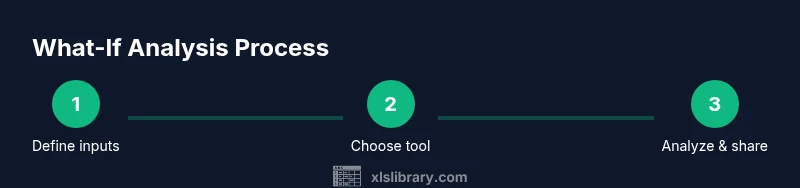
To understand how what-if analysis works in Excel, you’ll test scenarios, adjust inputs, and compare outcomes using Scenario Manager, Data Tables, and Goal Seek. This XLS Library quick guide highlights practical steps and concise examples to help you model uncertainty, forecast results, and support informed decisions quickly. It's ideal for financial planning, budgeting, and risk assessment.
What is what-if analysis in Excel?
What-if analysis is a modeling approach that helps you explore how changes in inputs affect outcomes. In Excel, this means creating scenarios, testing different values, and comparing results to understand potential risks and opportunities. According to XLS Library, a disciplined what-if workflow combines three core tools—Scenario Manager, Data Tables, and Goal Seek—to build intuition about uncertain futures. The goal is not to predict the exact outcome, but to illuminate sensitivities and reveal which assumptions drive the most impact. This method is valuable for budgeting, forecasting, and decision-making across finance, operations, and project planning. By consciously adjusting inputs and watching corresponding changes in outputs, you gain insight into which levers matter most and where to invest your time and resources.
Core tools for what-if analysis
Excel provides several built-in features for investigating alternate realities without altering your base data. The three most common are:
- Scenario Manager: Save multiple sets of input values as named scenarios and switch between them to compare results side by side.
- Data Tables: Create one- or two-variable tables that display the effect of changing inputs on a formula result.
- Goal Seek: Work backward from a desired output to find the input value that achieves it.
These tools pair with standard formulas (SUM, AVERAGE, IF, and LOOKUP) to produce quick, readable outcomes. Using them together lets you test hypotheses, validate plans, and communicate findings clearly to stakeholders.
Data Tables: One-variable data table explained
A one-variable data table evaluates how a single input value affects a formula’s result. Start with a model where a single cell (the input) feeds into a formula in another cell. Then build a data table with the input values listed in a row or column and reference the formula in the table's input cell. Excel automatically computes all outcomes, so you can quickly see how your result changes as the input varies. This approach is ideal for sensitivity checks on price, quantity, or rate assumptions.
Data Tables: Two-variable data table explained
A two-variable data table lets you assess how two inputs simultaneously influence a formula. Structure a table with one input along the top and another along the left, place the formula at the intersection, and let Excel fill in the grid. This method is powerful for exploring how price and demand jointly affect revenue, margins, or break-even points.
Scenario Manager: Set and compare multiple futures
Scenario Manager captures several sets of inputs as named scenarios and compares their outcomes in a single view. You can define changing cells (the inputs) and create a scenario for best-case, base-case, and worst-case conditions. After saving scenarios, switch among them to see their effect on key results, which helps with contingency planning and communicating different strategic paths to stakeholders.
Goal Seek and Solver: Target outcomes and optimization
Goal Seek searches for the input value that yields a target result for a formula, without manual trial-and-error. Solver extends this by handling multiple inputs and constraints, enabling optimization under given rules. These tools turn abstract targets into concrete inputs, supporting what-if scenarios in budgeting, project planning, and operational decisions. If your problem involves multiple goals or constraints, Solver can provide a practical path to feasible solutions.
Practical example: Revenue projection model
Imagine a simple revenue model where price and quantity determine revenue. Create formulas for revenue, profit, and contribution margin, then use Data Tables or Scenario Manager to test different pricing and demand scenarios. By comparing outputs, you’ll identify the price point that maximizes profit or the market conditions that threaten margins. This hands-on example demonstrates the workflow end-to-end and shows how sensitivity analysis informs pricing and capacity decisions.
Best practices and common pitfalls
- Start with a clean base model: separate inputs from calculations.
- Keep scenarios organized with meaningful names.
- Use cell references rather than hard-coded numbers in formulas.
- Document assumptions in a separate sheet or note.
- Validate results with independent checks to catch errors.
- Avoid overcomplicating models; simpler scenarios yield clearer insights.
Integrating with formulas and sharing results
What-if analysis thrives when paired with standard Excel formulas and clear presentation. Use IF, SUMPRODUCT, and LOOKUP for robust calculations, and present results in tables or dashboards for stakeholders. When sharing models, include a summary of assumptions, the scenarios tested, and recommendations. A well-documented workbook reduces back-and-forth and builds confidence.
Authority sources
- Learn more about what-if analysis in Excel: https://learn.microsoft.com/en-us/office/troubleshoot/excel/what-if-analysis-in-excel
- Scenario analysis overview: https://www.investopedia.com/terms/s/scenario-analysis.asp
- Goal Seek explained: https://www.investopedia.com/terms/g/goalseek.asp
Tools & Materials
- Computer with Excel (Office 365 or newer)(Ensure it supports Scenario Manager and Data Tables)
- Sample dataset(A simple revenue or budgeting dataset works well)
- Baseline model workbook(Keep inputs on a separate sheet for clarity)
- Notebook or digital notes(Document assumptions and decisions)
Steps
Estimated time: 60-90 minutes
- 1
Define decision variable and outputs
Identify which input(s) you want to test and which results matter most. Write down the target outputs before you begin to keep your analysis focused.
Tip: Use single-sourcing for inputs to avoid accidental drift across scenarios. - 2
Prepare a clean base model
Create a base version of your workbook with inputs clearly separated from calculations. Lock the structure so changes don’t corrupt formulas.
Tip: Use a dedicated input sheet and named ranges for critical cells. - 3
Set up input cells for modification
Place inputs in cells that are easy to change and reference them in formulas. Avoid hard-coding values inside formulas.
Tip: Label inputs with short, descriptive names and add a row for units/dimensions. - 4
Create a one-variable data table
List possible values for a single input in a row or column and reference the input cell in the data table. Excel will fill in all results automatically.
Tip: Start with a modest range to test feasibility before expanding. - 5
Create a two-variable data table
Place one input along the top and another on the side, with the formula at the intersection. Review the grid of outputs for patterns.
Tip: Be mindful of large grids; limit to a practical range to avoid slow calculations. - 6
Use Scenario Manager for multiple futures
Define changing cells and save distinct scenarios such as base, optimistic, and pessimistic. Compare results in a single view to spot divergences.
Tip: Name scenarios clearly and keep the number of scenarios manageable. - 7
Apply Goal Seek for targets
If you have a target value, use Goal Seek to back-calculate the required input. Validate results by cross-checking with alternate methods.
Tip: Check that the target is within a realistic range for the model. - 8
Cross-verify results
Test edge cases and confirm that formulas respond as expected. Re-run scenarios after any model adjustment.
Tip: Document any changes to formulas or structure and keep a changelog. - 9
Share and review
Export tables or dashboards, and accompany results with a concise narrative of assumptions and recommendations.
Tip: Provide a short, visual summary for stakeholders to grasp key takeaways quickly.
People Also Ask
What is what-if analysis in Excel?
What-if analysis in Excel lets you explore how changes in inputs affect outputs. By using Scenario Manager, Data Tables, and Goal Seek, you can test hypotheses and see potential outcomes without altering your base data.
What-if analysis in Excel lets you explore changes in inputs and see resulting outcomes using built-in tools.
Which Excel tool should I start with for what-if analysis?
Start with Data Tables for simple sensitivity tests, then use Scenario Manager for multiple future states. Goal Seek is useful when you have a target output to back-calculate inputs.
Begin with data tables, then explore scenarios; use Goal Seek for targets.
Can I use data tables for more than two inputs?
Data Tables are most effective with one or two inputs. For more complex setups, combine with Scenario Manager or build a layered model to keep results interpretable.
Data tables work best with one or two inputs; for more, combine tools.
Is there a limit to how many scenarios I can create?
There isn’t a hard software limit, but practical limits exist. Keep scenarios meaningful and organized to avoid confusion and performance drops in large workbooks.
There isn’t a strict limit, but keep scenarios manageable for performance.
How should I share what-if results with teammates?
Provide a concise summary of assumptions, tested scenarios, and recommended actions. Include visuals like charts and a one-page executive brief.
Share a concise summary with visuals and a clear recommendation.
Can I automate what-if analysis for regular reporting?
Yes. Use templates, named ranges, and simple macros to refresh scenarios and update outputs on a schedule, maintaining consistency across reports.
You can automate refreshes with templates and macros.
Watch Video
The Essentials
- Define decision variables clearly.
- Choose the right tool for the job.
- Test multiple scenarios to reveal sensitivities.
- Document assumptions and methods.
- Present results with clear visuals and notes.