How to Find Growth Rate in Excel: Step-by-Step Guide
Learn practical methods to calculate growth rate in Excel, including YoY changes, CAGR, and forecasting. This XLS Library tutorial covers formulas, examples, and best practices for reliable results.


Compute the growth rate in Excel using either year-over-year changes or CAGR formulas, then verify results with a chart. This quick approach gets you a reliable rate in a few minutes, with exact formulas provided in the full guide.
Why Growth Rate Matters in Excel
Growth rate is a fundamental metric for evaluating how values change over time. In finance, sales, or project metrics, understanding growth rate helps you spot momentum, seasonality, or performance gaps. With Excel, you can quantify growth using simple year-over-year percent change, or more robust measures like CAGR that smooths irregular intervals. The XLS Library team's analysis shows that choosing the right growth rate metric clarifies decisions: YoY highlights short-term shifts, while CAGR reveals long-run trends. The practical upshot is: pick the method that matches your data cadence and decision horizon, then document your assumptions. In this guide, we’ll walk through practical steps, formulas, and examples to calculate growth rate in Excel, so you can apply these techniques to budgets, forecasts, dashboards, and performance reports.
YoY vs CAGR: Two Core Metrics
Understanding the difference between YoY growth and CAGR is crucial when you’re learning how to find growth rate in excel. YoY growth measures changes from one period to the next and is highly sensitive to volatility. CAGR, by contrast, smooths out fluctuations to reveal the overall rate of growth across the entire time span. According to XLS Library analysis, both metrics have a place in a modern workbook: use YoY for seasonality insights and CAGR for long-term trend assessment. Selecting the right metric depends on data cadence, the horizon of your forecast, and the questions you're trying to answer. This section clarifies when to apply each method and how to interpret the results for decision-making.
Data Preparation: Set Up Your Sheet
Before you start calculating growth rate in Excel, ensure your data is clean, properly structured, and free of gaps that could skew results. Place periods (dates, years, or quarters) in column A and the corresponding values in column B. Keep the range contiguous and named if possible (e.g., salesData). Remove or flag missing values, and convert all numbers to a consistent numeric format (no text that looks like a number). This foundation is essential for reliable YoY and CAGR calculations, and it reduces errors when you copy formulas across rows or columns.
Calculate Year-Over-Year Growth (YoY)
YoY growth answers the question: how much did the value change compared to the previous period? In Excel, you can compute it with a simple formula. Assuming B2 is the first value and B1 is the previous period, enter in C2: =IF(B1=0, NA(), (B2-B1)/B1). Copy the formula down the column to cover all periods. This yields a series of growth rates that you can format as percentages. Be mindful of divisions by zero and gaps in data, which you should handle with error checks or data cleaning steps.
Calculate CAGR (Compound Annual Growth Rate)
CAGR provides a single growth rate over a span of periods. The standard formula is: CAGR = (EndingValue / StartingValue)^(1 / (n - 1)) - 1, where n is the number of periods. In Excel, you can implement this with cell references to your StartingValue, EndingValue, and the total number of periods. CAGR is especially useful when data covers multiple intervals and you want a smoothed growth perspective. Document the n value carefully, especially if your data contains missing periods.
Using RATE to Compute Per-Period Growth
Another approach is to use the RATE function for the per-period growth rate. If you know the number of periods n, with zero periodic payments, and know the starting and ending values, you can compute CAGR with: =RATE(n-1, 0, -StartingValue, EndingValue). This returns the per-period rate, which you can format as a percentage. This method is helpful when you want to leverage built-in financial functions instead of building a custom CAGR formula.
Forecasting Growth with GROWTH and Validation
Excel’s GROWTH function forecasts exponential growth based on known data. To leverage this for growth rate assessment, forecast the next period’s value and compute the implied growth rate as (ForecastedValue / LastKnownValue) - 1. This provides a forward-looking growth rate that can feed into dashboards or projections. Always compare forecasted growth against the historical CAGR or YoY rates to ensure alignment and reasonableness.
Visual Validation: Charts and Trendlines
A visual check helps confirm the calculated growth rate. Create a line chart of your values, then add a trendline. Display the equation on the chart (if available) to show the slope, which corresponds to growth per period. A clear trendline with a positive slope supports a rising growth rate; a flat slope indicates stagnation, while a negative slope signals decline. Charts also make it easier to communicate results to stakeholders.
Authority sources
To deepen understanding, consult authoritative guidance on growth metrics. The topic is well-covered in major publications and official documentation. For example, the CAGR definition and usage are discussed in Investopedia, while Excel function guidance is available from Microsoft Learn. Use these sources to validate your workbook logic and ensure you're applying standard formulas correctly.
Tools & Materials
- Microsoft Excel (365 or 2019+)(Windows or macOS; ensure access to core functions like GROWTH, RATE, and basic arithmetic)
- Data table with periods and values(Organize as two columns: Periods (years, quarters, etc.) and Values)
- Formulas for growth(Examples: YoY = (Current-Previous)/Previous; CAGR = (Ending/Starting)^(1/(n-1)) - 1; RATE-based CAGR = RATE(n-1,0,-Starting,Ending))
- Optional: Named ranges(Use to simplify formulas and improve readability)
- Optional: Charts(Line chart with a trendline to visualize growth)
Steps
Estimated time: 40-60 minutes
- 1
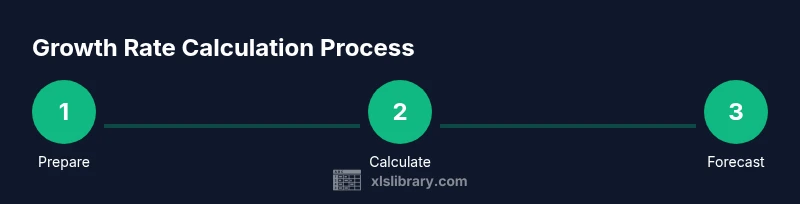
Prepare your data
Organize periods in column A and values in column B. Check for missing rows and unify data types. Name the range (e.g., growthData) for easier reference.
Tip: Use a table (Ctrl+T) to autofill formulas and keep references stable. - 2
Decide your growth metric
Choose YoY if you care about short-term changes or CAGR for long-term growth. Your choice affects which formulas you apply and how you interpret results.
Tip: Document the chosen metric in a workbook note for future readers. - 3
Compute YoY growth
In the first YoY cell, enter =IF(B1=0, NA(), (B2-B1)/B1) and copy down. Format cells as percentages.
Tip: Use absolute referencing for the starting cell when copying (e.g., = (B2-B$1)/B$1). - 4
Calculate CAGR (overall rate)
Identify starting and ending values and the number of periods, then apply = (Ending/Starting)^(1/(n-1)) - 1.
Tip: Count periods accurately; if there are 10 data points, n-1 equals 9. - 5
Alternative CAGR with RATE
If you prefer financial functions, use =RATE(n-1,0,-Starting,Ending) to get the per-period growth rate.
Tip: Ensure the period cadence is consistent (annual, quarterly, etc.). - 6
Forecast with GROWTH
Use =GROWTH(known_y’s, known_x’s, new_x’s) to forecast, then derive implied growth rate from forecasted vs. last value.
Tip: Forecast for one period ahead to compare with the last known value. - 7
Validate with charts
Create a line chart, add a trendline, and display the equation to verify the slope matches your growth rate.
Tip: Format the trendline to display the equation for easy sharing. - 8
Apply to multiple series
If you have several series, convert to an Excel Table and use structured references to reuse formulas across columns.
Tip: Use named ranges to improve readability and reduce errors. - 9
Document and audit
Record the data sources, metric choices, and formulas used. Add comments in cells with complex logic.
Tip: Regularly review formulas if data is updated or expanded.
People Also Ask
What is growth rate in Excel?
In Excel, growth rate measures how values change over time. You can compute it as year-over-year percentage changes or as the compound annual growth rate (CAGR) for a multi-period view.
Growth rate in Excel is how much values increase or decrease over time, calculated as year-over-year changes or CAGR for longer periods.
How do I calculate CAGR in Excel?
Use the formula CAGR = (EndingValue / StartingValue)^(1/(n-1)) - 1, where n is the number of periods. You can implement it with cell references or use RATE for a per-period rate.
CAGR in Excel is calculated with (Ending/Starting)^(1/(n-1)) minus 1, or by using RATE for per-period growth.
When should I use CAGR vs YoY growth?
Use CAGR when you want a smoothed, long-term growth rate across many periods. Use YoY for short-term momentum and to identify seasonal patterns or anomalies.
Choose CAGR for long-term trends and YoY to capture short-term changes and seasonality.
What if there are missing values in my data?
Missing values can distort growth calculations. Decide on a consistent policy (e.g., ignore, interpolate, or flag) and document it before re-running formulas.
If data is missing, decide on a consistent approach like ignoring or interpolating, and document your method.
Can I automate growth rate calculations for many series?
Yes. Convert data to an Excel Table and use structured references or dynamic named ranges to apply the same formulas across multiple columns.
Yes—use Excel Tables and structured references to automate growth rate formulas across series.
Are there built-in functions for forecasting growth in Excel?
Excel provides GROWTH for exponential forecasting and RATE for per-period growth calculations. Use these in combination with your historical data to project future values.
Excel offers GROWTH for forecasts and RATE for growth rates; you can combine them with historical data for future projections.
Watch Video
The Essentials
- Choose the right growth metric for your data and purpose
- Use YoY for short-term changes and CAGR for long-term trends
- Validate calculations with a chart and trendline
- Automate for scalable analysis across multiple series
- Document assumptions and formulas for reproducibility