Inventory Control Excel Template: Step-by-Step Guide for 2026
Learn to create a robust inventory control Excel template that tracks stock, orders, and sales with automated reorder points and dashboards. A practical, step-by-step guide for 2026 that helps you improve accuracy, reduce stockouts, and scale your data practices.


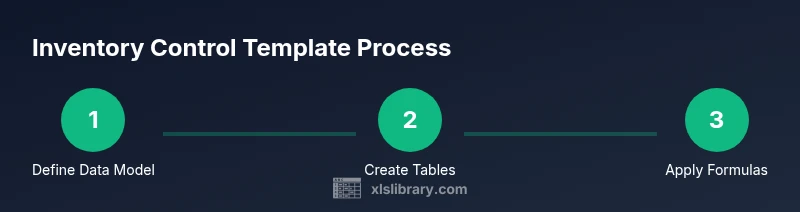
You're going to build an inventory control excel template that tracks stock, sales, purchases, and replenishment rules. This quick guide shows how to structure data, apply core formulas, and set up a basic dashboard so you can monitor availability and automate reorder decisions. No advanced software required—just Excel and a solid data model.
What is an inventory control excel template?
An inventory control excel template is a structured workbook designed to help you capture, organize, and analyze stock information in a single place. It combines data tables for items, stock movements, and supplier relationships with calculated fields that reveal current stock, turnover, and reorder needs. A well-crafted template reduces manual data entry, decreases errors, and speeds up decision-making. According to XLS Library, a solid template acts as a living record: it grows with your business and adapts to changing product mixes, locations, and seasonal patterns. In practice, you’ll use this tool to answer questions like: Do I have enough stock to meet forecasted demand? Which items need reordering soon? How performant is my stock on hand against turnover targets?
The inventory control excel template is not a rigid ERP substitute; it’s a pragmatic, scalable solution for small-to-mid sized operations that want visibility without heavy software. It supports decision-making at the SKU level, lets you model multiple locations or warehouses, and provides a repeatable data-entry workflow that teammates can follow consistently. A template also serves as a reproducible baseline for audits and continuous improvement. For Excel newcomers, start with a simple data model and iterate as you gain confidence and data.
Why use an Excel template for inventory control?
Excel templates are flexible, affordable, and familiar to most teams. An inventory control template consolidates disparate data sources — sales orders, purchase receipts, and stock counts — into a single source of truth. This consolidation minimizes silos and eliminates the manual reconciliation that often leads to stockouts or excess inventory. With Excel, you can tailor fields to your specific SKUs, locations, and units, and you can evolve the workbook as your processes mature. The XLS Library team notes that the right template reduces redundancy, improves data quality, and enables quick what-if analysis when planning promotions, new product launches, or supplier changes. By starting with core tables and essential calculations, you gain immediate value while keeping room to grow toward more advanced analytics.
For practical users, the template’s immediate benefits include faster cycle counts, clearer reorder decision criteria, and a straightforward audit trail. You’ll also benefit from lightweight dashboards that summarize stock health and highlight exception items, helping you respond faster rather than react to shortages. In short, an effective Excel template merged with disciplined data entry becomes a powerful, low-friction backbone for your inventory operations.
Key features to include in your template
A robust inventory control template should include the following features, arranged to keep data tidy and actionable:
- Core data tables: Items (SKU, description, unit, price), Transactions (date, SKU, type: purchase/sale/adjustment, quantity), and Stock on Hand (current level by SKU and location).
- Reorder rules: Reorder point, safety stock, lead time, and preferred supplier data to trigger alerts automatically.
- Data validation: Drop-downs for SKU, location, and transaction type to prevent bad data.
- Calculated fields: On-hand stock, available to promise (ATP), turnover rate, and potentially gross margin impact by SKU.
- Audit trail: A change log or versioning approach to track edits and maintain data integrity.
- Dashboards: Lightweight visuals such as sparkline charts, bar charts for stock levels, and a simple KPI panel for stock health.
- User-friendly layout: Clear tabs, consistent naming, and thoughtful labeling so new users can adopt the template quickly.
- Data import/refresh: Simple import of transactions or stock counts with options to map fields.
As you design, keep the template modular so you can replace or expand tables without breaking formulas. The goal is a dependable, scalable toolbox that you can hand to teammates with minimal training.
Designing the data model: Tables, relationships, and normalization
The backbone of any inventory template is a clean data model. Start with distinct tables for items, stock movements, and locations to prevent duplication and confusion. A typical layout includes:
- Items: SKU, description, category, unit, standard cost, supplier, reorder point, safety stock.
- Transactions: TransactionID, Date, SKU, Location, Type (Purchase, Sale, Adjustment), Quantity, Reference.
- Location or Warehouse: LocationID, name, address, and capacity.
- Stock on Hand: SKU, Location, BeginningStock, Purchases, Sales, Adjustments, EndingStock.
Normalization prevents data anomalies. For example, keep product details in Items rather than repeating them in every transaction row. Linking tables by keys like SKU and Location ensures consistent updates and scalable reporting. Consider creating a simple data dictionary to document each field’s purpose and data type—this reduces misinterpretation as the workbook grows.
Formulas and functions you will rely on
Your template will rely on a handful of core Excel formulas that you can reuse across multiple SKUs and locations. Start with the basics and expand as needed:
- Stock on hand: BeginningStock + Purchases - Sales + Adjustments.
- Ending stock by location: SUMIF(Transactions[SKU], SKU, Transactions[Quantity], Locations[Location]) with appropriate sign conventions for purchases vs. sales.
- Reorder point check: IF(EndingStock <= ReorderPoint, "REORDER", "OK").
- Turnover and rate of sale: Use average stock and total annual usage (requires data model weightings).
- Lookup relationships: XLOOKUP or VLOOKUP to pull item details from Items into transactions and stock summaries.
- Aggregations: SUMIFS for location-specific totals, COUNTIFS for counting movements by type and period.
- Data validation and error handling: IFERROR around lookups to prevent broken dashboards.
As you add formulas, document them in a dedicated “Formulas” sheet so users understand what each cell calculates and why. A transparent formula layer makes maintenance easier and reduces drift between environments.
Building a reusable template: practical implementation steps
A practical template starts simple and grows with usage. Begin with a minimal yet functional set of tables and calculations, then extend:
- Create the core tables (Items, Transactions, Locations) with primary keys (SKU, Location).
- Add a Stock on Hand calculation that references the Transactions table to derive EndingStock.
- Establish reorder logic with a ReorderPoint and SafetyStock field and a basic trigger column.
- Build a basic dashboard showing key metrics (stocks over time, top movers, items near reorder).
- Add data validation controls: drop-down menus for SKU, Location, and Type to ensure consistent data entry.
- Implement a refresh workflow: a simple button or macro to recalculate totals after a data import.
- Review and test: simulate real scenarios (cancellations, returns, stock adjustments) to verify accuracy.
- Document usage: provide a short guide on data entry, refresh cadence, and where to store exported data.
A well-structured template should feel intuitive to a new user while remaining adaptable for experienced analysts who want deeper analysis or additional features such as barcode fields or multi-warehouse support.
Validation, data quality, and governance
Data quality is the lifeblood of inventory intelligence. Institute guardrails to reduce human error and ensure reliable outputs:
- Enforce data types: dates for transactions, numeric quantities, and text for SKUs.
- Use drop-downs for critical fields to avoid typos and inconsistent naming.
- Validate stock counts with a periodic reconciliation process to catch counting errors.
- Separate raw data imports from derived calculations to minimize accidental overwrites.
- Implement basic version control: save incremental versions with a date suffix and maintain a change log.
- Regularly back up the workbook and consider a read-only distribution model for critical dashboards.
- Document any manual overrides or adjustments to ensure traceability during audits.
With consistent validation and governance, your template becomes trustworthy and easy to scale, not a fragile, error-prone workbook.
Dashboards and reporting: turning data into insight
Dashboards should distill the most important signals into an at-a-glance format. Build a simple, readable view that combines current stock, movement trends, and alert indicators:
- KPI strip: current stock health, number of items near reorder, and total stock value.
- Trend visuals: sparklines or small charts showing weekly or monthly stock changes for top SKUs.
- Exception list: a filtered table showing items that trigger reorders or exceed set thresholds.
- Drill-down capability: clickable items or pivot tables that let users filter by location, category, or supplier.
- Exportable reports: the ability to export key charts or tables to PDF/CSV for sharing with stakeholders.
Avoid feature creep. Focus on a clean, reliable dashboard that provides practical insights without overwhelming the user. Your XLS Library-informed approach ensures that decisions are data-driven and repeatable rather than ad-hoc.
Deployment, training, and ongoing maintenance
A template is only as good as its adoption. Plan a low-friction rollout:
- Create a quick-start guide and a short video demonstration showing how to import data, refresh metrics, and read the dashboard.
- Assign owners for data entry, validation, and governance to share accountability.
- Schedule regular data refreshes (daily or weekly) and set expectations for response times when alerts appear.
- Set up a simple change-control process to track updates and ensure compatibility with downstream reporting.
- Review performance and data quality quarterly, adjusting formulas or fields as your business evolves.
- Prepare a contingency plan for scale: if demand grows, consider adding Power Query or simple automation to handle larger datasets.
A well-planned deployment reduces resistance to change and accelerates value realization from day one.
Tools & Materials
- Computer with Microsoft Excel (preferably Office 365)(Latest version recommended; include one license per user)
- Template starter workbook (Excel)(Preloaded with core tables and sample data)
- Sample inventory dataset (CSV/Excel)(Used for initial import and testing)
- Barcode scanner (optional)(If you plan to track items via barcodes)
- Printer/label printer (optional)(For printing stock labels or location tags)
Steps
Estimated time: 60-90 minutes
- 1
Define objectives and data model
Clarify what you want to achieve with the template (e.g., reduce stockouts by X%, improve accuracy). Sketch a simple data model with core tables (Items, Transactions, Locations) and the relationships between them. This foundational step prevents scope creep and guides later design decisions.
Tip: Write down the top three decisions your template must support to stay focused. - 2
Create core tables and fields
In a new workbook, build the Items, Transactions, and Locations tables. Use primary keys (SKU, Location) and consistent field names. Avoid data duplication by referencing items from a single Items table in all related records.
Tip: Use named ranges for key tables to simplify formulas later. - 3
Add calculated stock fields
Create EndingStock as BeginningStock + Purchases - Sales + Adjustments. Add a ReorderPoint and SafetyStock field to support automatic alerts. Link these fields to your Transactions so totals update with new data.
Tip: Keep calculation cells on a dedicated sheet to simplify debugging. - 4
Implement data validation
Set up drop-downs for Type (Purchase, Sale, Adjustment), Location, and SKU. Validation reduces entry errors and improves dashboard accuracy.
Tip: Include clear error messages to guide users when invalid data is entered. - 5
Build a basic dashboard
Create a compact dashboard focusing on key indicators: total on-hand by location, items near reorder, and stock value. Use simple charts or sparklines to convey trends at a glance.
Tip: Keep visuals simple; prioritize clarity over complexity. - 6
Integrate essential formulas
Populate core formulas in a separate calculation layer. Use XLOOKUP to fetch item details, SUMIFS for totals by SKU/location, and IF/IFERROR for clean results.
Tip: Document each formula in a Formulas sheet for onboarding. - 7
Test with realistic data
Run scenarios with sample transactions: new stock, sales, adjustments, and returns. Verify that EndingStock and dashboard metrics reflect these changes accurately.
Tip: Create a small test plan and log deviations for review. - 8
Prepare for deployment
Review data-entry rules, backup schedules, and access controls. Create a short user guide and plan training to ensure consistent use across the team.
Tip: Set a regular maintenance cadence to keep the workbook reliable.
People Also Ask
What is the core purpose of an inventory control excel template?
The core purpose is to provide a structured, auditable workbook that tracks stock levels, transactions, and reorder needs in a single file. It enables timely decisions and reduces stockouts or overstock.
It’s a structured workbook that tracks stock and transactions to help you reorder efficiently.
Do I need advanced Excel features to use this template?
No. Start with core tables, basic formulas, and simple validation. You can add advanced features like Power Query or macros later if your data grows.
You can start with basics and layer in more features as you grow.
How should I handle multiple locations?
Add a Location table and a Stock on Hand table that records stock by SKU and Location. Use location filters in your dashboard to compare performance across sites.
Track stock by location and compare performance across sites.
How often should I refresh or import new data?
Set a regular cadence based on usage, typically daily for active operations or weekly for smaller inventories. Ensure the data import preserves timestamps for traceability.
Refresh data at a regular cadence to keep insights current.
Can this template support forecasting or MOL (Month-over-Last) analysis?
Basic forecasting can be added with simple trend analyses or moving averages, but for more accurate forecasts you may need dedicated forecasting models or Power Query integrations.
You can add basic trend analysis; deeper forecasting needs more tools.
Is Excel sufficient for large-scale inventory management?
Excel works well for small to mid-sized inventories. For very large datasets or complex multi-system integration, consider dedicated inventory software with data pipelines.
Great for small to mid-sized inventories, may need other tools for very large datasets.
Watch Video
The Essentials
- Define a minimal, scalable data model.
- Use data validation to protect data quality.
- Automate stock calculations with core formulas.
- Create a concise dashboard for quick insights.