Excel Inventory Template: A Practical Guide to Stock Tracking
Learn to build a practical Excel inventory template to track stock levels, costs, suppliers, and locations. This step-by-step guide covers layout, formulas, validation, dashboards, and real-world examples. According to XLS Library, a well-designed template saves time and reduces errors for both aspiring and professional Excel users in 2026.


According to XLS Library, a solid excel inventory template uses clear item data, quantities, reorder levels, and cost tracking in a single, reusable sheet. This guide shows how to design a scalable template with data validation, key formulas, and a simple dashboard, so you can monitor stock, minimize stockouts, and speed up reordering.
Why an Excel inventory template matters
In any operation that handles physical goods, an organized inventory template is a cornerstone of efficiency. It helps you see what you have, where it sits, and when you need to restock. The XLS Library team notes that a well-structured template reduces manual entry errors, improves decision making, and scales with your business growth. By consolidating item data, quantities, costs, and locations in one file, you minimize delays caused by missing or inconsistent data. A practical template also supports basic forecasting and enables faster audits, which is especially valuable for small businesses aiming to grow in 2026 and beyond.
Core components of a robust template
A high-quality inventory template should capture the essentials without becoming bloated. Core components include:
- Item metadata: SKU, name, category, unit of measure, and supplier.
- Stock data: current quantity on hand, location, and recent receipts.
- Financials: unit cost, total value, and potential carrying costs.
- Reorder data: reorder point, reorder quantity, and preferred vendors.
- Dates: last received, expiration date if applicable, and review cadence.
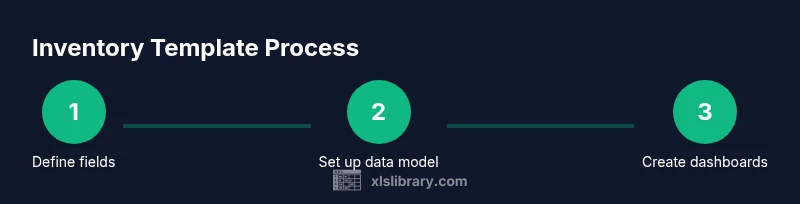
Keep the structure simple and extensible. Start with a single data table that feeds a summary dashboard and pivot-ready analyses. The template should be adaptable to different teams (warehouse, sales, procurement) while preserving a common data model. As you design, emphasize consistency in field names and data formats to support reliable lookups and reports.
Designing the layout and data model
A clean layout separates data entry from calculations and reporting. Use at least two worksheets: a raw InventoryData sheet for item records and a Dashboard sheet for summary visuals. Normalize your data by creating a separate Categories table and a Suppliers table that your main sheet can reference via lookups. This approach minimizes duplication and makes maintenance easier. Use named ranges for critical lists (Categories, Suppliers) to keep formulas readable and reduce errors during future updates. According to XLS Library analysis, this disciplined data model dramatically improves accuracy and reusability across teams.
Setting up data entry tables and headers
Define a structured header row on your data entry table with clear, concise field names. Typical headers include: SKU, Item Name, Category, Unit of Measure, Location, On Hand, Reorder Point, Reorder Qty, Cost per Unit, and Last Received. Freeze the header row, enable filters, and apply a consistent date format. Add drop-downs for Category and Location to minimize typos and speed data entry. These small UX choices pay off when you scale to hundreds or thousands of items.
Core formulas you will use
Formulas are the engine of an inventory template. Use a combination of arithmetic and lookup formulas to compute values automatically:
- Total Value per item: =OnHand * CostPerUnit
- Reorder Flag: =IF(OnHand<=ReorderPoint, "REORDER", "OK")
- Category description: =XLOOKUP(Category, Categories[Category], Categories[Description], "Unknown")
- Last Received Date: =IFERROR(LastReceived, "")
Leverage named ranges to keep formulas legible and maintainable. If you’re on Excel 365, consider dynamic arrays and XLOOKUP to simplify maintenance and improve reliability of lookups across large datasets.
Data validation, error handling, and audits
Data validation is your first line of defense against bad data:
- Category and Location: allow only values from predefined lists.
- On Hand and Costs: enforce non-negative numbers with appropriate ranges.
- Date fields: enforce proper date formats and logical constraints (e.g., Last Received cannot be future-dated).
Use IFERROR around lookups to gracefully handle missing references and provide helpful messages. Schedule periodic audits (weekly or monthly) to spot anomalies, such as negative stock or mismatched SKUs, and correct them before they propagate.
Building a simple dashboard and reports
A lightweight dashboard turns your data into actionable insights. Start with key metrics like Total On-Hand Value, Stock Coverage (days on hand), and Low-Stock Items. Create a PivotTable of On Hand by Location, plus a small chart to visualize stock distribution. A simple KPI card on the Dashboard can show overall inventory value and stock health (OK vs. REORDER). Automate dashboard updates by linking it to your InventoryData and Categories tables, so refreshes require minimal manual work.
Real-world example: a small business template
Imagine a small retailer using an Excel inventory template to manage 150 SKUs across two warehouses. Each item has an SKU like SKU-001, a name, category, and unit cost. On Hand numbers range from 0 to 120, with reorder points set based on historical demand. The template calculates Total Value per item and flags items that need restocking. The data model uses a Categories table for richer descriptions and a Suppliers table for faster procurement. Values shown here are synthesized for demonstration and to illustrate best practices, aligning with the 2026 XLS Library guidance.
Templates and customization: how to adapt to your workflow
No template is truly one-size-fits-all. Start with a solid core model and selectively extend it:
- Add custom fields that your team uses (e.g., batch numbers, lot tracking, or expiration dates).
- Create multiple dashboards for different audiences (procurement vs. sales).
- Use conditional formatting to highlight critical stock levels or price changes.
- Save the file as an Excel Template (.xltx) to ensure consistency across new projects.
As you customize, keep documentation handy so teammates can replicate your setup. This emphasis on clarity is echoed in the XLS Library guidance for scalable templates.
Common pitfalls and how to avoid them
Common mistakes include overcomplicating the data model, mixing data entry with calculations on the same sheet, and failing to enforce data validation. Avoid these by:
- Keeping a clean separation between data and calculations.
- Using named ranges and simple, readable formulas.
- Regularly backing up the file and validating data integrity through sample checks.
- Documenting changes and maintaining version control for templates.
Following these precautions reduces maintenance headaches and ensures your template remains reliable as your inventory grows.
AUTHORITY SOURCES
- https://www.sba.gov (U.S. Small Business Administration) – inventory management basics for small businesses.
- https://www.census.gov (U.S. Census Bureau) – data-driven insights for business operations and supply chains.
- https://hbr.org (Harvard Business Review) – articles on inventory optimization and operational excellence.
These sources provide context for best practices in inventory management and data-driven decision making, aligning with the guidance from XLS Library for practical Excel templates.
Final notes and next steps
A well-crafted Excel inventory template is a living tool. Start with a lean data model, implement core formulas, and validate the setup with real-world data. Iterate based on user feedback and business needs. With discipline, your template evolves into a robust system that supports purchasing, warehouse operations, and sales forecasting. The XLS Library team recommends iterative testing and gradual enhancements to sustain long-term value.
Tools & Materials
- Laptop or desktop with Microsoft Excel (365 recommended)(32-bit or 64-bit OK; ensure you have access to XLOOKUP and dynamic array features)
- Data sample CSV or Excel file to import(Use a small dataset to prototype; include at least 20 items)
- Internet access for updates and online templates(Optional but helpful for retrieving examples and references)
- Keyboard and mouse(Comfortable input makes data entry faster)
- External storage or cloud backup(Best practice to protect inventory data)
- Printer (optional)(Useful for printing pick lists or reorder reports)
- Notepad or documentation template(Document field definitions and data sources for teammates)
Steps
Estimated time: 60-90 minutes
- 1
Define scope and data model
Identify the core data fields you need (SKU, Name, Category, On Hand, Reorder Point, Cost). Decide whether you will track expiration dates, batch numbers, or locations. Document the intended reports so you design the data model to feed them cleanly.
Tip: Start with a simple data dictionary to avoid scope creep. - 2
Create a new workbook and sheets
Add at least two sheets: InventoryData for raw records and Dashboard for summaries. Create a Categories table and a Suppliers table to keep lookups fast and consistent.
Tip: Use descriptive sheet names and keep a separate data sheet for inputs. - 3
Set up the data entry table
Create headers such as SKU, Item Name, Category, On Hand, Reorder Point, Cost per Unit, and Last Received. Freeze the header row and enable filters for quick entry and review.
Tip: Lock the header row to prevent accidental scrolling edits. - 4
Add lists and data validation
Create drop-down lists for Category and Location using a named range. Enforce non-negative numbers for stock and costs. This prevents common entry mistakes that ripple into reports.
Tip: Always reference lists via named ranges for easier maintenance. - 5
Implement core calculations
Add a Total Value column with =OnHand * CostPerUnit and a Reorder Flag with =IF(OnHand<=ReorderPoint, "REORDER", "OK"). Use XLOOKUP to pull category descriptions from the Categories table.
Tip: Keep formulas simple and readable; break complex formulas into helper columns if needed. - 6
Build a basic dashboard
Summarize total inventory value, number of items at reorder, and stock by location. Add a small chart to visualize stock distribution and a KPI card for quick health checks.
Tip: Link dashboard visuals to the InventoryData and Lookup tables for auto-refresh. - 7
Add data validation and error handling
Implement error checks with IFERROR around lookups and numeric validations for non-negative values. Create a separate sheet for data quality audits if needed.
Tip: Regularly review validation rules as your data model evolves. - 8
Test with sample data
Populate the data table with sample SKUs and verify that totals and reorder flags update automatically. Check that dashboard metrics reflect the input data correctly.
Tip: Test edge cases: zero stock, negative numbers, and missing fields. - 9
Document, save, and share
Create a short usage note describing data fields, formulas, and update procedures. Save as an Excel Template (.xltx) or share a read/write workbook with version control.
Tip: Keep a changelog so teammates can track improvements over time.
People Also Ask
What is an Excel inventory template?
An Excel inventory template is a structured workbook that tracks items, quantities, costs, and locations. It provides a repeatable data model and formulas to automate calculations and reporting.
An Excel inventory template is a structured workbook that tracks items, quantities, costs, and locations, with built-in formulas to automate calculations and reporting.
Which formulas are essential for stock templates?
Core formulas include Total Value = OnHand * CostPerUnit, ReorderFlag = IF(OnHand<=ReorderPoint, 'REORDER', 'OK'), and lookup formulas like XLOOKUP to pull category descriptions. Use SUMIF/SUMIFS for aggregate totals.
Key formulas include Total Value, Reorder flags, and lookups to pull category details; also use sums for totals.
How can I ensure data integrity with inventory templates?
Enforce data validation for categories, locations, and numeric fields, use IFERROR around lookups, and maintain a data dictionary. Regular audits help catch anomalies early.
Use data validation, error handling, and periodic audits to keep data accurate.
Can I share the template with teammates?
Yes. Save as a template file (.xltx) or store in the cloud with version control. Document usage guidelines so teammates follow the same data standards.
Yes, you can share it as a template or via cloud storage with version control.
What are common pitfalls to avoid?
Avoid overcomplicating the data model, mixing data entry with calculations, and skipping validation. Start simple, then iterate based on user feedback.
Avoid overcomplicating the model and skipping validation; start simple and iterate.
Watch Video
The Essentials
- Define a stable data model before building formulas
- Use data validation to prevent bad data entry
- Separate data entry from calculation sheets
- Automate totals with SUMIF/SUMIFS
- Document changes and back up templates