Troubleshooting the Problem with Excel Formula: A Practical Guide
Urgent, step-by-step troubleshooting guide to fix the problem with excel formula. Learn diagnostic flow, practical fixes, and prevention tips for reliable spreadsheet results.


Most Excel formula problems come from misused references, data type mismatches, or incorrect function syntax. The quickest fix is to audit your formula: verify every cell reference, lock ranges with absolute references, and confirm data types match the inputs. Start with a small test formula to reproduce the issue and isolate the root cause.
Why the problem with excel formula occurs
If you are staring at a puzzling result in Excel, you are not alone. The root of a problem with excel formula is often a tiny mismatch that echoes through the calculation. Common culprits include misused cell references, data type mismatches, or incorrect function syntax. The Excel calculation engine is precise; even a single shift in a relative reference can change dozens of results. In many cases, the issue starts with recent edits that moved or expanded a range without updating the formula accordingly. According to XLS Library, misreferences and data-type mismatches are among the most frequent causes, especially when data is imported from other sources or when ranges are adjusted after adding empty rows. To start solving, map out what the formula is intended to do and check each component against that intent. Is the range correct? Are you mixing text and numbers in a numeric operation? Are you using a function that requires a numeric argument but receiving text instead? By identifying the scope of the formula, you can prioritize the fixes that will impact the most results.
Common error messages and their meanings
Excel surfaces several error codes that point to what is going wrong. #VALUE! often signals a data type mismatch or incompatible text and numbers in a calculation. #REF! indicates a broken reference, usually due to deleted cells or moved worksheets. #DIV/0! occurs when a formula divides by zero or an empty cell. #NAME? means Excel cannot recognize a function or named range. #NUM! can appear with incompatible arithmetic, such as using INT on non-numeric data. Recognizing these messages helps triage quickly and avoid blind edits that create new problems. Treat an error as a map, not the destination; follow the clues to the real issue and test each hypothesis in a controlled way.
A practical diagnostic mindset
Approach every problem with a reproducible test and a plan. Start by isolating inputs, then inspect the outputs with incremental checks. Use Excel's built-in tools like Formula Auditing and Evaluate Formula to observe how a calculation unfolds. Create a copy of the workbook or a test sheet to experiment without risking the original data. Keep a short log of changes you make so you can trace what fixed the issue and what didn’t. This mindset reduces guesswork and accelerates resolution, especially when multiple colleagues rely on the same spreadsheet.
Quick wins to get you unstuck
Before you dive into heavy editing, try these low-risk steps. First, press Ctrl + ` to show formulas and visually scan for obviously wrong references. Next, confirm you are using absolute references where needed by pressing F4 to lock cells and ranges. Then, use VALUE to convert text that looks numeric, and DATEVALUE for date strings that Excel treats as text. If you have a long chain of operations, break the formula into smaller parts in helper cells to confirm each stage yields the expected result. Finally, save a backup copy so you can revert if a change backfires.
Preventing future formula issues
Consistent data formatting and stable references reduce future problems. Use named ranges for frequently referenced data, enforce data types at the source, and document assumptions in comments. Regularly audit formulas when data structures change, and consider using dynamic arrays or helper columns to keep calculations transparent. Establish a routine: after any data import or layout change, test your most critical formulas with representative samples. A small upfront check saves hours later.
Advanced topics: array formulas and dynamic references
As you move into more complex sheets, you may encounter array formulas and dynamic references. These require careful handling because they can spill results into neighboring cells or rely on multi-cell ranges. When dealing with dynamic arrays, ensure your workbook supports the appropriate Excel version and that spill ranges are clear of other data. For array formulas, remember to confirm with Ctrl+Shift+Enter in legacy versions or let Excel handle the dynamic array logic in newer releases. Testing with representative datasets will prevent cross-sheet interference and maintain calculation integrity.
Quick start checklist
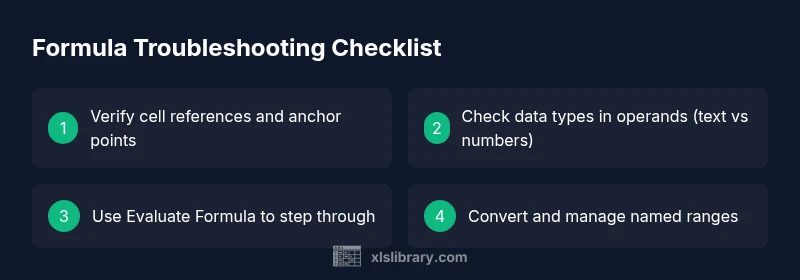
Before finalizing a fix, run through this concise checklist: verify references and anchoring, check data types, isolate each calculation step, test with simple inputs, review any external references, and back up your file. Regularly schedule formula audits after data imports or major edits to keep spreadsheets reliable and accurate.
Steps
Estimated time: 30-60 minutes
- 1
Reproduce the issue with a test formula
Create a small test in a separate sheet to replicate the problem. This isolates the context and prevents changes from affecting the original data. Compare outputs to expected results to confirm the symptom.
Tip: Use a copy of the workbook for safe testing. - 2
Open Formula Auditing tools
Go to Formulas > Formula Auditing and start with Trace Precedents and Trace Dependents to map the data flow. This helps you see which cells influence the formula.
Tip: Turn on Show Formulas to visualize all references. - 3
Break the formula into parts
If a long formula is involved, split it into smaller components in helper cells. Validate each part independently before recombining them.
Tip: Label each helper clearly so you can trace later. - 4
Check data types and conversions
Inspect inputs and convert as needed with VALUE, TEXT, or DATEVALUE. Mixed text and numbers often cause #VALUE! errors.
Tip: Avoid implicit type coercion by explicit conversion. - 5
Lock absolute references where needed
If you copy formulas, ensure ranges don’t shift unexpectedly by using $A$1 style references where appropriate.
Tip: Press F4 to toggle through absolute/relative modes. - 6
Use Evaluate Formula
Use Evaluate Formula to step through each operation and see how Excel arrives at the result. This reveals hidden logic issues.
Tip: Run it after each fix to confirm progress. - 7
Check for external references and named ranges
External links can cause errors if the source workbook is unavailable. Review with Edit Links and confirm named ranges refer to the intended data.
Tip: Refresh or replace broken links as needed. - 8
Rebuild and verify across samples
Rewrite the formula with the correct logic, then validate results on multiple representative rows. Ensure consistency before applying to the entire dataset.
Tip: Document each change for future audits.
Diagnosis: Formula returns unexpected results or errors like #VALUE!, #REF!, or #DIV/0!
Possible Causes
- highIncorrect cell references (relative vs absolute)
- mediumMismatched data types in operands (text vs numbers)
- lowUsing wrong function or syntax
- lowHidden or filtered data affecting the calculation range
Fixes
- easyDouble-check references and lock with $ to ensure proper anchoring
- easyConvert data types with VALUE/DATEVALUE where appropriate
- mediumUse Evaluate Formula to step through the calculation and identify the exact step
- easyReview named ranges and confirm they point to intended data
- easyEnsure workbook calculation mode is Automatic
People Also Ask
Why is my Excel formula returning #VALUE! and how can I fix it?
#VALUE! usually means a data type mismatch or improper input to a function. Check each argument, convert text to numbers when needed, and test small parts of the formula to identify the offending component.
A #VALUE! error typically means a data type mismatch. Check inputs and convert text to numbers if needed.
How do I fix incorrect cell references in a formula?
Review relative versus absolute references and lock with the dollar sign. Use F4 to toggle between modes and ensure the range remains correct when copying.
Review your references and lock them correctly with F4 to prevent shifting.
What is the best way to troubleshoot a long nested formula?
Break the formula into smaller parts using helper cells and test each part separately. Use Evaluate Formula to inspect the logic step by step.
Break it into parts and test each step with Evaluate Formula.
Why do calculations change when I copy a formula?
Copying often shifts relative references. Use absolute references where needed to keep references stable.
Copying can shift references; lock them with absolute addressing.
When should I check external references?
If a formula links to another workbook, ensure the source is available. Use Edit Links to review and update or break broken links.
External links can cause issues if the source workbook is missing.
How can I use Evaluate Formula effectively?
Evaluate Formula lets you see each calculation step. Use it after fixes to confirm every component behaves as expected.
Evaluate Formula helps you see each calculation step clearly.
Is there a quicker way to audit formulas regularly?
Yes. Create a simple checklist: references, data types, and essential inputs. Schedule periodic reviews after data changes.
Keep a simple formula audit checklist and review after data changes.
What if the issue persists after all fixes?
If unresolved, consider isolating the dataset, recreating the formula in a fresh workbook, or consulting a colleague for a second pair of eyes.
If it still fails, try rebuilding the formula in a new workbook or ask a colleague to help.
Watch Video
The Essentials
- Audit references and data types first
- Use Evaluate Formula to step through calculations
- Lock references with absolute addressing when needed
- Back up before major formula edits