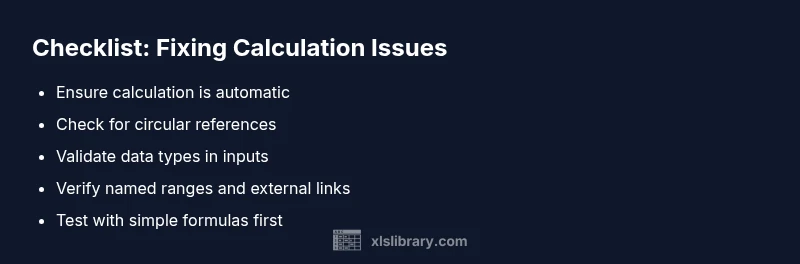
Why Excel Doesn't Calculate Formula: A Practical Troubleshooting Guide
A practical, urgent troubleshooting guide to fix why excel doesn't calculate formula. Learn quick checks, diagnostic flow, step-by-step fixes, and prevention tips to restore accurate calculations in your spreadsheets.


The most common reasons why Excel doesn't calculate a formula are manual calculation mode, a circular reference, or data type issues. Start by switching Calculation Options to Automatic, then recalc with F9, and audit references and cell formats. If not resolved, follow the diagnostic flow below for targeted fixes.
why excel doesn't calculate formula
Excel occasionally stops calculating a formula, leaving you with stale results or errors. This issue is not rare and can stem from several root causes, including manual calculation mode, circular references, or data types treated as text. According to XLS Library, these are among the most frequent culprits and are fixable with a structured approach. In this guide you’ll find practical checks, clear steps, and antidotes you can apply on a real workbook without risking data integrity. By staying methodical, you’ll reduce guesswork and prevent reoccurrence in the future. The goal is not to patch symptoms but to restore reliable calculation so you can trust your numbers again. The XLS Library team emphasizes starting with the simplest changes and moving toward deeper auditing when needed.
Check Calculation Mode
One of the quickest suspects is calculation mode. If Excel is set to manual, formulas won’t recalculate automatically, especially after edits. Go to the Formulas tab, open Calculation options, and select Automatic. After switching, press F9 to force a recalc on the active sheet, or use Ctrl+Alt+F9 to recalc the entire workbook. This reset often resolves many problems without touching the formula logic. If this resolves the issue, you’ve identified the root cause without further changes. If not, continue to the diagnostic flow and expand checks to references and data types.
Circular References and Iterative Calculations
Circular references occur when a formula indirectly depends on its own result, creating a loop that prevents calculation or forces iterative results. Excel will typically warn you with a circular reference error or show partial results. Use the Trace Precedents and Trace Dependents features to visualize dependencies. If a legitimate circular reference is intended, enable iterative calculation under File -> Options -> Formulas, then set reasonable Maximum Iterations and Maximum Change values. This helps achieve stable results without endless recalculation.
Data Types and Reference Errors
Sometimes formulas fail to calculate because inputs are not the expected type. Numbers stored as text won't participate in numeric operations, dates misinterpreted, or booleans used incorrectly. Convert text to numbers with VALUE or the double unary operator --. Ensure dates align with your system's date base (1900 vs 1904) and that ranges contain compatible data. Also verify that referenced cells aren’t blank or contain errors that propagate. Addressing data type mismatches often restores correct computation.
Names, Ranges, and External Links
A broken named range, a renamed sheet, or an external link that points to a closed workbook can derail calculations. Check defined names for scope and correctness, update any inconsistent references, and refresh links if your workbook pulls data from external sources. If a named range points to a dynamic array, verify the spill range and adjust as needed. Cleaning up references reduces calculation anomalies and makes formulas predictable.
Iterative Calculations and Software Performance
Advanced users may rely on iterative calculations for convergence in complex formulas. If you enable iterative calculation, ensure the settings are appropriate; too many iterations or too small a change threshold can slow down workbooks or produce unexpected results. For large datasets, consider isolating heavy formulas, calculating in a separate sheet, or using helper columns to break down complex logic. This balances accuracy and performance.
Quick isolate tests and when to escalate
As a rule, test with a simple formula that you know should work, such as =2+2, to verify the calculation engine is functioning. If basic formulas work but complex ones fail, isolate the problem to a specific part of the formula or data range. When issues persist after the above steps, consider seeking professional help or engaging a structured audit to identify hidden dependencies or workbook corruption.
Prevention: best practices to avoid future issues
Adopt a habit of enabling automatic calculation, frequently auditing formulas with the Formula Auditing tools, and documenting any complex logic. Maintain clean data with consistent formats, use named ranges carefully, and keep backups before large edits. Regularly recalculating or auditing formulas after data imports helps prevent this issue from creeping back in.
Steps
Estimated time: 45-75 minutes
- 1
Open calculation settings and set to automatic
Navigate to the Formulas tab or Excel Options and switch Calculation options to automatic. This ensures Excel recalculates formulas automatically after every change.
Tip: If the workbook is shared, confirm settings propagate to all users. - 2
Force a full workbook recalculation
Press F9 to recalculate the active workbook or Ctrl+Alt+F9 to recalculate all open workbooks. This verifies whether the issue is transient or persistent.
Tip: Avoid large, unsaved edits during a full recalc to prevent data loss. - 3
Check for circular references
Use the Error Checking tool or Trace Precedents/Dependents to locate circular references. Resolve them by restructuring formulas or allowing a safe iterative loop.
Tip: Only enable iterative calculation if the circular reference is intentional. - 4
Validate data types in inputs
Ensure numeric inputs are real numbers, not text. Use VALUE, --, or proper data conversion steps to fix type mismatches that block calculation.
Tip: Rely on data validation to enforce correct types at entry. - 5
Audit named ranges and external links
Verify named ranges point to correct cells and refresh data connections if your workbook links to external sources that may be unavailable.
Tip: Keep a map of critical named ranges for easier auditing. - 6
Test with isolated simple formulas
Create a separate sheet or a small test range to run simple formulas. If these work, the issue is likely in the original complex formula or data block.
Tip: Isolating helps you pinpoint the faulty segment quickly.
Diagnosis: Formulas not calculating or giving incorrect results in Excel
Possible Causes
- highCalculation mode set to manual
- highCircular reference detected
- mediumData stored as text instead of numbers
- lowFormula references beyond workbook or to missing external data
- lowIterative calculation misconfigured or not enabled
Fixes
- easySwitch calculation mode to automatic
- easyRecalculate the workbook (F9)
- mediumIdentify and remove circular references; use Trace Precedents/Dependents
- easyConvert text numbers to real numbers using VALUE or --
- mediumRefresh named ranges and external links; verify sheet references
- mediumEnable iterative calculation with sensible max iterations and change threshold
People Also Ask
Why is my Excel formula not recalculating after I change a value?
Most likely the calculation mode is set to manual. Switch to automatic and recalc. If it still doesn’t update, check for circular references or data type issues in the inputs.
If you change a value and it doesn’t recalculate, check calculation mode and references. Switch to automatic and recalc to restore behavior.
How do I enable automatic calculation in Excel?
Go to the Formulas tab, choose Calculation options, and select Automatic. You can also press F9 to force a recalculation on the current sheet.
Open formulas, set calculation to automatic, and press F9 to refresh.
What is a circular reference and how can I fix it?
A circular reference occurs when a formula depends on its own result. Use Trace Precedents/Dependents to locate it and restructure the formula or enable iterative calculation if intended.
A circular reference happens when a formula depends on its own result; locate it with tracing tools and adjust.
Why does a formula show as text or a date instead of a number?
Numbers stored as text won’t calculate. Convert them with VALUE or by multiplying by 1, and check for leading spaces or non-breaking characters that hinder numeric operations.
If the formula inputs look like text, convert them to numbers before calculation.
Do external links affect how formulas calculate?
Yes, if the linked workbook is closed or moved, formulas referencing it may fail. Update links and ensure external data sources are available.
External links can break calculations if the source data is unavailable; refresh or update the links.
Should I enable iterative calculations for my workbook?
Enable iterative calculation only if your formulas require it, such as circular reference scenarios. Set reasonable max iterations and a chang e threshold to balance accuracy and performance.
Iterative calculation is for specific needs; use it with care and define limits.
Watch Video
The Essentials
- Check calculation mode first and recalc
- Audit for circular references and data type issues
- Isolate complex formulas with simple tests
- Back up workbook before major edits