Why Excel Shows Formula Instead of Value: A Troubleshooting Guide
Learn why Excel displays formulas instead of results and fix it quickly with practical steps, diagnostic checks, and prevention tips for reliable worksheet behavior.


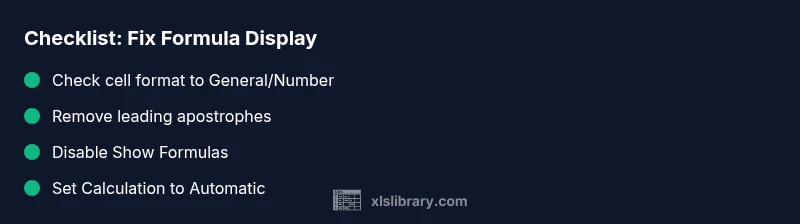
Most often, numbers display as formulas because the cell is treated as text, there is a stray leading apostrophe before the formula, calculation is set to manual, or Excel is showing formulas via the Show Formulas toggle. Begin by inspecting the cell formatting, removing any leading characters, setting the format to General or Number, and ensuring Calculation is Automatic.
Why Excel shows a formula instead of a value
According to XLS Library, this issue is one of the most common Excel nuisances. It typically happens when a cell is formatted as text, when there is a stray leading apostrophe before the formula, or when Excel is configured to display formulas rather than results. In addition, a workbook set to manual calculation can keep a correct formula from producing a value until you trigger a recalculation. The root cause is often a simple setting that slipped during a session or data import. Understanding how Excel evaluates a cell—format controls input and how calculation options affect results—lets you fix the problem quickly and prevent it from returning. This section outlines the main triggers and how to recognize them at a glance.
Quick checks you can do in 2 minutes
- Check the cell format: If it is Text, switch to General or Number and re-enter the formula.
- Look for a leading apostrophe: If present, delete it and press Enter.
- Verify Show Formulas is off: If the status bar or the keyboard shortcut Ctrl+` is on, formulas will be visible instead of results.
- Confirm calculation mode: Go to Formulas > Calculation Options and ensure Automatic is selected.
- Review the workbook for manual recalculation: If you have large data, recalculate with F9 to refresh values.
- Inspect the cell for accidental array formulas or structured references that might alter how results appear.
If these checks don’t resolve the issue, you may be dealing with more advanced causes such as broken linked workbooks, named ranges with errors, or regional settings affecting decimal separators. In such cases, continue with the diagnostic flow described below.
Diagnostic flow: how to approach the problem
A methodical diagnostic flow helps you avoid guesswork. Start with the simplest possible causes—formatting and Show Formulas—and then validate calculation settings. Reproduce the symptom on a copy of the file to prevent affecting the original data. For each potential cause, perform a small, isolated test: change a single setting, observe the result, and document what happened. When you gather evidence, you’ll usually identify a single trigger or a tight set of dependencies that explain why Excel shows a formula instead of a value. This disciplined approach also makes it easier to explain the fix to teammates and ensures consistent results across users.
Fix 1: Change cell format and re-enter the formula
This is the most common fix. Begin by selecting the affected cell, then change its format to General or Number. After the format changes, press F2 to edit and then Enter to force Excel to re-evaluate the formula. If the cell still displays a formula, delete any leading apostrophe, retype the equals sign (=), and press Enter again. If multiple adjacent cells are affected, you can apply the same format and re-entry pattern to the whole range. This approach resolves issues caused by text formatting or import quirks.
Fix 2: Turn off Show Formulas and recalc
If Show Formulas is enabled, Excel shows formulas rather than results. Toggle the option off by pressing Ctrl+` or by choosing Formulas > Show Formulas. After deactivating, recalculate the workbook with Ctrl+Alt+F9 to refresh all formulas. In some cases, closing and reopening the file guarantees the new display state sticks across sessions. This step is quick and frequently eliminates the symptom without touching any data.
Fix 3: Verify calculation options and dependencies
Automatic calculation ensures that changes in inputs propagate to dependent formulas. Open Formulas > Calculation Options and select Automatic, then press F9 to trigger recalculation if needed. Check for circular references, which can prevent proper evaluation, and resolve them. Inspect named ranges and external links; broken references can cause Excel to stall or display formulas. If your workbook relies on data connections, ensure they’re up to date and accessible.
Preventive practices to avoid future issues
Develop a lightweight checklist you follow before sharing workbooks. Use consistent numeric formatting (General/Number for numbers), keep Show Formulas disabled in final versions, and keep Calculation on Automatic for most files. Regularly audit formulas with Evaluate Formula and use data validation to minimize input errors. Consider separating data and calculations into modules or sheets to simplify auditing and reduce cross-sheet dependencies. These habits reduce the likelihood of encountering the same problem again.
When to seek help and how XLS Library can help
If none of the standard fixes apply, you may be facing a deeper problem such as workbook corruption, conflicting add-ins, or unusual regional settings that affect decimal separators. Document the exact symptom, share a minimal reproducible example, and seek support from trusted Excel experts. The XLS Library team can provide practical, guided troubleshooting steps, checklists, and educational resources to help you diagnose and resolve stubborn issues quickly.
Steps
Estimated time: 15-25 minutes
- 1
Check cell format
Select the affected cell, verify its format is General or Number, and switch if needed. Re-enter the formula after changing the format.
Tip: Use Format Painter to apply the correct format quickly. - 2
Remove leading apostrophe
Look for a leading apostrophe before the equal sign. Delete it and press Enter to re-evaluate.
Tip: Apostrophes often come from import operations. - 3
Verify the formula input
Ensure the cell contains a formula starting with = and that the formula syntax is correct.
Tip: Double-check parentheses and function names. - 4
Check calculation mode
Open Formulas > Calculation Options and set Automatic. Press F9 if needed to recalc the workbook.
Tip: Automatic recalculation prevents stale results. - 5
Test with a simple value
Enter a simple formula in a nearby cell to confirm Excel evaluates normally.
Tip: If simple cases work, issue is likely with complex dependencies.
Diagnosis: Cells show formulas instead of computed values
Possible Causes
- highCell formatted as text
- lowShow Formulas is enabled
- mediumCalculation mode set to manual
- mediumLeading apostrophe before formula
- lowExternal links or broken named ranges
Fixes
- easyChange cell format to General/Number and re-enter formula
- easyDisable Show Formulas and recalc workbook
- easySet Calculation Options to Automatic and recalc
- easyCheck for apostrophes and remove them, then re-enter formula
- mediumCheck external links and named ranges for errors
People Also Ask
Why is Excel showing formulas instead of values?
Common causes include text formatting, a leading apostrophe, Show Formulas being enabled, or the workbook being in manual calculation mode. Fix by correcting the format, removing the apostrophe, turning off Show Formulas, and setting calculation to Automatic.
Excel shows formulas when the cell is treated as text, or Show Formulas is on. Check format, apostrophes, and calculation mode to fix.
How do I turn off Show Formulas in Excel?
Use the keyboard shortcut Ctrl+` or go to Formulas > Show Formulas to toggle off. Then recalculate your workbook to refresh values.
To hide formulas, press Ctrl+grave accent or deselect Show Formulas, then recalc.
What does manual calculation mean for my sheet?
Manual calculation means Excel will not recalculate formulas unless you trigger it. Switch to Automatic to ensure values update when inputs change.
Manual calculation means Excel won't recalc unless you tell it to; switch to Automatic to keep values up to date.
If re-entry doesn’t fix it, what next?
Check for apostrophes, verify external links or named ranges, and inspect regional settings. Consider a clean copy of the workbook to isolate the issue.
If re-entering fails, check for apostrophes, links, and regional settings, or try a clean copy to isolate the problem.
Can evaluation issues be caused by external links?
Yes, broken external links can prevent formulas from evaluating. Ensure sources are accessible and updated.
Broken external links can block evaluation; verify access and refresh sources.
Watch Video
The Essentials
- Identify whether the issue is formatting or calculation related
- Change text-formatted cells to General/Number and recalc
- Disable Show Formulas to restore value display
- Verify Automatic calculation and dependencies to prevent recurrence