Can Excel Count Colored Cells? A Practical Guide
Explore practical methods to count colored cells in Excel, including VBA UDFs and legacy GET.CELL techniques, with guidance on reliability and pitfalls.


Yes, Excel can count colored cells, but there is no single built-in function for this. In practice you count by color with a VBA user-defined function, an Excel 4 macro GET.CELL approach via a named range, or a manual helper column. This guide walks through practical methods and when to choose each.
What counts as colored in Excel
In Excel, color can refer to fill color (the background color of a cell) or font color (the color of the text). Although both are visual cues, counting by color typically targets fill color because it's more consistent across data cells and is what most users want to quantify for grouping, highlighting, or conditional analysis. It’s common to want to count how many cells in a range use a red fill to flag high-priority items or to tally cells colored by a user-defined scheme. The challenge is that Excel’s core functions don’t expose color as a direct input for counting. This is where practical workarounds come in, especially when you’re preparing dashboards or validating data quality. According to XLS Library, color-based counting is a frequent request among Excel learners and practitioners, and the right approach depends on your workbook’s scale and distribution of colors.
In this section we’ll distinguish between the two color types, discuss why the distinction matters, and set expectations for reliability. If your workbook uses conditional formatting to color many cells, you’ll want to consider methods that don’t rely on static color indexes alone. The practical takeaway is that you can achieve accurate counts by combining color metadata with robust formulas or code, but you’ll need to choose a method that plays well with your data-editing workflow. Across the Excel ecosystem, most reliable methods use a helper layer (a named macro, a UDF, or a data-cleaning step) to expose color information to the worksheet.
In short, colored cell counting is possible, but not with a single built-in function. Planning your method around how you color cells (manual fills vs conditional formatting) and how you want to maintain the counts (static vs dynamic recalculation) will save you time and reduce errors. The XLS Library team notes that early design decisions—like where to store helpers and how to refresh counts—pay off when you expand this technique to larger workbooks or shared files.
Tools & Materials
- Microsoft Excel (Windows or macOS)(Full features including VBA support; macro-enabled workbooks recommended for counting by color.)
- Macro-enabled workbook (.xlsm)(Needed for VBA UDFs or Excel 4 macro approaches.)
- VBA editor access (Developer tab or Alt+F11)(Where you’ll paste UDF code and manage modules.)
- Sample color data (range with filled cells or a range colored by conditional formatting)(Use a reproducible example to validate your counts during testing.)
Steps
Estimated time: 45-60 minutes
- 1
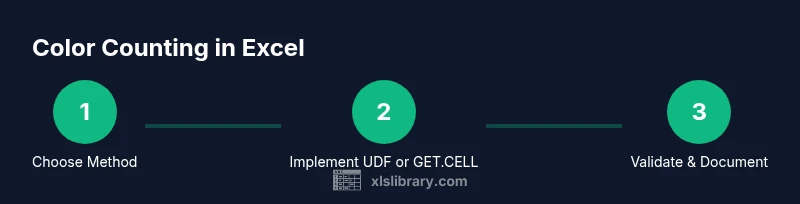
Decide the counting method
Identify whether you will use a VBA UDF, GET.CELL via a named range, or a manual helper column. Consider workbook size, how often colors change, and whether the file will be shared. This choice determines the rest of the setup and recalculation behavior.
Tip: If you expect frequent color changes, choose a dynamic method (UDF) over a static helper column to avoid rework. - 2
Prepare the workbook and data
Back up your workbook. If using macros, ensure your data range is clearly defined and consistent. Create a small test sheet that mirrors your real data to validate the method before applying it widely.
Tip: Use a named range for test areas to simplify formulas and code references later. - 3
Enable macros safely
If you’re using VBA, set Excel’s macro security to enable content for your test workbook. Remember to disable or restrict macros in untrusted workbooks to protect data.
Tip: Always test macros in a non-production copy to avoid unintended changes. - 4
Implement a color-counting UDF (VBA)
Open the VBA editor, insert a module, and paste a UDF that accepts a range and a target color. Save the workbook as .xlsm and use the formula in a worksheet cell to count colored cells.
Tip: Comment the code and document which color code or index corresponds to your color palette for future maintenance. - 5
Set up the GET.CELL approach with a named range
Define a Name in Excel that uses the GET.CELL(38, range) function to return the color index for each cell. Use a formula to aggregate these color indices across your target range.
Tip: GET.CELL is part of Excel 4 Macro functions; its reliability can vary with Excel updates, so test thoroughly. - 6
Validate counts and document
Cross-check counts with manual counting on a small subset. Document the method, color palette, and any caveats so others can reproduce the results.
Tip: Keep a small log of colors and corresponding counts to detect drift over time.
People Also Ask
Can Excel count colored cells with built-in functions only?
No. Excel lacks a native function to count by color. You must use a macro-based approach or a helper column to expose color information for counting.
Excel does not have a built-in color count function; you’ll need a macro or helper method.
What is GET.CELL and is it safe to use?
GET.CELL is a legacy Excel 4 macro function accessed via a named range. It can count color but is considered older technology and may have compatibility considerations with modern Excel versions.
GET.CELL is a legacy macro function accessed through a named range; use with awareness of compatibility and security.
Will color counts update automatically when colors change?
If you use a VBA UDF or a properly recalculated GET.CELL setup, counts can update automatically when colors change, assuming calculation is set to automatic. Static helper columns do not update automatically unless refreshed.
Counts update automatically with dynamic methods if recalculation is on; static helpers need refresh.
Should I count by font color or fill color?
Most practical counts target fill color. Font color adds complexity and is less common for dashboards; a dedicated approach is required if you must count font color.
Fill color is the typical target; font color requires a separate method.
Can I apply color counting across multiple sheets?
Yes, by referencing the same color-detection logic across each sheet or by consolidating results in a summary sheet. Ensure consistent color references and palette definitions.
You can aggregate counts from multiple sheets by applying the method consistently across them.
How should I share a workbook that uses macros?
Save as a .xlsm file and provide instructions to enable macros for recipients. Consider security concerns and confirm that teammates run trusted code.
Save as .xlsm and share macro instructions to keep counts valid.
Watch Video
The Essentials
- Count colored cells using VBA UDFs or GET.CELL when native functions don’t support color criteria.
- Choose your method based on workbook size, sharing needs, and how colors change over time.
- Validate results with a manual check and document your approach for reproducibility.
- Be mindful of macro security and color-type distinctions (fill vs font).