Count by Cell Color in Excel: A Practical How-To
Learn practical, step-by-step methods to count cells by color in Excel using macros, GET.CELL, and Power Query. This XLS Library guide covers setup, validation, and best practices for reliable color-based counts.


Count cells by color in Excel using a VBA UDF, the legacy GET.CELL trick, or a Power Query workaround. Each method serves different security and compatibility needs. See the full steps for setup, testing, and validation.
Why count by cell color excel matters
Colors in Excel are not just decoration; they help us signal status, categorize data, or highlight progress. When you need a quick tally of how many items meet a color-based rule (for example, all tasks marked in red or all sales records highlighted in blue), counting by cell color becomes a practical, visual method for analysis and reporting. According to XLS Library, color-coded cells are a common shorthand for status and priority in real-world workbooks, and teams frequently rely on color as a lightweight data tag. However, color cannot be read by standard numeric formulas, so you’ll need a workaround—either a small VBA UDF, a legacy GET.CELL approach, or a Power Query path with a prepared helper column. In this section, we’ll outline when each method shines and what trade-offs to expect. You’ll learn how to keep your workbook safe and maintainable while getting reliable color counts to inform decisions.
Ready-to-use approaches
Counting by color in Excel can be achieved through several practical routes. The classic, flexible option is a VBA-based user-defined function (UDF) that tallies cells matching a chosen color. If you prefer to avoid macros, a legacy Excel 4 macro GET.CELL approach can expose a color readout via a named formula, though it requires careful handling and security considerations. For non-destructive workflows and easier sharing, Power Query can tally color-coded entries when color indices are exposed in a helper column. Each method has trade-offs related to security, portability, and performance. This section will map out scenarios where each method shines and help you pick the best fit for your workbook and team.
Method 1: Count by color with a VBA UDF
Using a VBA UDF gives you a straightforward, repeatable formula-based count. You create a function that accepts a range to count and a reference cell containing the target color. The function loops through the range, compares each cell’s interior color to the target color, and increments a total. This method is highly readable in formulas and works in all desktop Excel environments that support VBA. It’s ideal for interactive dashboards and reports where users regularly adjust color schemes. Ensure macro settings allow VBE execution and save workbooks as .xlsm to keep the function available. Here is a minimal UDF you can adapt to your needs:
Function CountByColor(rng As Range, colorRef As Range) As Long
    Dim c As Long
    Dim cell As Range
    c = 0
    For Each cell In rng
        If cell.Interior.Color = colorRef.Interior.Color Then
            c = c + 1
        End If
    Next cell
    CountByColor = c
End Function
To use: in a cell, enter =CountByColor(A1:A100, D1) where D1 has the color you want to count.
Method 2: GET.CELL approach with a named range
The GET.CELL approach uses legacy Excel 4 macro functions to read a cell’s formatting. You expose a color value through a named formula, then reference that color in a standard COUNTIF/SUMPRODUCT workflow. This method preserves workbook structure without visible VBA, but requires enabling macro-compatible environments and careful handling of defined names. A typical workflow involves creating a named formula like =GET.CELL(63, Sheet1!A1) for the first color reference, then dragging a helper column that marks matches, followed by a simple count. Keep in mind that this approach relies on older Excel capabilities and can be blocked by some security settings.
Method 3: Power Query path with a helper column
Power Query does not read cell colors directly from a loaded worksheet. To count by color in Power Query, create a helper column that captures color indices (via a UDF or manual entry) and then load that alongside your data. In Power Query, group by the color index and count rows for each color. This method is powerful for large datasets and repeatable refreshes, but it does require an initial setup to expose color data outside of formatting. It’s especially useful in data-cleaning workflows where you want a clean, query-driven count.
Method 4: Non-destructive alternatives and best practices
If macros are off the table, consider non-destructive strategies. Add a dedicated color-index helper column adjacent to your data, fill it with the color index or a simple color tag, and count by that column with standard functions like COUNTIF or a PivotTable. This approach keeps the original formatting intact and makes counts transparent to other users. When working with color-based counts, it’s best to document the color-to-index mapping in a small reference table so teammates can reproduce results. Finally, test your approach on a sample before applying it to the full dataset to minimize surprises.
Validation and testing tips
Always validate color counts with a manual check on a small, representative subset of your data. If using a UDF, test with multiple colors and ensure edge cases (empty cells, borders, and merged cells) are handled correctly. For GET.CELL-based methods, verify that defined names reference the correct cells if the color palette changes. If you use Power Query, cross-validate the query counts with a local spreadsheet count. Regularly re-run checks after color changes or data updates to ensure ongoing accuracy.
Performance considerations for large datasets
VBA UDFs evaluate row-by-row, which can affect performance on very large ranges. If your workbook contains tens of thousands of cells, prefer a helper column approach or Power Query, which often handles larger datasets more efficiently with batch processing. Avoid volatile functions in the same sheet that contains the color logic, and consider splitting the data into logical chunks if needed. Finally, always keep a slim, well-documented macro-enabled version of your workbook to balance functionality and security.
Quick-reference checklist for counting by color
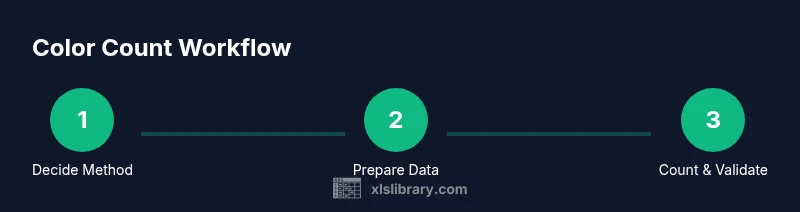
- Decide on a method based on macro policy and data size
- Expose color information via a helper column when needed
- Validate counts with a manual sample
- Document the color-to-index mapping for team consistency
- Save a macro-enabled backup before applying changes
- Use PivotTables or SUMIFS for summarized views when possible
Tools & Materials
- Excel desktop (Office 365 / 2019+)(Macro-enabled features available; ensure macros are allowed if using VBA/UDF)
- Macro-enabled workbook (.xlsm)(Required for VBA UDF method; can be optional if using non-macro approaches)
- VBA editor access (Alt+F11)(Needed to insert and edit UDF code)
- Color reference cell(A cell with the target color used for matching (e.g., D1))
- Helper column for color index(Useful for non-macro workflows (e.g., manual color index tagging))
Steps
Estimated time: 30-60 minutes
- 1
Choose counting method
Decide whether to use a VBA UDF, a GET.CELL approach, or a Power Query workaround. Consider macro policy, data size, and workbook sharing when making your choice. This step sets expectations for the rest of the workflow.
Tip: If you’re unsure, start with the UDF for simplicity and portability. - 2
Prepare the workbook
Create a color reference cell and ensure your data range is clearly defined. If you’ll use a helper column, add it adjacent to your data and label it clearly.
Tip: Use a named range for the data and a separate name for the color reference to simplify formulas. - 3
Add the VBA UDF (if using VBA)
Open VBA editor, insert a module, and paste the CountByColor function. Save the workbook as .xlsm to retain the macro.
Tip: Test the function on a small range to confirm it detects color correctly. - 4
Create a helper color index column (optional)
If you’re avoiding macros, create a column that tags each row with a color index or a text label representing the color. This enables standard counting formulas.
Tip: You can copy color tags from your reference color to the entire range for consistency. - 5
Count with a formula
For VBA: enter =CountByColor(DataRange, ColorRef). For helper columns: use COUNTIF or SUMPRODUCT to count based on the index or tag.
Tip: Lock ranges with $ to keep the formula stable when copying to other rows. - 6
Validate the results
Manually count a small subset to confirm accuracy. Compare the manual count with the formula result and adjust if needed.
Tip: Check edge cases like empty cells and merged cells that could affect color interpretation. - 7
Optionally use GET.CELL (advanced)
If you’re comfortable with legacy functions, define a named formula using GET.CELL, expose color values, and count via a standard function. This method requires care with security settings.
Tip: Document the named formula so others can maintain it. - 8
Consider Power Query path (advanced cases)
If you routinely refresh data, consider exposing color indices in a helper column and loading counts through Power Query for a repeatable workflow.
Tip: Refresh the query after data changes to keep counts up to date. - 9
Save and share
Save a backup copy, ensure macro settings are appropriate for your audience, and provide brief instructions for teammates to reproduce the counts.
Tip: Include a short README with color-to-index mappings for clarity.
People Also Ask
Can I count by color without macros?
Yes, you can use a helper column with a color index and standard counting formulas, or employ Power Query with a color-exposed column. Macros are optional depending on your security constraints.
Yes—use a helper column or Power Query if you can't use macros.
Is there a built-in Excel function to count by color?
Excel does not include a direct built-in function for counting by color. Workarounds include VBA UDFs, GET.CELL-based methods, or Power Query with a color helper column.
There isn't a direct built-in function; use a workaround.
Can I do this in Excel Online?
Excel Online supports fewer macros. Use non-macro methods like a color-index helper column and standard counts, or perform the count in the desktop app and sync results.
Online has limited macros; rely on non-macro helper columns.
How accurate are color-based counts?
Accuracy depends on color consistency and the method you choose. If colors change, counts must be refreshed or re-evaluated using a stable reference.
Accuracy relies on color consistency and up-to-date checks.
Can I count multiple colors at once?
Yes. Use separate helper columns or a mapping table to count each color, or group by color index in Power Query for aggregated results.
Yes, with extra setup for each color.
Watch Video
The Essentials
- Choose a method based on macro policy and data size.
- Expose color information via a helper column when needed.
- Validate counts with a manual sample.
- Document color-index mappings for team consistency.
- Prefer non-destructive methods when sharing workbooks.