Can Excel Make a Calendar? A Practical How-To Guide
Learn how to build a functional calendar in Excel using templates, formulas, and formatting. This expert guide from XLS Library covers template-based and dynamic calendars for personal planning, classrooms, and teams, with step-by-step instructions and practical tips.


Yes. Excel can create calendars using built-in templates or by building a custom calendar with date functions, conditional formatting, and templates. You’ll need a date range, formulas like DATE, YEAR, MONTH, and TEXT, plus optional features like dynamic date ranges and highlighting weekends. You can start from a ready-made template or design a grid from scratch, then customize headers, add holidays, and link cells to a calendar year. The XLS Library team notes that a well-constructed calendar in Excel is not just pretty; it can be interactive, filterable, and easy to update across sheets.
Why Excel calendar making matters
Can Excel make a calendar? The short answer is yes, and the longer answer is that Excel's date functions, templates, and formatting options give you a versatile platform for calendars of any cadence. A calendar built in Excel can be a live planning tool that updates when you change the year, adjust holidays, or add events. According to XLS Library, calendars created in Excel are especially valuable for people who want to embed a calendar into dashboards, link it to data tables, or share a version with teammates. Using templates or custom layouts, you can control headers, the start of the week, and the look of each day cell. You can also layer conditional formatting to highlight today, weekends, or deadlines, making it easy to see priorities at a glance. The techniques covered here apply whether you manage academic calendars, project schedules, or personal planners. With careful design, your Excel calendar becomes more than a static grid; it becomes a functional planning canvas that can be adapted year after year.
Approaches to creating a calendar in Excel
There are two common paths: (1) template-based calendars, which are quick to deploy and visually polished, and (2) custom calendar builders that rely on formulas and cell styling for maximum flexibility. Template calendars are ideal for beginners or for those who need a ready-to-use layout with minimal edits. Custom calendars, by contrast, give you full control over how dates are calculated, how weeks start, and how holidays or events are displayed. Regardless of the path you choose, Excel’s date functions—DATE, YEAR, MONTH, DAY, TEXT—enable consistent year-to-year updating. In addition, conditional formatting lets you highlight today, weekends, or upcoming deadlines, making calendars not just decorative but functional for planning and analysis. For teams, linking calendar cells to data tables can enable automatic updates when milestones shift. In short, can excel make a calendar? Absolutely—and you can tailor it to fit personal, classroom, or project needs.
Template-based Calendar: Quick Start
A template-based calendar is the fastest way to get up and running. Start with a built-in calendar template or download a ready-made workbook, then customize the header, start day of the week, and culture-specific date formats. Add a simple data range for holidays and events, and connect those to the visible date cells using VLOOKUP/XLOOKUP or INDEX-MATCH. This approach minimizes manual setup while delivering a professional look. It’s ideal when you need a clean, consistent layout for monthly planning, school calendars, or team schedules. As you adjust the year, the template should refresh dates automatically, preserving your color scheme and layout.
Dynamic Year Calendar with Formulas
If you want a calendar that grows with the year without recreating sheets, a dynamic calendar is the way to go. Use DATE and EOMONTH to generate first days of months, then populate each month with a grid of dates using a combination of DAY, WEEKDAY, and IF formulas. TEXT can format day headers (Mon, Tue, etc.), while WEEKNUM links weeks to project timelines. A dynamic calendar can span multiple sheets or a single dashboard tab, with names or events pulled from a data table via VLOOKUP or XLOOKUP. This method is more complex but highly versatile for annual planning, resource scheduling, or academic calendars that require automatic date shifts.
Adding events, holidays, and formatting
Calendars become truly practical when you add events and holidays. Create a separate data table listing event names, dates, and categories, then link each date cell to this table with lookup formulas to display event labels in the calendar cell or a pop-up comment. Conditional formatting can color-code different event types or highlight holidays. You can also add a today() rule for real-time emphasis, and use data validation to constrain note entries. For shared calendars, protect formulas and provide a simple export to PDF or CSV so stakeholders can view it without editing. The result is a calendar that doubles as an actionable planning tool rather than a static page.
Authority sources and best practices
To deepen your understanding, review official references on Excel date handling and calendar templates, as well as general data visualization guidance. For example, Microsoft’s Excel documentation covers date functions and templates, and NIST guidance provides robust standards for date and time calculations in technical work. Incorporating these sources helps ensure your calendar remains reliable and scalable as your needs evolve. Practical tips include starting with a clean data model, keeping formulas modular, and documenting assumptions for future users. By following best practices, your Excel calendar stays accurate, adaptable, and easy to share.
Tools & Materials
- Microsoft Excel (Office 365 or Office 2021)(Any recent version with formulas and formatting support)
- Ready-made calendar template or blank workbook(Optional if building from scratch)
- Keyboard and mouse(Essential for efficient editing)
- Printer (optional)(For hard copies of calendars)
- Access to holiday/event data(Can be a local list or exported from another system)
Steps
Estimated time: 30-60 minutes
- 1
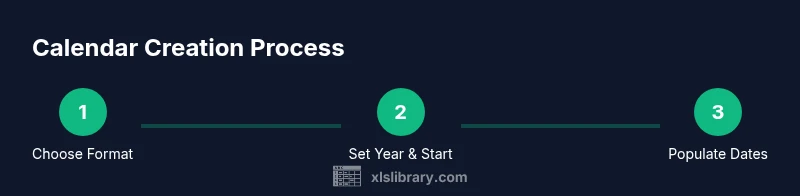
Choose calendar format
Decide whether you will start from a template or build from scratch. Templates are fast and polished; scratch builds maximize flexibility. Define the cadence (monthly vs. yearly) and the start day of the week before you begin.
Tip: If you’re new to Excel, start with a template to learn layout and formatting first. - 2
Set the date anchor
Create a fixed year reference (e.g., 2026) and decide how dates will be generated across months. Use a single cell to hold the year and a helper row for month headers to keep formulas readable.
Tip: Use absolute references for the year cell so it can be changed in one place. - 3
Populate dates with formulas
For each month, use DATE(year, month, 1) to get the first day, then fill the grid with sequential dates using IF to stop at month end. Use WEEKDAY to align the start of weeks.
Tip: Test with February in a leap year to verify date logic. - 4
Layout days and headers
Create a 7-column grid with headers Mon-Sun. Align the first date cell with the correct weekday using WEEKDAY, then fill dates across rows. Apply borders for a clean calendar grid.
Tip: Keep a consistent font and cell size for readability. - 5
Apply conditional formatting
Highlight today with a dynamic rule using TODAY(), color weekends, and emphasize upcoming deadlines. Create a holiday rule that shades cells based on a holiday list.
Tip: Use multiple conditional formatting rules with clear color codes. - 6
Add navigation and events
If building a year calendar, add a simple navigation cell or dropdown to switch months. Link an events table to display event names within calendar cells or on a side panel.
Tip: Document data sources and update paths for data-driven calendars.
People Also Ask
Can Excel create a yearly calendar automatically?
Yes. With a dynamic setup using DATE, YEAR, and MONTH functions, you can generate a year calendar that automatically adjusts to a chosen year and can include holidays and events. It’s more complex than a monthly template but scales beautifully.
Yes—you can build a dynamic year calendar in Excel that updates when you change the year.
Do I need Power Query to build a calendar in Excel?
Power Query is not required for basic calendars. It can help if you want to pull events from external data sources, but a calendar can be built entirely with standard formulas, formatting, and simple data tables.
Not required; you can build calendars with standard Excel features.
How can I customize holidays in my Excel calendar?
Create a separate holiday table with dates and names, then use VLOOKUP/XLOOKUP to display holiday names in your calendar. Conditional formatting can also shade holiday dates automatically.
You can add a holiday list and link it to the calendar with lookup formulas.
Can I share the calendar with Outlook or other apps?
Yes. You can export the calendar to PDF or CSV, or publish the calendar data to a shared workbook or an Outlook-friendly format if you maintain a synchronized data source.
Absolutely—export or share the data to keep teammates aligned.
What should I check if dates don’t align with the week start?
Verify the WEEKDAY function settings and ensure the header order matches the start of the week you chose. Adjust the first date anchor if needed and re-check month-end boundaries.
Check the weekday alignment and adjust the first date anchor if needed.
Watch Video
The Essentials
- Excel calendars are highly customizable
- Templates save time but reduce flexibility
- Dynamic calendars scale across years with formulas
- Link calendars to data for auto-updating events
- Always document sources and assumptions