Calendar Excel Format: Build Flexible Calendar Templates in Excel
Learn how to build reusable calendar templates in Excel using calendar format layouts, with tips for holidays, weekends, and planning across personal and professional calendars.


You will learn to create a reusable calendar in Excel using a calendar format. Start from a monthly grid or yearly layout, then set date columns, apply consistent formatting, and add holiday and weekend rules. This guide also covers templates, navigation, and practical tips for both personal planning and team schedules.
What is calendar excel format and why it matters
Calendar Excel format refers to a grid-based arrangement of dates within an Excel worksheet that makes planning and tracking events straightforward. A consistent calendar format supports easy updating, filtering, and printing. According to XLS Library, standardized calendar templates save time and reduce misalignment when multiple people work on the same file. When you choose a calendar format, you should consider layout (monthly, yearly, or hybrid), date system (1900 vs 1904), and whether you want weekly headers or daily blocks. The right form at the design stage also helps with automation: you can reserve cells for holidays, school terms, or project milestones, and then reuse the same layout for different years. In this section, we’ll outline common layouts and key design decisions that affect usability, printability, and data integrity.
Core concepts: dates, headers, and grid design
At the core, a calendar in Excel maps dates to cells and uses headers to label weeks or days. The date system (1900 or 1904) determines how Excel counts days and affects leap year handling. Headers like Monday–Sunday or Mon–Sun aid readability. A clean grid should balance columns (date, day, event) and rows (weeks). Consistency matters: uniform column widths and a fixed header row make it easier to paste months or copy templates between years. The XLS Library team notes that predictable layouts improve collaboration, especially when teams rely on templates to plan sprints, classes, or client meetings.
Choosing a layout: monthly, yearly, or hybrid
Monthly calendars are compact and print-friendly; yearly calendars provide a big-picture view. A hybrid approach can pair a monthly grid with a small annual overview. Think about who will use the calendar and how they’ll view it: managers may prefer a high-level year view, while teams may need monthly detail with spaces for notes. The choice also affects formulas and printing: monthly grids can be generated with dynamic month selectors, while yearly layouts may require a different row arrangement. The goal is a format that is easy to update and share.
Creating a reusable calendar template in Excel
Start with a clean workbook and decide whether the calendar will be generated by formulas or populated manually. A reusable template should include: a year selector (dropdown), a month selector, a date grid, and a notes area. Use named ranges for key parts so formulas remain readable. Build the grid with formulas that automatically fill day numbers based on the chosen month and year. Add a header row for days (Mon, Tue, etc.) and ensure the layout remains consistent when you switch years. The result is a plug-and-play calendar you can duplicate for any year.
Incorporating holidays and weekends automatically
Weekends should be highlighted automatically, and holidays can be marked with distinctive colors or symbols. Use conditional formatting rules to color Saturdays and Sundays, then reference a holiday list on a hidden sheet or a dedicated range. If you maintain a centralized holiday list, updating it will refresh all calendars that share the same template. This approach minimizes manual edits and keeps calendars clean, especially when planning across teams or departments.
Customization: colors, conditional formatting, and styles
A good calendar uses a cohesive color palette and readable typography. Apply a light background, dark text for contrast, and reserve bold colors for events or milestones. Conditional formatting can differentiate past, present, and future dates, highlight deadlines, and mark holidays. In addition, you can add a small legend and a printable header that includes the year and page number. The outcome should be visually appealing yet functional, enabling quick scanning at a glance.
Advanced features: dynamic year navigation, print-friendly layouts, and templates
Dynamic year navigation lets users switch years with a dropdown or slicer. Print-friendly layouts optimize margins, orientation, and fit-to-page options. Save separate templates for different use cases (personal planning, school calendars, project milestones) and share them with teammates. If you’re comfortable with it, you can tie the calendar to Power Query for automatic imports of events from external data sources. Implementing these features makes the calendar more scalable and less error-prone.
Practical examples: school calendar, project timeline, team shifts
A school calendar template may include term dates, holidays, and exam periods. A project timeline calendar can integrate milestones with a due-date column and progress markers. A team shifts calendar aligns employee schedules with holidays and vacation periods. By consistently applying the same calendar format, you reduce confusion and ensure stakeholders view a common timeline. The XLS Library team emphasizes the value of templates that adapt across departments and schools.
Common pitfalls and how to avoid them
Common mistakes include overcomplicated layouts, hard-coded dates, and neglecting to protect formulas from accidental edits. Always test across multiple years, use named ranges, and protect sheets that contain formulas. Keep holidays external to the main grid and use data validation for inputs in the notes area to prevent stray data from breaking calculations. The XLS Library team recommends incremental improvements to keep templates maintainable and adaptable.
Tools & Materials
- Computer with Excel installed(Excel 2019 or Office 365 (prefer latest updates))
- Blank workbook or template file(Start with a clean slate to avoid carryover issues)
- Holiday list (optional)(Keep on a separate sheet or external CSV for easy updates)
- Color theme or style guide(Consistent fonts and colors improve readability)
- Named ranges for dates/holidays(Helps keep formulas readable and transferable)
Steps
Estimated time: 30-45 minutes
- 1
Plan the calendar layout
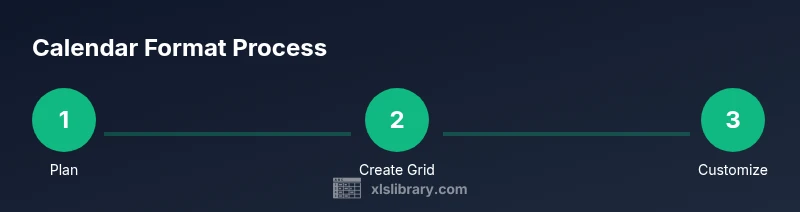
Decide between monthly, yearly, or hybrid formats and sketch a rough layout. Identify if you’ll include a notes panel or events column. The plan informs all subsequent steps.
Tip: Draft on paper first to lock in counts of columns and rows. - 2
Set up headers and initial grid
Create a header row for days of the week and a grid area for dates. Use fixed column widths and freeze the top row to keep headers visible while scrolling.
Tip: Use a light header shading to distinguish headers from date cells. - 3
Add a year/month selector
Insert dropdowns or slicers for year and month. Link them to date generation formulas so the grid updates automatically when you switch months.
Tip: Validate year range to prevent out-of-bounds dates. - 4
Populate dates with dynamic formulas
Use DATE and EOMONTH to produce day numbers that fill the grid for the chosen month. Ensure the first day aligns with its weekday.
Tip: Test February across leap and non-leap years. - 5
Apply conditional formatting for readability
Highlight weekends, current day, and milestones. Use separate rules to keep formatting organized and maintainable.
Tip: Limit formatting rules to the area you actually use. - 6
Incorporate holidays and notes
Reference a named range or holiday sheet to mark holidays automatically. Reserve a notes column for events, tasks, or reminders.
Tip: Keep holiday data in a separate sheet to simplify updates. - 7
Save as a reusable template
Save the workbook as an Excel template (.xltx) so you can reuse the same format for different years. Test in a second workbook to confirm stability.
Tip: Include a short user guide tab inside the template for future users.
People Also Ask
How do I create a monthly calendar in Excel?
Create a 7-column grid for days, with enough rows for the month. Use a date formula to fill the dates and apply conditional formatting to highlight weekends.
To create a monthly calendar, set up a seven-column grid, populate dates with a date formula, and color weekends with conditional formatting.
Can I reuse a calendar template for different years?
Yes. Build the template with a dynamic year/month selector so dates update automatically when the year changes.
Yes. Use dynamic year and month selectors to update dates automatically.
What if a month starts on a different day of the week?
Ensure your date grid starts on the correct weekday by calculating the first date with a formula that aligns the start.
If a month starts on a different day, adjust the date formula to align the start correctly.
Is it possible to print the calendar clearly?
Yes. Set a consistent print area, adjust margins, and use fit-to-page options to keep the calendar legible.
Yes. Set print area and fit to one page for clarity.
Watch Video
The Essentials
- Plan layout before building to save time later.
- Use dynamic dates and named ranges for reusability.
- Color and formatting improve quick comprehension.
- Save as a template for consistent multi-year use.