Can You Use Excel for Free? A Practical Guide for 2026
Explore legitimate ways to access Excel without paying, including Excel for the web, trials, and budget-friendly alternatives. Learn practical steps with guidance from XLS Library.


If you ask can you use excel for free, the answer is nuanced. There are legitimate options that don’t require purchasing a full desktop license, especially for occasional or collaborative work. According to XLS Library, you can access Excel via web-based versions, student/offers, or time-limited trials. The right path depends on whether you need offline access, feature parity, or simple data entry. This quick answer points you toward free options, then the middle of the article expands on each path with practical steps and caveats.
Can you use excel for free? A practical overview
If you ask can you use excel for free, the answer is nuanced. There are legitimate options that don’t require purchasing a full desktop license, especially for occasional or collaborative work. According to XLS Library, you can access Excel via web-based versions, student/offers, or time-limited trials. The right path depends on whether you need offline access, feature parity, or simple data entry. This overview explains what’s truly free today and how to decide the best route for your needs. For aspiring and professional Excel users, understanding these options helps you stay productive without paying a premium.
Why this matters for Excel users
- Free access is not a single product; it’s a set of options with different strengths and trade-offs.
- Your choice affects offline work, automation, collaboration, and compatible file formats.
- The goal is to identify a practical starting point that fits your workflow and budget.
This section will guide you through the main free paths and how to leverage them for real work scenarios.
Free access paths: Excel for the web, mobile apps, and student offers
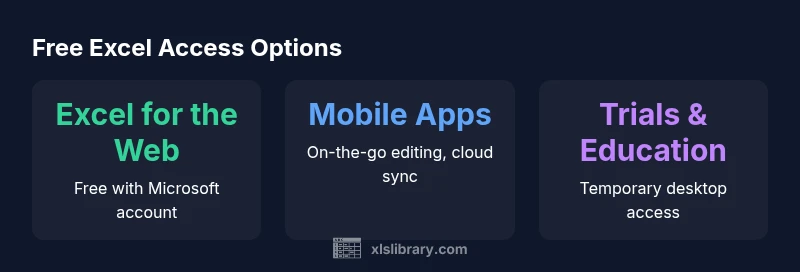
Free access to Excel is most commonly realized through Microsoft’s web and mobile options, plus occasional student or educator offers. Excel for the web lets you create, edit, and share spreadsheets directly in a browser with a Microsoft account, without purchasing a license. The mobile apps extend similar capabilities to smartphones and tablets, often with the convenience of on-the-go editing and cloud storage. Student and education programs can provide temporary access to desktop features through campus licensing or trial provisions, typically requiring verification. For many users, this mix of browser-based and app-based access makes daily tasks feasible at zero upfront cost, especially for basic data entry, analysis, and light formatting.
What free access means for features, offline work, and data size
Free Excel paths generally emphasize accessibility and collaboration over full feature parity. Common trade-offs include: limited offline work (reliance on internet), fewer advanced data-tools (like certain Power Query or VBA capabilities), and smaller file-size thresholds in some interfaces. On the other hand, for straightforward budgeting, lists, calendars, and simple models, the free web version can be perfectly adequate. Understanding these limits helps you design a workflow that avoids feature gaps, such as by using lightweight data models, exporting to compatible formats, and pairing free Excel with robust cloud storage for backup and sharing. This section helps you map your needs to the right free path.
Budget-friendly alternatives when Excel doesn’t fit your budget
When free Excel isn’t a perfect fit, several zero-cost or low-cost options exist that preserve productivity. Google Sheets offers real-time collaboration and cloud storage, with ease of sharing across teams. LibreOffice and Apache OpenOffice provide offline, desktop alternatives that open and save Excel files, though some advanced formulas and macros may differ. For some users, paid subscriptions bundle Excel with other Office apps, offering more comprehensive features and offline access; if you don’t require all apps, you might optimize value with standalone tools. This section outlines when to consider an alternative and how to weigh compatibility, ease of use, and long-term costs.
Step-by-step: how to set up Excel for free today
Getting started is simpler than you might think. Step 1: create a Microsoft account if you don’t already have one. Step 2: choose Excel for the Web and sign in to access your first workbook; save everything to OneDrive for automatic cloud storage. Step 3: explore mobile Excel apps for on-the-go editing, syncing with the cloud. Step 4: if you need offline power, assess trial options for desktop Excel or evaluate a free/open-source desktop alternative. Step 5: save frequently and test critical workflows early to identify any feature gaps. By following these steps, you’ll maximize free access while minimizing roadblocks.
Security, licensing, and best practices with free tools
Using free tools doesn’t mean you should ignore security or licensing basics. Always sign in with secure accounts, enable multi-factor authentication where possible, and keep software updated. If you’re using free trials, track expiration dates to avoid surprise interruptions. When handling sensitive data, prefer cloud services with strong encryption and clear privacy policies. Finally, keep a mental map of feature gaps and plan data handoffs to compatible formats if you anticipate needing advanced capabilities later.
Practical tips and common pitfalls to avoid
- Don’t assume feature parity with desktop Excel; test critical tasks early.
- Use the free options for entry-level work and quick collaborations, not heavy automation.
- Pair free Excel with reliable backup strategies and cross-check your results on a desktop if necessary.
- Watch licensing terms for student programs or trials to avoid unexpected charges.
- Consider long-term alternatives if your workflow grows beyond free capabilities; plan ahead to save time and money.
Free access options comparison
| Option | Access Method | Pros | Cons |
|---|---|---|---|
| Excel for the web | Browser-based with a Microsoft account | Free; easy to share; integrates with OneDrive | Limited offline use; fewer advanced features |
| Desktop Excel trial | Downloadable trial period | Full feature set during trial | Trial ends; license required for continued use |
| Google Sheets | Web app with real-time collaboration | Excellent collaboration; no cost | Different formula syntax; Excel file compatibility issues |
| LibreOffice/OpenOffice | Open-source desktop suite | Offline access; no cost | UI may feel dated; some Excel features not supported |
People Also Ask
Is Excel Online free to use without a subscription?
Yes, Excel for the web offers a free tier that works with a Microsoft account. It covers many everyday tasks but may lack advanced features found in the desktop version.
Yes, Excel Online is free with a Microsoft account, though some advanced features require a paid plan.
Do I need a Microsoft account to use free Excel?
Yes, most free paths require at least a basic Microsoft account for sign-in and cloud access. Some trials may allow temporary access without full verification, but ongoing use usually requires login.
Yes, you’ll generally need a Microsoft account to access the free services.
Can I edit files offline with the free options?
Offline editing is limited for free web-based options. Desktop licenses or offline-capable apps provide more robust offline work, depending on the plan.
Offline editing is typically limited; for full offline use you’ll likely need a desktop license or a paid plan.
Are there limits on file size or data when using free Excel?
Free options often have limits on features and file sizes, especially for large data models or advanced automation. If you work with big datasets, testing early helps.
Free versions have some limits on features and file sizes; for heavy data tasks you may need a licensed desktop.
What are viable free alternatives if Excel doesn’t fit my needs?
Google Sheets and LibreOffice are solid no-cost options. They differ in Excel compatibility and advanced features, so try them to see which meets your workflow.
Try Google Sheets or LibreOffice as no-cost options; they differ in features and compatibility with Excel files.
“Free access to Excel is possible through online versions and trials, but every option has trade-offs that can impact complex workflows.”
The Essentials
- Identify your top needs before choosing a free path
- Excel for the web is best for collaboration and light tasks
- Free tools have feature gaps—plan around offline work and automation limits
- Desktop licenses often necessary for advanced features or heavy data tasks
- Budget-friendly, no-cost options can fit short-term projects or learning