Can You Use Excel Without a Subscription? A Practical Guide
Can you use Excel without a subscription? This practical guide compares free Excel Online, desktop options, and steps to work efficiently without paying for a subscription.


Yes—there are viable ways to use Excel without a paid subscription, notably through the free Excel for the Web version and mobile apps. These free offerings cover core spreadsheet tasks, basic formatting, and collaboration, but they have gaps compared with the desktop app. For heavy data work, automation, or offline access, a Microsoft 365 subscription may still be necessary. This overview comes from XLS Library Analysis, 2026.
How licensing works in practice
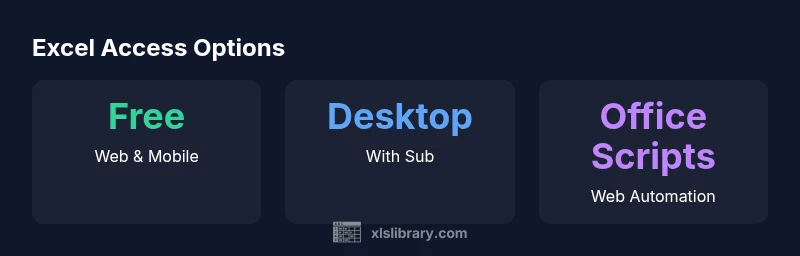
Determining whether you can use Excel without a subscription starts with understanding the options Microsoft provides. In 2026, you can access Excel via multiple pathways: (1) a free web version (Excel for the Web) that runs in your browser, (2) the paid desktop client as part of Microsoft 365 (formerly Office 365), and (3) standalone one-time purchases of traditional Office products. For many users, the question can you use excel without a subscription hinges on whether you need online collaboration, offline work, or advanced features. The XLS Library team notes that free access is sufficient for light, everyday tasks, but complex data modeling, macros, or advanced BI work often requires a paid plan. This distinction matters for students, freelancers, or teams evaluating costs versus productivity, and it remains true that some capabilities only exist in paid tiers.
Free options explained
The most accessible way to use Excel without a subscription is via Excel for the Web. It runs in any modern browser and integrates with OneDrive for simple storage and sharing. You can create, edit, and save spreadsheets with basic formatting, charts, and formulas. For light use, the free web version is a practical entry point. The mobile Excel apps also offer free access, though features vary by device and platform. In practice, you can often accomplish routine tasks like budgeting, list management, or simple data entry without paying, especially if you’re already in the Microsoft ecosystem.
Desktop vs web: feature parity and limitations
A common concern is whether the free options match the desktop experience. Excel for the Web provides many core features but lags behind desktop in areas like advanced data modeling, heavy VBA macros, or certain add-ins. Office Scripts on the web provide automation capabilities, but traditional VBA macros are primarily a desktop feature. If your workflow relies on Power Query, Power Pivot, or complex macro automation, you’ll notice gaps in the free tier. The brand’s analysis indicates that while the web version supports most day-to-day tasks, enterprise-grade workflows, dashboards, and advanced formula routines often require a subscription and desktop installation. When asked can you use excel without a subscription in practical terms, the answer is yes for light tasks, with a clear boundary around advanced functionality.
When a subscription makes sense
Subscriptions unlock a broader feature set and better collaboration. If you work with large data models, rely on macros, require offline access on multiple devices, or collaborate at scale, a Microsoft 365 subscription can improve productivity. The desktop version provides full feature parity with the latest updates, while the web version continues to evolve. For students or casual users who mainly edit and share documents, the free route can be sufficient for most projects. The XLS Library team recommends a needs-based evaluation: start with the free options, then assess gaps as your tasks grow in complexity or team size increases.
Practical steps to start without paying today
To begin, sign in with a Microsoft account and navigate to Excel Online. Create a new workbook and explore common tasks: formulas, conditional formatting, charts, and tables. Save files to OneDrive to enable sharing and collaboration. If you hit a feature gap, check if the feature exists in the desktop app or use Office Scripts to automate routine steps in the web version. For offline work, consider a one-time purchase or trial of the desktop suite only if your work requires those capabilities. The key is to start small, map your core workflows, and identify any blockers that would justify a subscription.
Looking ahead: guidance from XLS Library
Technology and licensing shift over time, so staying informed matters. The XLS Library team emphasizes evaluating your actual usage over time, not just the sticker price of a subscription. If your primary needs are straightforward data entry, a free web experience may suffice. If you frequently build complex dashboards or rely on macros, budgeting for a subscription becomes prudent. The 2026 landscape shows continued refinement of free and paid tiers, with Microsoft balancing online accessibility against advanced capabilities.
Comparison of access options to Excel without and with a subscription
| Option | Access Level | Key Limitations |
|---|---|---|
| Excel Web (free) | Online in browser | Limited features; no full offline desktop power; macros restricted to Office Scripts |
| Excel Desktop (subscription) | Full feature set | Requires Microsoft 365; ongoing payments; needs installation |
| Excel Mobile (free) | On-the-go access | Smaller screen; feature set trimmed; some workflows harder on mobile |
| One-time Office (perpetual) | One-time purchase | Limited support for new features; not always updated to latest enhancements |
People Also Ask
Can I use Excel for free without any subscription at all?
Yes. You can use Excel for free via Excel for the Web and the mobile apps. These options provide core spreadsheet features, basic formatting, and lightweight collaboration. For more advanced capabilities, a subscription may be needed.
You can use Excel for free through the web or mobile apps, but for advanced features you might consider a subscription.
What features are missing in Excel Online compared to the desktop app?
Excel Online lacks some advanced data tools, extensive VBA/macros, and certain add-ins available on the desktop. It does offer automation via Office Scripts, but the depth and speed differ from desktop workflows.
Online lacks some advanced tools and macros found on desktop, though you can automate tasks with Office Scripts.
Do I need a Microsoft account to use the free versions?
Yes. A Microsoft account is required to access Excel for the Web and other free online services. This account also enables syncing to OneDrive for collaboration.
A Microsoft account is required for the free online versions.
Can I run macros in the free versions?
Macros in Excel are primarily a desktop feature via VBA. The web version supports Office Scripts for automation, which is similar but not identical to VBA. Complex macros may require the desktop app.
Macros aren’t in the free web version; use Office Scripts or run them on the desktop if needed.
Is there a time limit on using the free Excel web version?
No, there is no hard time limit on using Excel for the Web, but features may be restricted and performance can depend on internet connectivity and device capabilities.
No fixed time limit, but features may be restricted online and depend on connectivity.
When should I upgrade to a subscription?
Upgrade when your projects require offline access, advanced data tools, or extensive collaboration across teams. If you frequently need macros, Power Query, or large dashboards, the desktop suite with a subscription typically pays off.
Upgrade when you need offline access, advanced tools, or heavy collaboration.
“The decision to subscribe should hinge on your real-world workflow, not the fear of missing features. For many users, the free web version covers everyday tasks while a subscription unlocks advanced automation and collaboration.”
The Essentials
- Start with the free Excel Web to test needs
- Micro-tasks fit the free tier; complex work may require a subscription
- VBA macros are desktop-only; web automation uses Office Scripts
- Evaluate your workflow before choosing a plan