Can You Use Excel Without Paying? A Practical 2026 Guide
Discover how you can use Excel without paying, including Excel for the web, free trials, and viable free alternatives. A practical, data-driven guide from XLS Library for 2026.


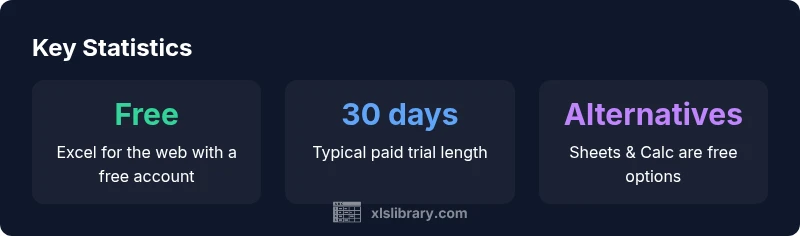
Yes. You can access Excel without paying in several scenarios: use Excel for the web with a free Microsoft account for basic tasks, start a 30-day trial of Microsoft 365 for full features, or opt for free alternatives like Google Sheets or LibreOffice Calc. This guide explains what's free, what's paid, and how to decide.
Can you use Excel without paying? An overview
If you’re asking can you use excel without paying, the short answer is yes in several forms. Excel for the web offers a free entry point with a Microsoft account, though some advanced features require a paid plan. According to XLS Library, free access is enough for many everyday tasks such as data entry, simple calculations, and basic charting. The reality is that the most powerful capabilities—like advanced data modeling, heavy automation, and offline work across devices—often live behind a paywall. This article walks you through free options, where paid plans shine, and how to decide what fits your needs in 2026.
How free access works: Excel for the web
Excel for the web is designed to lower barriers to entry. To start, sign in with a free Microsoft account and navigate to Office.com or the Excel web app. You can edit, collaborate in real time, and save to OneDrive. The core spreadsheet functionality is available without paying, but features like advanced data connections, certain macros, and deep offline support are limited or unavailable. For many students and small teams, this is enough to complete assignments and light dashboards. The XLS Library analysis shows that the free tier handles most day-to-day tasks, with feature gaps evident for power users.
Free trials: what you get and how to use them
Microsoft and other vendors commonly offer trial periods that unlock full functionality. A 30-day Microsoft 365 trial typically provides access to the desktop app suite, including Excel, without feature restrictions present in the web-only version. Use trials strategically: set reminders, stop services when you’re done, and avoid auto-renewal by canceling before the trial ends if you don’t want to pay. Trials are a legitimate way to complete large one-off projects, but they are temporary and not a substitute for long-term free access.
Paid vs free: what you gain and lose
Free Excel access prioritizes accessibility and collaboration over depth. Desktop Excel under paid plans brings robust data-modeling, Power Pivot, Power Query, extensive add-ins, and offline work. If your workflows require advanced automation, large datasets, or enterprise-grade security features, you’ll feel the difference. Conversely, many routine tasks—data entry, budgeting, and simple analysis—translate well to free options or alternatives and remain cost-effective for individuals and small teams.
Free alternatives worth considering
Free spreadsheet tools like Google Sheets and LibreOffice Calc can handle many common tasks and import/export Excel files with reasonable fidelity. Google Sheets shines for real-time collaboration, while LibreOffice Calc offers a robust offline experience. Be mindful of compatibility: complex macros, PivotTables, or proprietary functions may require adaptation or manual workarounds. For many users, a mix of Excel-free tools plus occasional Excel work can cover most scenarios.
How to decide: pay now or later
Start with free options to test your primary tasks. If you consistently hit performance bottlenecks, require offline access, or rely on automation that isn’t supported in free tiers, a paid plan may be justified. Budget cycles and team sizes influence this decision; for freelancers or small teams, a gradual upgrade approach—start with a trial, then evaluate value—often works best, as suggested by the XLS Library team.
Step-by-step setup: compare options and prepare a workflow
- List core tasks you perform weekly. 2) Try Excel for the web first; list missing features. 3) Run a small pilot project in a free tool (Sheets or Calc) to compare results. 4) If needed, trial a paid plan for one month and document the ROI. 5) Decide whether to retain free tools, upgrade, or use a hybrid approach depending on data sensitivity and collaboration needs.
Security and governance when using free tools
Free tools can pose governance and security concerns if sensitive data is involved. Always review data policies, sharing settings, and access controls. If you handle confidential information, consider encrypting data, using enterprise-grade solutions, and aligning with your organization’s data policies. The XLS Library recommends a risk-based approach and clear data-handling guidelines for any free tool.
Practical workflows for students and small teams
Students can complete assignments with Excel for the web and add data from campus resources. Small teams often use free tools for initial planning, then migrate to paid features for final projects. In both cases, exportability and consistency with your grade or client requirements should guide whether you stay free, upgrade, or adopt a hybrid approach.
Free access options vs paid options
| Option | What you get | Limitations |
|---|---|---|
| Excel for the web | Free with Microsoft account | Limited features vs desktop |
| Office 365 trial | 30 days access to full features | Ends after trial |
| Free alternatives | Google Sheets / LibreOffice Calc | Variable compatibility with Excel files |
People Also Ask
Can you use Excel without paying?
Yes, through Excel for the web with a free account, and via short paid trials or free alternatives. This covers many everyday tasks, though advanced features may require a paid plan.
Yes, you can use Excel for free online or through a trial, depending on your needs.
What is Excel for the web missing compared to the desktop app?
Excel for the web provides core spreadsheet tools with real-time collaboration, but some advanced data modeling, macros, and offline work are limited or unavailable.
The web version lacks some advanced features found in the desktop app.
Are there free alternatives that still work with Excel data?
Yes. Google Sheets and LibreOffice Calc can handle many tasks and import/export Excel files, though complex features may require adjustments.
Free options like Sheets and Calc can often replace Excel for standard tasks.
When should I consider upgrading to paid Excel?
Upgrade when you need offline access, full feature parity, advanced automation, or enterprise security.
Consider upgrading if you need full features and offline work.
Do free trials require payment method information?
Most trials require a payment method to start, but you can cancel before the trial ends to avoid charges.
Trials usually require payment details but you can cancel to avoid charges.
Is data transfer between free tools and Excel reliable?
For many tasks, data transfers are smooth, but complex formulas or macros may not translate perfectly.
Data transfer is usually okay, but some complex formulas may not port exactly.
What about mobile users accessing Excel for free?
Excel mobile apps offer free access with basic editing, but syncing and advanced features can be limited.
Mobile editing is free for basic tasks; advanced features may require a plan.
“Free access to Excel lowers the barrier to data work, but users should evaluate feature gaps and data needs before deciding to stay free or upgrade.”
The Essentials
- Start with free options to test fit for your needs
- Paid plans unlock advanced features and offline work
- Trials are temporary—plan a long-term decision
- Free tools work for many tasks, but be mindful of compatibility
- Consider security and governance when using free platforms