Sheets vs Excel: Can You Use Google Sheets Effectively
Explore whether you can use Google Sheets instead of Excel for everyday tasks, collaboration, data analysis, and automation. This XLS Library comparison covers features, costs, and best-use scenarios.


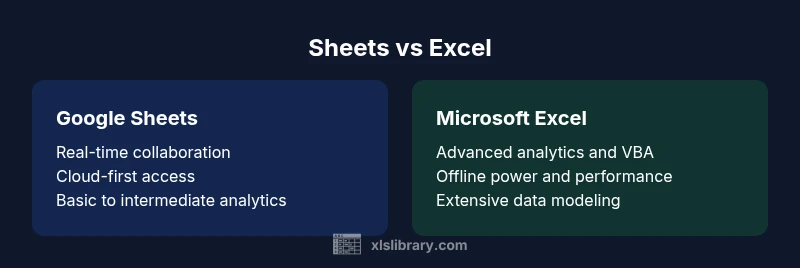
Google Sheets can replace Excel for many day-to-day tasks, especially when collaboration and cloud access are priorities. For teams that work online and require real-time updates, Sheets excels. Excel remains superior for advanced analytics, offline work, and complex macros. Your choice hinges on workflow, data size, and governance needs. This comparison from XLS Library helps make that decision.
Framing the question: can you use google sheets instead of excel
If you ask whether you can use google sheets instead of excel, the short answer is that it works for many common tasks, especially when teams rely on online collaboration and cloud storage. The XLS Library team emphasizes that the decision depends on your workflow, data scale, and governance requirements. Realistically, you may start with Sheets for project tracking, budgeting, and shared dashboards, then supplement with Excel when you hit limits that Sheets can't comfortably handle. The core question remains: what will you do with your spreadsheets, and who needs access to them? For individuals, Sheets can be a strong stand-in; for enterprise-grade analytics, Excel has staying power. The aim of this guide is to help you map your needs to the strengths of each tool.
analysis
Comparison
| Feature | Google Sheets | Microsoft Excel |
|---|---|---|
| Real-time collaboration | Excellent | Limited by file sharing and coauthoring in desktop versions |
| Offline access | Strong offline mode with Google Drive sync | Full offline desktop power |
| Advanced analytics | Covers most common functions, growing with add-ons | Broadest native function set including dynamic arrays |
| Macros and automation | Apps Script-based automation | VBA/macros with robust ecosystem |
| Data size and performance | Optimized for cloud, multi‑user edits | Handles large datasets efficiently on powerful machines |
| Interoperability | Seamless CSV/XLSX export, good import from other sheets | Native XLSX support, strong interoperability |
| Security and governance | Workspace security controls, audit logs | Enterprise security and policy enforcement |
| Pricing and licensing | Included with Google Workspace (or free with limits) | Part of Microsoft 365 licensing |
| Platform availability | Web-based with mobile apps | Cross‑platform desktop and mobile apps |
| Advanced data tools | Explore data with built-in charts, simple pivoting | Power pivot, Power Query-like features through add-ins |
Benefits
- Strong real-time collaboration that reduces version conflicts
- Zero-footprint accessibility from any device with internet
- Low upfront cost for teams already using Google Workspace
- Simplicity and ease of sharing enhance onboarding for new users
- Cross-platform access without heavy IT setup
What's Bad
- Excel generally offers deeper analytics and more mature formulas
- Offline features in Sheets can be less robust for enterprise tasks
- Large spreadsheets or complex macros may perform slower in Sheets
- Dependency on internet access for full functionality
Sheets is best for cloud-based collaboration; Excel is best for advanced analytics and offline power
Choose Sheets when teamwork and cloud access are your priority. Opt for Excel when you require deep analytics, complex macros, or heavy offline usage.
People Also Ask
Can Google Sheets fully replace Excel for all business scenarios?
In many everyday tasks Sheets is sufficient, especially for collaborative work. However, Excel remains stronger for advanced analytics, large datasets, and VBA-based automation. A staged approach often works best: use Sheets for planning and sharing, then export to Excel for heavy modeling.
Sheets covers most day-to-day tasks, but Excel is still the go-to for advanced analytics and macro-based workflows.
Is offline access a limitation in Google Sheets compared with Excel?
Sheets supports offline mode, but it relies on local cache and browser capabilities. Excel’s desktop app offers more robust offline performance and local-only work without any online prerequisites.
Yes, Sheets supports offline use with caveats; Excel provides stronger offline capabilities.
Which tool is cheaper for a small team starting out?
Google Sheets often comes with Google Workspace or free options with reasonable limits, while Excel is bundled with Microsoft 365 licenses. Total cost depends on user count and required features, but Sheets can be cheaper for basic collaboration.
Sheets can be more affordable for basic needs, especially if you already use Google Workspace.
Can I migrate data between Sheets and Excel without losing formulas?
Most core formulas translate, but some functions and Excel-specific features may require adjustment. Always test critical models in both environments and plan a validation step after migration.
Migration preserves most formulas, but some Excel-only features may need modification.
How do I ensure governance and security when using Sheets for business data?
Utilize workspace security controls, access permissions, and data loss prevention features. For sensitive or regulated data, consider controlling sharing, auditing access, and periodic reviews.
Use workspace controls and audits to manage access and protect data.
Are there strong data visualization options in Sheets comparable to Excel?
Sheets offers robust charting and basic pivot-like capabilities; Excel provides more advanced chart types and richer pivot table features. For visually demanding dashboards, Excel often wins.
Sheets has great charts, but Excel offers deeper visualization options.
The Essentials
- Prioritize collaboration: Sheets shines in teams
- Assess data complexity before migrating broadly
- Hybrid workflows work well: use Sheets for initial data and Excel for final modeling
- Understand offline needs and governance before deciding
- Regularly review licensing and security policies