Cell Protect Excel: Lock Cells and Protect Sheets in Practice
Learn practical, step-by-step techniques to protect Excel cells, lock formulas, and manage edits with sheet and workbook protection for safe collaboration.


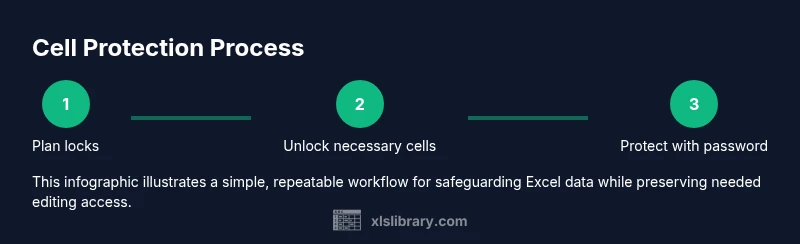
Lock specified cells, unlock only those you want edited, and apply sheet or workbook protection in Excel. This concise guide outlines the core steps and safety considerations so you can secure sensitive data without hindering collaboration. The approach emphasizes planning, proper password handling, and layered protection for reliable control.
Why Cell Protection Matters in Excel
Protecting cells is not just about aesthetics; it prevents accidental edits to formulas, preserves data integrity, and helps teams collaborate without breaking critical calculations. When you share workbooks, visitors may change values or formulas by mistake, leading to errors and misreporting. If you need to cell protect excel data, you should control what users can and cannot modify. This is especially important for financial models, inventory sheets, and dashboards where a single erroneous edit can cascade across computations. According to XLS Library, a layered approach—locking essential cells, unlocking only those you want edited, and applying sheet protection with a password when appropriate—offers a reliable balance between control and collaboration. As you implement these protections, remember that Excel’s built-in features are designed to be practical, not impervious to determined attempts; treat them as safeguards for everyday workflows rather than impregnable security.
Understanding Excel's Protection Mechanisms
Excel protects content through two complementary mechanisms: cell locking and sheet/workbook protection. By default, all cells are locked, but locking has no effect until you enable worksheet protection. Locking a cell prevents edits, while unlocking it allows changes when the sheet is protected. Protecting a sheet adds a password requirement and a set of permissions that determine what users can do (for example, select locked cells, format cells, insert rows). Workbook protection, on the other hand, focuses on the structure of the workbook (such as adding, deleting, or renaming sheets) and is a separate layer. Knowing the distinction helps you design a protection plan that fits your team’s needs.
Step 1: Plan Which Cells to Lock
Begin by mapping your worksheet to identify critical areas: formulas, constants, and tables that should remain pristine. Create a quick grid or a notes list that marks cells or ranges that must stay locked. Planning upfront reduces the risk of locking too much (which hampers collaboration) or too little (which invites accidental edits). For complex workbooks, consider grouping related cells and applying the same lock settings to each group. This planning phase also helps you decide where Allow Edit Ranges will be useful, so trusted contributors can update specific cells without unlocking everything.
Step 2: Locking and Unlocking Cells
In Excel, you unlock all cells first and then selectively lock the ones you want protected. The usual sequence is: (a) select the cells to remain editable and set their format to Unlocked, (b) protect the worksheet with a password, and (c) verify that only the intended cells are editable. If you need to protect formulas, lock those cells and ensure they’re part of the protected range. Remember: unlocking a cell does not, by itself, allow edits once the sheet is protected; you must enable worksheet protection for the lock to take effect. Keep a list of which cells are unlocked for easier maintenance later.
Step 3: Protect the Worksheet with a Password
Apply a password to protect the worksheet to enforce your lock settings. When prompted, choose a strong password and store it securely. Be mindful that Excel password protection is not a substitute for full encryption; it mainly guards against casual edits. In practice, you should tick options that you actually need (e.g., Allow only selecting unlocked cells, allow formatting of cells if necessary). After enabling protection, test by attempting to edit a locked cell to confirm the protection is active.
Step 4: Allow Edit Ranges for Trusted Users
If collaboration requires certain users to edit specific locked areas, set up Allow Edit Ranges. You can define a password for these ranges or assign permissions to specific users. This feature lets you keep the main sheet protected while granting targeted access for data entry or updates. For multi-user environments, document which ranges are editable and who has access, to avoid confusion and reduce the need to reset protections.
Step 5: Test the Protection and Troubleshoot
Thorough testing is essential. Try editing both locked and unlocked cells from a few user perspectives (with and without the required range access). If a cell remains editable unintentionally, recheck the lock state, ensure you protected the sheet after all lock/unlock changes, and verify that no conflicting protections exist (e.g., workbook protection that overrides sheet protection). Common issues include forgetting to unprotect before editing and misconfiguring Allow Edit Ranges.
Step 6: Save and Share Securely
Save a backup copy before applying extensive protections in case you need to revert. When sharing, communicate the protection strategy to collaborators: which areas are locked, which are editable, and how to request access if needed. Consider including a brief note on password handling, such as sharing passwords through secure channels and avoiding password reuse across files. Regularly review protections in long-lived workbooks to adapt to evolving workflows.
Step 7: Consider Cross-Platform Differences (Windows vs Mac)
While Excel behavior is similar across platforms, some protections or menu paths differ between Windows and macOS. Verify that your protection steps work on both, especially if you share files with teammates using different systems. If you rely on macros or VBA for advanced protection, test compatibility on both platforms to avoid failures.
Step 8: Document Your Policy for Auditing
For teams and organizations, document your cell protection policy: who can edit, how to request access, password lifecycle, and the process for revoking permissions. A written policy helps maintain consistency across files and reduces the risk of accidental exposure. Include a short changelog whenever you update protection settings so future editors understand the history.
Step 9: Advanced Protections: Encrypting the File (Optional)
If your primary concern is data confidentiality, consider encrypting the file itself with a stronger password at the OS or application level. Note that this is separate from Excel’s protection features; encryption prevents unauthorized viewing of the file contents, whereas Excel protection focuses on editing restrictions. Use encryption for highly sensitive data and keep your encryption keys secure.
Step 10: Workflows for Shared Dashboards
When protecting cells in dashboards, aim for minimal friction: only lock cells that could impact calculations, keep input areas editable, and provide a clear workflow for updating data. Shared dashboards benefit from consistent protection rules and a straightforward way to request edits. A well-documented process reduces errors and keeps dashboards reliable.
Step 11: Macros and Automation Considerations
If you automate protections with macros, ensure your code handles both protected and unprotected states gracefully. Include error handling for missing permissions and provide fallbacks when users lack edit access. Document the macro logic so future editors understand how protections are applied and updated.
Step 12: Long-Term Maintenance
Set a cadence to review sheet protections every few months, especially when workbook structure changes or new data enters the model. Update unlocked ranges, passwords, and access lists as needed. Regular reviews help maintain security without slowing down legitimate work.
Final Practical Insight
Protection is about balance: you want to deter careless edits while enabling productive collaboration. A deliberate, documented, and tested approach—backed by planning, selective locking, and clear guidelines—will keep your Excel workbooks reliable. The goal is to make protection approachable, not prohibitively complex.
Tools & Materials
- Microsoft Excel(Windows or macOS; 2016+ recommended)
- Test workbook(Include formulas, constants, and data tables)
- Password(Optional for protecting sheets; store securely)
- Backup copy(Create a baseline before applying protections)
Steps
Estimated time: 15-25 minutes
- 1
Plan which cells to protect
Map out critical formulas, constants, and data ranges. Decide which areas must stay locked and which can remain editable. This prevents over-restriction and preserves workflow efficiency.
Tip: Document your plan in a quick note or a separate sheet. - 2
Select cells to unlock for editing
Highlight the cells you want collaborators to modify and set their format to Unlocked. This makes the subsequent protection meaningful.
Tip: Only unlock what is essential to minimize risk. - 3
Open Protect Sheet dialog
Go to Review > Protect Sheet. Enter a strong password and choose the permissions you want to allow (e.g., select unlocked cells, insert rows).
Tip: Record the password securely and avoid reusing it. - 4
Apply a password
Confirm the password and apply protection. The locked cells will now be protected from edits unless allowed.
Tip: If you forget the password, you will lose access to protected areas. - 5
Configure Allow Edit Ranges
Add specific ranges that can be edited by designated users. This keeps the rest of the sheet protected while enabling collaboration where needed.
Tip: Assign ranges to trusted collaborators and limit password exposure. - 6
Test editing.
Attempt to edit both locked and unlocked cells from a test user account to confirm protections behave as intended.
Tip: If locked cells are editable, revisit the protection options. - 7
Protect workbook structure (optional)
To prevent adding, deleting, or renaming sheets, use Protect Workbook. This adds a separate layer of protection beyond sheet-level settings.
Tip: Combine with password policy for stronger governance. - 8
Document the policy
Create a short guide describing which areas are protected, how to request edits, and password handling.
Tip: This reduces confusion and keeps teams aligned. - 9
Cross-platform checks
Verify that protections work as expected on both Windows and macOS to accommodate all teammates.
Tip: If you use macros, ensure cross-platform compatibility. - 10
Back up and version
Save a backup before applying major protections and maintain version history for traceability.
Tip: Enable autosave where possible to capture changes safely. - 11
Review periodically
Periodically review protection settings to adapt to changing data and collaborators.
Tip: Schedule quarterly checks as part of data governance. - 12
Educate teammates
Provide quick training on why protections exist and how to request edits appropriately.
Tip: Clear expectations reduce support load.
People Also Ask
What is the difference between locking cells and protecting a sheet?
Locking cells marks them as non-editable, but protection only takes effect once the sheet is protected. Protecting a sheet enforces the lock settings with a password and a set of allowed actions. Together, they control edits without hindering necessary changes.
Locking marks cells as non-editable; protection enforces this with a password and permissions.
Can I lock formulas in Excel?
Yes. Lock the cells containing formulas and protect the sheet. This prevents accidental modification while allowing users to edit designated input cells if you’ve unlocked them.
Lock the formula cells and protect the sheet so only the intended inputs can be changed.
How do I allow specific users to edit certain cells?
Use Allow Edit Ranges to specify editable areas for particular users or groups. This keeps most of the sheet protected while enabling targeted edits.
Use Allow Edit Ranges to grant selective edit access.
Is password-protecting a workbook secure?
Sheet protection adds a layer of editing security but does not fully encrypt the file. For sensitive data, combine sheet protections with file encryption at the OS or storage level.
Protect sheets for editing control, and use file encryption for stronger security.
What happens if I forget the password?
If you forget the password, regaining access to protected content can be difficult and may require special tools. Always store passwords securely and keep a recovery plan.
Forgetting a password can lock you out; store passwords securely.
Does protecting a worksheet prevent others from viewing data?
Protection focuses on editing rights, not viewing permissions. To restrict viewing, you need file-level encryption or protected access controls outside of Excel.
Editing protection doesn't hide data; encryption does.
Watch Video
The Essentials
- Plan your protection strategy before locking cells.
- Unlock only what is necessary to keep collaboration smooth.
- Test protections thoroughly to catch misconfigurations.
- Use Allow Edit Ranges for trusted collaborators.
- Maintain a documented password and protection policy.