Compress Excel Files for Email: Practical Steps You Can Use Today
Learn practical methods to compress an Excel file for email, preserving data integrity while shrinking size. Windows and Mac workflows covered, including saving as XLSB, removing unnecessary data, and validating results with tips from XLS Library.


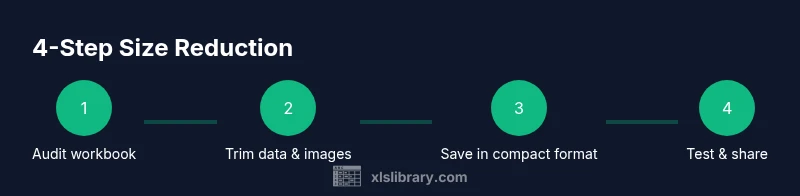
You can compress an Excel file for email by trimming data, removing unused sheets, compressing embedded images, and saving in a compact format such as XLSX or XLSB. Start with a quick audit of large components, then apply proven reduction techniques. This quick guide shows practical steps for Windows and Mac users to reduce size before sending.
Why compressing Excel files for email matters
In today’s fast-paced workflows, sending spreadsheets as email attachments is common but can be a bottleneck when file sizes grow. Large workbooks slow down delivery, bloat inboxes, and may trigger upload or attachment limits set by email providers. By strategically reducing the size of an Excel workbook, you keep collaboration smooth while preserving essential data and functionality. According to XLS Library, understanding what contributes most to workbook size helps you choose the right technique rather than blindly compressing everything. The goal is to shrink the file without compromising formulas, formatting, or data integrity. This balance—size reduction with reliability—is what separates a risky shortcut from a solid, repeatable process you can teach teammates.
To start, inventory your workbook components: worksheets with data, images, charts, PivotTables, links to external data, and metadata like author information or tracked changes. Each element has a different impact on size. By focusing on the big contributors first, you can achieve meaningful reductions with modest effort. In many cases, removing unused data and simplifying formats yields larger gains than aggressive, blind compression.
Remember that the ultimate test is whether the recipient can still use the file as intended. If your workbook feeds dashboards, performs calculations, or links to external sources, you’ll want to preserve those assets or migrate them to lighter alternatives where appropriate. XLS Library’s approach emphasizes practical steps, tested across Windows and macOS environments, to keep collaboration intact while keeping email attachment limits in check.
Quick wins to shrink size
There are several low-effort, high-impact tricks you can apply before diving into deeper optimizations. Start with a quick audit of the workbook’s heaviest components and then apply the following steps:
- Remove unnecessary data: delete empty rows and columns beyond the last used cell; clear contents and formats in unused areas rather than deleting entire sheets if needed. This reduces the amount of metadata Excel stores about unused ranges.
- Clear formats and styles you don’t need: excessive conditional formatting, custom styles, and excess formatting can inflate file size. Use the Format Painter sparingly and prune unused styles from the workbook.
- Delete or consolidate hidden sheets: hidden sheets can still contribute to workbook size via data caches and formulas. Review and remove any sheets that aren’t required for the recipient.
- Compress embedded images: large images embedded in a workbook are common culprits. If possible, replace high-resolution images with lower-resolution equivalents, and use Excel’s built-in compression options for pictures.
- Convert to a lighter file format when appropriate: saving as a binary workbook (.xlsb) or choosing .xlsx over .xls can yield size reductions, especially for data-heavy workbooks. Test compatibility with your collaborators before switching.
- Remove external data connections where feasible: data linked to external sources can bloat the workbook and slow refresh times. If you can export data locally or cache it, do so before sending.
- Inspect workbook metadata: remove personal information and tracked changes, and delete hidden metadata that isn’t needed by the recipient. A clean workbook is not only smaller but also more privacy-friendly.
- Use a quick save-as cycle: sometimes a fresh save can trim dead metadata and optimize internal structures. Always save a backup before performing a Save As to a different format.
These quick wins typically yield noticeable reductions without altering core data or formulas. As you apply them, verify that the workbook still behaves as expected by recalculating formulas and checking critical outputs. A disciplined approach—combine quick wins with selective deeper optimizations—tends to deliver reliable, repeatable results. The XLS Library approach emphasizes practical, testable steps you can replicate in teams.
Windows method: step-by-step compression
Following a guided workflow in Windows helps ensure consistency across team workbooks. The steps below assume you’re using a modern Excel version (Office 365 or later).
- Audit the workbook: open the file and note large components such as pictures, PivotTables, and external connections. Use Inspect Workbook (File > Info > Check for Issues > Inspect Workbook) to identify metadata and hidden data you may want to remove. Why: metadata and hidden data can add unnecessary weight without contributing to daily usage.
- Trim data and unused areas: delete empty rows/columns beyond the used range, and clear excess formatting in unused cells. Why: Excel stores formatting and data in areas that aren’t visible, inflating size.
- Remove or simplify images: right-click an image and choose Compress Pictures, selecting a resolution appropriate for email. Why: high-resolution images are common offenders; compression reduces size with minimal impact on readability.
- Clean up styles and formatting: purge unused styles from the workbook (Home > Cell Styles > Manage Styles; delete unused ones). Why: excessive custom styles create hidden bloat.
- Convert to a lighter format: Save As, choose Excel Binary Workbook (.xlsb) or Excel Workbook (.xlsx) if not already using a compact format. Why: XLSB, in particular, often yields smaller file sizes for data-heavy workbooks due to its binary structure.
- Remove and replace external data connections: if possible, replace dynamic links with static exports or cached data. Why: external connections can cause the workbook to grow and refresh unpredictably.
- Inspect again and test: reopen the file, recalculate formulas, and run a quick check for data integrity. Why: changes can affect outputs and performance; verification ensures you didn’t remove essential elements.
- Optional: zip the file for transport: right-click the workbook > Send to > Compressed (zipped) folder. Why: zipping adds a final layer of compression and makes attachment handling more reliable for some email systems.
Estimated total time: about 20–40 minutes, depending on workbook size and your familiarity with Excel features.
Mac method: step-by-step compression
Mac users can apply similar reductions with slight UI differences. The goal remains the same: reduce size while preserving the workbook’s usefulness. Follow these steps:
- Begin with a quick audit: check large objects and external links using the same Inspect Workbook approach (Review > Inspect Workbook). Why: identify what’s driving size and what can be safely removed.
- Clean up data and formats: remove unused rows/columns and strip unnecessary formatting. Mac users can use Edit > Clear > Clear Formats for bulk cleanup if needed. Why: the more empty space you clear, the smaller the file tends to be.
- Manage images: select each image, open the Picture Format tab, and apply Compress Pictures with an appropriate resolution, then remove any unused assets. Why: images are a frequent source of bloated size on Mac as well.
- Simplify styles: purge unused cell styles (Tools > Excel Add-ins may not apply; use the Styles pane to identify and remove duplicates). Why: excessive styles add hidden weight to the workbook.
- Save in a compact format: Save As, choose XLSB if available to maximize size reduction, or XLSX when compatibility is essential. Why: binary formats often yield better compression for heavy data.
- Update or remove external data flows: if your workbook pulls data from external sources, consider exporting a static copy for sharing. Why: dynamic data connections can dramatically inflate size and complicate sharing.
- Validate the result: recalculate formulas and verify that charts reflect correct data after changes. Why: ensure functional parity with the original workbook.
- Optional: bundle as a ZIP: compress the final file into a ZIP archive for sending via email. Why: a ZIP adds another layer of compression and can simplify delivery.
A practical alternative: save as binary workbook (.xlsb) or export data
For very large workbooks, saving as a binary workbook (.xlsb) often delivers the best size reductions without sacrificing most functionality. If some collaborators can’t open XLSB files, consider exporting data to a lightweight format such as CSV for sharing; you can provide the original workbook separately for users who need full features. Another approach is to tier data: keep essential sheets in the workbook and move archival data to a separate file. Both approaches reduce email attachment size while preserving access to critical information. When sharing significant datasets, pairing the workbook with cloud-based access (link to a shared drive) can further reduce attachment friction while keeping data current.
Note that some features—macros, activeX controls, or certain advanced data connections—may be affected by format changes. Always test with a few recipients and confirm that critical workflows function as expected. This strategy aligns with XLS Library guidance to balance practical size reduction with user needs and compatibility.
Validate, test, and plan future sharing
A disciplined validation phase helps prevent post-send surprises. After compression:
- Check the file size again to quantify the reduction and confirm it fits within your email provider’s limits.
- Open the workbook and recalculate key results to ensure formulas still compute correctly.
- Share a quick test with a colleague to confirm they can open the file without errors, especially if they use a different Excel version.
- If you anticipate frequent sharing, create a small, repeatable workflow (a macro or a recorded set of steps) that you can run on similar workbooks to achieve consistent results.
Document the steps you found most effective for future use. Repetition will shorten the process over time and improve reliability when sending large spreadsheets.
Common pitfalls and quick checks
Even experienced users run into traps when compressing Excel workbooks. Here are quick checks to avoid losing data or functionality:
- Always keep a backup: never perform size reduction on the only copy of a workbook.
- Do not remove essential data: confirm that all steps preserve required worksheets and formulas.
- Watch for external links and data validation: if the workbook relies on external data, ensure the recipient can access it or provide an offline version.
- Verify recipient compatibility: some receivers may have older Excel versions or different platforms. Validate on Mac and Windows if possible.
- Keep privacy in mind: remove sensitive metadata before sharing, especially if the workbook contains confidential notes or personal data.
Authority and further reading
For deeper guidance on workbook optimization and safe sharing, consult official sources from Microsoft and standardization bodies. The Microsoft Support and Learn portals offer guidance on optimizing workbook size, compressing images, and managing data connections. For general data handling best practices, consider standards published by recognized organizations like NIST. These sources help ensure your approach is sound and aligned with industry best practices.
Tools & Materials
- Computer with Excel (Office 365 or compatible)(Ensure you have the latest update for best results)
- ZIP utility (built-in or third-party)(Optional but recommended for final transport)
- Original backup copy of workbook(Keeps data safe in case of unintended changes)
- Cloud storage or shared drive access(Useful if you plan to share a link instead of an attachment)
- Image editing tool (optional)(If your workbook contains large images you plan to replace or resize)
Steps
Estimated time: 25-40 minutes
- 1
Audit the workbook
Open the file and identify large components such as images, PivotTables, charts, and external connections. Use Inspect Workbook to surface metadata and hidden data you may want to remove.
Tip: Document what you remove so you can reverse if needed. - 2
Trim data and unused areas
Delete empty rows/columns beyond the last used cell and clear excessive formatting in unused ranges. This reduces the amount of stored metadata.
Tip: Use Go To Special > Blanks to quickly spot empty areas. - 3
Compress pictures
Select each image and apply Compress Pictures with an email-appropriate resolution. Replace very large images with lighter substitutes where possible.
Tip: Avoid over-compression that degrades essential visuals. - 4
Clean up styles and formatting
Remove unused cell styles and reduce conditional formatting where feasible. Complex styling can significantly inflate size.
Tip: Use the Styles pane to identify duplicates and unused styles. - 5
Convert to a lighter format
Save As and choose Excel Binary Workbook (*.xlsb) when compatibility permits. For broader sharing, an .xlsx copy may be preferred.
Tip: Test both formats with a sample recipient before large-scale sharing. - 6
Review external data connections
If the workbook links to external data sources, consider exporting a static copy or cache. This minimises size and refresh times.
Tip: Document essential connections so collaborators can re-create if needed. - 7
Validate the result
Recalculate formulas, refresh data, and ensure charts reflect the correct data after reductions.
Tip: Run a quick sanity check on key metrics and outputs. - 8
Optional: zip the file
Compress the final workbook into a ZIP archive to maximize transport efficiency and compatibility with some mail systems.
Tip: Test sending the ZIP to a colleague to confirm delivery works.
People Also Ask
Will compressing an Excel workbook affect formulas or data integrity?
Compression steps that prune data, formats, or external connections may affect outputs if critical elements are removed. Always validate calculations after compressing and keep a backup copy.
Compression can affect data if essential elements are removed. Always validate formulas after compressing and keep a backup.
Is saving as XLSB more effective for size reduction than XLSX?
Yes, XLSB often produces smaller file sizes for large workbooks due to its binary structure, but verify compatibility with recipients before switching formats.
Yes, XLSB often reduces size more, but check recipient compatibility first.
Should I zip the file before sending it via email?
Zipping adds another layer of compression and can help with email attachment limits and transfer reliability. It’s a good final step after compression.
Zipping the file is usually a good extra step to ensure delivery.
Can I compress only some worksheets or data ranges?
Excel doesn’t selectively compress parts of a workbook. You can remove or move nonessential sheets or data to a separate file, then share the lighter workbook.
You can’t selectively compress parts of a workbook; consider moving nonessential data to a separate file.
What about macros and VBA projects?
Macros themselves don’t usually inflate size as much as data and images, but ensure that code remains compatible if you switch formats. Test macros after compression.
Macros aren’t typically the main size driver, but test them after compression.
How can I verify the recipient can open the file?
Share a quick test file with a colleague using the same platform and a common Excel version to confirm accessibility and functionality.
Test with a colleague on the same platform to confirm accessibility.
Watch Video
The Essentials
- Audit large elements first to target the biggest size drivers.
- Prefer binary formats (xlsb) for very large workbooks when compatibility allows.
- Remove unnecessary data, formats, and metadata before sending.
- Compress images and consider zipping the final file for extra reduction.
- Always verify data integrity after compression.