Difference Between Excel and Word: A Practical Comparison
Explore the difference between Excel and Word, their distinct roles, and how to combine them for data-driven reports. Learn when to use each app, and how to create seamless workflows across the Office suite.


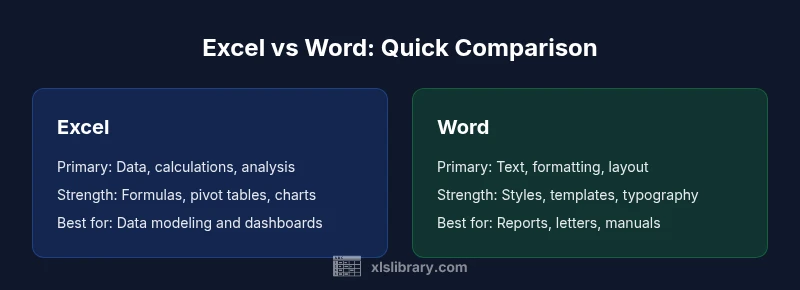
Excel and Word serve different core purposes: Excel is built for data, numbers, and analysis, while Word specializes in long-form text, formatting, and document layout. For most tasks, choose Excel when you need calculations, charts, or data modeling, and Word when you must craft polished reports or letters. Use both together for integrated data-driven documents.
The Big Picture: What Excel and Word Are For
The difference between excel and word is rooted in their design goals: Excel is a grid-based tool optimized for numbers, data organization, and quantitative analysis, while Word is a document-focused editor designed for long-form text, formatting, and polished communication. For knowledge workers, understanding these roles helps you decide which app to reach for in a given task. According to XLS Library, choosing the right tool at the right moment reduces duplication, speeds up workflows, and improves the accuracy of both data and narratives. When you pair features across the two programs, you unlock powerful workflows: you can crunch data in Excel and then present the results clearly in Word, or embed charts and tables into a narrative document for stakeholders. This overview frames practical questions about where each tool shines and where you should pair them to maximize impact.
Core Strengths: Calculations, Data, and Analysis (Excel)
Excel’s core strength lies in structured data handling. Spreadsheets organize data in rows and columns, enabling you to perform calculations with formulas, create dynamic dashboards, and automate repetitive tasks with simple macros. Beyond arithmetic, Excel supports statistical functions, financial modeling, and data cleansing workflows. The application excels at building repeatable processes: you can set up data validation rules, use named ranges, and construct pivot tables to summarize large data sets. For analysts, Excel is a sandbox for experimentation, where changes propagate through interconnected formulas and charts. The result is a reproducible data story you can audit, share, and extend. When the primary goal is quantification and pattern discovery, Excel is often the first choice.
Core Strengths: Text, Formatting, and Layout (Word)
Word specializes in narrative clarity, typographic control, and document formatting. It provides styles, templates, table of contents, headers, footers, and advanced typography features that ensure consistent presentation across pages and sections. Word shines when communicating with readers who expect readable prose, precise margins, and accessible structure. You can craft complex documents, perform mail merges, and incorporate graphics with captions and references. Collaboration is streamlined through tracked changes, comments, and cloud-based editing. For reports, proposals, and manuals, Word offers the expressive versatility needed to shape a message as clearly as the data supports it.
Data Structures and Content: Tables vs Text
Excel’s data is inherently tabular; rows and columns define the structure, with cells housing numbers, dates, and formulas. This organization makes it easy to filter, sort, and aggregate data, and to link datasets for consolidated analyses. Word, by contrast, treats content as flowing text with embedded objects; tables exist but lack the robust data tools Excel provides. When you need a dataset that supports quantitative reasoning, Excel is the natural home. For textual content, narrative context, and citation-heavy material, Word offers superior long-form readability. The key is to design documents that leverage the strengths of each program: store data in Excel, reference it in Word, and keep formatting centralized through styles and templates.
Collaboration and File Management Across Office Suite
Collaborating across Excel and Word requires a mindset that separates data integrity from narrative development. Shared workspaces, version histories, and cloud syncing reduce conflicts, but you’ll find different patterns of collaboration in each app. Excel workbooks often serve as living data sources; when multiple people edit formulas or pivot tables, consider preserving a data sheet with a locked template and a separate analysis sheet. Word documents benefit from track changes and comments, enabling reviewers to propose edits without altering the original text. Embedding or linking objects—such as an Excel chart inside Word—helps maintain a single source of truth, but requires disciplined file management to prevent broken links. The overarching lesson is clear: coordinate file storage, naming conventions, and access levels to minimize friction and maximize consistency.
Data Integrity, Reproducibility, and Auditing
A rigorous approach to data integrity is essential in any mixed-environment workflow. Excel users should document formulas, define data validation rules, and protect worksheets to prevent accidental changes. Reproducibility benefits from separating raw data, intermediate calculations, and final outputs, ideally in clearly labeled sheets or workbooks. Word documents should anchor claims with citations, versioned drafts, and a visible audit trail of edits. When you embed charts from Excel into Word, consider embedding as linked objects only if you expect data updates; otherwise, paste as static images to preserve a stable narrative. The XLS Library team emphasizes documenting assumptions, maintaining accessible provenance, and validating results with independent checks.
Templates, Reuse, and Consistency
Templates are the connective tissue between Excel and Word. In Excel, templates speed up repeated analyses, standardize layouts for dashboards, and enforce consistent data validation. In Word, templates govern typography, headings, and page geometry, ensuring a uniform voice across reports. Reuse is more than copying; it’s about creating modular components: a data-driven chart in Excel that feeds a Word report through a linked object, a standardized table style, or a caption scheme that references data sources. Adopting shared templates and a simple naming convention reduces onboarding time for new team members and accelerates project cycles. The result is predictable outputs and reduced rework.
Automation, Macros, and Advanced Features
Automation is a force multiplier in both Excel and Word, though it manifests differently. Excel’s macro language (VBA) and the power of formulas enable you to automate data preparation, complex calculations, and report generation. Word’s automation focuses on formatting, mail merges, and batch document assembly. More modern Office iterations add scripting support and cloud-based automation options, making it feasible to trigger actions across apps with minimal manual intervention. When designing automation, keep separation of concerns in mind: let Excel handle data processing and Word handle narrative assembly. This separation improves reliability and makes maintenance easier for future updates.
Cross-Platform Compatibility and File Formats
Office’s cross-platform strategy means you can work on Windows, macOS, and web versions of both Excel and Word. File formats—such as .xlsx and .docx—preserve data structure and formatting, yet some advanced features may not translate perfectly across platforms. When you plan to share work with colleagues using different setups, test critical features: formulas, pivot tables, and charts in Excel; headings, styles, and field codes in Word. Saving to interoperable formats and embedding objects with care reduces compatibility surprises and ensures your work remains accessible over time. The practical takeaway is to design with portability in mind from day one.
Practical Workflows: From Data to Report
A common workflow starts with data collection and cleaning in Excel: import data, apply validation, build a pivot table, and generate charts. The next step is to weave those results into a Word document: insert charts, craft a narrative around insights, and format the draft for readability. Finally, revise collaboratively, export to PDF for distribution, and maintain a version history for accountability. Practical tips include establishing a shared file structure, using linked objects sparingly to avoid broken links, and implementing a simple change-management process. By aligning data preparation with narrative storytelling, you produce documents that communicate clearly and persuasively.
Common Pitfalls and How to Avoid Them
Common mistakes include treating Word like a data tool or treating Excel as a writing surface. Overloading Word with large data tables can degrade performance, while trying to manage long-form content in Excel reduces readability. Failing to document formulas, data sources, and assumptions undermines reproducibility. Inconsistent styles across documents create visual noise and undermine perceived professionalism. Finally, insufficient file management—missing templates, unclear naming conventions, or unmanaged links—causes version confusion. By recognizing these traps and applying disciplined templates, you can combine the strengths of both programs without compromising accuracy or readability.
Comparison
| Feature | Excel | Word |
|---|---|---|
| Primary purpose | Data analysis, calculations, and modeling | Document creation, formatting, and layout |
| Data handling | Structured tables, formulas, pivot tables | Text-focused with basic tables |
| Templates & consistency | Data templates, dashboards, reusable calculations | Templates for reports, letters, and manuals |
| Collaboration & versioning | Co-authoring on data sheets; track changes in models | Track changes and comments in long-form documents |
| Output types | Spreadsheets, charts, dashboards | Letters, reports, brochures |
| Automation | VBA for data automation; formulas automate calculations | Limited automation; macros exist for formatting |
| Interoperability | Charts and data can be embedded in Word; linked data possible | Word content can be embedded in Excel but less common |
| Learning curve | Moderate to high for advanced data tasks | Low to moderate for basic formatting; high for complex layouts |
Benefits
- Clear separation of concerns between data and narrative
- Strong data modeling capabilities with formulas and pivot tables
- Rich formatting and templates for professional documents
- Easy collaboration with cloud storage and version history
What's Bad
- Requires switching apps for full reports; dataset management across two files
- Word is not designed for large data sets; performance can suffer with big tables
- Learning curve to master both apps and keep templates consistent
- Some advanced features do not translate perfectly between platforms
Excel + Word together provides the most versatile workflow
Use Excel for data work and Word for narrative reports; integrate via charts and linked objects to deliver complete, credible documents.
People Also Ask
Can I embed Excel charts in Word documents?
Yes. You can paste Excel charts into Word as embedded objects or as linked charts that update when the source data changes. Embedded charts are self-contained, while linked charts require access to the original workbook.
Yes—you can embed or link Excel charts in Word. Embedded charts are static; linked charts update automatically when the Excel file changes.
When should I use Excel instead of Word?
Use Excel for data-heavy tasks, calculations, data modeling, and charting. Word is better for narrative writing, formatting, and producing polished documents.
If you’re dealing with numbers and data, Excel is your go-to; for writing and layout, Word shines.
Can Word handle large data tables?
Word can display tables, but it’s not optimized for large data sets. For substantial data, manage it in Excel and reference or embed results in Word.
Word isn’t ideal for large data tables—use Excel for the data and include clean visuals in Word.
Is it possible to automate Word tasks like macros?
Yes. Word supports VBA macros and automation for formatting, mail merges, and repetitive tasks. It’s more limited than Excel for complex data automation but very useful for document workflows.
Yes—you can automate Word with VBA, especially for formatting and batch tasks.
What about collaboration and versioning between Word and Excel?
Both apps support cloud-based collaboration and version history via OneDrive/SharePoint. Excel edits to data models can be more sensitive to changes, while Word edits focus on text and layout.
Both support cloud collaboration, but keep data integrity in Excel separate from narrative edits in Word.
Can I link Excel data into Word automatically?
Yes. You can link an Excel range into Word so updates propagate. Be mindful of file paths and sharing permissions to avoid broken links.
Yes, you can link data, but watch for broken links when files move or rename.
Which is better for reports: Excel or Word?
Word is ideal for narrative reports, while Excel supplies data and charts. For comprehensive reports, combine both: data in Excel feeding a polished Word document.
Word for writing; Excel for data. Use both for best results in reports.
The Essentials
- Define the primary objective before tool selection
- Use Excel for data work, Word for writing
- Embed or link charts to integrate data and narrative
- Maintain templates and naming conventions for consistency