When to Use Excel vs Word: A Practical Guide
Explore practical guidelines for choosing Excel or Word based on data needs, formatting, and collaboration. This analytical guide helps you decide when to use excel vs word for your next project, with actionable frameworks and real-world scenarios.


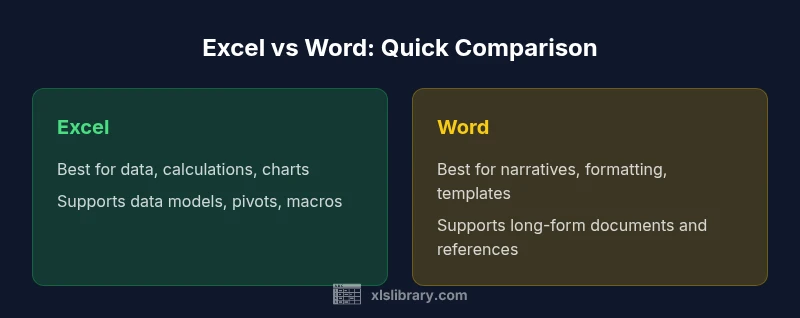
For data-heavy tasks, calculations, and modeling, choose Excel. For polished narratives, formatted reports, and long-form documents, choose Word. When a project blends both needs, use a two-tool workflow: build data in Excel and summarize or present it in Word, linking charts as appropriate.
Why the Excel vs Word decision matters
The choice between Microsoft Excel and Word goes beyond a simple preference; it shapes your deliverable, audience, and workflow. For teams that must blend data rigor with readable narratives, selecting the right tool at the right time accelerates outcomes and reduces rework. According to XLS Library, recognizing the core strengths of each program helps you frame a project from the outset. The question is not which app is better, but which app is better for your objective, the data you need to present, and the audience you serve. In practice, the decision of when to use excel vs word often hinges on data complexity, required formatting, and collaboration needs. If the deliverable relies on precise calculations or auditable data, Excel shines; if the emphasis is on clarity, structure, and narrative flow, Word is the natural choice. The goal is to map tasks to tools so handoffs are smooth and updates propagate without unintended inconsistencies.
Core Use Cases for Excel
Excel excels at data-heavy tasks, numerical analysis, and repeatable workflows. Use cases include data cleaning and validation, building models with formulas, scenario planning, dashboards, and ad hoc analysis. When you need to compute metrics, compare scenarios, or visualize trends, Excel provides functions, pivot tables, conditional formatting, and automation with macros or Power Query. Real-world teams rely on Excel to curate datasets, apply consistent data validation rules, and generate charts that feed into executive reports. Excel also supports lightweight, structured templates that can be reused across projects, ensuring consistency while preserving data integrity.
Core Use Cases for Word
Word dominates narrative content: long-form reports, proposals, policy documents, client letters, and education materials. It excels in typography, layout control, and long-form references; you can embed charts, but the primary strength is coherent storytelling with headings, footnotes, bibliographies, and citation management. When the objective is a polished document suitable for publication or formal distribution, Word's styles, templates, table of contents, index features, and track changes make collaboration clear and traceable. For documentation that requires review and approval, Word's commenting and revision history help teams stay aligned.
Decision Framework: When to Choose Each Tool
- If your task centers on data complexity, calculations, and the need for reproducible analyses, choose Excel.
- If your goal is narrative coherence, precise formatting, and professional presentation, choose Word.
- If a project requires both, plan a seamless workflow: design data models and dashboards in Excel, then export or link relevant charts to Word for the final report. Use Mail Merge or embedded objects to keep data up to date where possible.
- Consider your audience and delivery format: Excel suits interactive exploration and dashboards; Word suits printed or distributable documents with a strong narrative arc.
- Finally, assess collaboration needs: co-authoring a live workbook differs from co-editing a Word document with tracked changes.
Comparison
| Feature | Excel | Word |
|---|---|---|
| Best for | Data modeling, calculation, and dashboards | Narrative reports, proposals, and formatted documents |
| Strengths | Advanced formulas, PivotTables, data validation, automation | Typography control, styles, templates, and structured layouts |
| Limitations | Less suited for long-form writing and complex prose | Limited built-in data modeling and numeric analysis features |
| Output formats | Spreadsheets, charts, data tables | Documents, reports, letters, templates |
| Collaboration | Co-authoring with versioning and data integrity tools | Track changes, comments, and review workflows |
Benefits
- Clear separation of data work from narrative writing, enabling precision and polish
- Strong support for templates, formatting, and accessibility in both apps
- Good interoperability when using linked objects and mail merge workflows
- Widely adopted, with mature ecosystems and community support
What's Bad
- Switching tools can slow progress if the deliverable demands both data and narrative content
- Moving data between Excel and Word risks version drift and formatting inconsistencies
- Overreliance on copy-paste can obscure data lineage and reduce auditability
- Templates and styles require discipline to maintain consistency across teams
Adopt a two-tool workflow or hybrid approach when delivering documents that combine data rigor with narrative clarity.
Excel should power data tasks and analytics, while Word should handle narrative sections and formatting. For mixed deliverables, leverage both tools strategically and use linkages to preserve data integrity and readability.
People Also Ask
When should I choose Excel over Word for a new project?
Choose Excel when the primary objective is data manipulation, calculations, or building models. If the deliverable will be evaluated on accuracy of numbers, formulas, and visual data representations, Excel is the appropriate starting point.
Choose Excel when data accuracy and calculations drive the outcome.
Can I combine Excel and Word effectively in one project?
Yes. Plan a two-tool workflow: create data in Excel, generate charts or tables, then embed or link them in Word for a narrative report. Use Mail Merge when you need to populate Word documents with Excel data in bulk.
Yes—use a two-tool workflow with linked content when possible.
Is Word suitable for data tables or dashboards?
Word can display simple tables, but it isn’t designed for complex data manipulation. Use Word for formatting and presenting results, while keeping the heavy data in Excel and linking charts if needed.
Word isn’t ideal for complex data tasks; keep data in Excel.
How do I export Excel charts to Word without breaking formatting?
Copy charts from Excel and use Paste Special with Link or as Picture to preserve appearance. For live updates, link the chart to the source workbook; otherwise, update manually when the data changes.
Link charts to keep updates synchronized when possible.
What about automation or templates to streamline Excel vs Word use?
Utilize built-in templates and create standardized styles in both apps. For Excel, consider macros and Power Query for repeatable data workflows. For Word, use templates and styles to maintain consistent formatting across documents.
Templates and automation save time and ensure consistency.
How can I ensure data integrity when moving content between Excel and Word?
Document data lineage and maintain clear sources. Prefer linked objects or charts rather than static images, and document any transformations or assumptions in a cited notes section.
Maintain data lineage and document assumptions to protect integrity.
The Essentials
- Match tasks to strengths: data work in Excel, narratives in Word
- Plan workflows that minimize handoffs and preserve data lineage
- Use templates and styles to maintain consistency across documents
- Leverage charts/metrics from Excel in Word reports for clear storytelling
- Regularly audit linked data to prevent drift in final outputs