Difference Between Excel and XLSX: A Practical Guide
Understand the difference between Excel and XLSX, including what each format stores, compatibility, and practical guidance for choosing the right workbook format.


TL;DR: The difference between Excel and XLSX is fundamentally a file format story. XLS is the legacy binary format used by older Excel versions, while XLSX is the modern Open XML format that compresses data and supports larger workbooks. For new work, XLSX is usually the better choice due to compatibility and recovery benefits; reserve XLS for legacy systems needing old software support.
Core distinctions between XLS and XLSX
According to XLS Library, the difference between Excel and XLSX is most often resolved by examining two distinct file formats that drive everyday work in spreadsheets. The older XLS format and the newer XLSX format both represent Excel workbooks, but they encode data, metadata, and features in fundamentally different ways. Understanding these core distinctions helps determine which format to use in different contexts, from macro-enabled workflows to cross-platform collaboration. This is especially important when teams design templates, establish archival standards, or prepare datasets for reporting. By focusing on the practical consequences rather than the acronyms, you’ll gain clarity on which format best supports your goals—speed, reliability, and future-proofing. In short, the difference between excel and xlsx is not about the software feature set alone but about how the workbook is stored, shared, and protected. Throughout this guide, remember that the XLSX format is the modern default for new work, while XLS remains relevant only when compatibility with older software is non-negotiable. The choice you make here affects how easily colleagues can open your files, how much space they consume, and how robust your data remains over time.
The underlying file structure: binary vs OpenXML
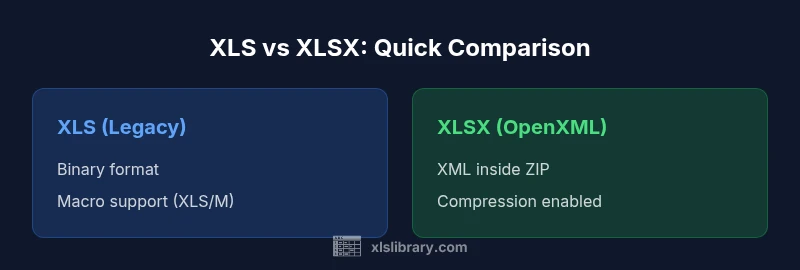
XLS uses a single binary stream to store workbook data, formulas, and metadata. This binary approach has historical roots and was optimized for performance on older hardware and software. In contrast, XLSX leverages the OpenXML standard and stores content as XML files packaged inside a ZIP archive. This modular structure separates workbook data, worksheets, styles, and metadata into distinct parts, making it easier to inspect, repair, and extract specific components. The ZIP container also enables compression, which typically reduces file sizes and speeds transfer across networks. From a practical standpoint, the OpenXML approach favors interoperability, as XML is a widely understood format across platforms. If you frequently collaborate with partners who exchange files via email or cloud storage, XLSX’s packaging and openness can reduce friction and version conflicts. The concept of an OpenXML package is central to understanding why many teams prefer XLSX for modern workflows, even when they work with very large datasets or multiple sheets.
Version history and compatibility landscape
The modern era of Excel centers on XLSX, introduced with the Office Open XML standard alongside Excel versions starting with 2007. Older workbooks saved as XLS remain accessible in new Excel programs, but there is limited native support for the legacy binary format in some newer apps. For organizations that rely on very old software, the compatibility layer or conversion may be necessary. From a broader perspective, XLSX enjoys broad compatibility across major spreadsheet tools, including cloud-based suites, enterprise reporting platforms, and data integration services. This broad support is a key reason many teams standardize on XLSX for new projects. According to industry practice, teams facing multi-version environments often establish a policy to store primary data in XLSX while keeping occasional legacy XLS backups for archival purposes. The XLS Library analysis shows a strong preference for XLSX in most modern workstreams due to stability and cross-platform viability.
Storage efficiency and recovery implications
File size and resilience are tightly linked to the chosen format. XLSX files typically benefit from ZIP compression, which reduces storage needs and can speed up transfers. In practice, compressed files can also improve backup performance and cloud synchronization. The OpenXML packaging of XLSX separates content into logical parts, which often makes it easier to recover or extract damaged worksheets without reconstructing the entire workbook. By contrast, the older XLS format lacks the same level of modularity, so corruption or data loss can require more extensive repair efforts. This difference matters in environments with large datasets, frequent sharing, or strict recovery requirements. For many teams, this means prioritizing XLSX for routine work and reserving XLS only when you must preserve exact binary fidelity or guarantee compatibility with legacy systems. The focus should be on maintaining data integrity while minimizing downtime and friction during collaboration.
Features, formulas, and macro support across formats
When you compare features, formulas, and automation capabilities, XLSX generally offers broader compatibility with newer Excel features and functions. It supports contemporary formula sets, richer chart types, and structured data formats. However, macros require careful handling: XLSX files cannot contain macros in their standard form. If your workbook uses macros, you will either need to save as a macro-enabled workbook (XLSM) or retain an XLS version for macro-rich workflows. This distinction matters for automation, dashboards, and reporting pipelines that rely on scripted actions. In practice, teams that depend on advanced automation should plan to use XLSM or keep a separate macro-enabled copy if macro functionality is essential. The XLS Library emphasizes that aligning format choice with automation needs reduces rework and confusion during updates and sharing.
Security and data integrity
OpenXML-based XLSX files benefit from modern data integrity checks and easier integrity verification. ZIP packaging allows partial repairs by replacing corrupted parts without reconstructing the whole file, a useful feature when working with large workbooks. While no format is immune to corruption, the modular structure of XLSX and the prevalence of automated backups and versioning in modern environments makes data protection more manageable. Both formats can be password-protected, but remember that protection features and password recovery differ across tools and versions. Typically, teams that store sensitive data in Excel will rely on XLSX with proper access controls, auditing, and secure sharing channels to minimize exposure and maintain governance over sensitive datasets.
Interoperability with other apps and platforms
In cross-ecosystem scenarios, XLSX offers the strongest compatibility profile. Google Sheets, LibreOffice, and most modern data integration platforms handle XLSX files with minimal friction, enabling smooth collaboration across teams using different software stacks. Older XLS files may still be opened by a subset of tools, but certain features or formatting can be lost or misinterpreted. For teams operating in a mixed environment (desktop software, cloud-based editors, and mobile apps), XLSX remains the most reliable option. However, if you must share a file with an app that only recognizes older formats, keeping an XLS backup or a conversion path available is prudent. The key takeaway is that XLSX maximizes interoperability while preserving data structure and readability across platforms.
Practical tips for choosing between formats
To choose between XLS and XLSX, start with your audience and workflow. If you regularly share files with others using modern Excel or cloud editors, XLSX is the sensible default. If you must support an older desktop setup, consider maintaining an XLS backup or saving a copy in XLS for distribution. Macros complicate the decision: keep a separate XLSM version or convert to a macro-enabled workflow before saving as XLSX. Prioritize data integrity by validating your workbook after conversion, using consistency checks, and enabling version history where available. Finally, adopt a clear naming convention and documentation so teammates understand which format to use for which scenario, reducing confusion and ensuring long-term accessibility.
How to convert between formats
Converting between formats is a routine task in Excel and similar tools. The typical steps involve opening the workbook and choosing Save As or Export, then selecting the target format. If the workbook contains macros, Excel will offer an option to save as XLSM rather than XLSX. When moving from XLS to XLSX, use a compatibility checker to identify features that may not transfer exactly and adjust as needed. Conversely, converting from XLSX to XLS might require testing critical macros and formulas to ensure they behave identically in the legacy format. For teams, set a standard process that includes validating the converted file, updating documentation, and sharing the new version through approved channels to minimize confusion.
Common pitfalls and troubleshooting tips
Common pitfalls include accidentally losing macros when saving as XLSX, unexpected formatting shifts after conversion, and compatibility gaps with legacy software. Always check for feature support—charts, tables, conditional formatting, and named ranges can behave differently across formats. Before sharing, run a quick integrity check, verify embedded links, and confirm that external data connections still function. If issues arise, revert to the original file, try a format that preserves features, and document any adjustments made during conversion. Finally, keep a separate archive of older formats for historical reference or compliance needs, ensuring you can reproduce past analyses if required.
Comparison
| Feature | XLS (legacy binary) | XLSX (OpenXML) |
|---|---|---|
| File structure | Binary, proprietary format | OpenXML parts inside a ZIP archive |
| Macro support | Macros supported in legacy XLS (.xls) or XLSM | Macros not supported in standard XLSX (use XLSM) |
| Data capacity | Older format with legacy limits | OpenXML format supports larger workbooks and sheets |
| File size (typical) | Often larger without compression | Typically smaller due to ZIP compression |
| Recovery and integrity | Less modular, harder to repair in parts | Modular XML parts aid partial repairs and extraction |
| Interoperability | Reliable within legacy environments | Broad cross-platform support including cloud editors |
| Best for | Legacy systems and macro workflows | New projects, collaboration, and scalable data |
Benefits
- Smaller, compressed files with XLSX
- Better data integrity and recovery with OpenXML
- Broad compatibility with modern Excel features
- OpenXML supports better data interoperability and scripting options (with XLSM)
What's Bad
- Limited backward compatibility with very old Excel versions
- Macros not supported in XLSX (use XLSM for macro-enabled workbooks)
- Some non-Microsoft tools may require conversion or lose formatting
XLSX is the recommended default for most users.
XLSX offers compression, cross-platform compatibility, and improved data integrity. Use XLS for legacy workflows that rely on older software or non-supported macros.
People Also Ask
What is the difference between Excel and XLSX?
XLSX is the modern OpenXML-based format that compresses data and supports larger workbooks. XLS is the legacy binary format used by older Excel versions.
The main difference is the file format: legacy binary versus modern OpenXML.
Can I open XLSX in Excel 2003 or earlier?
Excel 2003 and earlier cannot natively open XLSX files. You may need the Compatibility Pack or save the file in XLS for older software.
No, older Excel versions generally can't open XLSX without a compatibility pack.
Do macros work in XLSX?
XLSX files cannot contain macros in their standard form. Use XLSM for macro-enabled workbooks or keep a separate macro-enabled copy.
Macros aren’t supported in standard XLSX; use XLSM if you need them.
When should I choose XLS instead of XLSX?
Choose XLS when you must support very old software or specific environments that do not handle XLSX well. Otherwise, XLSX is typically preferable.
Pick XLS only if old software compatibility is non-negotiable.
Are there security concerns with XLSX?
Both formats can be password-protected, but security models differ by tool and version. OpenXML-based XLSX generally integrates better with modern security features and auditing.
Security depends on the tool and version, but XLSX aligns with newer protection features.
How do I convert between formats without losing data?
Open the workbook, use Save As to choose the target format, and review features that may not transfer exactly. Use compatibility checks and test the workbook after conversion.
Save As to pick the target format and check for feature compatibility.
The Essentials
- Choose XLSX for new work to maximize compatibility and efficiency
- Keep XLS for legacy environments that cannot open XLSX
- Use XLSM if macros are needed
- Test conversions to catch feature gaps early
- Document format decisions to avoid confusion later