What Excel Version Is XLSX? A Practical Guide
Learn which Excel versions save as XLSX, why OOXML matters for compatibility, and how to convert between XLS and XLSX across modern Office apps today.


XLSX is the default Excel workbook format introduced with Excel 2007 and used in all later versions, including Office 365. It’s an OOXML-based, zipped container that stores data as XML files. The older binary format XLS was used up to Excel 2003, and XLSX replaces it for modern data workbooks.
What the XLSX format really is
The XLSX file is the standard workbook format used by Excel from 2007 onward. It is based on the Office Open XML (OOXML) specification and is packaged as a ZIP archive containing XML and related files. This design lets Excel store data, formulas, charts, and media in a structured, highly interoperable way. If you’re asking, what excel version is xlsx, the concise answer is that XLSX was introduced with Excel 2007 and remains the default format today. The transition from the older binary XLS format to XLSX marked a shift toward open standards and better data integrity.
The format’s XML surface makes it easier for developers to parse and validate workbook contents, while the ZIP container keeps file sizes reasonable for large datasets. For users, this means more reliable cross-platform compatibility and easier data exchange with other applications that understand OOXML.
XLSX also supports richer data types, advanced formatting, and richer formula handling than the legacy XLS, all while remaining accessible to modern versions of Excel across Windows, macOS, and mobile platforms. Understanding this foundation helps in choosing when to save as XLSX and when to preserve legacy compatibility.
Historical context: XLS vs XLSX and OOXML
To fully grasp why XLSX matters, it helps to compare it with XLS, the older binary format used by Excel up through Office Excel 97-2003. XLS stored workbook data in a binary structure that was harder to parse and less resilient to corruption but could load very quickly on older hardware. In contrast, XLSX uses the standardized OOXML schema (ISO/IEC 29500) and stores content as XML files inside a ZIP container. This separation of data and packaging enables robust data integrity, easier interoperability, and greater scalability for larger spreadsheets.
During the 2007 release cycle, Microsoft shifted the default save format to XLSX, while offering an option to save in the older XLS format for compatibility. The OOXML standardization also opened the door for third-party tools to read and write Excel workbooks with greater compatibility, increasing cross-application collaboration. For organizations that rely on archival or long-term access, this standardization is a meaningful improvement in data longevity.
Over time, XLSX has become synonymous with modern Excel usage, while older formats are typically reserved for legacy workflows or systems that cannot upgrade. The ecosystem around XLSX—macros in XLSM, and chart/macro support in modern apps—reflects ongoing refinements in the OOXML family rather than a single static file type.
Why XLSX is the default today
There are several practical reasons for the widespread adoption of XLSX: smaller file sizes due to ZIP compression, better data integrity with XML-based structures, and improved cross-platform compatibility across Windows, macOS, and cloud-based Excel Online. The open XML framework makes it easier for developers to programmatically manipulate workbooks, extract data, or validate structures without relying on proprietary binary formats. In a world where teams collaborate across tools and devices, XLSX provides a reliable, future-facing foundation for everyday spreadsheets.
From a user perspective, XLSX enables richer formatting options, more robust error handling in formulas, and layouts that render consistently across platforms. While macros complicate the picture (see the XLSM variant), the base XLSX format is designed to handle modern data workloads with greater resilience and scalability. This is why it is commonly recommended for new workbooks and ongoing projects.
Practical implications for Excel users
For most users, choosing XLSX means better interoperability and fewer surprises when sharing files. If you work with colleagues who operate on older software, you may encounter opening or compatibility warnings; in these cases, consider saving a copy as XLS or using Excel’s Compatibility Checker to identify potential issues. Additionally, macros will not run in a standard XLSX workbook unless you save as XLSM, which preserves macro functionality while maintaining the XLSX container.
Another practical point is the larger per-sheet capacity of XLSX. If your workbook grows to hundreds of thousands of rows or multiple charts and pivot tables, XLSX is better equipped to handle this scale without performance degradation caused by older binary formats. When transferring data to other programs, the XML-based structure tends to simplify data extraction and cleanup, which can save hours in data-prep tasks.
If you regularly exchange files with users who rely on non-Microsoft spreadsheets, you may also explore exporting to CSV for simple data sharing. Yet for anything beyond plain data, XLSX remains the most robust, future-proof choice among Excel formats.
How to convert and verify your workbook
Converting a file from XLS to XLSX is straightforward: open the workbook in Excel and choose File > Save As, then select Excel Workbook (.xlsx) from the format list. If your file contains macros, you should save as Excel Macro-Enabled Workbook (.xlsm) to preserve macro functionality. When compatibility across older versions is a concern, use Excel’s Check Compatibility feature: File > Info > Check for Issues > Check Compatibility; this tool flags features that might not be supported in earlier Excel releases.
For users who rely on automation or scripting, consider using libraries that support OOXML parsing to validate structure before sharing. If you need to revert to a legacy format for archival reasons, keep a separate .xls copy alongside the primary XLSX workbook. Finally, always test critical workbooks on the target platform to confirm that formulas, charts, and conditional formatting render as expected.
Practical best practices for working with XLSX today
- Default to XLSX for new workbooks to maximize compatibility and data integrity.
- Use XLSM only when you need macros; otherwise, avoid macro-enabled formats to reduce security risk.
- Regularly run the Compatibility Checker when sharing with teams using older Excel versions.
- Leverage the OOXML structure by organizing data with clear sheets, defined named ranges, and consistent data types.
- Validate formulas and cross-sheet references after saving, especially in large or complex workbooks.
- Keep backup copies in a non-XLSX format if you anticipate legacy tool compatibility issues, but primarily rely on XLSX.
- Use data-validation, structured tables, and pivot tables to maintain data quality and analysis reliability.
- Document file-format decisions in project briefs so collaborators understand why XLSX was chosen.
These practices help ensure your Excel work remains accessible and reliable across devices and versions, aligning with modern data workflows.
Authority sources
For official details on XLSX and OOXML, consult these sources:
- https://docs.microsoft.com/en-us/office/open-xml/open-xml-standards
- https://www.iso.org/standard/51574.html
- https://www.ecma-international.org/publications/standards/Ecma-376.htm
Comparison of XLS vs XLSX formats
| Feature | XLS (pre-2007) | XLSX (2007+) | Notes |
|---|---|---|---|
| Introduced | Pre-2007 | 2007+ | Evolution of format |
| Storage format | Binary | OOXML-based (ZIP container) | XML structure inside ZIP |
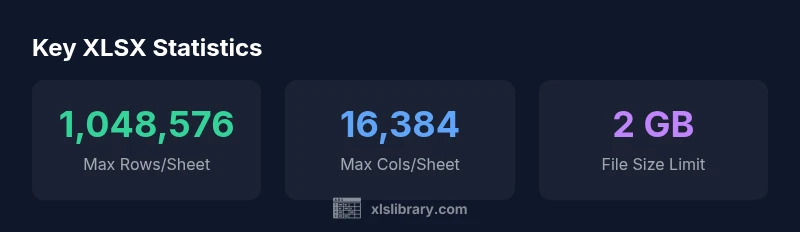
| Max rows per sheet | 65,536 | 1,048,576 | Important for large data sets |
| Max columns per sheet | 256 | 16,384 | Increases data capacity |
| Macro support | Yes (VBA) | No (uses XLSM for macros) | Macros require different extension |
People Also Ask
What does XLSX stand for?
XLSX stands for Excel Spreadsheet XML and is the OOXML-based workbook format introduced with Excel 2007. It is the default format for modern Excel workbooks.
XLSX stands for Excel Spreadsheet XML, the modern default format introduced in Excel 2007.
Can Excel 2003 open XLSX files?
Excel 2003 cannot natively read XLSX files. Use the Office Compatibility Pack or save the file as XLS if you must work with Excel 2003.
No, Excel 2003 can’t open XLSX files without an add-on or converting the file first.
Is there a performance difference between XLSX and XLS?
Performance depends on content. XLSX is compressed and optimized for larger workbooks, but very large or complex files can behave differently across systems.
Performance varies with the workbook's complexity; XLSX often handles larger files better due to its structure.
What about macros in XLSX?
Macros do not run in plain XLSX workbooks. If you need macros, save as XLSM (macro-enabled) instead.
Macros aren’t supported in XLSX; you should use XLSM for macro-enabled workbooks.
How do I convert XLS to XLSX?
Open the file in Excel and choose File > Save As, then select Excel Workbook (*.xlsx). If macros exist, use (*.xlsm) instead.
Open it, save as XLSX, or choose XLSM if you have macros.
Are there risks saving as XLSX?
Risks are minimal for modern systems, but some older tools might not support OOXML. Always check compatibility when sharing with older platforms.
Mostly safe, but check compatibility for older tools.
“Understanding file formats improves data integrity and collaboration across teams. XLSX is the modern standard that underpins reliable cross-version workbooks.”
The Essentials
- Adopt XLSX for new workbooks to maximize compatibility
- XLSX uses OOXML and ZIP compression for efficiency
- Macros require the XLSM variant, not plain XLSX
- Use Compatibility Checker when sharing with older Excel versions