Excel binary workbook vs xlsx: Key differences and guidance
An analytical comparison of Excel binary workbook (.xlsb) vs .xlsx, covering performance, compatibility, macro support, and practical use cases. Learn when to choose each format with guidance from XLS Library.


In a nutshell, the Excel binary workbook (.xlsb) and the standard workbook (.xlsx) target different workflows. XLSB delivers faster saves and smaller files for very large sheets, while XLSX emphasizes broad compatibility and safer sharing. The XLS Library analysis suggests choosing based on data size, macro needs, and how the file will be shared across teams and platforms.
Excel binary workbook vs xlsx: Overview
According to XLS Library, the Excel binary workbook (.xlsb) and the standard workbook (.xlsx) are two core file formats used by Excel 365, Excel 2021, and earlier versions. The binary format stores data in a compact, non-text form, which can improve speed for very large sheets, while the Open XML format (.xlsx) uses a zipped container of XML files to describe data, formulas, and formatting. The phrase excel binary workbook vs xlsx appears here to anchor the comparison for readers. Both formats share the same calculation engine and most Excel features, but their packaging affects performance, portability, and collaboration. The XLS Library team notes that the decision often hinges on practical workflow: speed and size versus broad compatibility and safe sharing. The .xlsx format is widely supported across office suites, cloud editors, and version control workflows, making it the default choice for teams that prioritize accessibility and interoperability. The .xlsb option, by contrast, is favored when you routinely work with very large datasets, complex formulas, or heavy automation. In the sections that follow, we’ll unpack the trade-offs with examples, best practices, and a decision framework you can apply to your own datasets.
Core packaging and structure implications
The core distinction between excel binary workbook vs xlsx lies in how data is stored and accessed. XLSB uses a binary structure inside a single container, which can reduce overhead during read/write operations for heavy datasets. XLSX, by contrast, uses a ZIP container that stores data as interlinked XML files. This difference in packaging affects how easily you can inspect or repair parts of a workbook when something goes wrong. Since XML is text-based, it can be easier to audit or parse programmatically, but it introduces additional layers of compression and decompression during access. The practical takeaway is that the binary format can streamline internal data handling, while the Open XML format provides transparency and broader ecosystem compatibility. Across many Excel workflows, the choice will hinge on whether performance or cross-tool interoperability takes priority.
Performance, size, and memory considerations
When comparing excel binary workbook vs xlsx in practice, performance and file size are central concerns. In many real-world scenarios, XLSB excels at reducing save and load times for large workbooks with dense data and complex formulas. This can translate into noticeable productivity gains for analysts who routinely refresh dashboards or run heavy simulations. File size is often smaller in the binary format for large datasets, which can improve storage efficiency and transfer times. However, XLSX remains advantageous when data needs to be shared across teams using a mix of tools, cloud editors, and programming environments. In such contexts, the Open XML packaging supports easier interop and version-friendly collaboration. The XLS Library analysis emphasizes weighing this trade-off alongside your organization's data practices and toolchains.
Macro support and automation considerations
Macro support is a critical factor in choosing between excel binary workbook vs xlsx. The binary format commonly hosts VBA macros in macro-enabled workbooks, offering a path for automation without exiting the XLSB ecosystem. On the other hand, standard .xlsx files do not support macros, which means you would have to switch to a macro-enabled variant (such as .xlsm or, in some cases, .xlsb) if automation is essential. This distinction makes XLSB a compelling option for automation-heavy teams, while XLSX remains the default for environments prioritizing security and cross-application compatibility. When macro usage is incidental, XLSX often wins on interoperability and ease of sharing.
Compatibility and cross-application usage
Understanding excel binary workbook vs xlsx also requires assessing compatibility. XLSX enjoys the broadest support across non-Microsoft tools, cloud platforms, and older Excel versions after 2007. This makes it a safer choice for documents that will be opened or edited outside the Windows Excel ecosystem. XLSB, while supported by modern Excel, can encounter limited support in certain third-party editors or automated pipelines. If your workflow involves cloud-based collaboration, external editors, or automated testing in non-Microsoft environments, the xlsx format is typically the safer path. Otherwise, XLSB can offer performance advantages in controlled environments with approved software stacks.
Data integrity, recovery, and resilience
Data integrity and recovery considerations push the decision toward excel binary workbook vs xlsx in practical terms. The binary format can be less fragile during repeated saves for extremely large datasets and may lead to less fragmentation over time, potentially improving resilience in certain high-edit scenarios. However, because XLSB is a less common target for third-party editors, repair tools and automated checkers may not be as mature as those available for Open XML-based workbooks. In contrast, the XLSX format’s XML structure and ZIP packaging benefit from a wide ecosystem of open-source validators and repair utilities. Teams should evaluate their recovery plans, organizational risk tolerance, and incident response workflows when deciding which format to adopt.
Formulas, data connections, and external data
When considering excel binary workbook vs xlsx, remember that both formats support Excel formulas, data validation, and many data connections. However, external data connections and some advanced connections may be more consistently managed in .xlsx due to its open XML structure and broader tool support. If your workbook relies heavily on Power Query, external data sources, or automation flows that traverse multiple tools, starting with .xlsx is often prudent. If you prioritize calculation performance and large data volumes inside Excel, .xlsb may yield noticeable gains without sacrificing core functionality.
Practical guidance: when to choose .xlsb vs .xlsx
A practical decision framework can help you choose between excel binary workbook vs xlsx. Start by assessing data size and growth trajectory: very large, frequently changing datasets tend to benefit from the binary format. Next, evaluate macro and automation needs: if macros are central to your workflow, XLSB provides a natural path, while non-macro workflows will thrive in XLSX. Finally, consider your sharing audience and tool ecosystem: if files must travel through cloud editors, non-Microsoft apps, or older Excel versions, XLSX is usually the safer default. When in doubt, prototype with a small dataset in both formats to observe performance, reliability, and user experience across your environments.
How to convert between formats and best practices
Converting between excel binary workbook vs xlsx is a common housekeeping task in Excel. Use File > Save As to choose the target format, and verify all macros, data connections, and formatting survive the transition. For best results, maintain a versioned archive in the original format before attempting a conversion, test critical formulas and macros in the new format, and update any external data links if necessary. Remember that some features may not translate perfectly, so plan a quick validation pass after conversion to ensure your workbook behaves as expected.
Comparison
| Feature | Excel Binary Workbook (.xlsb) | Excel Workbook (.xlsx) |
|---|---|---|
| File size with large datasets | Typically smaller for very large data | Typically larger due to XML compression overhead |
| Open/Save performance | Faster read/write on large sheets | Standard performance with XML-based packaging |
| Macro support | Supports VBA macros in binary form | No macros supported (use .xlsm for macros) |
| Compatibility with other apps | Good within Excel ecosystem; variable third-party support | Broad cross-application compatibility (cloud editors, older Excel) |
| Data integrity and repair | Potentially robust under heavy edits; repair tools vary by ecosystem | XML/ZIP packaging benefits from wide tooling for validation and repair |
| Data connections and features | Strong internal data handling; comparable formula support | Strong formula and data connection support; broader tool compatibility |
| Version and platform support | Best with newer Excel installations; some non-Microsoft tools may lag | Widely supported across platforms and versions |
Benefits
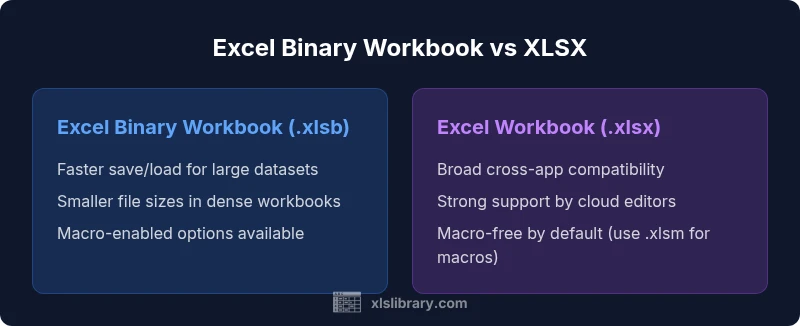
- Faster save/load for very large datasets
- Smaller file sizes in data-dense workbooks
- Macro-enabled options available in binary format
- Better performance for heavy computations inside Excel
- Strong in controlled enterprise environments
What's Bad
- Limited or inconsistent support in some third-party tools
- Not always ideal for cross-platform cloud workflows
- Binary formats can complicate versioning and auditing
- Macro-heavy workflows may require careful security controls
XLSX is the default for broad interoperability; XLSB is best for performance-heavy, macro-enabled workbooks.
The XLS Library team recommends starting with XLSX for general use and adopting XLSB when data size, speed, and automation demands justify the trade-offs. Evaluate your audience, toolchain, and data profile before switching formats.
People Also Ask
What is the main difference between excel binary workbook vs xlsx?
The binary workbook (.xlsb) stores data in a binary format for faster saving and smaller file sizes with large datasets, while the standard workbook (.xlsx) uses a zipped XML structure for broad compatibility. Both formats support Excel features, but packaging changes affect performance and interoperability.
The main difference is packaging and speed: XLSB is faster for big data, while XLSX is more compatible with other tools.
Can I use macros in both formats?
XLSX files do not support macros. If you need macros, use a macro-enabled format such as .xlsm or consider .xlsb for macro-enabled workflows in some scenarios. Always verify macro compatibility with your target environment.
XLSX doesn’t support macros. For macros, use XLSM or XLSB where appropriate.
Which format is best for very large datasets?
For very large datasets, XLSB typically offers faster save/load times and smaller file sizes, making it advantageous in performance-focused workflows. If cross-tool compatibility is critical, XLSX remains a solid default.
XLSB is usually the better pick for very large datasets due to speed and size.
Are there compatibility issues with older Excel versions?
Older Excel versions (pre-2007) are unlikely to read XLSX reliably, and some older environments may not fully support XLSB. If you must share with very old teams, XLSX is the safer choice, or provide a compatible export.
Older versions may struggle with XLSB; use XLSX for broad compatibility.
How do I convert between formats in Excel?
Open the workbook, choose File > Save As, and select the target format (XLSX or XLSB). Verify all content, formulas, and macros after saving, and keep a versioned backup before converting.
Use Save As to switch formats and verify everything after conversion.
Is there data loss when converting to binary?
Typically no data loss when converting between formats, but some features like macros may require a different format to preserve them. Always validate formulas, links, and formatting after conversion.
Conversions usually preserve data, but check macros and links after switching formats.
The Essentials
- Assess data size to decide format first
- XLSX for compatibility; XLSB for performance
- Macros influence format choice (XLSB/XLSM vs XLSX)
- Test conversions before deploying to teams
- Plan for downstream compatibility in cloud workflows